
Choose a Cloud Calendars widget by its layout, not just its size
Two widgets of the same size can answer different questions. Start with the information you need, then choose the layout that presents it clearly. This guide is published by Arte Soft, the developer of Cloud Calendars.
Date and weather have their own layouts
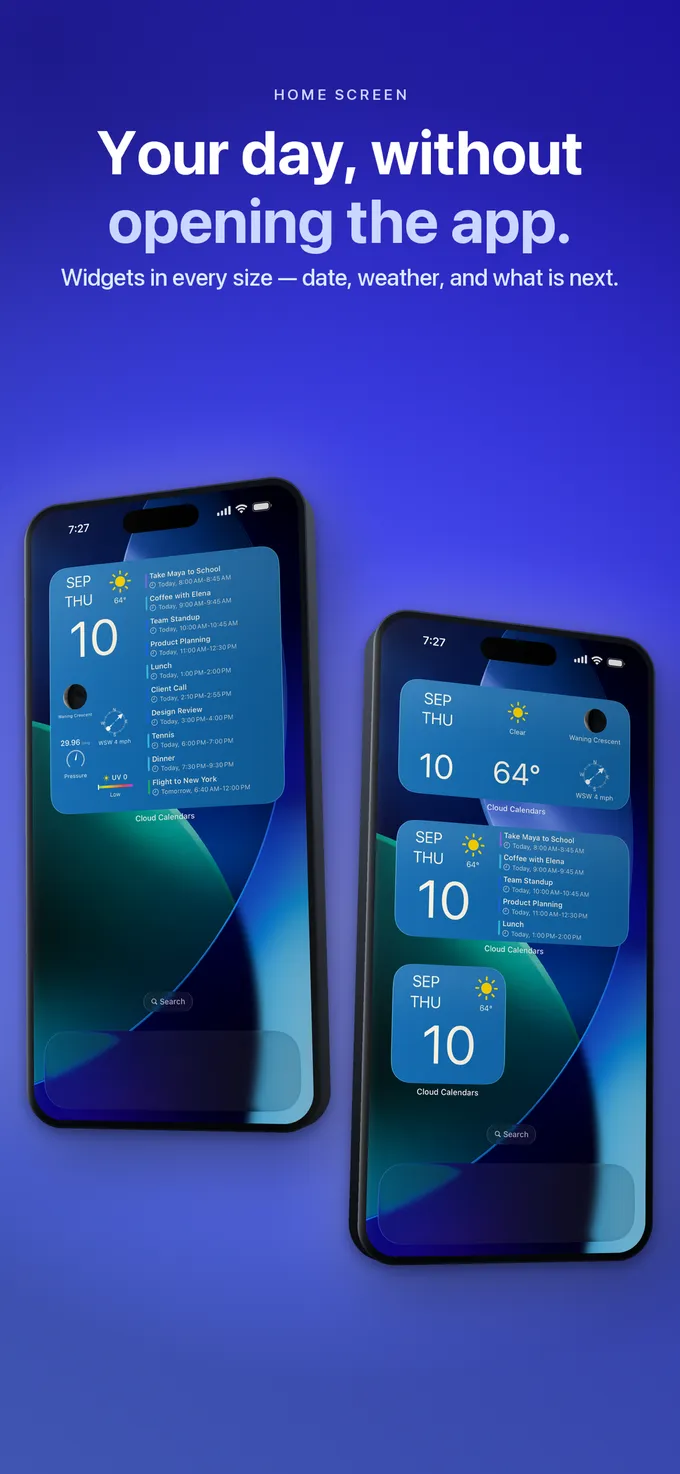
Calendar & Weather is available in small and medium sizes. The small layout emphasizes today’s date and current weather. The medium version adds weather information including moon phase and wind. Neither size should be chosen on the assumption that it is an event agenda.
If your recurring question is simply the date and current conditions, that may be enough. If you need appointment titles, choose one of the event layouts instead of expecting the small tile to gain a next-event row.
Medium and large event widgets are lists
Calendar Events is the medium layout with upcoming appointments beside date and weather. Calendar Events Large gives the list more room and can show up to eleven upcoming events, with the actual visible count depending on available space.
The large layout is not a seven-day grid. Eleven appointments could belong to one busy day or span several quiet days. Read the event dates; do not use the size of the widget as a statement about its time range.
Preview with the titles you actually use
A short sample appointment in the gallery does not tell you how your longest meeting title will fit. After adding a layout, compare a few real, non-sensitive examples: a long title, an early start and appointments on different dates.
Check it at your usual viewing distance while stationary. If you need to bring the phone closer to distinguish dates or titles, try a different layout or use the full app. A denser view is only useful if it preserves the distinction you need to make.
Do not confuse missing rows with lack of space
Changing to the large widget will not make an all-day entry or an already-started appointment eligible for the future-event feed. It also does not restore an unselected calendar or solve a provider sync problem.
If the same appointment is absent from both event layouts, inspect it in the app first. Verify the start time, all-day status and calendar selection. If it is present but the title is difficult to read, that is a layout problem; solve that separately from missing data.
Keep the layout that reduces a real lookup
Try one event layout for a normal day. Notice whether you open the app because you need more detail, because the row is unreadable or because you want the complete schedule. Those are different reasons, and only some are solved by a larger widget.
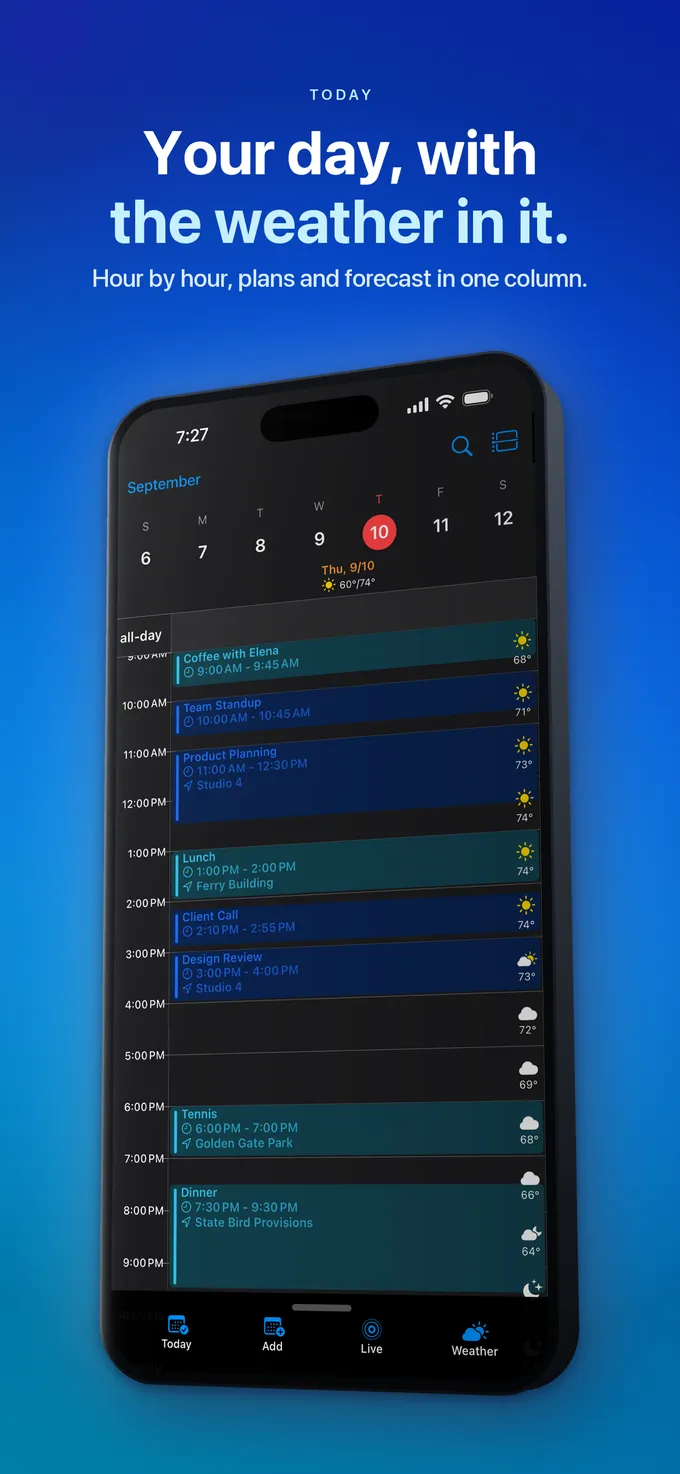
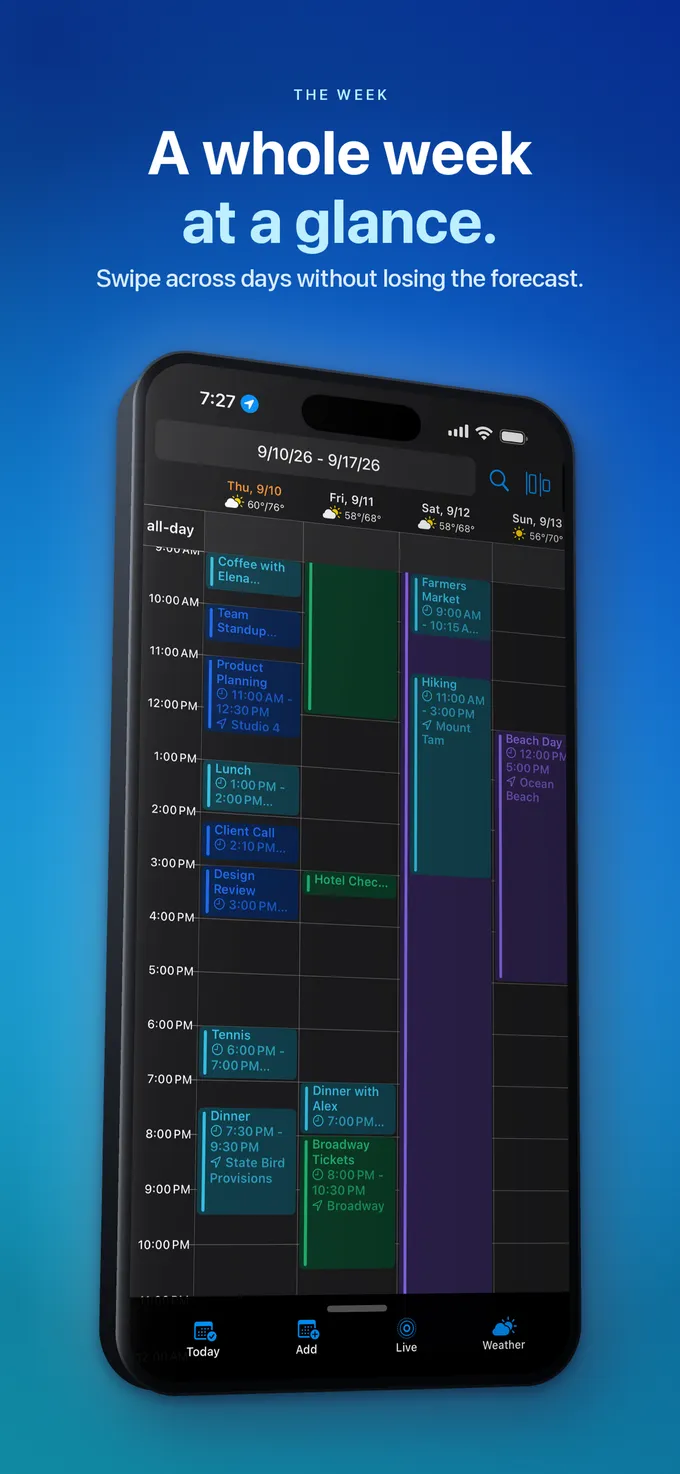
Use the full calendar for week planning and all-day commitments. You can remove a Home Screen widget without deleting the underlying appointments. Apple’s widget guide explains how to add, rearrange and remove the display.
What it looks like
What to do
- Choose date/weather or an event list first.
- Compare medium and large event layouts using actual appointment titles.
- Read dates rather than assuming a fixed day or week range.
- Investigate eligibility and calendar selection before changing sizes.
Questions
- Is the large widget a week view?
- No. It is an upcoming-event list, so its visible dates depend on your appointments.
- Why do two medium widgets look different?
- Calendar & Weather and Calendar Events are distinct layouts with different content.
- Will a larger widget include all-day events?
- No. The upcoming-event feed excludes all-day entries regardless of display size.