
Cozi or TimeTree for an iPhone and Android family? Check sharing and updates
For a family using both iPhone and Android, the first requirement is a shared schedule everyone can actually use. The second is knowing which changes reach the other people. Cozi and TimeTree offer different routes for existing calendars. Arte Soft, the developer of Cloud Calendars, publishes this comparison using the linked product documentation.
Choose the household workflow first
Cozi describes a family organizer available on iPhone, Android and the web, combining a shared calendar with lists and meal planning. TimeTree describes separate shared calendars for groups such as family, school and hobbies. Decide whether you want one household organizer or several group schedules before comparing visual styles.
For a practical trial, choose a fictional pickup and let two adults add and edit it from their own devices. Check where each person sees the latest time and who is responsible. Colour coding and visibility help with planning; neither alone proves that somebody has accepted a last-minute responsibility.
For couples and friend groups, check the group model
A couple may need a small shared schedule while keeping work calendars separate. A friend group may need a calendar for one trip or recurring activity. TimeTree documents calendars for different groups; Cozi presents a household organizer. Choose the membership model that matches who should see each schedule.
Agree who maintains an event and who confirms changes. Keep a dinner plan or holiday schedule in one authoritative calendar rather than having each person circulate a separate imported copy. Sharing access is useful, but it does not prove that every participant has noticed a change or accepted a responsibility.
Understand Cozi’s external-calendar feeds
Cozi’s integration guide describes read-only feeds both into and out of Cozi. An appointment originating elsewhere should be edited at its source. Seeing it inside Cozi does not establish that editing it there will change the original account.
The guide also distinguishes when the source publishes an update from when the receiving calendar checks for it. Do not rely on a subscribed copy as an immediate notification channel. For today’s pickup change, confirm the new arrangement directly as well as updating the authoritative calendar.
Choose the right TimeTree method
TimeTree’s external-calendar help separates displaying a device calendar on Home Calendar from importing it into a shared calendar. Its comparison says display updates automatically but is not shared with others; an import can be shared but does not automatically update.
The same help page says TimeTree events are not automatically reflected in external calendars. Before using an import for a changing school timetable, establish who will maintain the shared copy. Do not assume a successful first import means later changes will keep arriving.
Keep the shared schedule separate from private detail
Create a small family-facing schedule with only the information needed for coordination. “Unavailable until 18:00” may be sufficient instead of a full work-meeting title. Confirm the members of a shared calendar and the access of a person newly invited to it.
For a school schedule, use the provider-approved sharing route and avoid publishing private feed addresses in a public group or profile. If a work account has restrictions, follow those restrictions rather than exporting its contents merely to make a family app more convenient.
Decide where Cloud Calendars fits
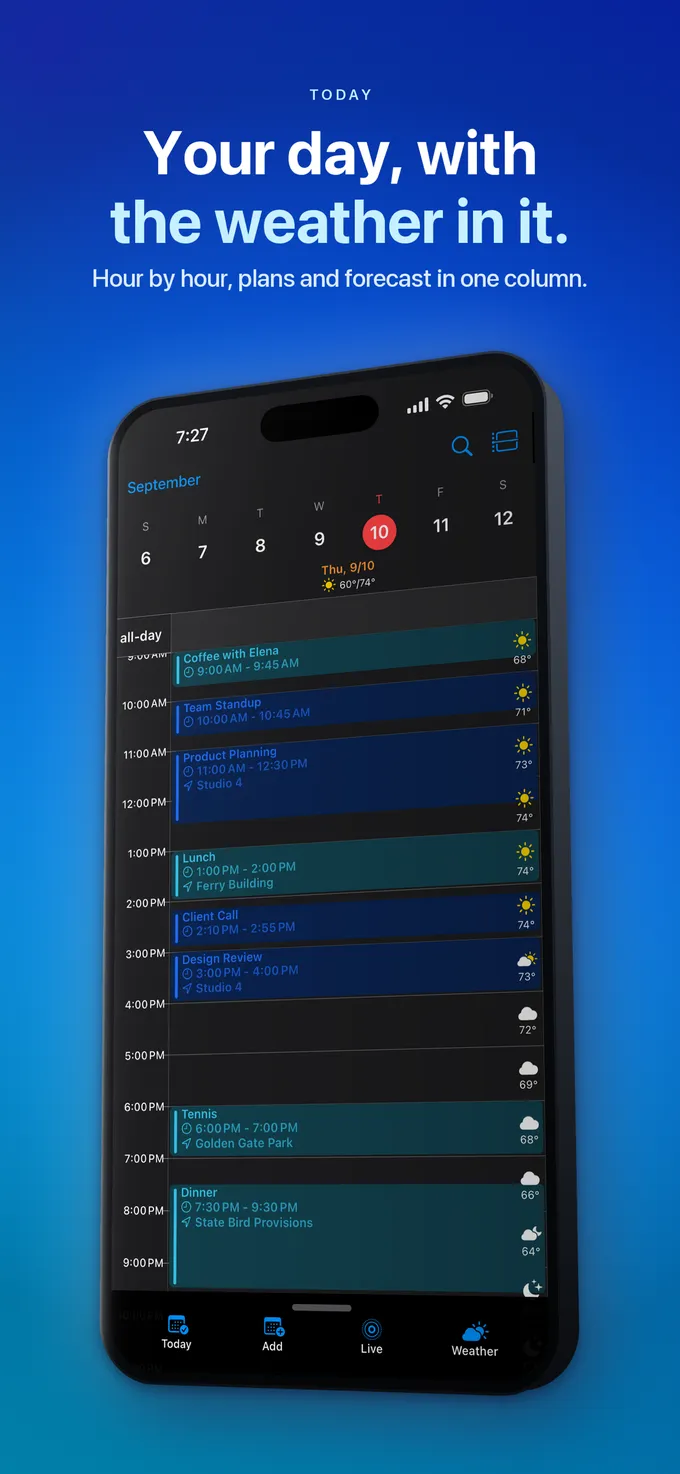
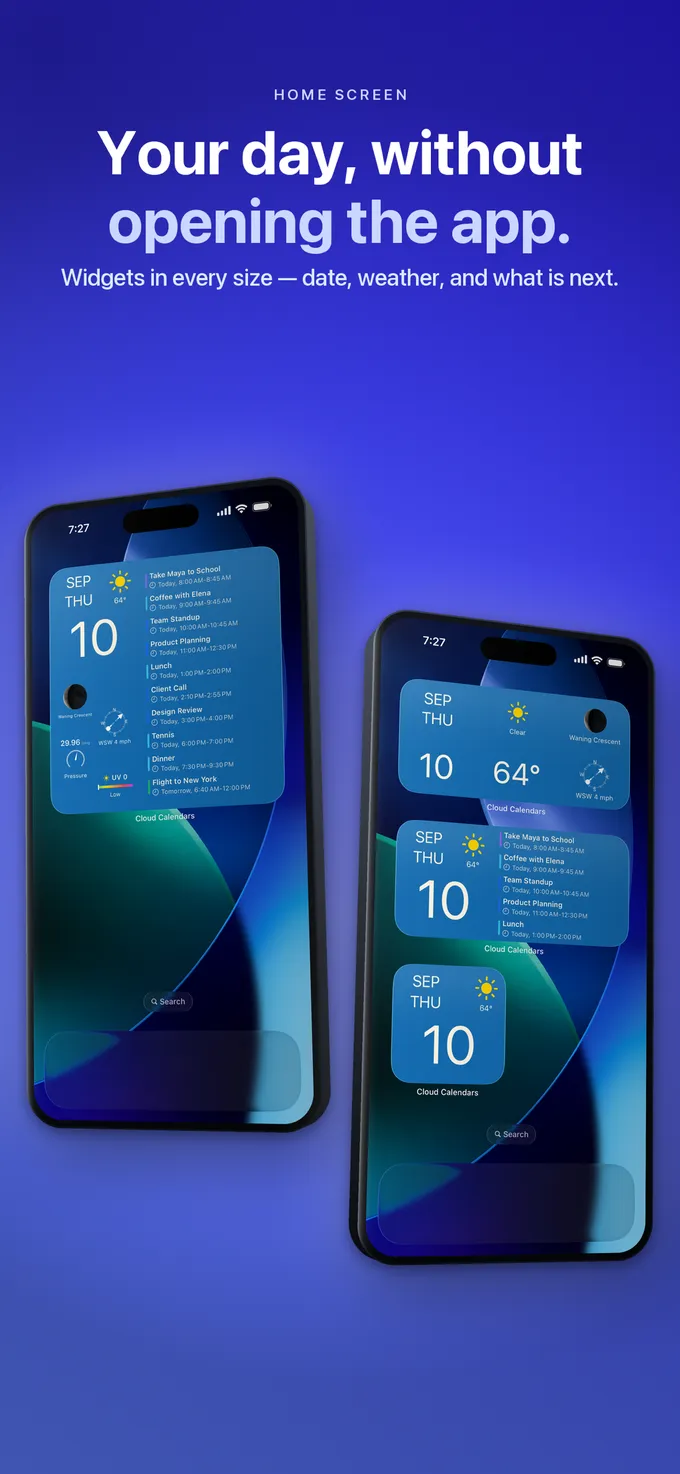
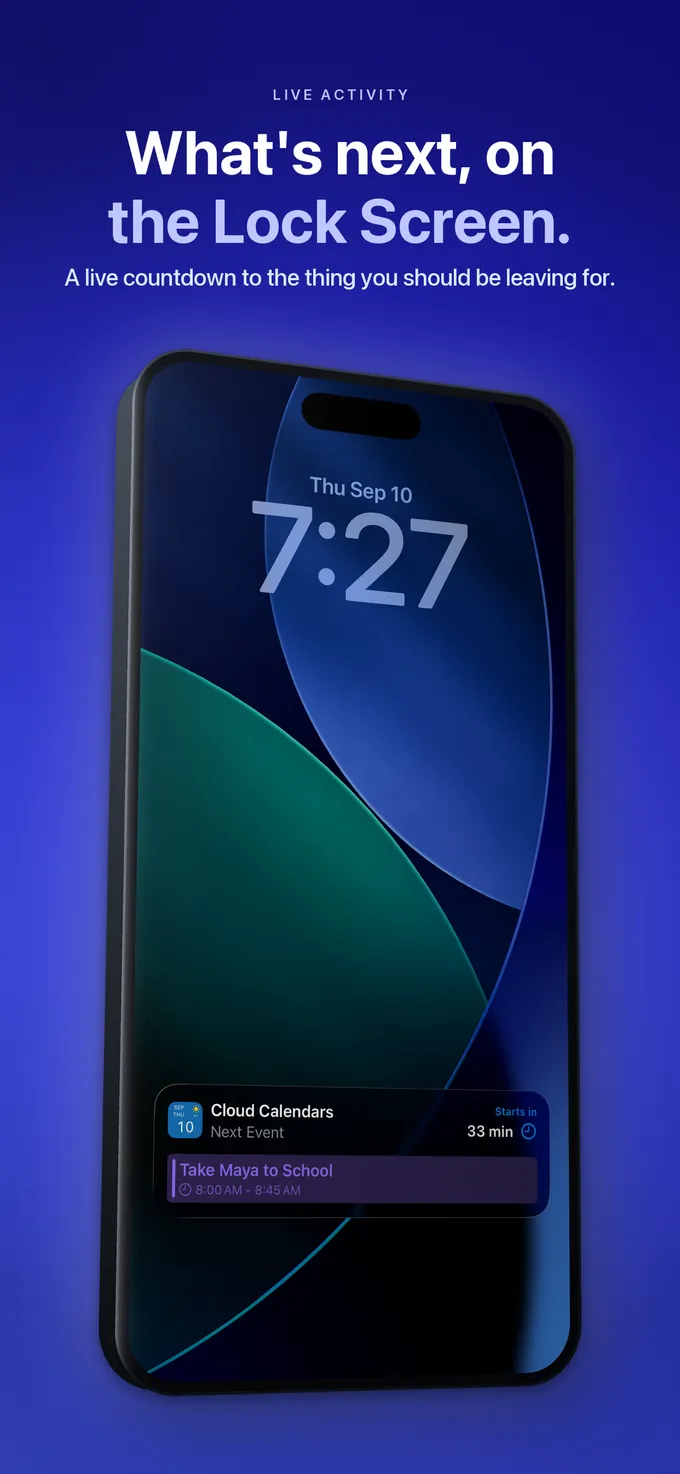
Cloud Calendars is an iPhone and iPad planning app with selected calendars, multiple views, weather and widgets. It is not an Android calendar client. If everyone must edit inside the same app on iPhone and Android, evaluate a product that supports both devices.
An iPhone user may instead keep an existing shared provider calendar and review it beside personal commitments in Cloud Calendars. Check membership, provider permissions and the actual change path. This is different from promising the same native app experience on every household device.
Test a change before moving the household
Run one addition, one time change and one cancellation using harmless example events. On each phone, inspect the intended calendar rather than a similarly named copy. Keep a note of where edits must be made and how urgent changes are confirmed.
Review current local plan requirements for the views, notifications and other features your family needs. A free download does not imply every feature is included. Keep the previous schedule available until everyone can find and update the new one.
What it looks like


What to do
- Confirm that every participant’s device is supported.
- Choose one authoritative shared schedule.
- Distinguish a live display, read-only feed and imported copy.
- Test an edit and cancellation from both phones.
- Agree who owns each pickup and how an urgent handoff is acknowledged.
Questions
- Does importing an external calendar into TimeTree keep it updated?
- TimeTree’s current help says shared-calendar imports do not auto-update. It describes a separate Home Calendar display method that updates but is not shared with others.
- Can I edit a Google event through a Cozi read-only feed?
- The documented feed is read-only. Make the change in the originating calendar and allow for the receiving calendar’s refresh behaviour.
- Can everyone use Cloud Calendars on Android?
- Cloud Calendars is for iPhone and iPad. For a household requiring one native app on both iPhone and Android, compare cross-platform alternatives such as Cozi and TimeTree.