
Calendar list view on iPhone: read the agenda and check what is missing
An agenda list is useful when the immediate question is what happens next. Read its day headings and times before treating neighbouring rows as a complete picture of your availability. This guide is published by Arte Soft, the developer of Cloud Calendars.
What most people assume
Consecutive rows are consecutive free slots, and the list is an unlimited archive of every event.
Start with the day heading, not just the next row
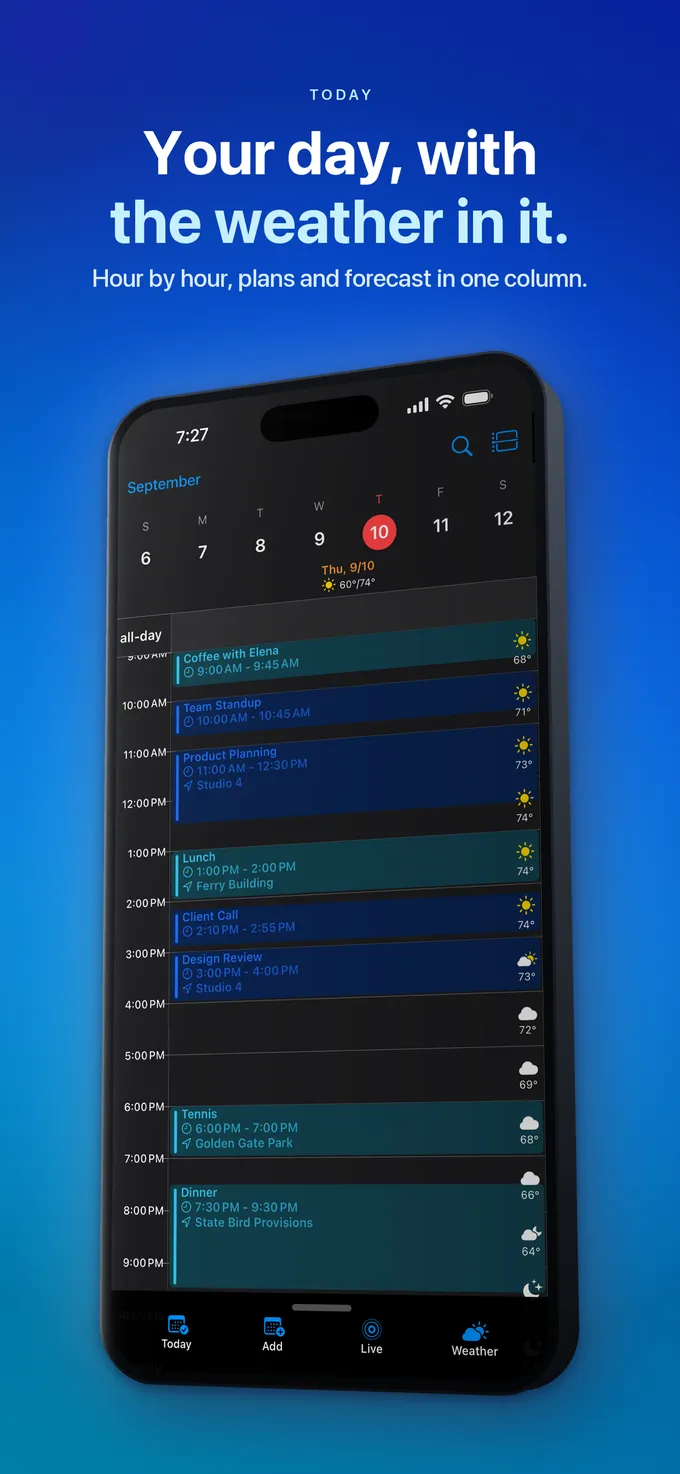
Cloud Calendars groups the events in its list by day and orders each group by start time. Read the date heading as well as the time. Two adjacent rows can belong to different days, and an unfamiliar older date is not necessarily a duplicate of today’s meeting.
For a morning appointment followed by an evening reservation, the list is a convenient reading order. It does not show the space between them to scale. Open the details if you need the end time, address or calendar before deciding what fits in between. If a record does not open from the list, locate it in another calendar view rather than creating another copy.
Switch to an hour grid when overlap is the question
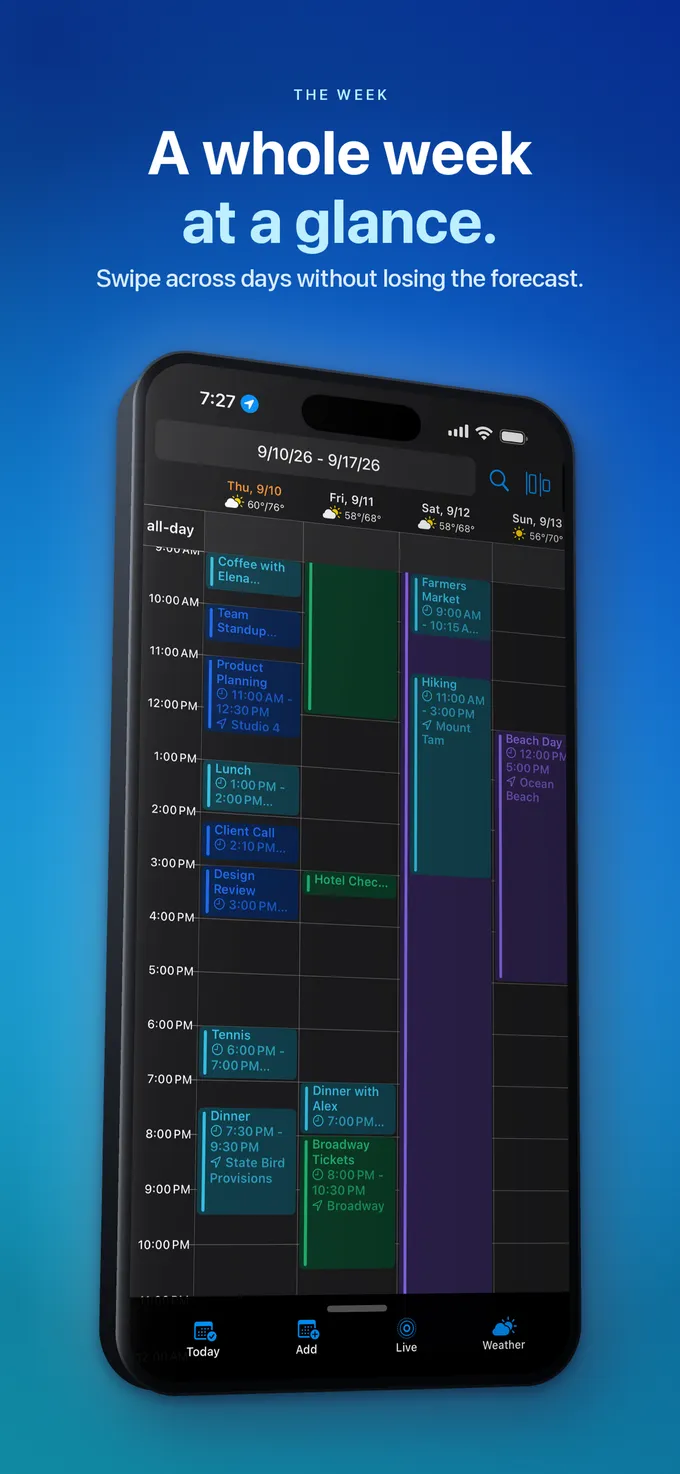
A list can put two overlapping meetings one after the other because it is sorted by start time. That order does not mean the first has finished when the second begins. Compare both start and end times or use a day or week grid to see the overlap.
For example, a 10:00 appointment ending at 11:30 and an 11:00 call remain a conflict even if their rows are tidy. Do not shorten the first event merely to improve the display; confirm the real arrangement before editing either commitment.
Check the date range before calling an event missing
The Cloud Calendars list loads more events as you move towards its date edges. That is different from a guarantee that every old or future appointment has already been retrieved. Account sync and what the list has loaded are separate checks.
If you need a particular appointment, note its account, calendar and approximate date. Compare that date with the provider’s own view and use the search guidance rather than repeatedly scrolling without a target. Do not delete and reconnect the account just because an old row is absent.
Inspect long and all-day events in their details
The list groups records by their start date. An event spanning several days needs its start and end checked explicitly; do not infer that each affected date must have a separate row. The absence of a repeated label is not evidence that a trip or other commitment has ended.
Likewise, an all-day event and an event at midnight are different records. Open the appointment to inspect its type and intended dates. When travelling, verify the local date and time rather than treating the row position as a time-zone conversion.
Separate calendar records from reminders and actions
Use an agenda to read appointments, then confirm what action they require. A calendar entry called “Call supplier” is not proof that the call happened. Attending a meeting, receiving an invitation and completing work are distinct facts.
If a row is missing, check calendar selection and the original record. If its notification was absent, use the notification checks instead. A visible agenda row does not establish that a reminder was enabled or that a participant received an update.
Choose the view for the task rather than importing another app’s controls
Apple Calendar describes both day-based and upcoming-event lists. Teamup documents its own grouping, range and browser/mobile differences. These are useful comparison questions, not evidence that Cloud Calendars exposes the same menus or export options.
Use list view for reading the sequence, day or week for comparing hours, and month for comparing dates. Before changing a real shared or repeating appointment, open its details and establish the edit scope. Keep the owning calendar clear when asking someone else to confirm the arrangement.
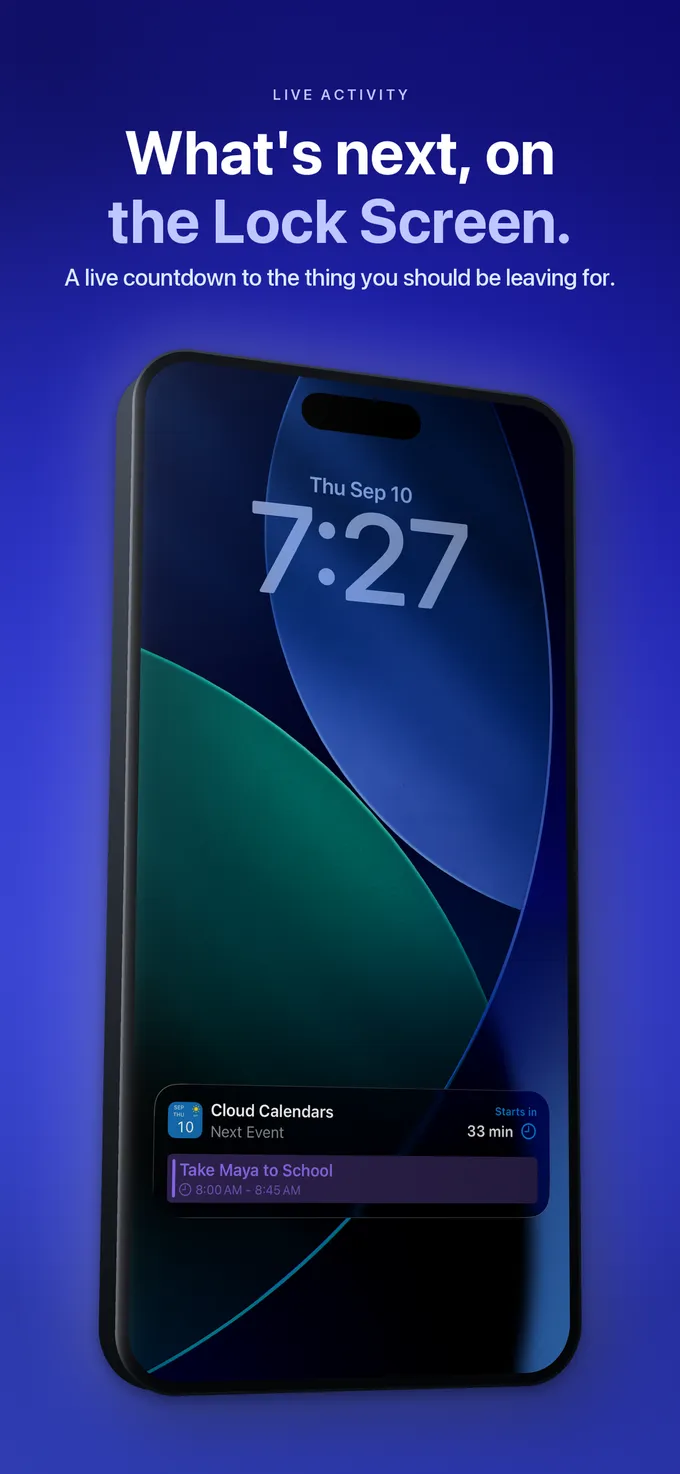
What it looks like
What to do
- Read the day heading and exact time for each row.
- Open details for duration, calendar and location.
- Use day or week view to inspect overlapping hours.
- Check the account and relevant loaded dates for a missing record.
- Inspect the start and end of all-day or multi-day events.
- Treat notification delivery and completion as separate checks.
Questions
- Do consecutive agenda rows prove the events do not overlap?
- No. Start-time sorting is not a duration chart. Compare both events’ start and end times or use an hour grid.
- Does scrolling the list search all my history?
- Do not assume unlimited loaded or synchronized history. Establish the account and date, compare the provider and use the search guide.
- Must a multi-day event appear as a row on every day?
- Do not assume that. The list groups by the record’s start date; open the event to check its full interval.