
Week calendar on iPhone: compare hours without overlooking commitments
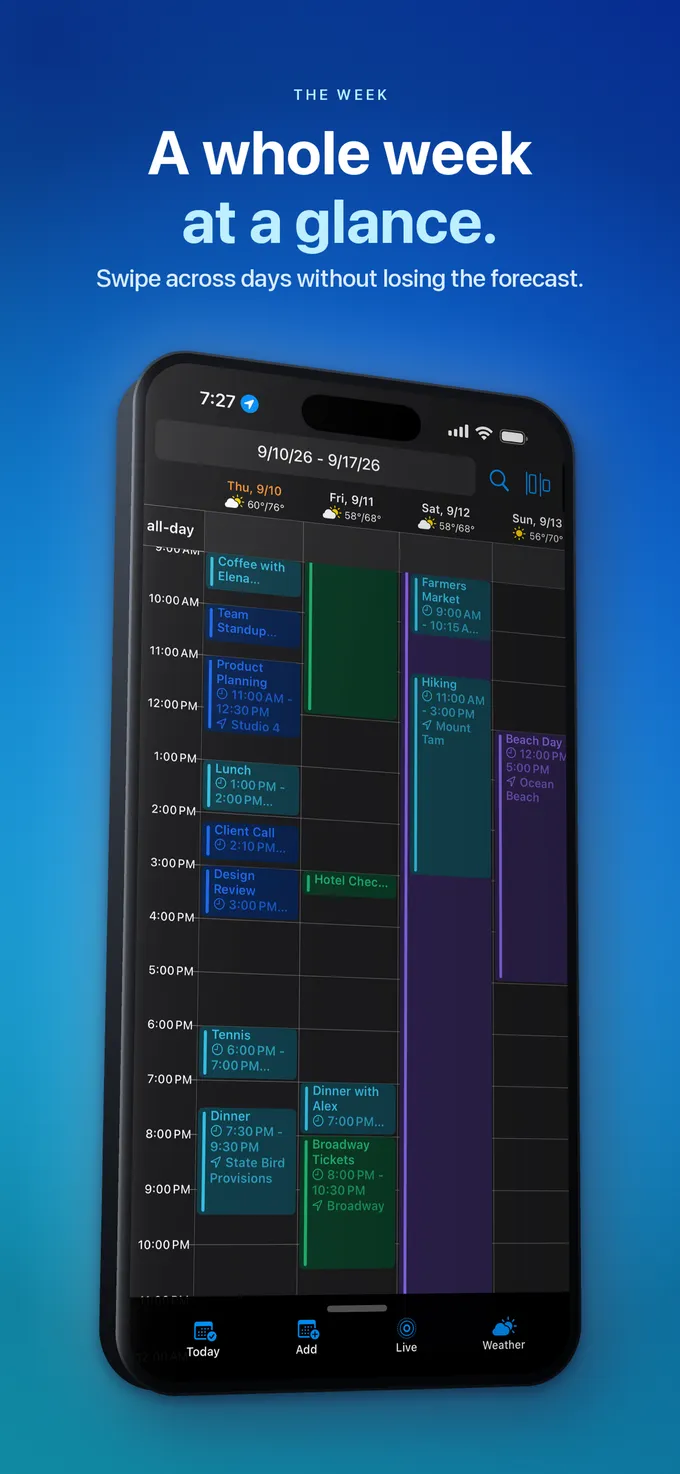
A week grid helps compare when commitments begin and end. Start with the dates and calendars it represents, then use the details when a small block or shortened title leaves a question unanswered. This guide is published by Arte Soft, the developer of Cloud Calendars.
What most people assume
Every visible gap is available time, and every commitment appears as a timed block.
Check which week and calendars you are reading
Read the date range and day labels before placing an appointment. A selected range is not necessarily the week you had in mind. Check that the work, family or other calendars relevant to this decision are selected, rather than assuming every connected calendar is currently visible.
For example, a personal view may hide a work calendar to reduce clutter. The clear afternoon it shows does not establish that the work schedule is empty. Bring the relevant calendars into view before offering the slot, and confirm the account behind an unfamiliar colour.
Separate the first weekday from other date-display settings
If two calendar views begin on different days, compare their date headers before changing an appointment. A fixed week beginning on Monday or Sunday is different from a rolling view beginning today or on a selected date. Check the settings offered by the app and version you are using, then reopen the view to verify its actual range. Do not move events merely to make two grids look alike.
Apple documents these choices in Settings > Apps > Calendar: Start Week On chooses a weekday, while Week View Starts On Today changes the week-view starting point. Fantastical likewise separates Start Week On from Start Week View On. These are instructions for those applications; changing an Apple Calendar display preference does not establish that every other calendar app will adopt it.
Week numbers are another setting. Apple documents Week Numbers, and Fantastical documents Show Calendar Weeks with an optional custom starting date. If a colleague asks for “week 12,” confirm the year and actual start and end dates, especially when comparing different systems or a range near New Year. Choosing Monday as the first column does not by itself establish which week-numbering convention is in use.
Alternate date labels are also different from calendar accounts. Apple’s Alternate Calendars setting can show Chinese, Hebrew or Hijri dates alongside Gregorian dates. That display choice is not a connection to another person’s calendar or an import of a holiday schedule. Read the actual event date before agreeing a booking, and do not assume another app offers the same dual-date display.
For a shared plan, write the date range explicitly rather than relying only on a week number or the first column in a screenshot. Check the selected calendars again before offering time. If your installed app lacks a display option you need, consult the relevant provider view and compare the dates; do not treat an unfamiliar label as evidence that the underlying event must be rescheduled.
Use blocks to compare time, then open the details
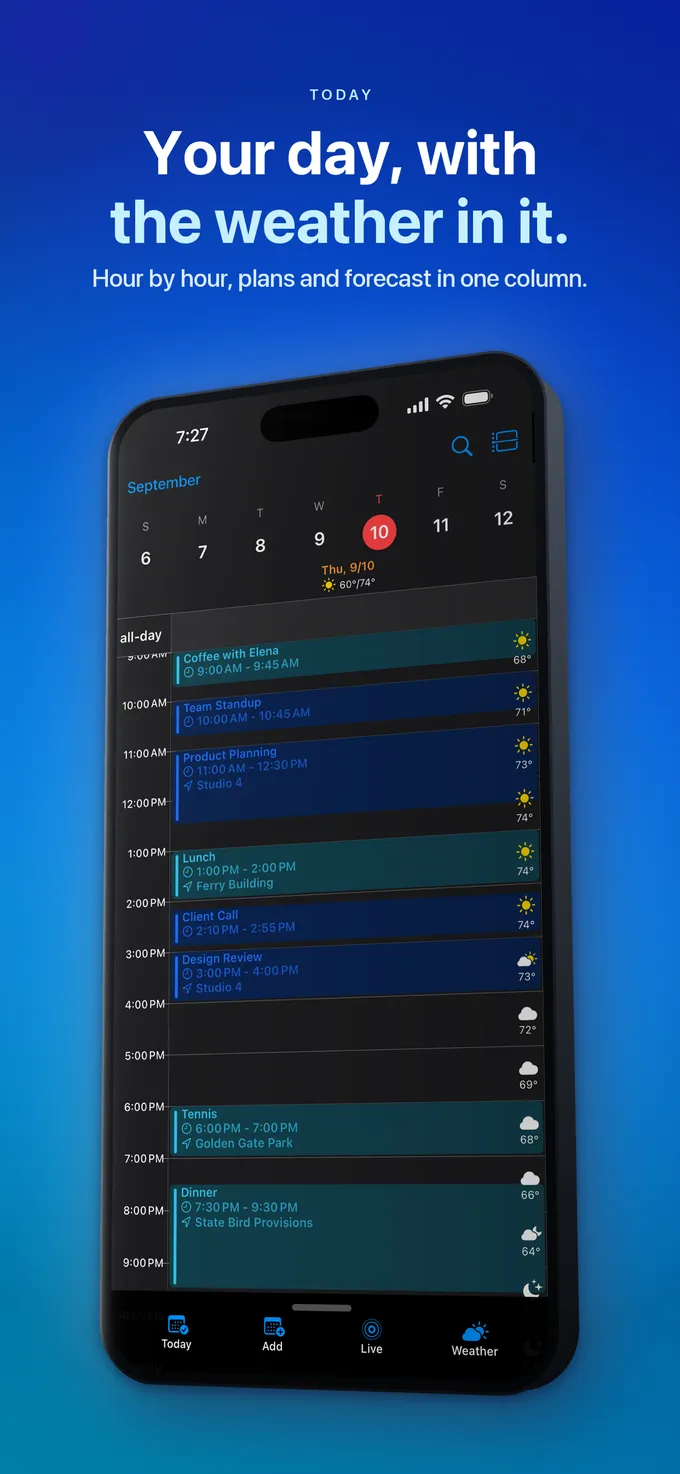
Compare start, end and overlap on the hour grid. A narrow event can be hard to read, so open it to check the full title, location and calendar. Do not infer a precise duration from the apparent size of a small block alone.
If two appointments overlap, first establish whether they are separate commitments or two displays of the same record. Similar titles and matching times do not prove duplication. Temporarily hide one calendar to identify the source instead of deleting an invitation to clear the grid.
Read all-day events separately from the hourly gaps
Cloud Calendars separates all-day events from timed events in its multi-day display. Inspect that area as well as the hour columns. A holiday, trip or all-day commitment can matter even when the timed grid looks empty.
An all-day label does not by itself tell you which hours you can offer to someone else. Open the event and understand its actual meaning. For travel over several days, check the start and end dates rather than assuming a single visible label describes every affected day.
Include the parts of the plan that are not yet appointments
A calendar can only display the information available to it. A journey, preparation or recovery period may need its own agreed block if it affects a booking. Seeing space between two saved meetings does not establish that you can travel between their locations in that interval.
For a workshop after an existing appointment, write down the real travel and setup requirements before choosing a start. This is a planning method, not a claim that Cloud Calendars automatically calculates travel buffers or reserves time in colleagues’ scheduling systems.
For a confirmed shift from Monday at 22:00 to Tuesday at 06:00, record a timed event with Tuesday explicitly set as the ending date. Reopen the saved event to check both dates, times, calendar and relevant time zone. A Monday label alone does not communicate the Tuesday finish. Before offering a Tuesday morning appointment, allow for your actual journey home and recovery needs. Use the employer’s confirmed rota for the shift itself. If it repeats, follow the recurrence guide below and use a rule only when it matches that rota; a personal calendar change does not approve a shift swap.
Switch to a closer view before a consequential edit
If the selected range needs more space than the viewport, Cloud Calendars can scroll the day columns rather than squeeze them all into view. Check the day labels as you scroll. Open the day or the event details when a particular commitment needs closer inspection.
Before dragging or resizing an event, check its calendar, intended local time and repeat scope. After saving a permitted change, reopen it and verify the result. A successful-looking gesture does not prove that the owning service and every participant have accepted the new arrangement.
Keep view controls and weather coverage in context
Apple Calendar and Teamup document their own week-view controls. Teamup also distinguishes browser configuration from mobile views. Those instructions do not establish the same controls inside Cloud Calendars; choose the view from the app you are actually using.
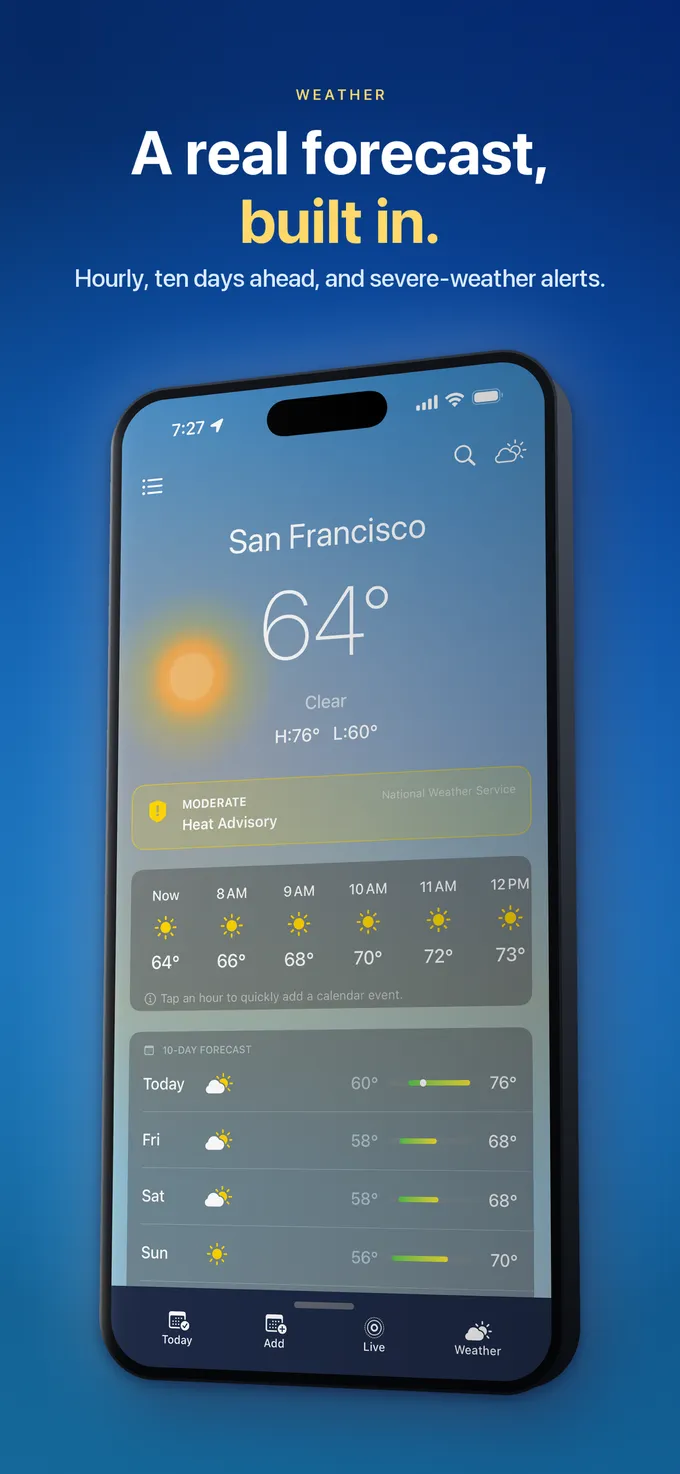
A week of appointments is not a guarantee of complete weather information for every day or place. For an outdoor slot, check the selected forecast location and available date and hours separately. Then communicate the final arrangement through the agreed channel.
What it looks like
What to do
- Check the date range and selected calendars.
- Compare the actual date range, first weekday and any week-number or alternate-date labels before relying on a screenshot or a numbered work week.
- Read exact start and end times when a block is unclear.
- Inspect all-day commitments as well as timed events.
- Account for real travel and preparation before offering a gap.
- Confirm editing permission, local time and recurrence scope.
- Reopen the saved event and confirm important changes directly.
Questions
- Does a blank part of the week mean everyone is free?
- No. It reflects the calendars and information currently displayed. Check hidden commitments and confirm availability with the people involved.
- Why can a week look empty despite an all-day commitment?
- All-day events are displayed separately from timed blocks. Inspect that area and open the event before offering the time.
- Should I drag an event whose title I cannot read?
- Open its details first. Confirm its identity, calendar, time and intended edit scope before changing it.
- Does starting the week on Monday also set the week numbers?
- Do not assume that. The first weekday, rolling-view alignment and week-number labels are separate choices in the documented Apple and Fantastical workflows. Confirm the displayed dates and the convention used by the person sharing the plan.