
iPad family calendar display or dedicated hardware? Compare the update workflow
An existing iPad can show a household schedule, but a calendar app and a dedicated family display solve different parts of the problem. Decide who edits the plan, where it is displayed and how changes reach that screen. Arte Soft, the developer of Cloud Calendars, publishes this guide.
Start with the household schedule, not the screen
Choose one authoritative calendar for the plans everyone needs. A useful trial includes an afternoon pickup, an appointment and a changed start time. Check whether the intended person can read the screen from its normal position and whether they know where to make corrections.
A wall display is often a shared viewing surface, while a phone is a personal editing device. Agree who maintains each event and how urgent changes are acknowledged. The fact that a schedule is displayed in the kitchen does not prove that everybody has seen its latest revision.
Use an iPad app for an interactive planning view
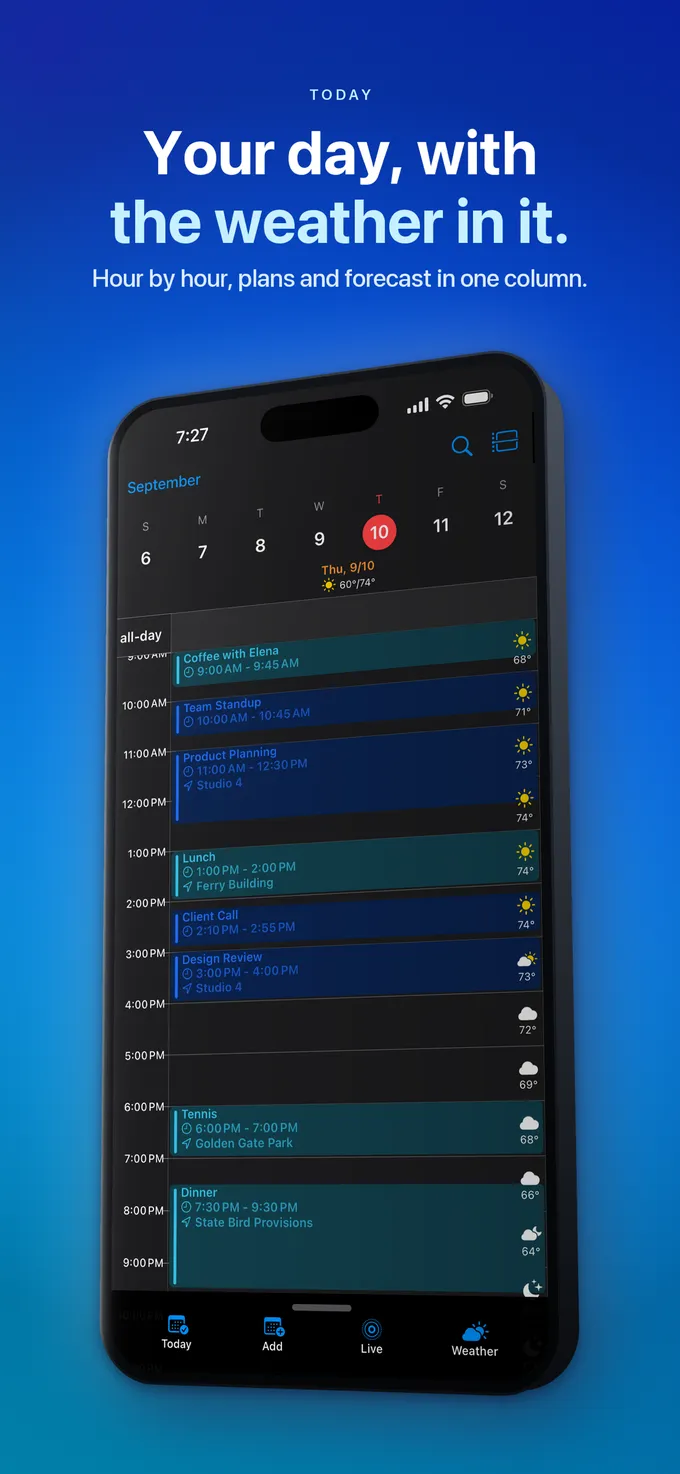
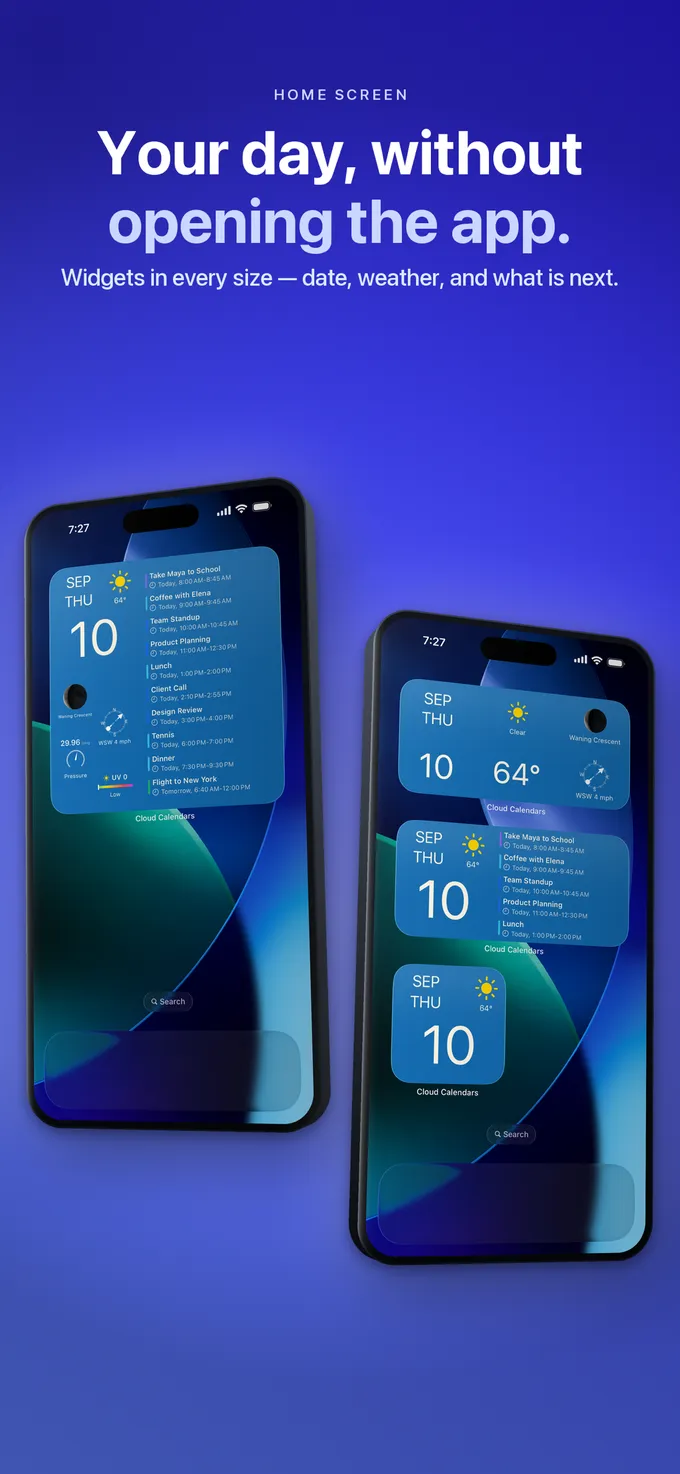
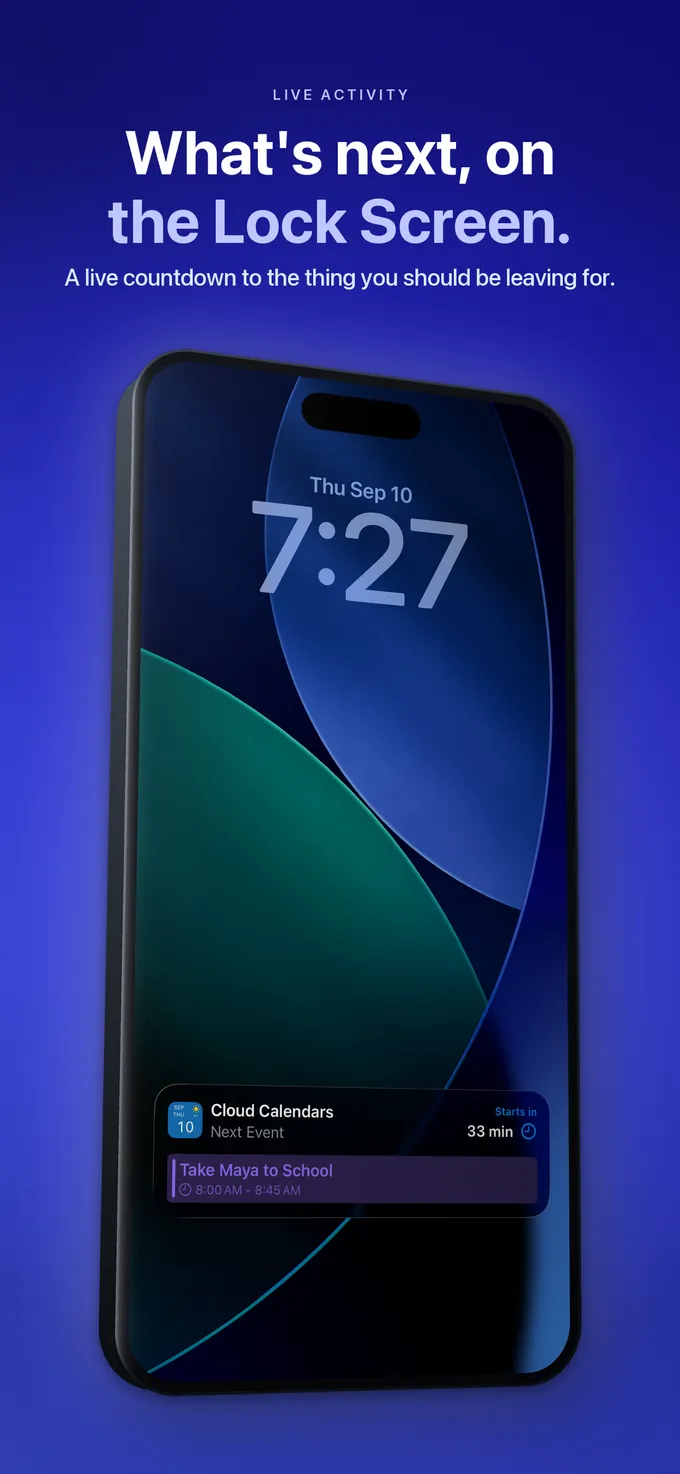
An iPad calendar app can let you inspect a day, week or month and open event details. Cloud Calendars offers those planning views alongside selected calendars, weather and widgets. It is an app for iPhone and iPad, not a promise of a dedicated always-on household kiosk.
Before repurposing a tablet, try the actual app in its intended orientation. Check text size, the calendars selected, charging arrangements and what happens when the device locks or another person uses it. Keep private appointments out of the family-facing view unless the household needs those details.
DAKboard: check the browser and refresh route
DAKboard publishes an iPad setup guide that links a tablet browser to a configured display. It warns that older iPads whose browsers can no longer be updated may not display its screens correctly. Verify compatibility on the tablet you already own before buying a mount or another device.
Its refresh guide distinguishes subscription-dependent calendar collection intervals from the display’s own checks and cached content. It also says Google ICS links can update more slowly than direct Google connections. Treat a display refresh and a newly retrieved source calendar as separate stages.
Skylight: distinguish one-way and two-way connections
Skylight’s current sync guide documents both directions, with availability depending on the calendar service. It lists two-way routes for Google and iCloud and one-way routes for services including Outlook, Yahoo and Cozi. Check the exact route you intend to use, not just a logo on a compatibility list.
With a one-way route, a change on the display should not be assumed to update the original calendar. For a two-way route, verify a disposable edit at the source as well. A dedicated screen may simplify where the family looks, but it does not remove the need to understand event ownership.
Test the change that will matter on a busy day
Move the harmless pickup example by fifteen minutes at its owning source. Check when the screen shows the new time, then inspect a second phone. If supported, make another harmless edit from the display and verify which original account receives it.
Record whether the screen shows an imported copy, a subscribed feed or a connected account. Keep the example separate from real invitations and remove it using the ordinary owner controls afterwards. For an urgent pickup change, use an agreed direct message or call as well as updating the calendar.
Compare the whole setup before deciding
Include any hardware, stand, mount, power arrangement and ongoing plan in the comparison. Check whether the functions you need remain available without a trial. An existing tablet can be worth testing first, but its age and browser support may limit the result.
Choose an iPad app if the household mainly needs an interactive planning view. Evaluate a display service or dedicated device if a fixed shared screen is the priority. Keep the calendar source and member permissions clear whichever screen you choose.
What it looks like


What to do
- Choose one authoritative household calendar and an editor for each event.
- Test the existing iPad in its real viewing position.
- Check the connection direction and source-refresh behaviour.
- Verify a harmless edit from the source and, if supported, from the display.
- Compare the full setup and ongoing plan before replacing anything.
Questions
- Can an iPad replace a dedicated family calendar display?
- It can provide a shared calendar view or run a compatible display service. Test readability, browser support and everyday device behaviour; an app is not automatically an always-on kiosk.
- Does Skylight sync every supported service both ways?
- Its current guide distinguishes one-way and two-way routes. Google and iCloud have documented two-way options; other listed routes can be one-way.
- Why does a display still show an old appointment?
- Check the original calendar, connection type, source collection and display refresh. A feed or cached display may update on a different schedule from the source app.