
Natural-language calendar events on iPhone: enter quickly, check before saving
Typing “dentist next Friday at 3” can be faster than opening several fields, but the useful result is a correctly saved appointment. Natural-language parsing, dictation and copying an event are different shortcuts. This guide is published by Arte Soft, the developer of Cloud Calendars.
Check what the input method actually does
Natural-language entry converts a sentence into structured event details. Dictation first turns speech into text; the field receiving that text still determines whether a date becomes an event time or remains part of a title. A template starts from previously chosen details instead of interpreting a new sentence.
Fantastical’s iOS guide explicitly documents natural-language entry for events and tasks. It also describes choosing a calendar using a slash followed by its name. These are Fantastical-specific instructions, not commands that every iPhone calendar app understands. Check the help for the app in which you are entering the event.
Use an explicit example to test the preview
Try a harmless example: “Equipment check on 6 November 2026 from 15:00 to 15:40.” Before saving, inspect the date, start, end, title and destination calendar. The example uses an explicit date and end time so you can see what the parser actually extracted.
Next test the shorthand you normally use, such as “next Friday” or “3–4”. Compare the preview with your intended date and AM/PM choice. If the interpretation differs, edit the structured fields. A quick-entry feature saves time only when you can notice and correct an ambiguous interpretation.
Review participants and recurrence separately
Names in a sentence may be part of a title or may trigger a contact suggestion. Before saving a real meeting, inspect the attendee field and the chosen address. Do not use an important customer invitation as your first parser test.
For recurring appointments, check both the interval and the end condition. “Every other Tuesday” is different from twice a month, and a title containing the word “weekly” does not prove that recurrence was configured. Preview several dates in the calendar after saving a private test event.
Choose a template or copy for a familiar appointment
If most details stay the same, a template may be more convenient than rewriting a sentence. Fantastical documents creating a template from an existing item and reviewing its details before adding a new event. Keep the changed date, location and participants in the review rather than assuming a template is safe unchanged.
Apple’s Calendar guide documents copying an event and pasting it at another date, where a new-event screen lets you review the copied details. That is a separate workflow from editing the original meeting. Confirm whether you are creating a new appointment or changing an existing one before notifying anyone.
Keep manual entry available
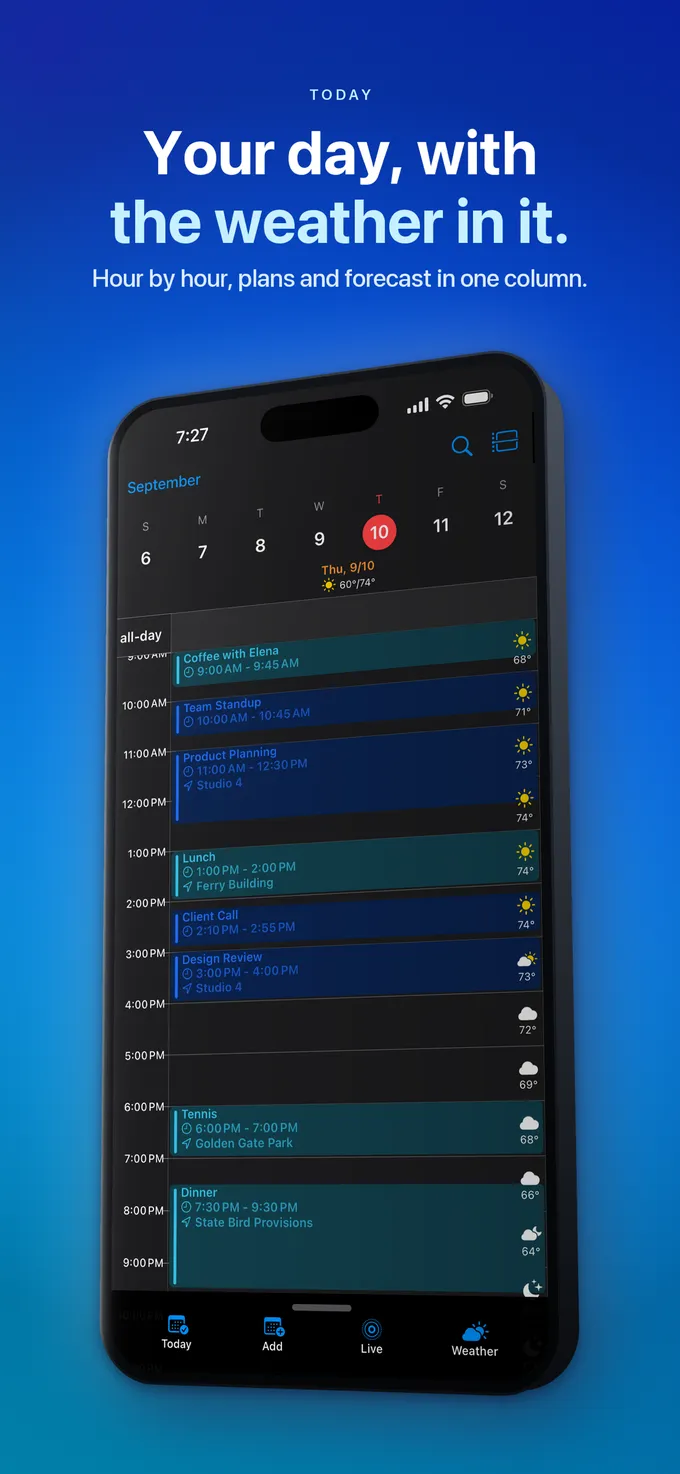
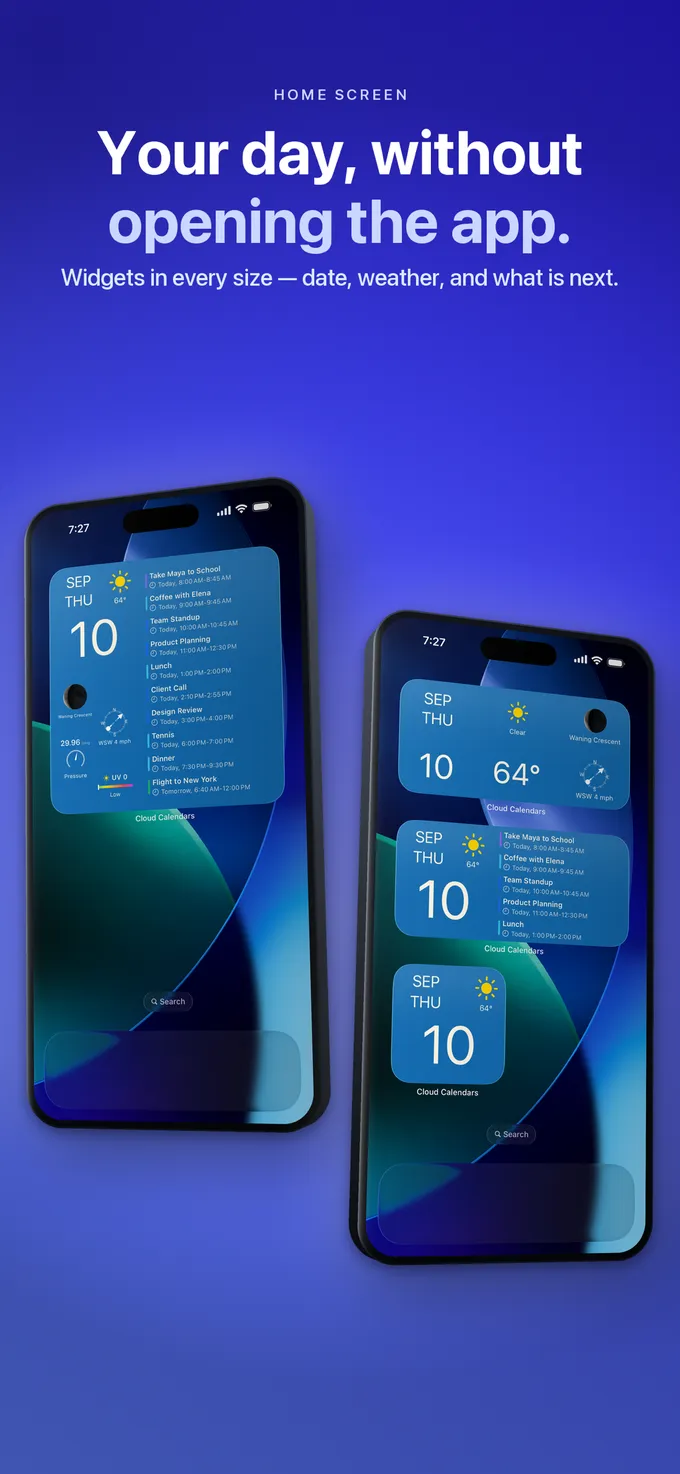
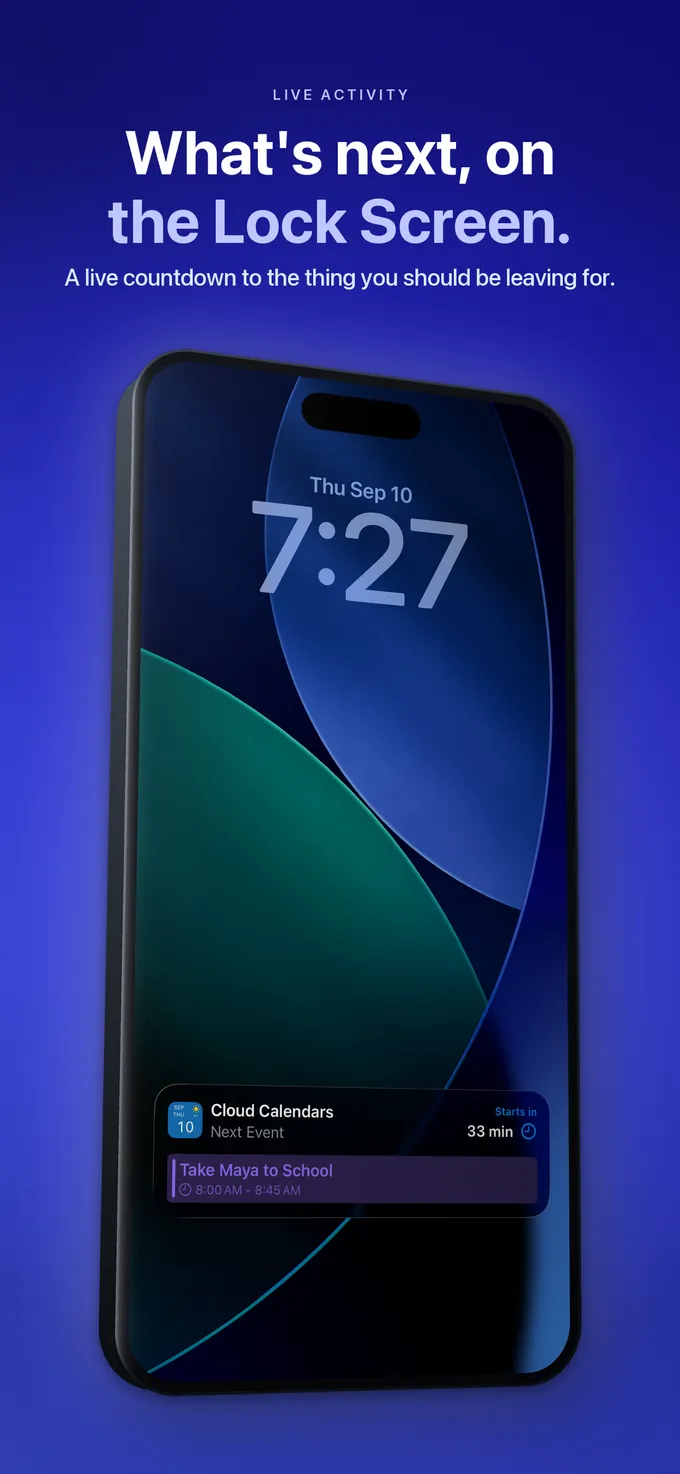
Cloud Calendars offers event editing alongside day, week, month, year and list planning views. Use the explicit event fields for the date, time and calendar you intend. This article does not promise Fantastical’s sentence parser or template commands in Cloud Calendars.
For a practical comparison, enter the same private appointment using the methods available in each app. Compare the saved result, the corrections needed and how easily you can check it. A faster typing experience is useful; reliable calendar selection and an obvious confirmation screen matter just as much.
What it looks like


What to do
- Identify whether the feature parses a sentence, dictates text or copies saved details.
- Test with a private event using an explicit date and start/end time.
- Inspect the destination calendar, participants and recurrence.
- Check the saved appointment in the calendar view.
- Use structured fields when shorthand is ambiguous.
Questions
- Does dictating a sentence automatically schedule it?
- Not necessarily. Dictation enters text; the app and field receiving it determine whether event details are parsed. Check the structured event preview before saving.
- Can I use Fantastical’s slash-calendar syntax in every app?
- No. Its help documents that syntax for Fantastical. Another app may use different controls or require explicit field selection.
- Is copying an event the same as rescheduling it?
- No. A copy can create a new appointment while the original remains. Review the operation and the saved calendar before changing an existing commitment.