
Recurring calendar events: change one date or the series safely
Before changing a repeating appointment, decide exactly which dates should change. Then verify that the editor offers that scope. This guide is published by Arte Soft, the developer of Cloud Calendars.
What most people assume
Every calendar editor asks whether a change applies to one occurrence or the whole series.
Describe the change before opening the editor
“Move next Tuesday’s lesson by one hour” is a one-occurrence change. “Starting next month, lessons are on Thursdays” changes a future schedule. “Correct the room for every meeting” may have a broader scope. These are different requests even when they start from the same event details screen.
Note the selected occurrence’s date and the surrounding dates that should remain unchanged. A short before-and-after list makes it easier to check the saved result. Do not use a real series to discover what an unfamiliar Save button does.
Check the calendar and your authority to edit
Find the calendar that owns the event and whether you are the organizer, an editor or a guest. Seeing a shared series does not by itself grant permission to change its schedule. Google documents guest modification as a permission the organizer can grant; viewing an invitation and managing it are different capabilities.
In Cloud Calendars, check that the destination calendar permits editing. An attendee’s ability to see a meeting does not mean they can change the organizer’s invitation. If you cannot make the intended change, ask the organizer rather than creating a competing invitation.
Check the scope before saving in Cloud Calendars
The Cloud Calendars editor includes repeat patterns and an End Repeat setting. Those controls define a schedule; they are not the same as choosing which occurrences an edit affects. Changing an existing repeating event can affect future occurrences. Do not use a change to the repeat rule as a substitute for a one-date exception.
Before saving a one-date exception, look for an explicit choice that limits the change to that occurrence. If your editor does not offer that scope, use the original event in its owning provider’s supported editor. Then check the affected date and surrounding dates in both places. Local calendars and connected providers need not handle series edits identically.
Use a supported scope, then check representative dates
Google Calendar’s computer instructions say to edit the recurring event, save and choose which events in the series receive the update. Read the actual choices shown for that event rather than assuming every provider uses identical labels or supports identical changes.
Apple’s Mac Calendar guide separately documents repeat frequency, custom patterns and when repetition stops. Those are Apple Calendar controls. Whichever supported editor you use, inspect the changed date, an earlier date that should remain unchanged and the next ordinary occurrence. For an invitation, also check the organizer’s saved event rather than treating a personal display change as confirmation that everyone’s meeting moved.
Preserve exceptions and choose end dates deliberately
A moved appointment or a skipped week is a reason to inspect an existing series before changing its rule. Record important exceptions first and check them afterward. It is not accurate to promise that every series edit preserves exceptions, or to claim that every edit automatically erases them: the result depends on the operation and provider.
Use a known final date for a course or temporary rota when that matches the real schedule. An ongoing birthday or continuing meeting may reasonably have no planned end. Do not force an arbitrary cutoff onto every repeat, and do not delete and recreate a series merely because it contains several exceptions.
If the result is unexpected, preserve the evidence
Compare the owning provider with Cloud Calendars on the exact affected date. Check the calendar name, selected occurrence, repeat pattern and any end condition you can inspect. Similar titles or a separately copied appointment can look like a recurrence problem; establish which record you are viewing first.
If the provider is correct but the app differs, report the app and iOS versions, calendar type, intended scope and dates affected. If the provider also changed more dates than intended, contact the organizer or provider support before making further broad edits. Avoid removing accounts, cancelling invitations or deleting a series as diagnostic steps.
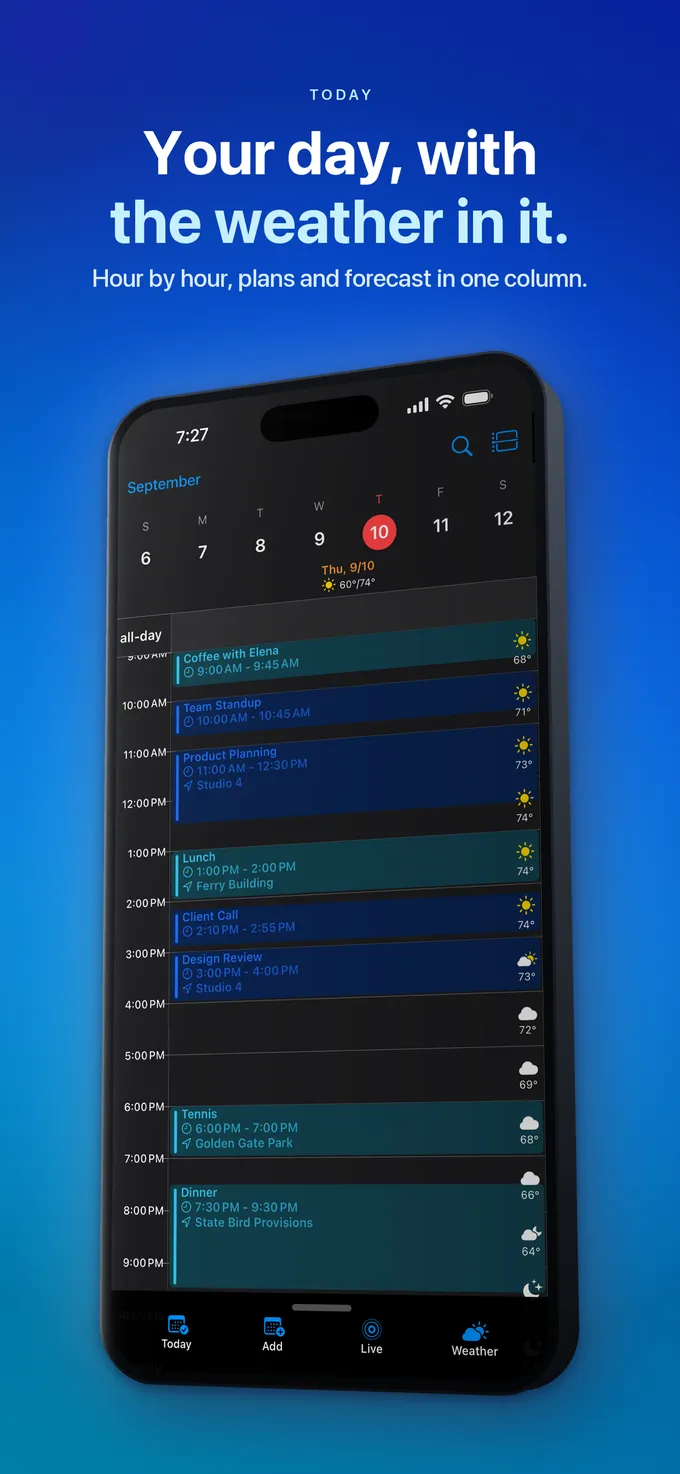
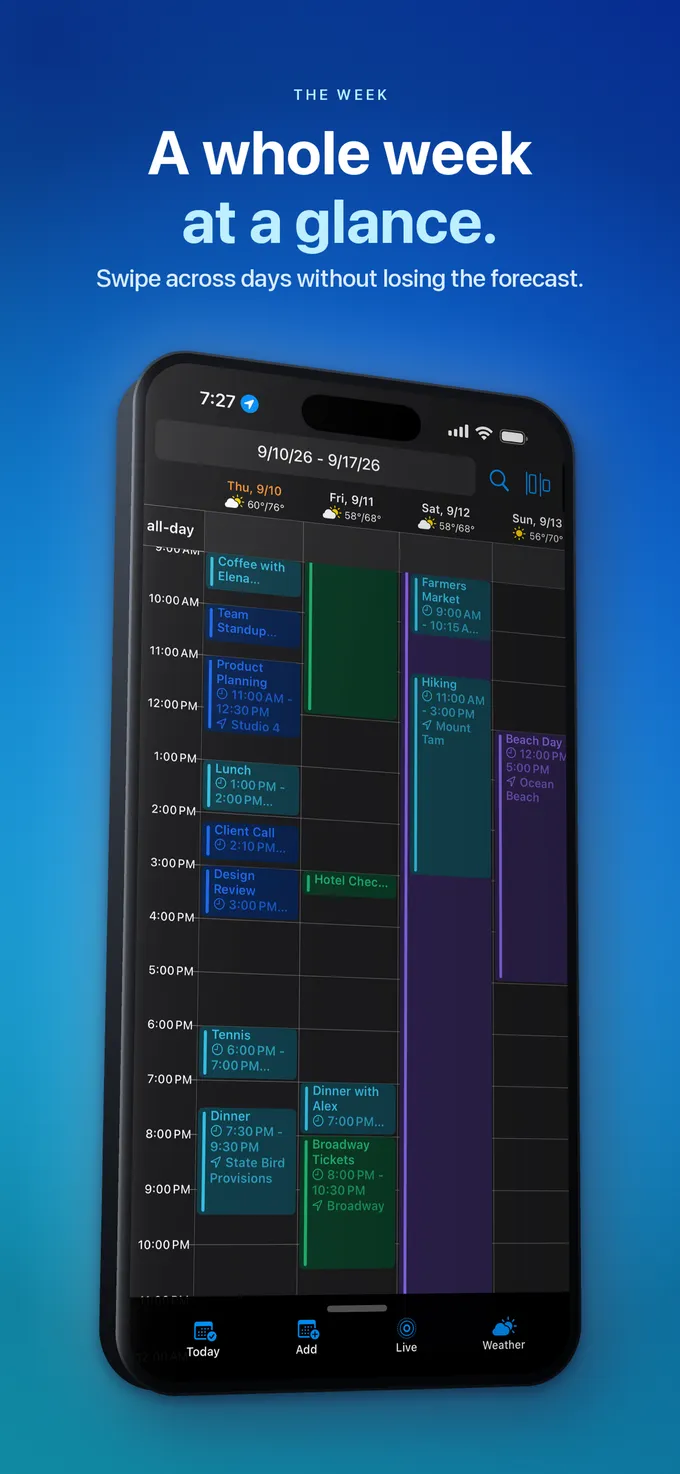
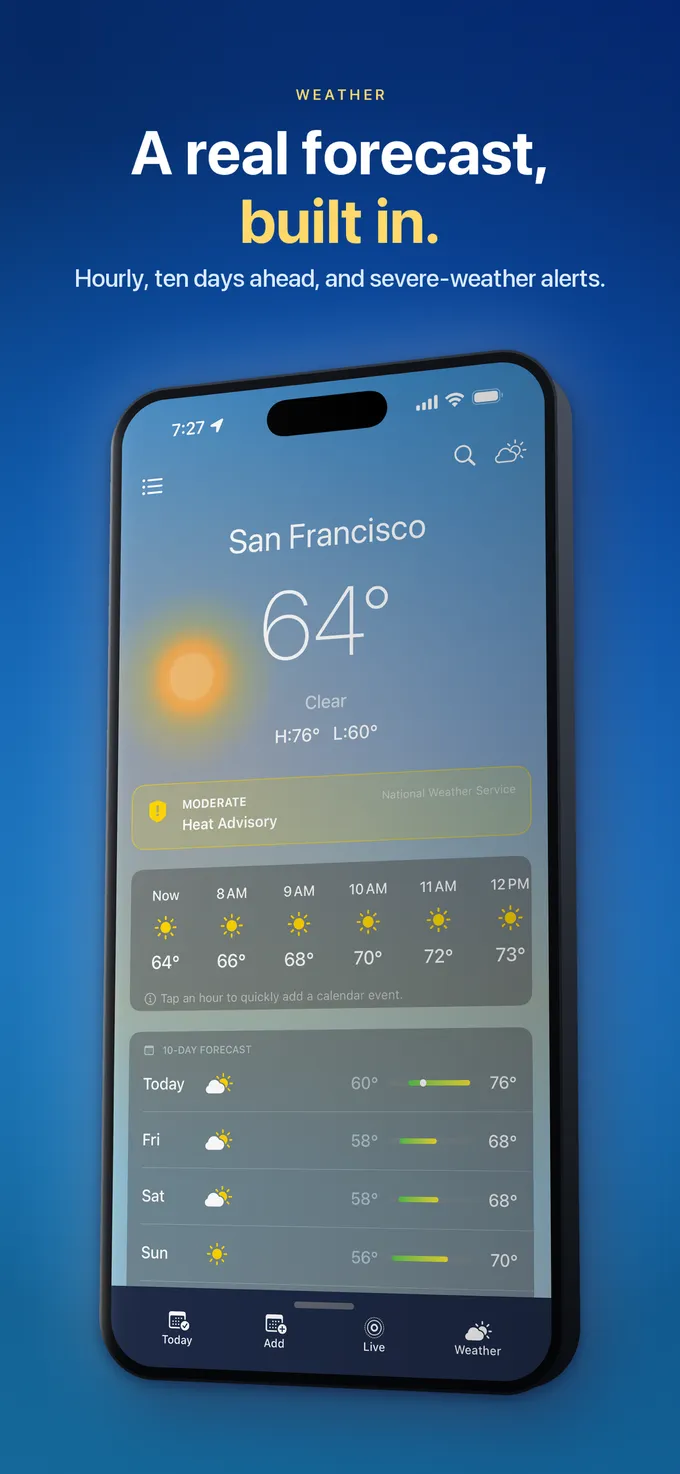
What it looks like


What to do
- Write down which occurrence dates should change and which should stay the same.
- Confirm the owning calendar and organizer or editing permission.
- For a one-off exception, use an editor that explicitly offers that scope.
- Check an earlier date, the changed date and the next ordinary occurrence.
- Keep existing exceptions and the original invitation while diagnosing a mismatch.
Questions
- How do I repeat an event only on selected days?
- Write the intended dates first, then use the owning provider’s supported repeat controls. Google’s desktop guide starts with the repeat menu; Apple’s Mac guide documents custom frequency and pattern choices. Verify several resulting dates and the end condition. Do not assume those desktop controls exist in every iPhone editor.
- Does every recurring-event edit ask about scope?
- No. Do not assume Cloud Calendars will ask you to choose the scope. Verify the options before saving; use a supported provider editor for a single-date exception if that choice is absent.
- Should every recurring event have an end date?
- Use an end date when the real schedule has one. Continuing commitments do not need an invented deadline simply to make the calendar tidier.
- Will changing the series erase its exceptions?
- There is no universal answer across providers and edit operations. Record important exceptions and inspect them after the change; do not assume either guaranteed preservation or automatic loss.