
Combine calendar apps on iPhone without losing track of events
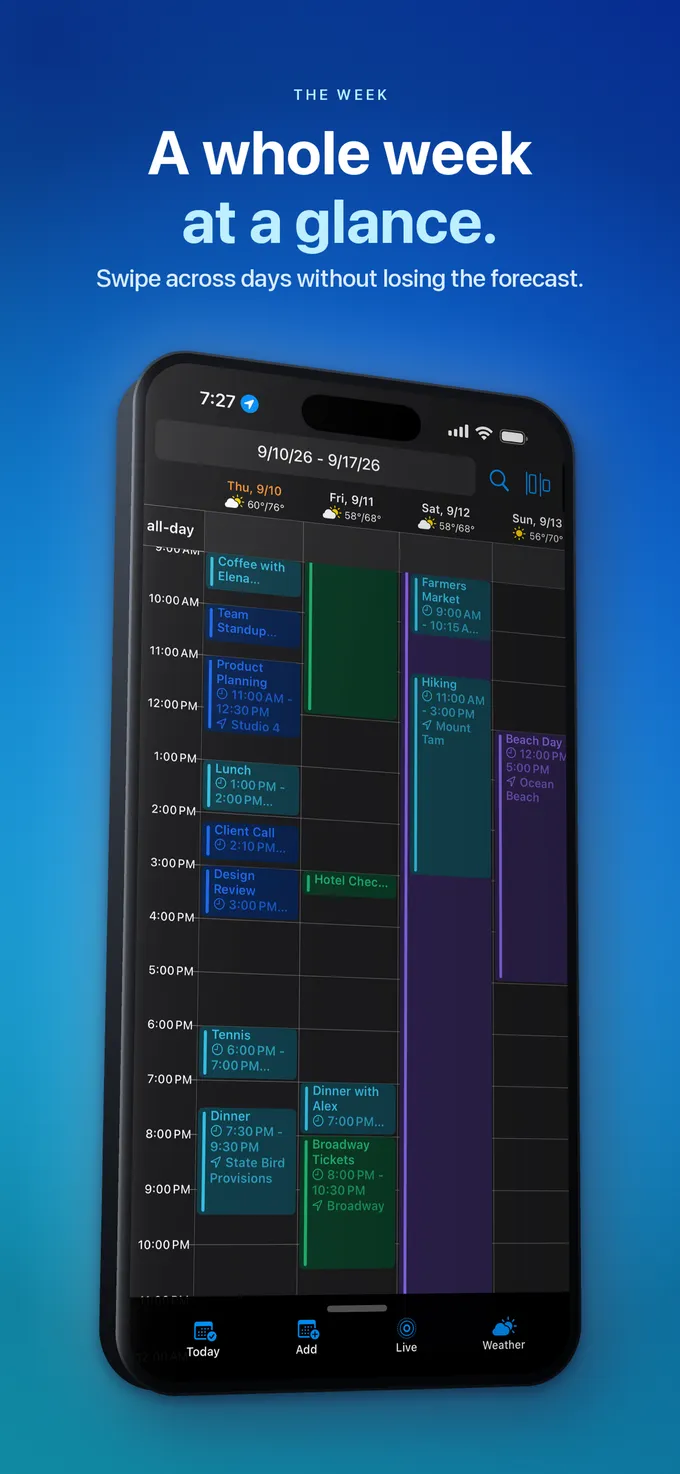
A single calendar view can help you compare commitments across accounts. Start by checking what it includes and where changes are saved. This guide is published by Arte Soft, the developer of Cloud Calendars.
What most people assume
Replacing several calendar apps means merging all calendars and deleting the old apps immediately.
Choose the job you need the overview to do
Write down the calendars that affect a real scheduling decision: your work meetings, personal appointments and a shared household schedule, for example. Identify their accounts and who owns each calendar. Several calendars under one Google account are still separate calendars.
Decide whether you need to see commitments together, edit their originals, or copy availability into another account. These are different jobs. A combined view helps you compare times; it does not by itself make colleagues see a personal appointment in their work scheduling system.
Check workplace approval before connecting
For a work account, use the connection method your organisation permits. Keep its approved app available when it is required for meeting responses, delegated access or other work tasks. A paid personal calendar app cannot grant missing permissions.
If a connection fails, record which account type and stage failed rather than repeatedly changing passwords or deleting accounts. An access decision, a connection error and a calendar that is merely hidden need different remedies. Ask your administrator when the permitted route is unclear.
Add accounts without assuming there are no copies
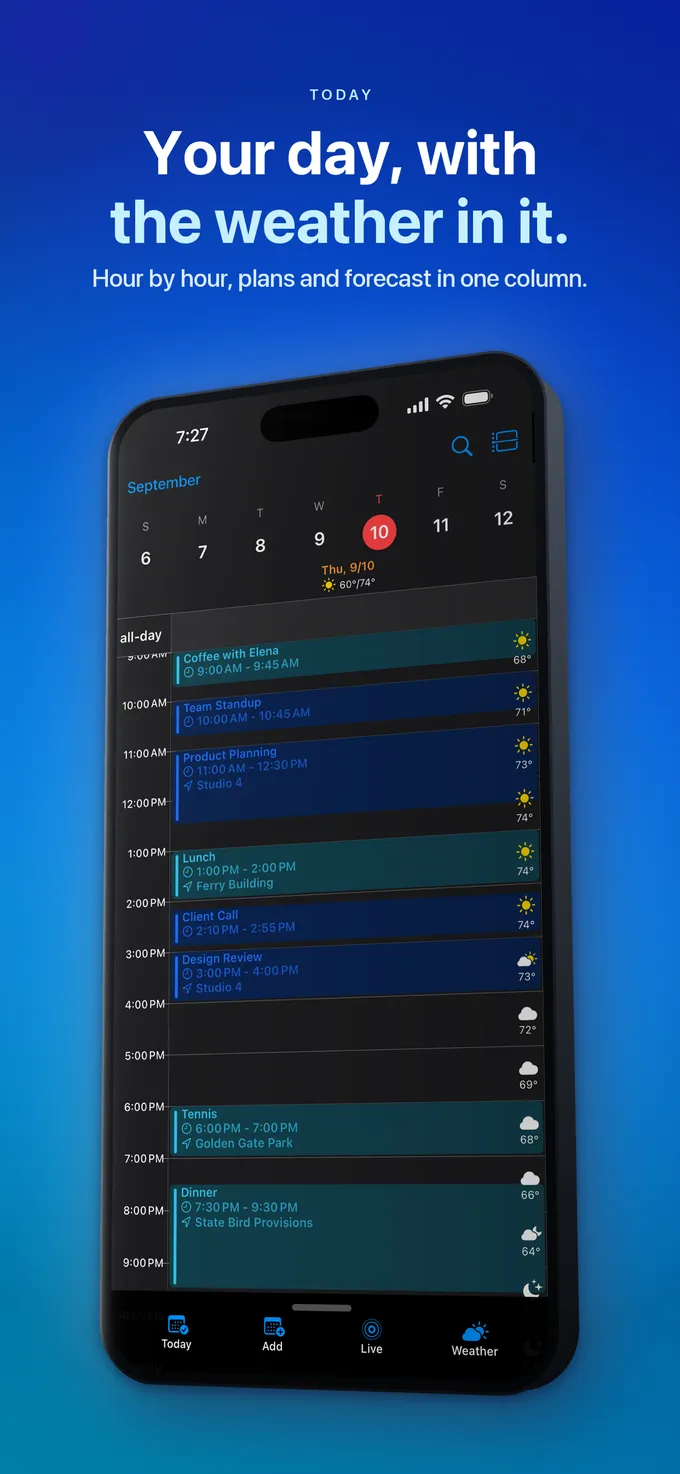
Cloud Calendars can present selected iOS calendars alongside connected Google and Microsoft calendars. Its provider connections use mirrored calendars in the iPhone calendar store. This is different from promising a display-only connection that never stores another representation of an event.
Before adding a second route to the same account, check how it already appears on the phone. A provider calendar available through iOS and through a separate app connection can be confusing to identify by name alone. Inspect the calendar and source instead of assuming similarly named entries are interchangeable.
Verify one disposable appointment in both directions
Create a harmless test appointment with a distinctive name in the intended writable calendar. Confirm it in the provider’s own view. Change its title there, return to the combined view and check the same record. Then make a small test change from the combined view and confirm it at the provider.
This checks your actual setup; it is not a guaranteed refresh-time test. Use an ordinary appointment you own, without guests or recurrence, so troubleshooting does not send changed invitations to other people. Keep real meetings unchanged until you understand which route is failing.
Narrow the view before deleting anything
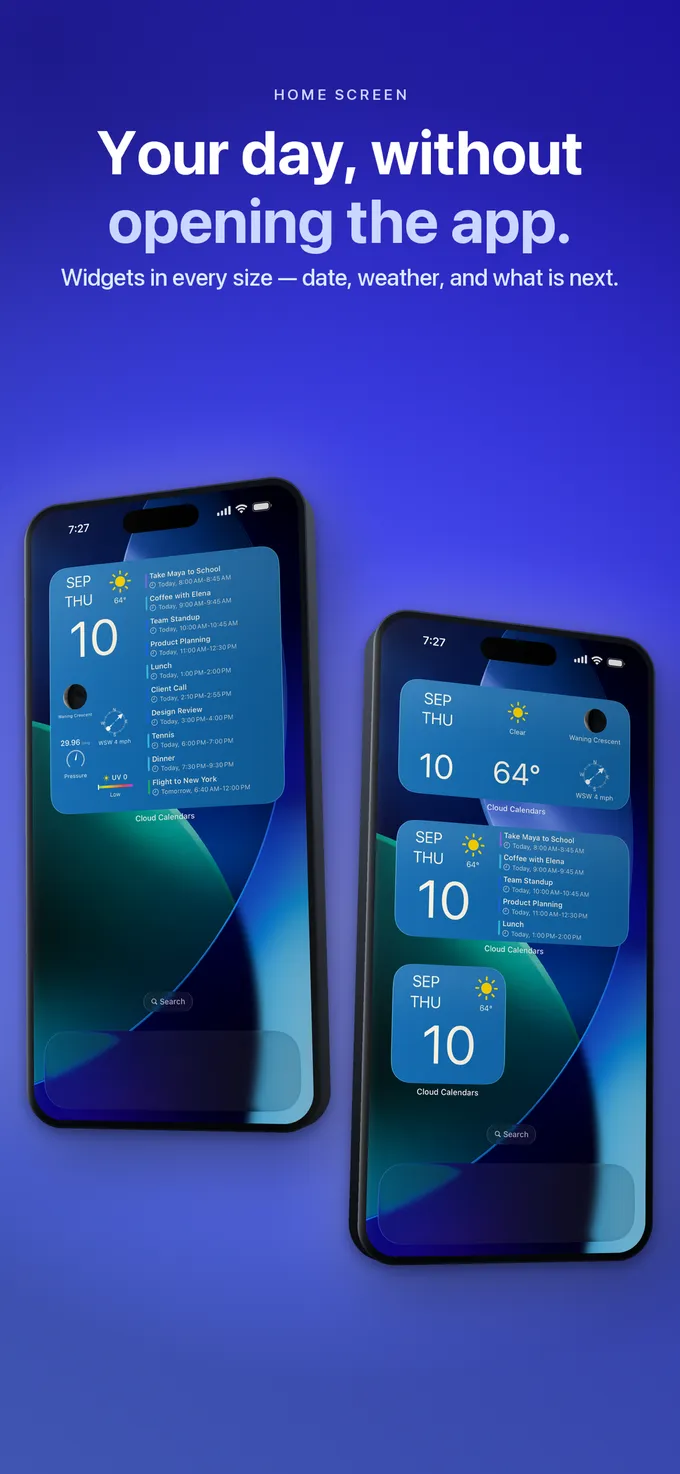
If the overview has duplicates, temporarily hide one calendar and note which entry disappears. Compare account, calendar, organiser and time before deciding whether you have two stored records or two display routes. Repeated names are not enough evidence for deletion. Record the original selection and restore it after comparing. In Cloud Calendars, selection can also affect widgets, notification scheduling and Google synchronization.
Apple documents showing or hiding calendars using the calendar-list checkboxes. Hiding is a useful first display check; deleting a record or account can have wider effects. Preserve the source and any needed backup while you investigate.
Choose a routine after the checks pass
Keep the combined view as your usual planning screen if it covers the calendars you need. Keep another approved app for a task the overview does not support, such as a workplace-specific invitation workflow. Fewer switches can be useful without making one app responsible for every account function.
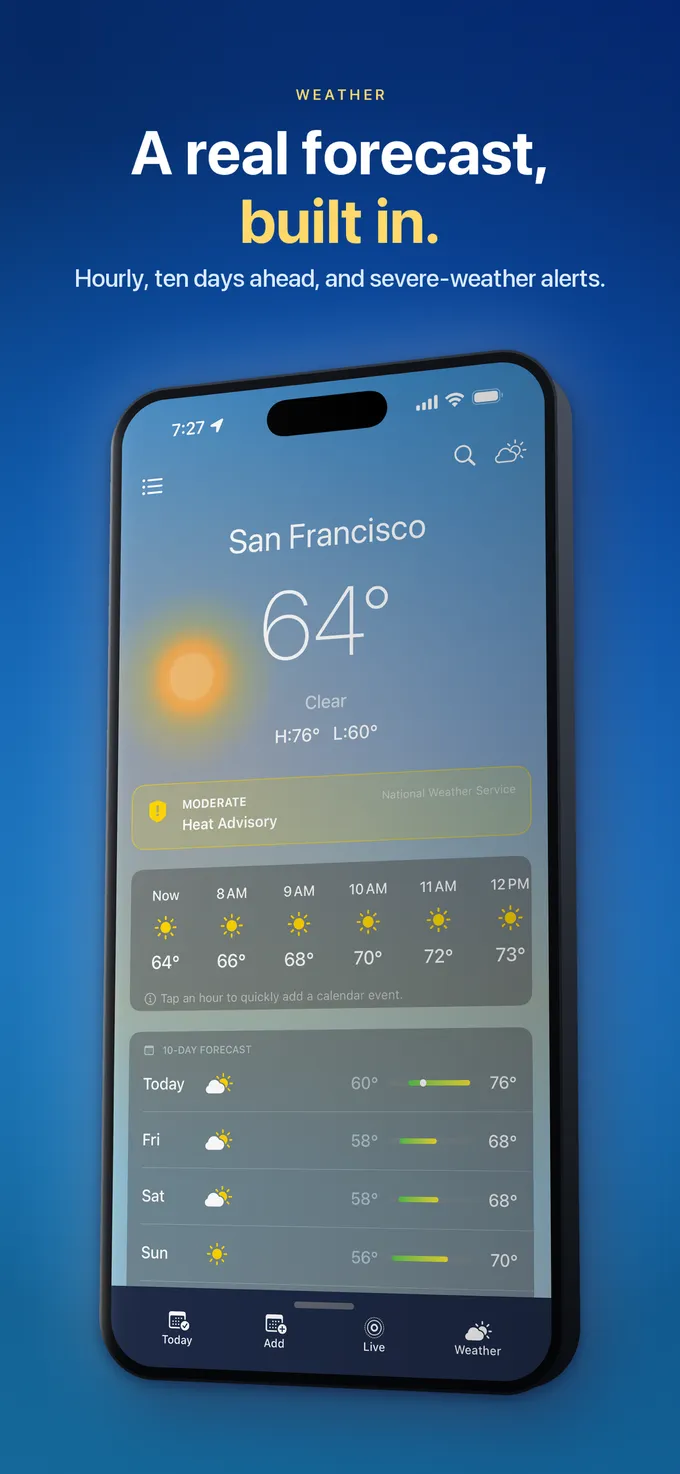
Check notifications separately. Seeing an event once does not establish that only one app or device will alert you. Cloud Calendars Base includes Google sync and calendar views; Advanced removes ads, while Premium adds Microsoft Calendar and Teams support. Check local prices and account permissions before subscribing.
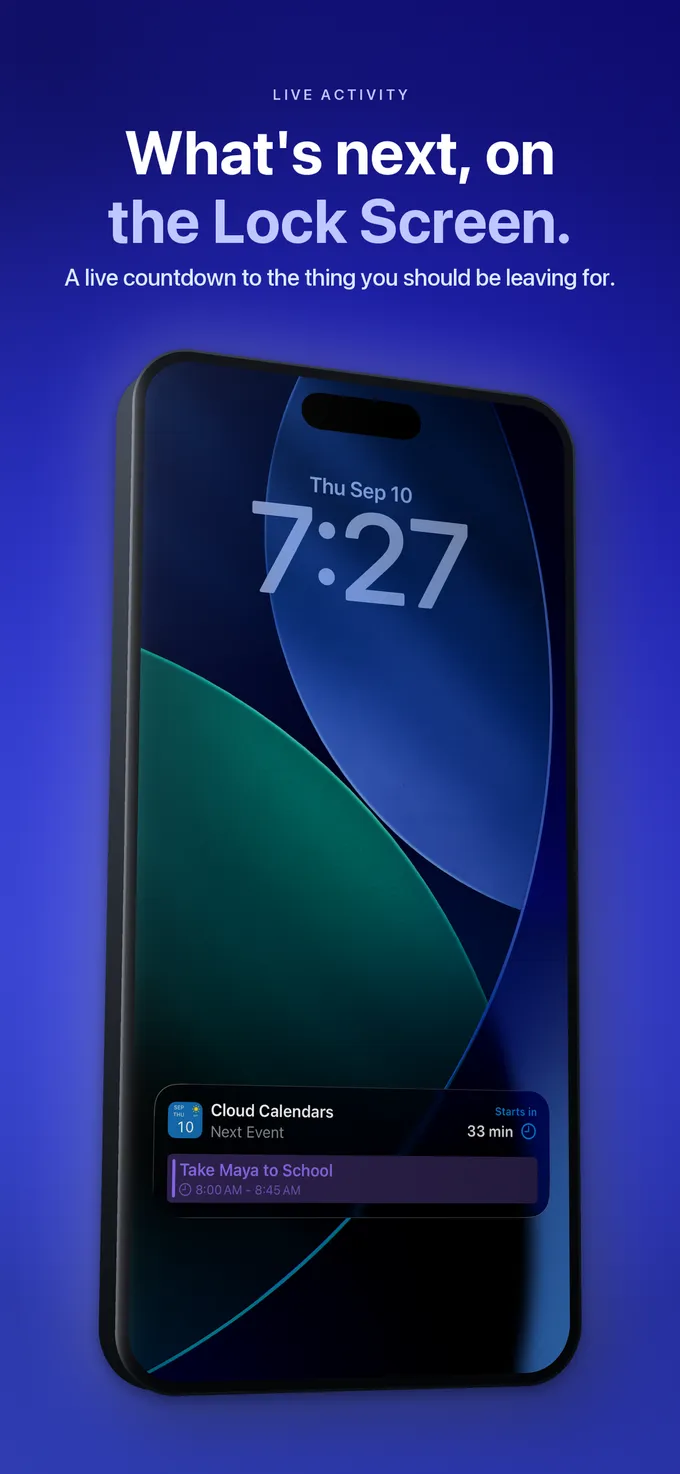
What it looks like
What to do
- List the calendars and owning accounts needed for your planning overview.
- Confirm workplace approval and keep any required work app.
- Check existing account routes before adding another provider connection.
- Trace one disposable appointment to the provider and back.
- Hide a suspected duplicate calendar before considering deletion.
- Review alerts independently of the visible calendar view.
Questions
- Must I delete the other calendar apps?
- No. Keep required apps and preserve your current setup while checking the new overview. Use each app for the tasks you have verified.
- Will my colleagues see that my personal time is busy?
- A combined view on your phone does not establish that another account receives availability. That is a separate sharing or synchronization requirement.
- Does connecting a provider mean data stays only at the provider?
- Do not assume that. Cloud Calendars uses mirrored provider calendars in the iOS calendar store. Check the actual account route and storage context before connecting sensitive calendars.