
The weather where the event is, not where you are
Before using weather to plan an appointment away from home, select the destination in the weather view and check the place name. An address saved in an event is not enough to establish which forecast you are viewing. This guide is published by Arte Soft, the developer of Cloud Calendars.
What most people assume
That one local forecast covers everything in your day.
Choose the destination deliberately
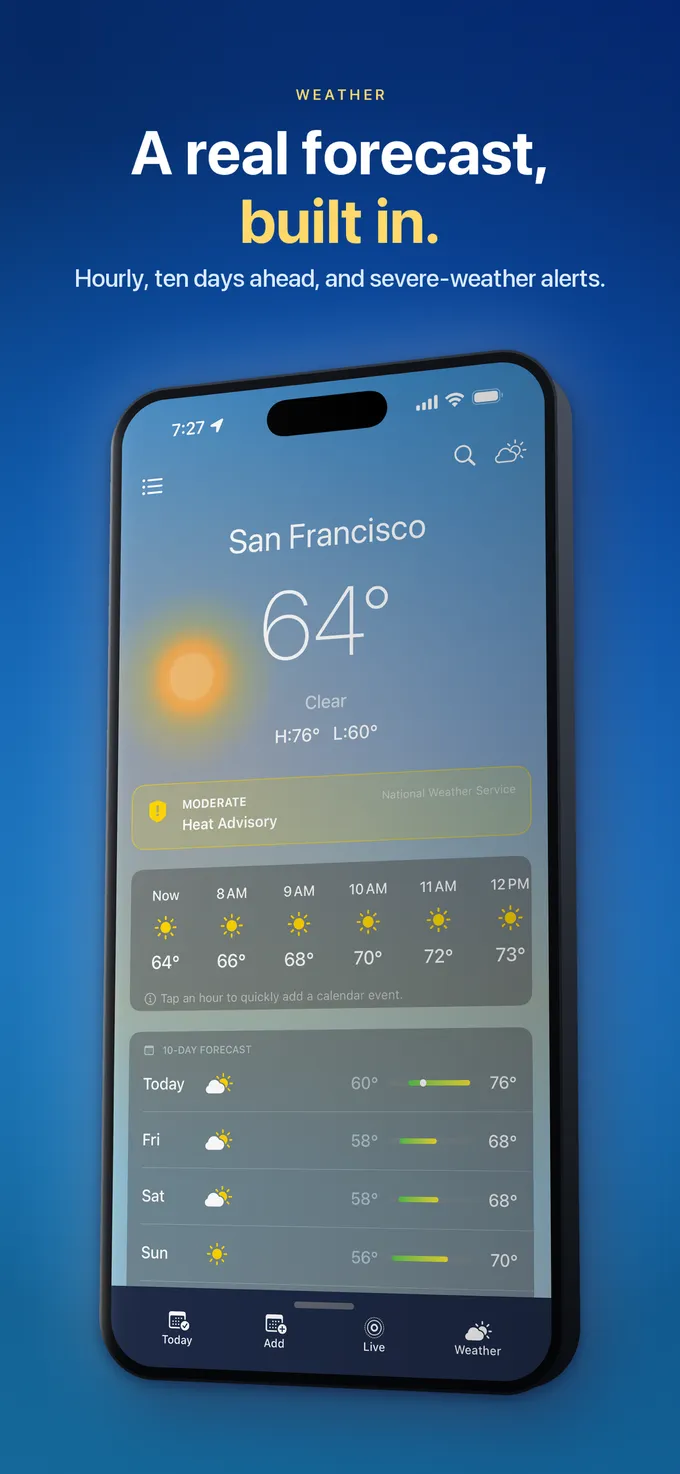
Cloud Calendars lets you use your current location or choose a searched or saved place for weather. For a meeting in another city, select that city and verify the displayed name before comparing forecast hours.
Do not assume that adding a location to an event automatically switches every calendar weather display to that venue. Keep the event location accurate, then separately confirm the place used by the forecast.
Use search when you do not need current-location weather
A searched place provides a way to inspect destination weather without treating your phone’s current position as the destination. Compare similarly named search results and verify the city or region before selecting one.
For current-location weather, review Cloud Calendars in Settings, Privacy & Security, Location Services. If permission is denied or restricted, the current-location route may be unavailable. A location permission is separate from permission to read calendars or deliver notifications.
Match the forecast date and local time
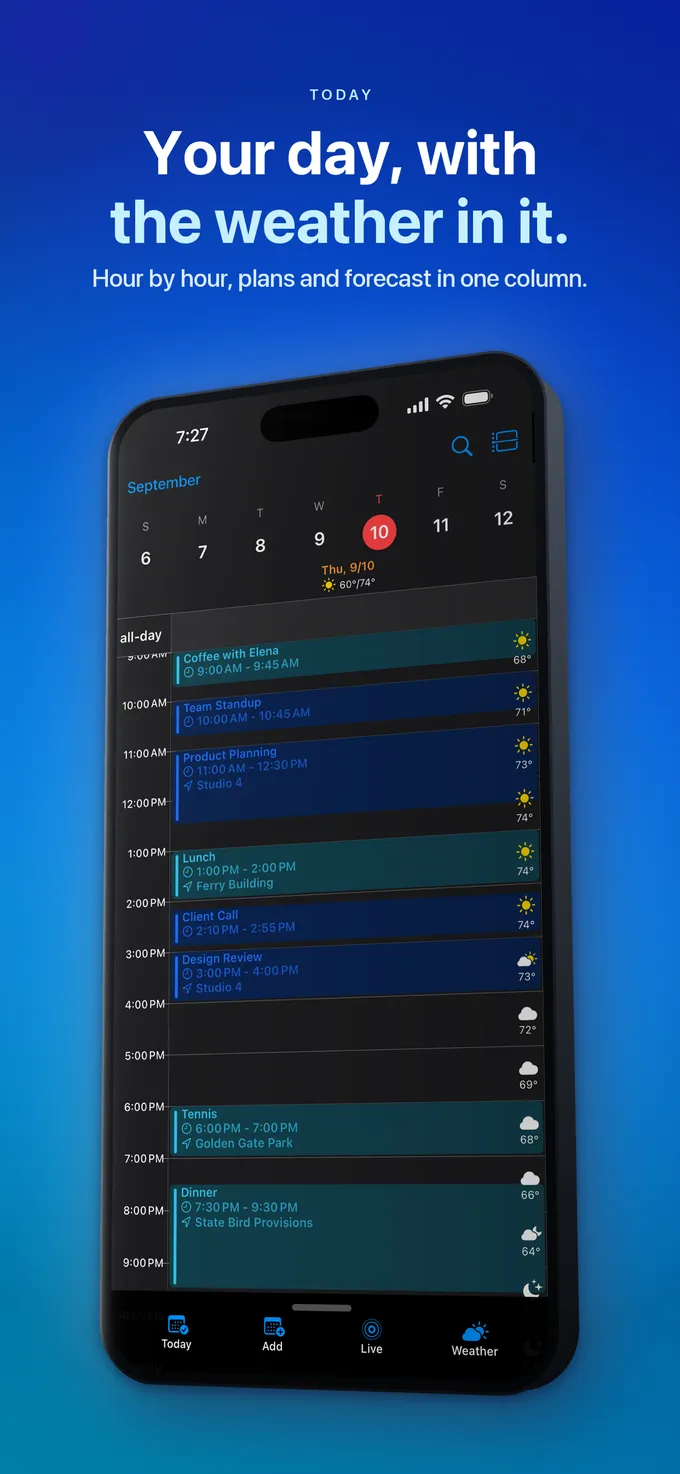
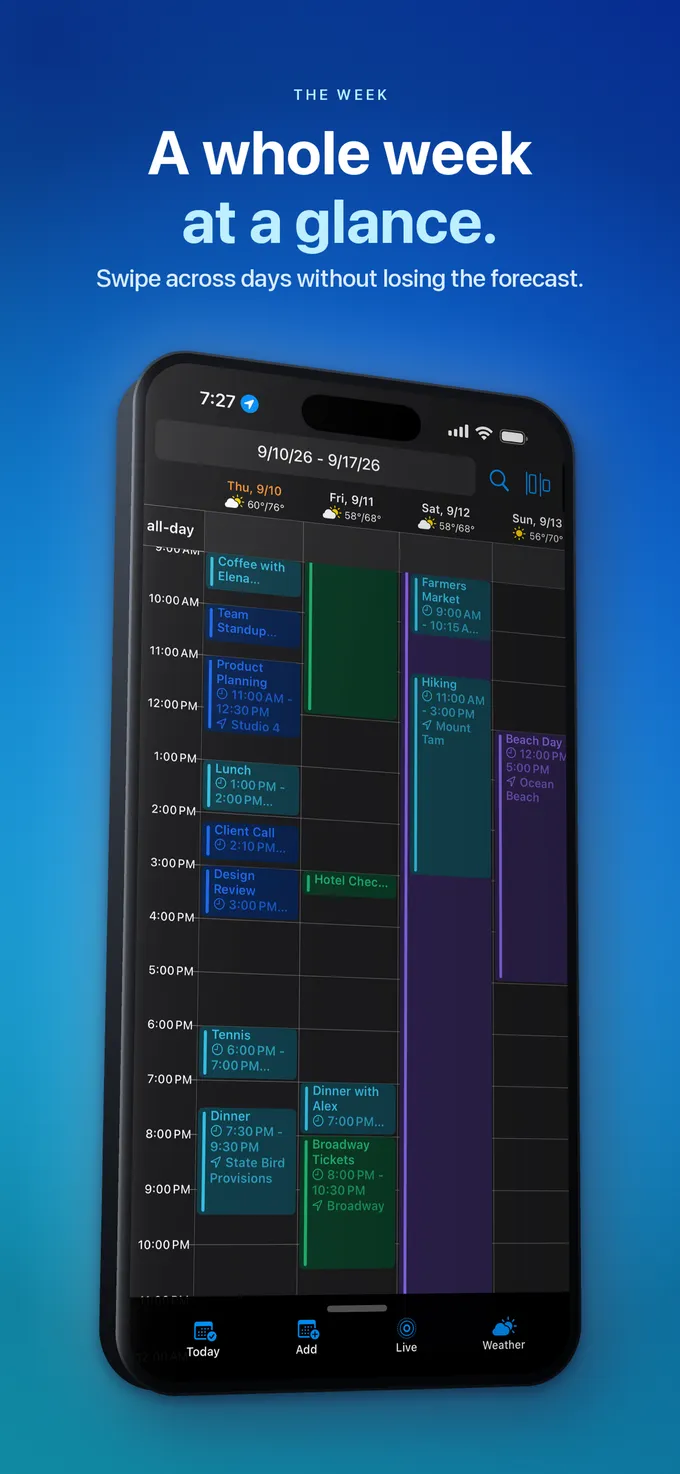
Check the forecast’s selected place, date and hours against the appointment. This matters particularly when travelling across time zones: the destination’s afternoon and your current afternoon may be different moments.
For a long activity, examine the available hours across its duration. If some hours are missing, treat them as unavailable information rather than filling the gap with the nearest icon. A saved calendar appointment can extend beyond the forecast.
Keep destination forecasts and weather alerts separate
Viewing a saved destination does not mean weather notifications follow that destination. Cloud Calendars’ weather-alert checks use the device’s recorded GPS location, with the app preference and iOS notification permission applying separately.
Apple notes that severe weather alerts are available only in selected regions. Check relevant local official information for your destination; the absence of a notification is not confirmation that conditions are suitable for your activity.
If the place or forecast looks wrong
First distinguish a wrong place from missing weather data. Re-select the intended city and compare its displayed name, date and available hours. If loading fails, check the connection and try later without changing your appointment or deleting an account.
For support, record the chosen city, approximate forecast date, app and iOS versions and whether you selected current or searched weather. Keep private event titles and precise personal locations out of a public report.
What it looks like
What to do
- Select the destination in the weather view.
- Verify place, date and local forecast hours.
- Review Location Services only when using current location.
- Check weather notifications separately from the selected forecast.
Questions
- Does entering an event address automatically select its forecast?
- Do not assume so. Confirm the selected place in the weather view separately.
- Must I use GPS to view another city?
- You can search for a place and inspect its weather. Current-location weather uses location access separately.
- Will alerts follow my saved destination?
- The weather-alert checks use recorded device GPS location. Selecting a destination forecast does not establish destination alert coverage.