
Calendar time zones: check the event before you travel
A different clock time after a flight does not necessarily mean the appointment moved. First establish which place the event belongs to and which time zone the app is displaying. This guide is published by Arte Soft, the developer of Cloud Calendars.
What most people assume
Changing the calendar’s displayed time zone is the same as changing the appointment itself.
Start with the appointment, then the display
A meeting booked for a particular moment can be shown with different clock times in different places. A dentist appointment at 09:00 in the destination city has a different intention from a personal reminder to stretch at 09:00 wherever you happen to be. Write down which meaning you need before adjusting anything.
Compare the booking or organizer’s confirmation with the event date, start time and named time zone. Then check the time zone used to display the calendar. Do not drag the event to a new hour just because its displayed hour changed after travelling: that could change the appointment rather than its presentation.
Use provider controls when you need an explicit zone
Apple documents a Time Zone field while creating or editing an event in Apple Calendar on iPhone. Its separate Time Zone Override setting changes the zone shown in Apple Calendar. These are Apple Calendar instructions, not a promise that the same settings control Cloud Calendars.
In Google Calendar on a computer, the event editor’s Time zone control lets you select a zone. Google also documents separate start and end zones for an event. Those are Google’s controls. Use the account that owns the event and confirm that you have permission to edit it before changing its zone.
Check the saved event in Cloud Calendars
An existing event can carry a saved time zone into the Cloud Calendars editor. If an event does not supply one, the editor can use the current device zone. Before creating a destination appointment, check the device zone and the intended local date and hour. Reopen the saved result and compare it with the booking.
For separate departure and arrival zones, use an editor that explicitly supports them. Do not assume ordinary start and end time fields offer independent zones. If your Cloud Calendars editor does not expose the zone control you need, use the owning provider’s supported editor, then reopen the event in Cloud Calendars and compare both endpoints.
A flight and a destination appointment need different checks
For a flight, keep the airline’s departure date, departure airport time, arrival date and arrival airport time together. A next-day arrival matters as much as the hour. Where an editor supports separate endpoint zones, match each endpoint to the corresponding airport. Otherwise, use a provider editor that supports the required representation; do not assume two ordinary time fields independently infer two places.
For a destination appointment, confirm the city’s local date and time with the booking. Record that city in the event details if it helps you check later. A location name in notes is a useful reminder, but it is not proof that the event’s actual time-zone field was set. Reopen the saved result before relying on it.
Recurring calls and all-day labels deserve their own review
For a regular international call, agree which city’s local hour should stay fixed. Check an occurrence near each participant’s seasonal clock change as well as the next occurrence. A comparison on one date is not evidence that the clock-time difference remains identical all year.
An all-day trip label can help organize an itinerary, but it is not a substitute for timed departures, appointments or check-in deadlines. Inspect its dates after it passes between providers. Avoid a blanket promise that every imported all-day event will display identically in every calendar.
When only an imported or subscribed calendar is wrong
Identify the route before changing the appointment: an imported file is a snapshot, while a subscription follows a published source. Compare the same occurrence in the owning calendar and the recipient, including its date, event zone and display zone. Check a date near a seasonal clock change if the event repeats. Keep the original unchanged while establishing where the difference appears.
If the owner’s calendar is correct but one recipient is wrong, record that bounded comparison for support. A feed-format interpretation problem is one possibility, but not every shifted time has that cause. Review access and calendar-data handling before trying a feed-processing service. It is not a replacement for an authorized account connection, and moving the original event can change the real appointment for everyone.
If the clocks still disagree
Compare the same event in the owning provider and Cloud Calendars, noting the calendar, event date, zone and displayed time in each. Check that you have not opened a similarly titled copy. If the provider is correct but another display differs, report the comparison before rewriting the appointment.
Include app and iOS versions, the relevant zones and whether the event repeats. Keep booking references and attendee details out of public reports. There is no need to remove an account or recreate a real invitation to establish which display differs.
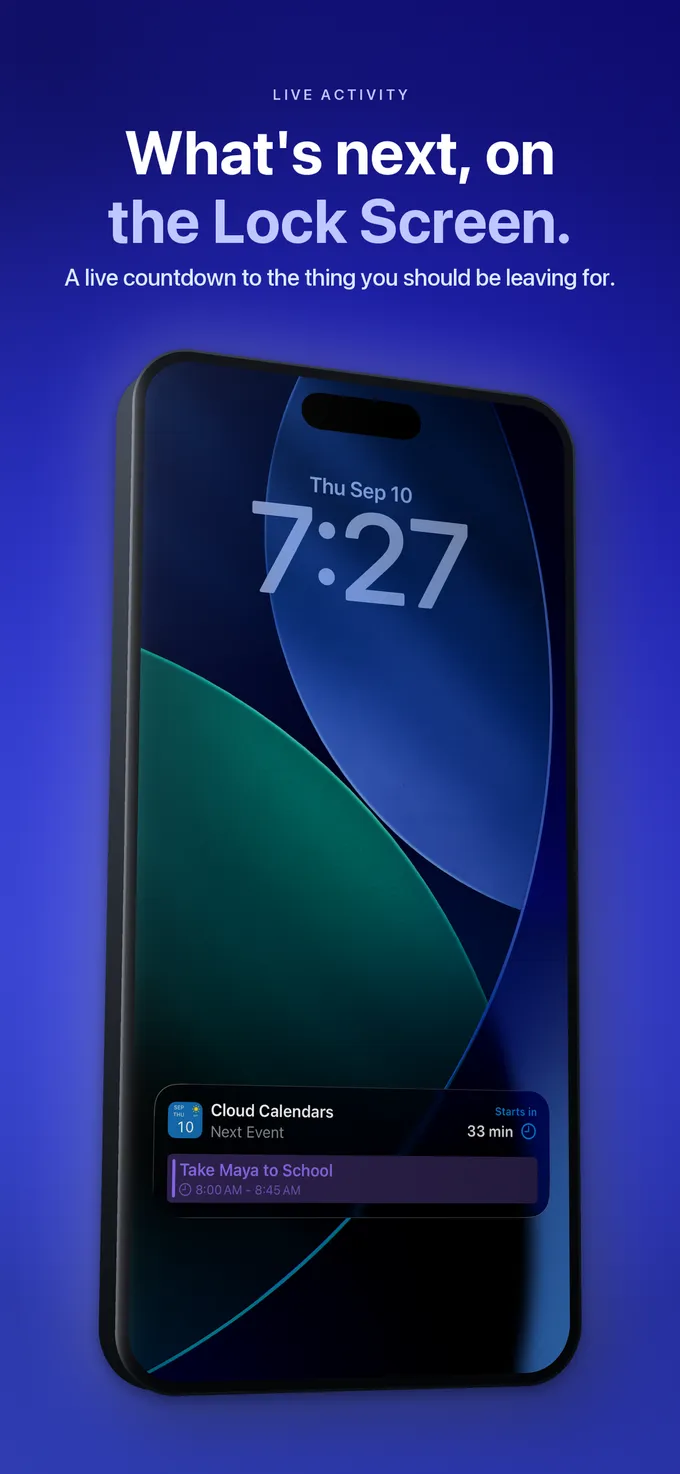
What it looks like
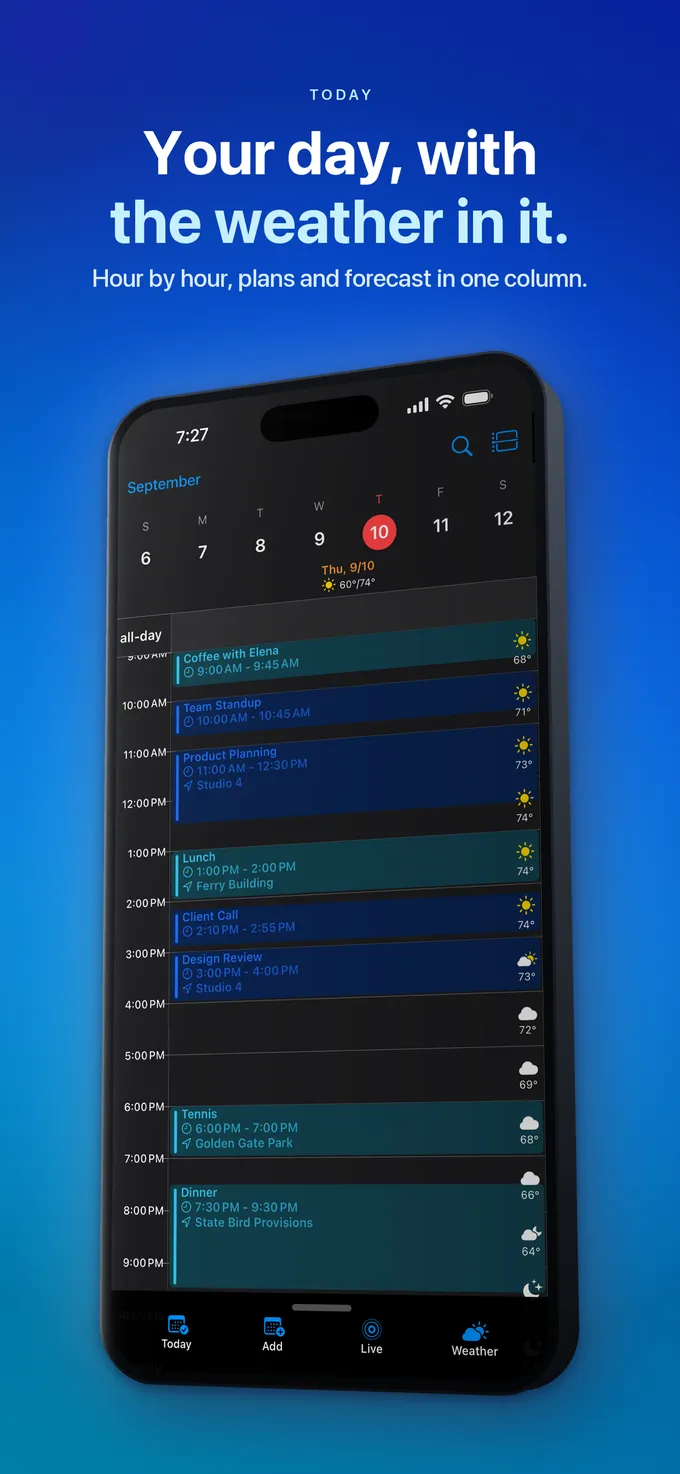
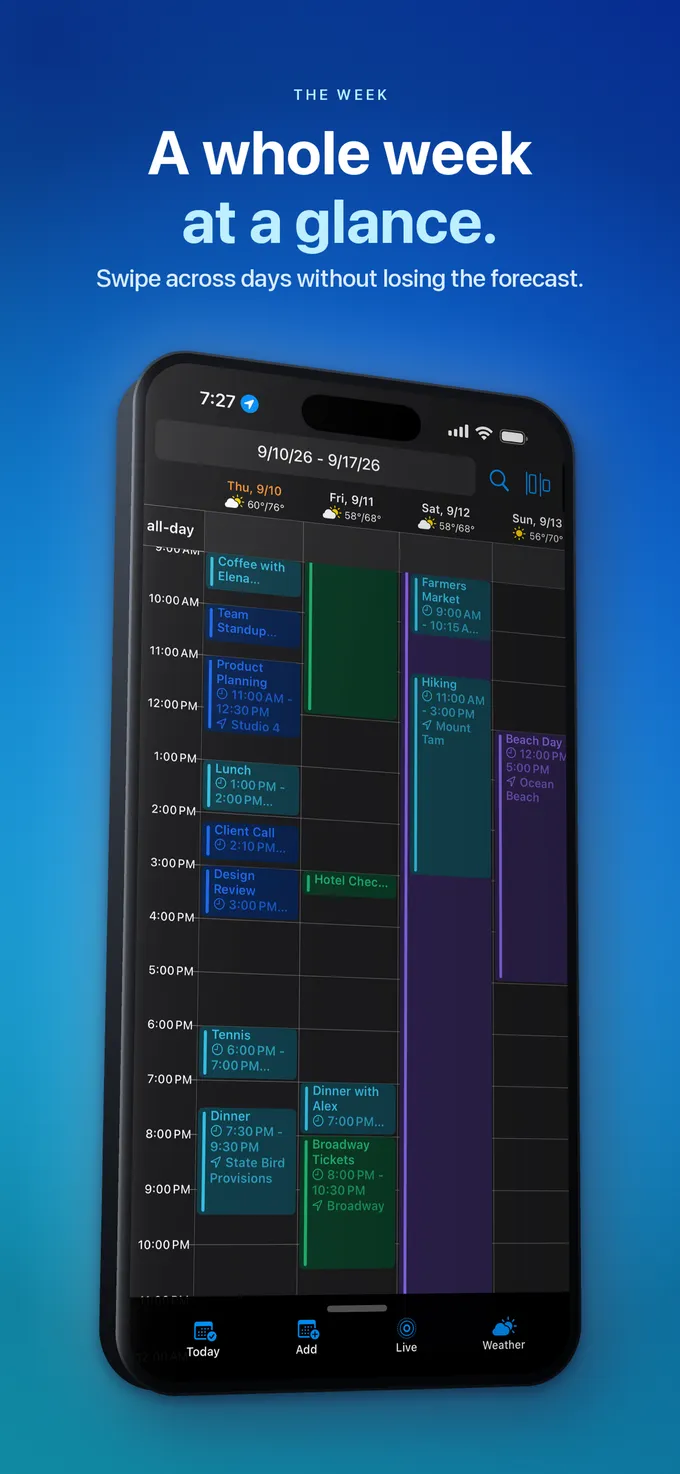
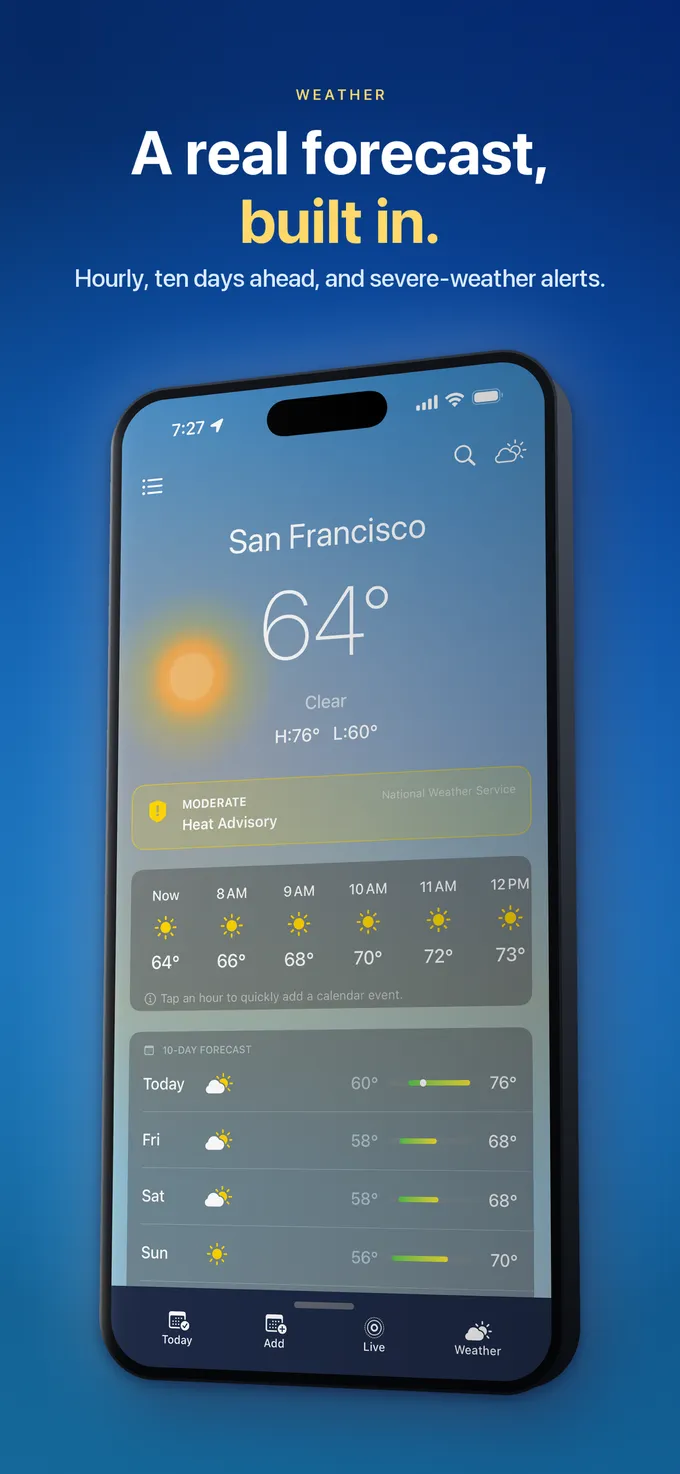
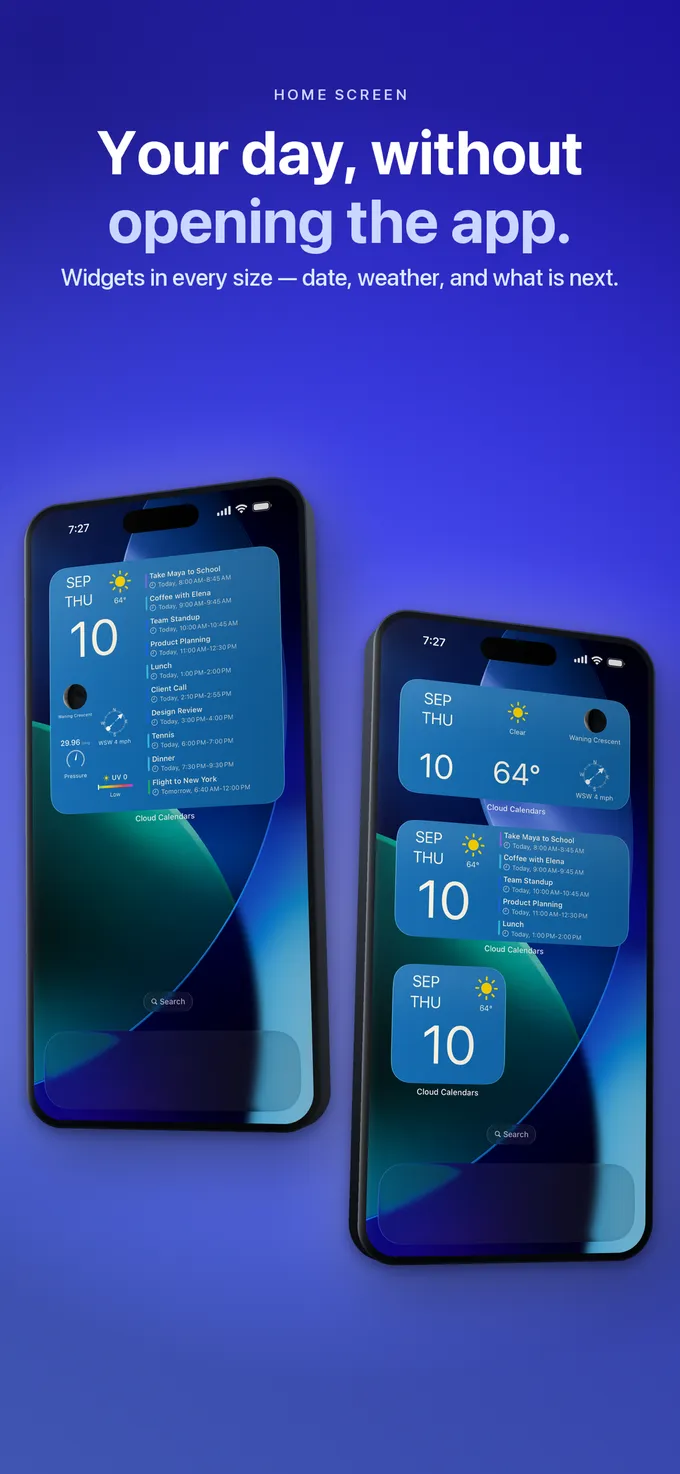
What to do
- Record the intended local date, hour and city from the booking.
- Distinguish the saved event zone from the display zone.
- Use the owning provider’s zone controls where needed; do not assume matching Cloud controls exist.
- Check both flight endpoints and a later recurring occurrence.
- Reopen the saved event and compare before changing its time again.
Questions
- Does Apple Calendar Time Zone Override change Cloud Calendars?
- Apple documents that setting for the display in Apple Calendar. This guide does not establish that Cloud Calendars follows it.
- Can I enter different departure and arrival zones in Cloud Calendars?
- Do not assume the ordinary start and end fields offer separate time-zone choices. If your Cloud Calendars editor lacks them, Google Calendar on a computer documents separate start and end zones; use a supported provider editor.
- Should I move a meeting back to its old hour after travelling?
- First check its intended moment and the display zone. A different local hour may be the correct presentation of the same appointment.
- Should I move the original event if an ICS subscription shows the wrong hour?
- First compare that occurrence at its source and recipient, with both event and display zones. Establish whether the issue belongs to the appointment or only to the receiving display. Do not change the real meeting just to compensate for one calendar.