
Cloud Calendars or Fantastical? Compare your calendar workflow on iPhone
Cloud Calendars is developed by Arte Soft, which also publishes this guide. The useful comparison is whether each app can handle your accounts, devices and everyday changes. This is a developer-written selection guide, not an independent performance test or a claim that one app is best for everyone.
What most people assume
Two apps that display Google and iCloud calendars are interchangeable, so price alone should decide.
Begin with your devices and providers
Write down the devices where you actually create and change events, not just where you glance at them. Cloud Calendars is an iPhone and iPad app. Fantastical’s publisher lists mobile and desktop versions and support for multiple calendar providers. Confirm the specific platform and provider on its current product page rather than assuming all features are identical everywhere.
For either app, check one account that matters to you and a shared calendar with the permission you need. A supported provider name does not guarantee that an employer will permit the connection.
Try event entry with the details you usually miss
Fantastical advertises natural-language event creation. If that is important to you, try a sentence with a location, time and recurrence, then inspect the saved event. The meaningful result is the correct event, not how quickly a demo sentence appears.
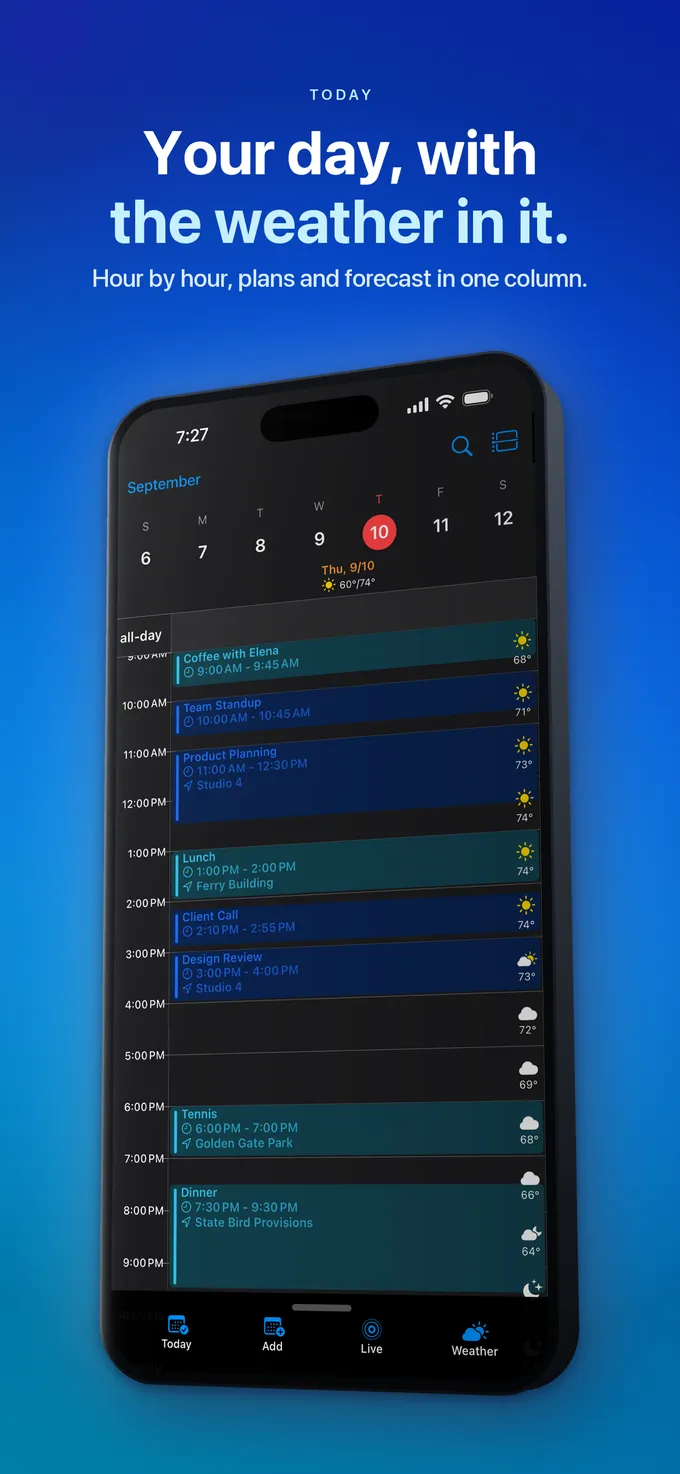
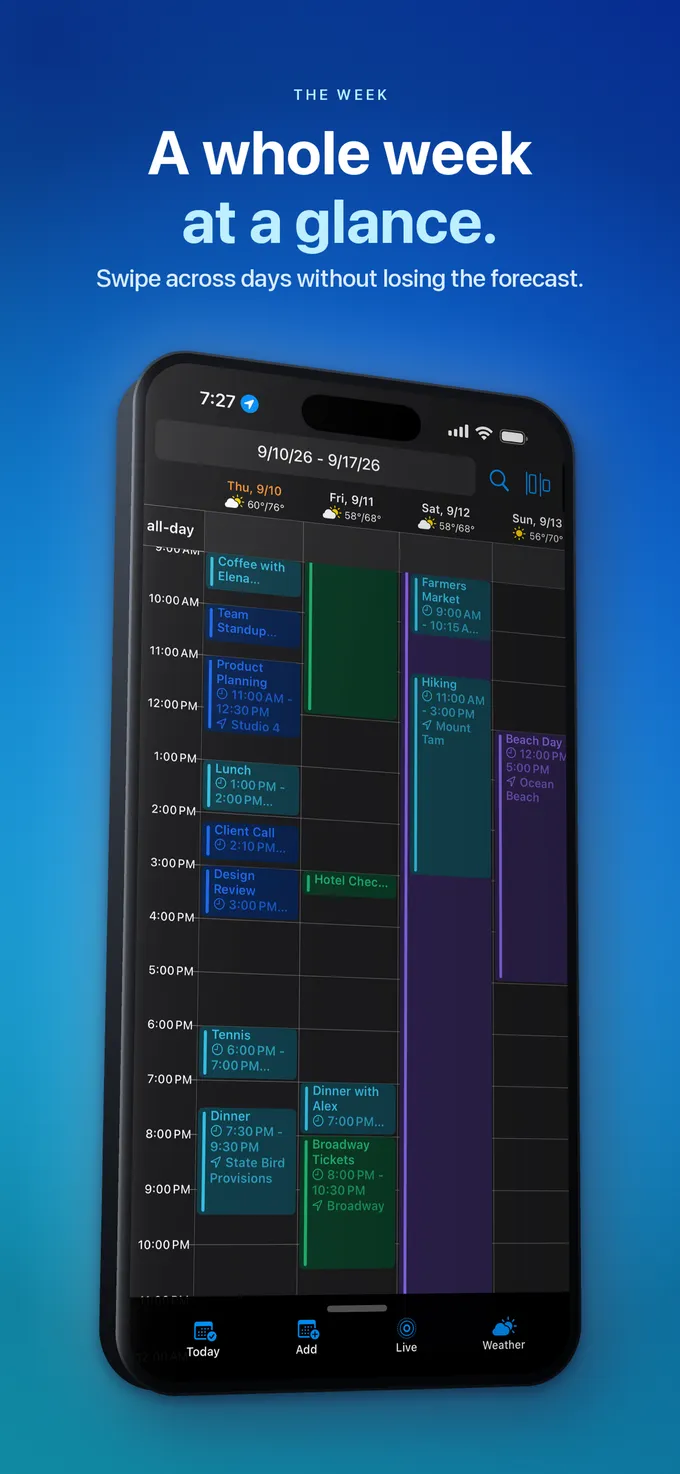
In Cloud Calendars, evaluate the available calendar views and event editing against your normal workflow. Use a disposable event and verify the destination calendar, duration and any time zone before inviting other people. This guide does not claim equivalent natural-language parsing or a measured speed advantage.
Compare weather at the time and place you need
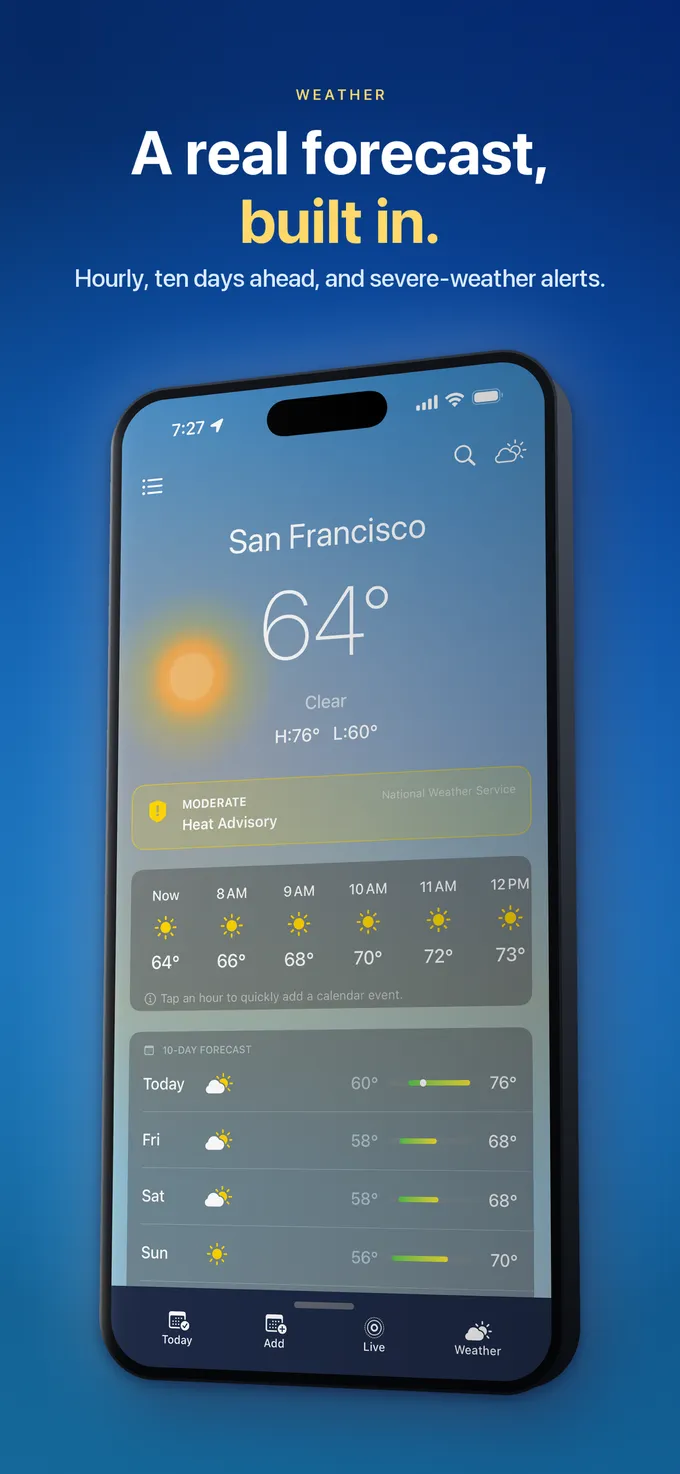
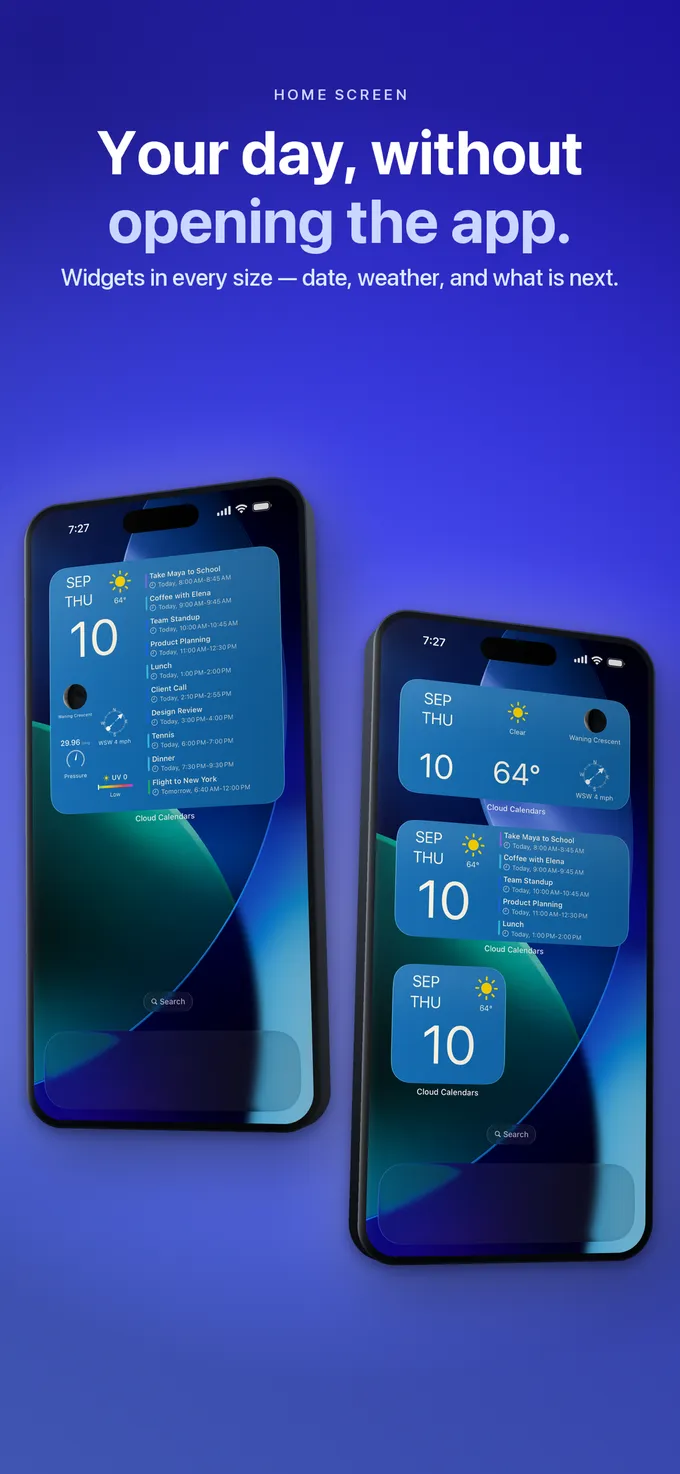
Cloud Calendars combines calendar views and weather. Check whether the forecast shown is for the relevant location and available date range. Decide whether you need an hourly view, a day summary or only a quick glance from a Home Screen widget.
Do not choose on the claim that competing calendar apps have no weather features. Check the exact current plan and platform in each app. An icon beside a date is also not proof of a reliable forecast for every event location or every date in a month.
Keep visibility separate from sharing
Seeing two calendars in one app does not share them with each other. Test whether you can see the intended calendars together while keeping work and personal destinations distinct. For a shared calendar, confirm who owns it and whether your access allows edits.
Do not move a real meeting between providers simply to test an interface. Use a harmless test event and check both the source and destination. Invitations, organisers and recurring series can need separate handling.
Compare the total plan you would actually buy
In Cloud Calendars, Base includes Google sync, views, weather and widgets; Advanced removes ads; Premium adds Microsoft Calendar and Teams support. Consult the current local prices and billing period in the app or App Store.
Use Fantastical’s current pricing page for its own plan details. Compare the same billing period, number of users and required features. This guide does not publish a fixed price gap or assume that a promotional price will remain available.
Use a small decision record
For each app, record account access, shared-calendar permission, supported devices, event-entry result, weather needs and total cost. Mark an item untested when you have not checked it. A missing requirement matters more than winning a long list of features you do not use.
Keep the existing calendar arrangement until the replacement passes your actual tasks. Switching the viewer and migrating the underlying calendars are different projects; you may only need the first.
What it looks like
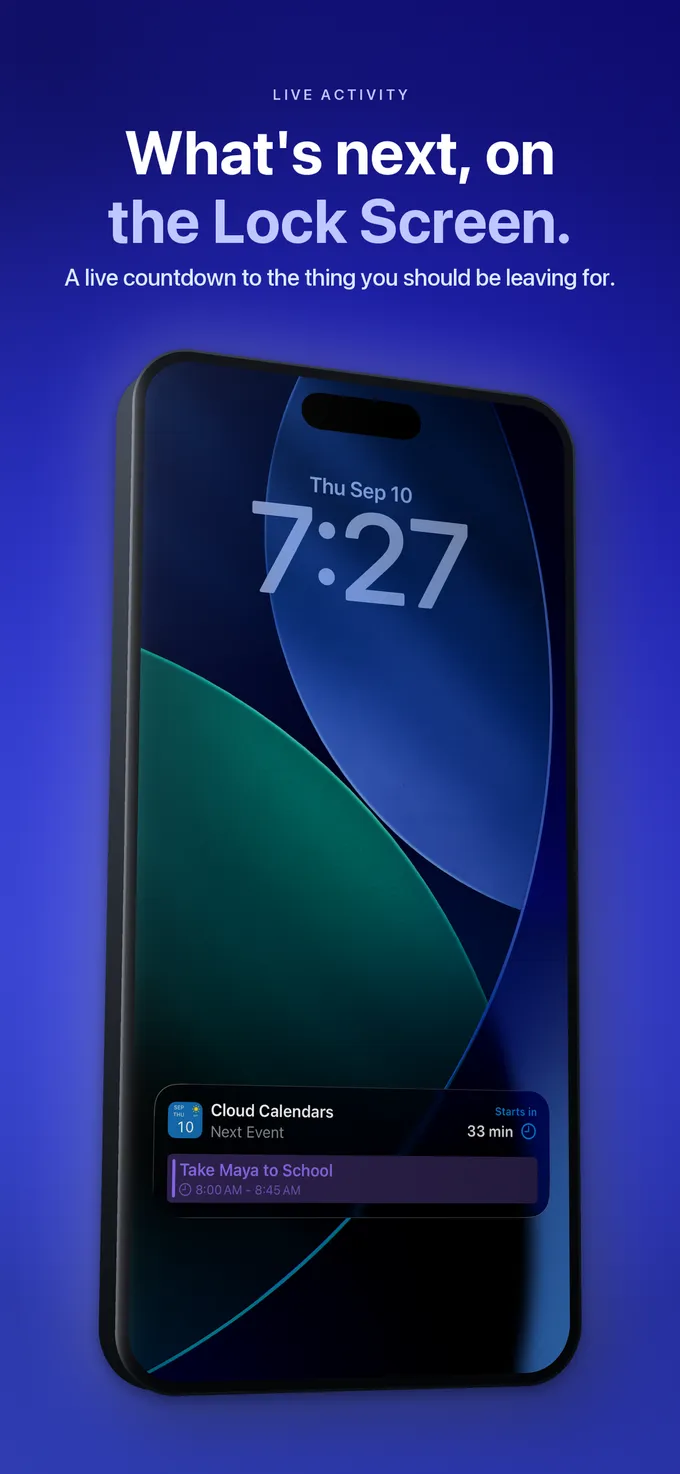
What to do
- List required devices, provider accounts and shared-calendar permissions.
- Create one disposable event with the details you normally use.
- Check it from the provider or a second authorised device.
- Evaluate views, widget information and available weather for your schedule.
- Compare the current local plan that includes your required features.
- Choose from the recorded results, keeping untested requirements explicit.
Questions
- Is this an independent benchmark?
- No. Arte Soft develops Cloud Calendars. This is a task-based guide with publisher documentation and proposed user checks, not measured accuracy, speed or reliability results.
- Does Cloud Calendars replace a desktop calendar app?
- Cloud Calendars is built for iPhone and iPad. If desktop event editing is essential, include it as a separate requirement and verify the desktop client you plan to use.
- Should I move all my events when changing calendar apps?
- Not necessarily. Displaying an existing provider calendar in another app is different from migrating its events. Verify account support before copying or moving data.