
iPhone calendar alternatives: Fantastical, Readdle, Calendar 366 and BusyCal
These calendar apps can look similar in a screenshot but differ in their account setup and planning controls. Start with the workflow you need every day, then test it on your actual devices. Arte Soft, the developer of Cloud Calendars, publishes this source-based comparison; it is not an independent speed or reliability benchmark.
Choose what must work before comparing appearance
Write down your calendar providers, devices and three essential actions. An example is: see work and personal calendars together, complete a reminder and add a meeting quickly. Test those actions with private sample data before importing an entire schedule.
A product supporting the name of your provider does not establish that every connection method has identical permissions or features. A device calendar, a directly connected account and a subscribed feed can produce similar-looking entries while allowing different actions.
Use the provider’s own calendar as a baseline
Google’s getting-started guide describes its own calendar interface for scheduling, tasks, sharing and multiple calendars. If your schedule already lives there, test the required action at the source before deciding whether you need another app.
For example, compare the same appointment in Google Calendar and Fantastical after connecting the intended account. Check whether the advantage you need is a combined view, a task connection, quick entry or a particular device interface. A different calendar client is not automatically a migration to a different provider.
Fantastical: check account connections and quick entry
Flexibits documents both direct calendar-account connections and options for calendars and reminders already configured in iOS. Its getting-started guide recommends direct connections for full use of the app’s features. Identify which route you selected instead of connecting the same calendar twice without a reason.
Fantastical also documents sentence-based entry and reusable event or task templates. Test an explicit date, duration and destination calendar, then inspect the saved result. Its syntax belongs to Fantastical; another app’s text field may interpret the same sentence differently.
Calendars by Readdle: check the task source
Readdle presents Google, Outlook and iCloud calendars alongside task and natural-language entry features. Its task setup guide describes selecting iOS Reminders or Google Tasks in Task Options. That choice matters if completing a task on the phone must update a specific original list.
Use a disposable task to test completion at both ends, not just whether a title appears on a timeline. If you need a view or action on Mac as well as iPhone, test it there too. Do not assume identical controls from a shared product name.
Calendar 366: check system access, sets and weather location
Calendar 366’s documentation distinguishes access to system calendars and reminders from direct account integrations. It describes calendar sets that select visible calendars and lists. Those sets can also determine a default calendar, so check where a newly created event will belong.
The same documentation describes its own natural-language parser and weather using Apple Weather, with system or custom location choices. For outdoor planning, verify the selected place instead of assuming the forecast follows each appointment’s address. These are publisher-documented capabilities, not features tested on your account.
BusyCal: check task display and the view used for weather
BusyCal’s iOS task guide distinguishes dated, timed and undated tasks. It describes completion controls and carrying unfinished dated tasks forward. Its weather guide places forecasts in List, Day and Month views, so test the particular view you use instead of assuming weather appears everywhere.
BusyCal also documents natural-language entry as an option in its new-event defaults. Try the same private sample appointment used for the other apps, then check the calendar and saved time. These are BusyCal controls, not commands shared by every calendar app.
Check the Watch workflow separately from the phone
Fantastical’s Watch guide documents Up Next, List and Tasks views, including task completion. BusyCal’s task guide distinguishes dated and timed tasks shown on Watch from undated tasks. If an undated backlog matters, include it in your trial rather than testing only the next appointment.
A Watch complication is a glance, while the Watch app may offer additional actions. Verify the data and action on the actual watch and phone, and review the current plan. Desktop, phone and watch interfaces are not interchangeable merely because they use the same product name.
Treat price and entitlement as a separate check
Check the current local purchase screen, the features available after a trial ends and whether an earlier purchase changes your entitlement. Free download, a recurring subscription and a legacy purchase do not necessarily unlock the same feature set.
Publisher pages can change at different times. Readdle’s current product FAQ describes several core capabilities as free, while a separate free-versus-full help page lists a different division. Rather than treating one description as a universal promise, verify the required action in the installed app and its current purchase terms.
Where Cloud Calendars belongs in the shortlist
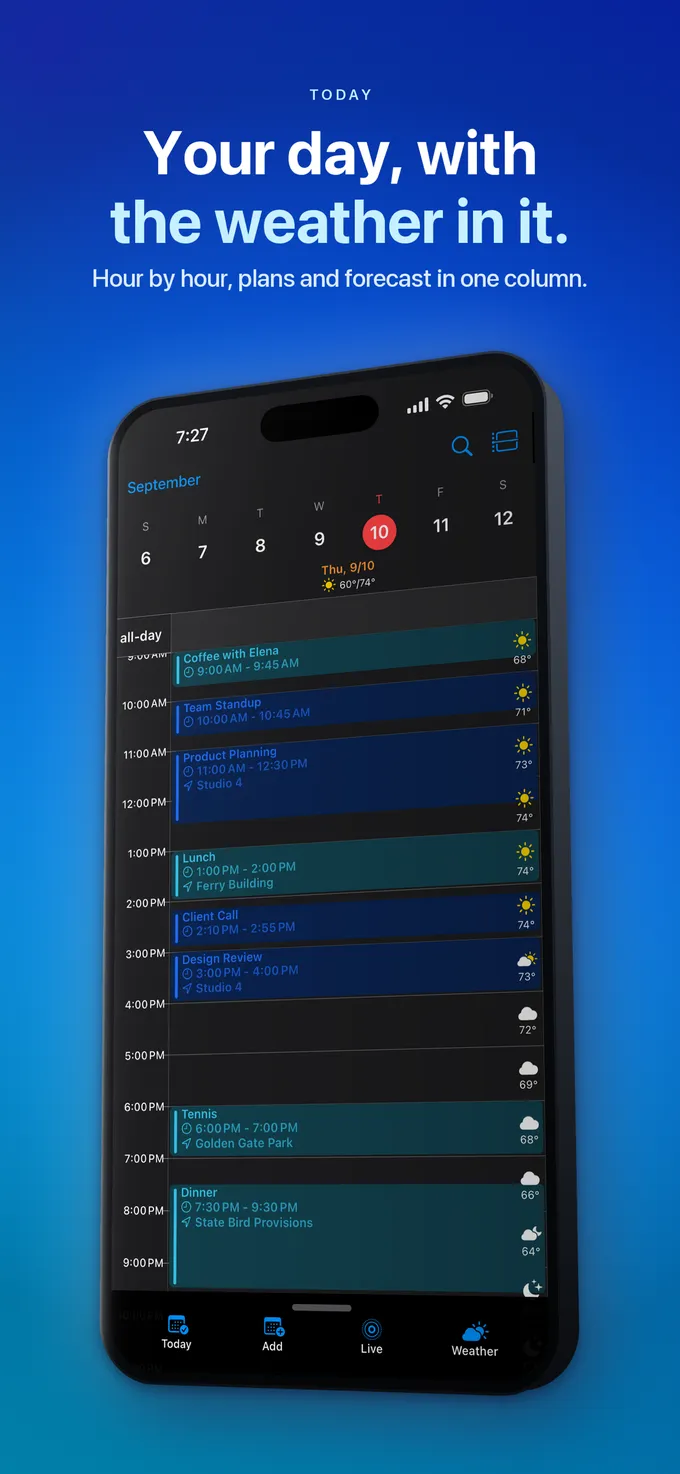
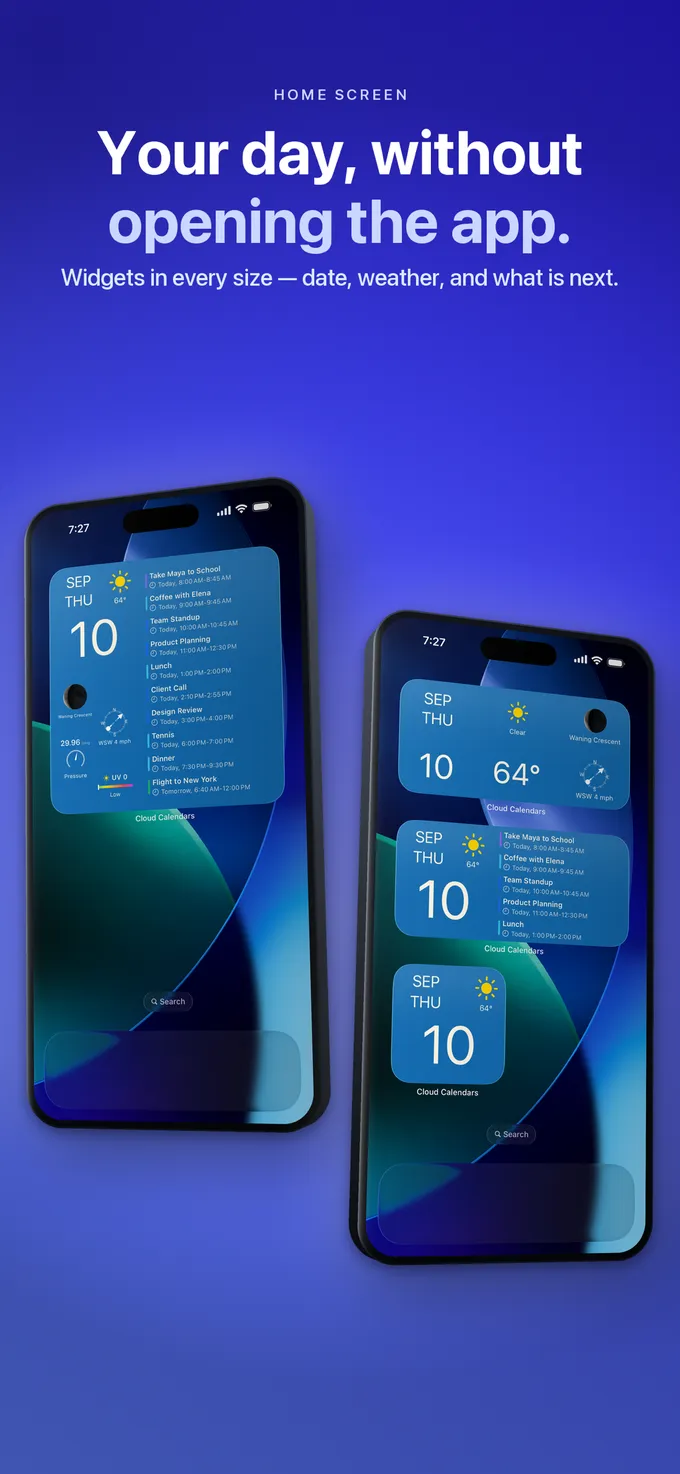
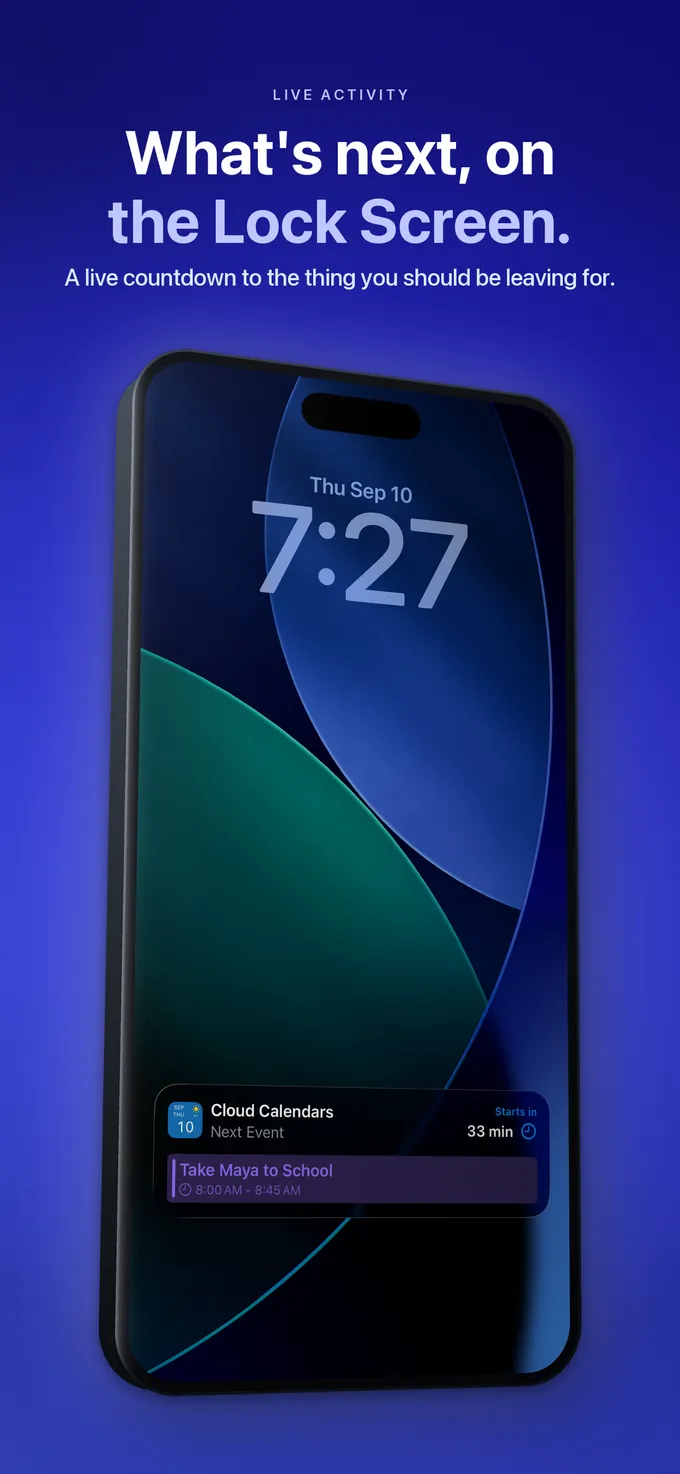
Cloud Calendars is another iPhone and iPad option for selected calendars, multiple planning views, weather and widgets. Google sync is included in Base, Advanced removes ads and Premium adds Microsoft calendar support. Check the current plan and provider permissions for your setup.
If a specialist task connection, template command or desktop workflow is essential, use the product that documents and successfully performs that requirement. Compare saved results and daily effort; a checklist should help you choose, not imply that every feature mentioned here exists in Cloud Calendars.
What it looks like


What to do
- List your accounts, devices and essential actions.
- Choose one account-connection route and inspect the calendars it exposes.
- Test quick entry and task completion with harmless examples.
- Verify the weather location and the views used on each device.
- Check current purchase terms after any trial or legacy entitlement.
Questions
- Which is the best alternative to Fantastical?
- It depends on your required workflow. Compare calendar and task sources, event entry, device support and current entitlement. This guide does not declare a universal performance winner.
- Does the same provider name mean every app syncs identically?
- No. Check direct connections, device calendars, feeds and permissions separately, then verify an example change at its source.
- Can I assume every advertised feature is free?
- No. Check the installed app, the local purchase screen and the features remaining after a trial. Publisher documentation may describe different versions or entitlements.
Official documentation checked for this guide
- Fantastical: account connection routes
- Fantastical: natural-language entry and templates
- Readdle: current product capabilities and FAQ
- Readdle: selecting a task source
- Readdle: separate free/full plan guidance
- Calendar 366: integrations, sets, quick entry and weather
- BusyCal for iOS: tasks and Watch task limits
- BusyCal for iOS: weather and supported views
- BusyCal for iOS: natural-language entry
- Fantastical: Apple Watch views and actions
- Google: Calendar’s own account-based interface