
Merge iCloud, Google & Outlook Calendars on iPhone
There are two fundamentally different ways to "merge" iCloud, Google Calendar, and Microsoft Outlook/Exchange on an iPhone: unified client viewing (displaying all three accounts together on your screen while keeping each event in its original provider) and server-side cloning (copying "Busy" placeholder blocks from one server into another so coworkers’ scheduling tools see you as unavailable). For 90% of people who simply want one screen without switching between three apps, a unified iOS viewer like Cloud Calendars or Apple Calendar solves the problem cleanly without polluting work calendars with copied records. Arte Soft develops Cloud Calendars and publishes this comparison.
Feature-by-Feature Comparison Matrix: Unified Viewers vs Server Sync
| Capability | Cloud Calendars | Apple Calendar (iOS) | Fantastical / Notion | Server Sync (OneCal / Reclaim) |
|---|---|---|---|---|
| Integration architecture | Unified iOS client viewer (EventKit + Google & Microsoft OAuth) | Unified iOS client viewer via iOS Calendar Accounts | Unified client viewer across mobile & desktop | Cloud-to-cloud server cloner copying Busy/detail blocks across APIs |
| Coworkers see personal blocks in Find a Time / Teams? | No — personal iCloud/Gmail stays invisible to work server | No — client-only display on your Apple devices | No — client-only display inside the app | Yes — writes actual Busy placeholder events onto your work calendar |
| Side-by-side per-account Day columns | Dedicated Multi-calendar Day view (one column per calendar) | Single merged timeline on iPhone | Single merged timeline (filterable via Calendar Sets) | Web dashboard only; relies on your calendar app to view |
| Native iCloud access without app-specific passwords | Yes — direct iOS EventKit permission (Free) | Yes — built-in iCloud Push | Yes on Fantastical iOS; Notion requires Apple app-specific password | Requires Apple ID app-specific password stored on third-party server |
| Video meeting link creation | Google Meet (Free) & Microsoft Teams (Premium) | FaceTime built in | Meet, Teams, Zoom & Webex | Not an event editor |
| Built-in hourly weather beside all 3 accounts | Apple WeatherKit hourly & 10-day forecast in Free | None on iPhone | Fantastical Premium (~$57/yr); none in Notion Calendar | None (background sync service) |
| Risk of duplicate events if misconfigured | Low — hide duplicate iOS/OAuth list with one toggle | Low — single system account table | Low — per-account visibility toggles | Medium — chained two-way rules can loop if not carefully scoped |
Provider-by-Provider Connection Paths on iPhone
Unifying iCloud, Google, and Outlook fails most often when people try to forward calendars via read-only ICS links—which take hours to refresh on Google Calendar and strip away editing rights—instead of connecting each provider natively.
In Cloud Calendars, iCloud connects via Apple EventKit (zero extra login), Google connects via Sign in with Google OAuth in Free, and Microsoft Outlook / 365 connects either via Sign in with Microsoft OAuth in Premium or via an Exchange account already approved in iPhone Settings.
Account Sync, Protocol & Platform Support Across Unification Tools
| Provider / Dimension | Cloud Calendars | Apple Calendar | OneCal / Server Sync |
|---|---|---|---|
| Google Calendar | Direct Google OAuth + Meet (Free) or via iOS Settings | iOS Settings > Calendar Accounts (periodic Fetch) | Google Calendar API webhook sync |
| Microsoft 365 / Exchange | Direct Microsoft OAuth + Teams (Premium) or iOS Exchange store | Native Exchange ActiveSync / OAuth in iOS Settings | Microsoft Graph API (often requires IT admin consent) |
| Apple iCloud Calendar | Native iOS EventKit read/write (no app password needed) | Native iCloud Push across Apple devices | CalDAV via user-generated Apple app-specific password |
| ICS URL Subscriptions | Reads iOS subscribed ICS calendars read-only | Native iOS subscribed ICS support | Generally requires read/write API accounts rather than ICS feeds |
| Supported Platforms | iPhone & iPad (iOS / iPadOS 18.0+) | iPhone, iPad, Mac, Watch & Vision Pro | Web configuration; synced events appear everywhere |
| Data separation & privacy | Events stay in their native provider; zero cross-account copying | Events stay in their native provider | Copies stripped Busy blocks or metadata across servers |
Pricing and Choosing Viewer vs Server Sync
Ask one decisive question before paying for any tool: "Who needs to see the combined schedule—just me on my iPhone, or my coworkers inside Outlook Scheduling Assistant?" If only you need to see everything so you stop double-booking dentist visits over sprint reviews, a client viewer is faster, cheaper, and keeps private appointments completely off employer servers.
If coworkers routinely drop meetings onto open afternoon slots on your work calendar because they cannot see your personal commitments, combine a server-side busy-block tool (or manual private blocks) with a unified iPhone viewer—making sure to hide the cloned secondary calendar in your mobile view so you do not see every appointment twice.
Pricing & Best Choice by Multi-Account Scenario
| User Scenario | Cloud Calendars | Alternative Tool | Best Choice |
|---|---|---|---|
| Combining iCloud + Google Calendar + weather on iPhone for $0 | Free ($0, ad-supported) or $4.99/yr ad-free Advanced | Apple Calendar ($0, no weather or column view) | Cloud Calendars |
| Combining iCloud + Google + Microsoft Teams in side-by-side columns | Premium ($4.99/mo or $49.99/yr) includes Microsoft OAuth + Teams | Fantastical (~$57/yr, single merged column) | Cloud Calendars Premium |
| Blocking coworkers in Outlook Find a Time automatically from personal Gmail | Client viewer only — does not copy blocks to work server | OneCal / Reclaim (~$60–$120/yr server sync) | OneCal + unified iOS viewer |
| Corporate IT blocks all third-party Microsoft Graph OAuth apps | Can read Exchange via iOS Settings if iOS profile is permitted | Outlook Mobile ($0) when strict Intune MAM container is enforced | Apple Calendar / Cloud Calendars or Outlook |
| Viewing all 3 accounts on both Mac desktop and iPhone for $0 | iPhone & iPad only | Apple Calendar ($0 across macOS + iOS) | Apple Calendar (Mac) + Cloud Calendars (iOS) |
| Sharing a single merged event without exposing full calendars | Single-event link, QR & iPhone App Clip preview included | Standard email ICS invite | Cloud Calendars |
How to Prevent Duplicate Events When Mixing iOS Settings and OAuth
Because Cloud Calendars reads the iOS calendar store and also offers direct Sign in with Google and Sign in with Microsoft, connecting the same Gmail address in both places can make two copies of that calendar available.
Open the calendar list selector inside Cloud Calendars and uncheck one copy—or use iOS Settings exclusively for iCloud/CalDAV and Cloud Calendars OAuth for Google/Microsoft—so every meeting renders once and fires one alert.
Why Side-by-Side Columns Beat Merged Color Soup
When you combine work Outlook, personal Gmail, a partner’s iCloud calendar, and kids’ school schedules, traditional Day view crams four overlapping bars into sliver-thin columns that truncate every title.
Cloud Calendars’ Multi-calendar view assigns each selected calendar its own dedicated vertical lane across the day, letting you scan "Work", "Personal", and "Family" side by side at a glance.
What it looks like
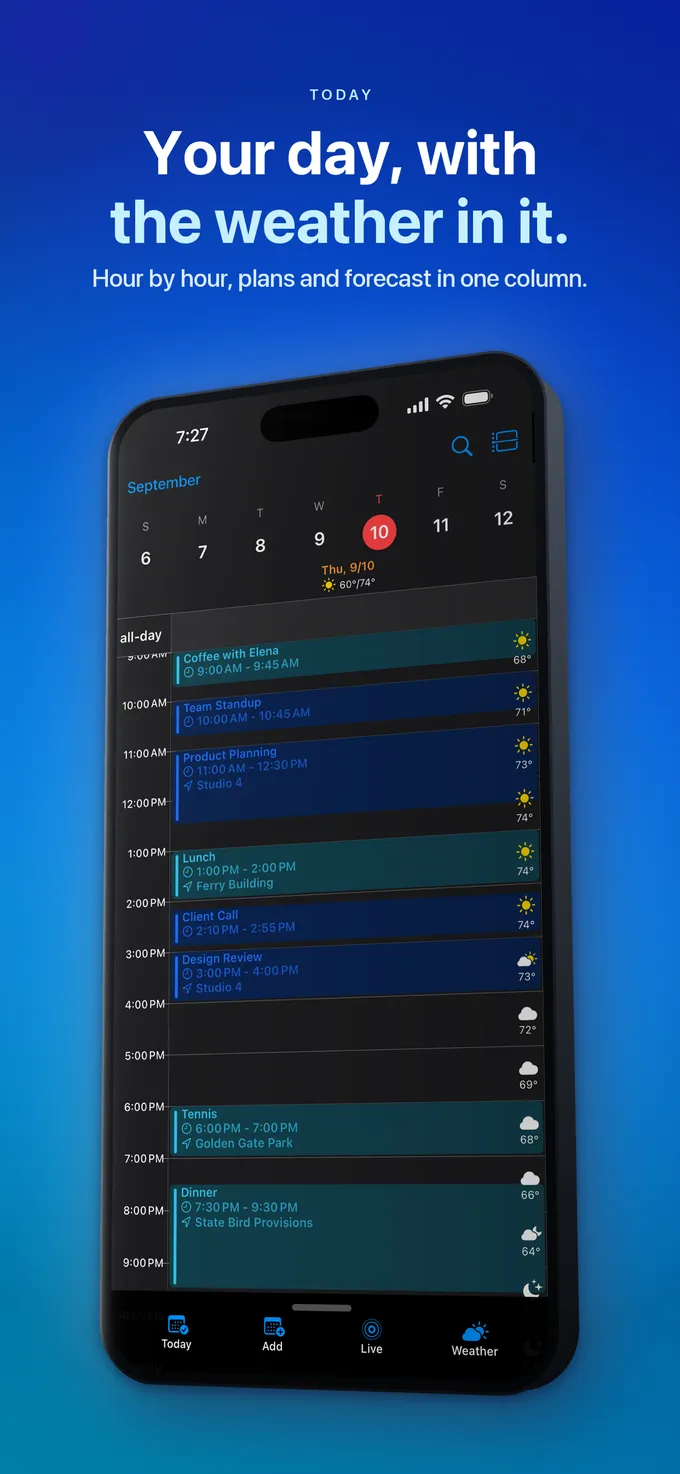
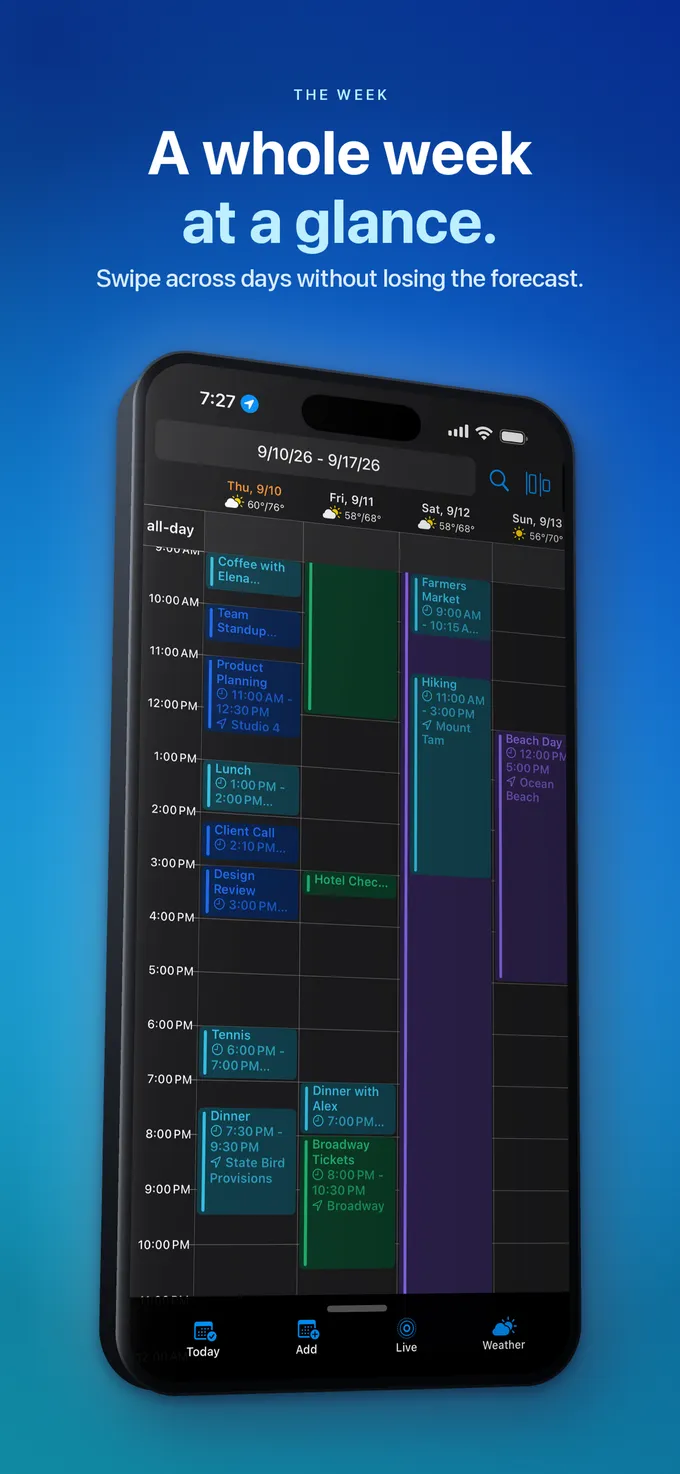
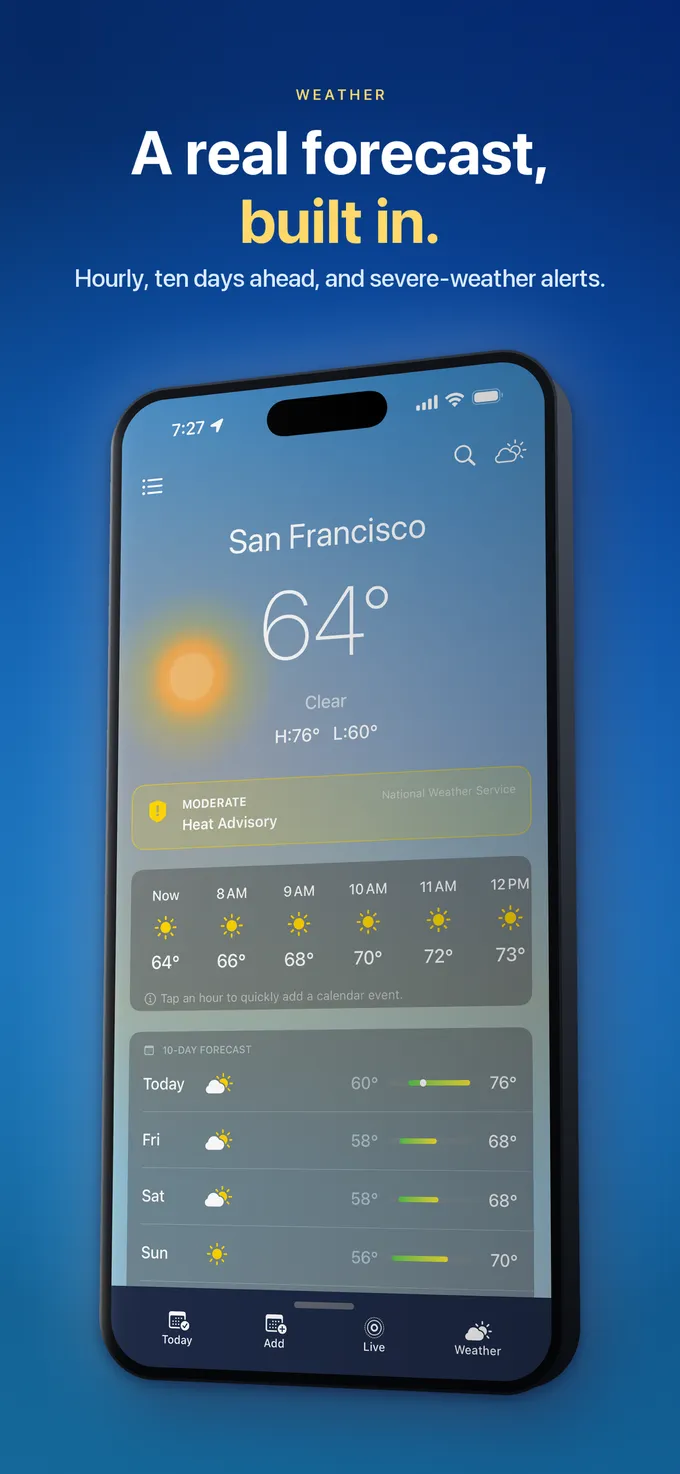
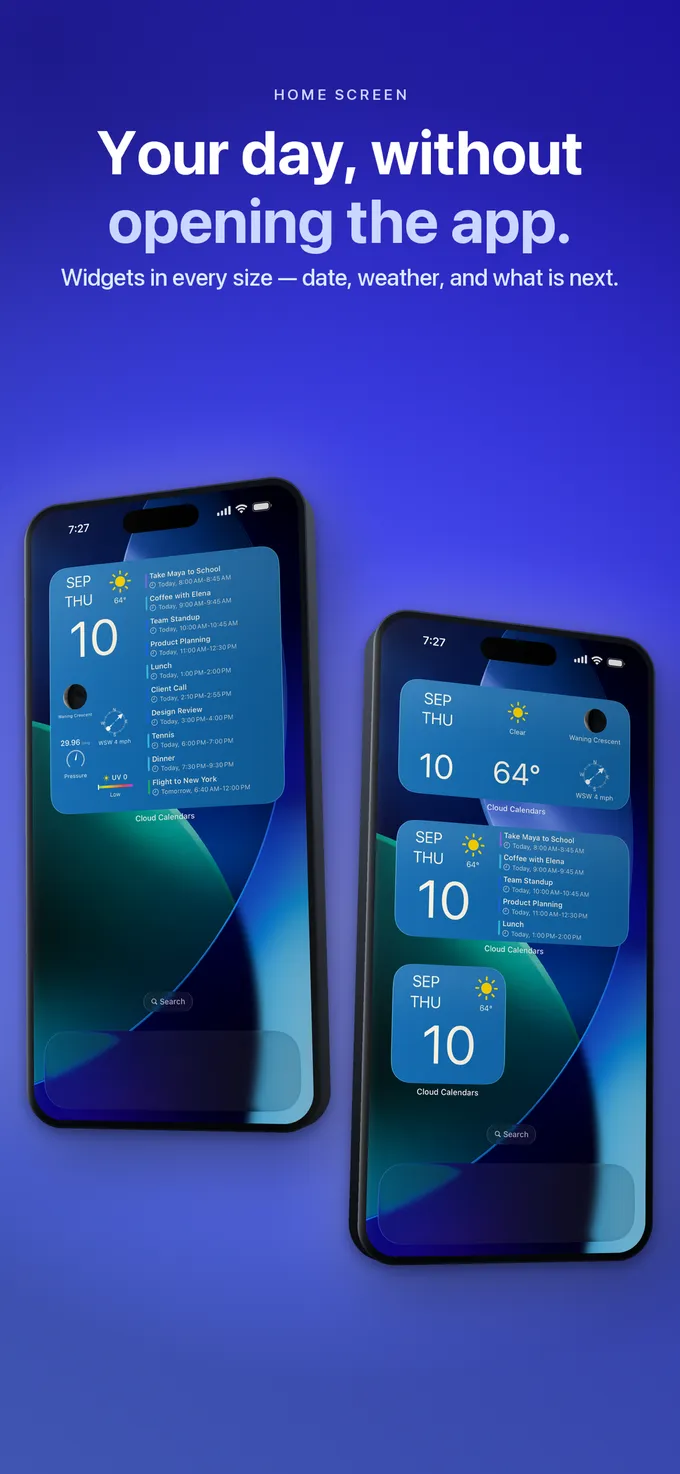
What to do
- Enable iCloud Calendar in iPhone Settings and grant Cloud Calendars Full Access so your Apple calendars appear immediately.
- Connect Gmail via Sign in with Google inside Cloud Calendars (Free), and connect Microsoft 365 either via iOS Exchange settings or Sign in with Microsoft (Premium).
- Open the calendar visibility picker and uncheck any duplicate calendar that is synced through both iOS Settings and direct OAuth.
- Tap Multi-calendar Day view to inspect Work, Personal, and Family schedules in separate side-by-side columns.
- Choose your personal calendar as the default creation target so private appointments never accidentally save onto a work server.
Questions
- If I connect my work Outlook and personal iCloud in Cloud Calendars, can my employer see my iCloud events?
- No. Cloud Calendars unifies accounts visually on your iPhone and iPad without copying events between servers. Your employer only sees events you explicitly create on or move into your work Exchange/Microsoft 365 calendar.
- Why do Google ICS imports into Outlook or iCloud take up to 24 hours to update?
- Subscribed .ics URLs rely on periodic server polling controlled by the receiving provider—Google and Outlook Web often refresh external ICS feeds only once every 12 to 24 hours. Native OAuth and EventKit sync update within seconds or minutes.
- Does Cloud Calendars require an Apple app-specific password for iCloud?
- No. On iPhone and iPad, Cloud Calendars reads and edits iCloud calendars directly through Apple’s native EventKit permission.