
Can others see your Google Calendar tasks? Check timed tasks and permissions
Google’s current guidance distinguishes timed tasks from other tasks. Check the item before assuming it is visible—or hidden. Arte Soft, the developer of Cloud Calendars, publishes this guide.
Identify the kind of item before checking access
Open the item in Google Calendar and establish whether it is a task or an event. A work block created as an ordinary event follows event settings; calling it “task time” in the title does not change its type.
Check whether the task has both start and end times. Google says tasks without either time remain private; timed tasks have configurable visibility. Inspect the current item rather than applying a blanket rule.
Inspect the timed task’s visibility at the source
Google documents desktop controls under the task editor’s Advanced settings. Inspect those alongside calendar access; a third-party calendar view may not expose them.
A shared calendar permission and an individual item’s visibility work together. Before putting private wording into a timed work block, inspect both. If your interface does not offer the documented controls, check the current account and supported Google interface rather than assuming the option exists in every app.
Separate a busy block from its details
Google distinguishes a timed task’s Busy block from its details. What another person sees depends on the item’s visibility and their calendar permissions.
Use a neutral example such as “Sample work block” when checking the result. Do not test visibility by entering confidential information and then asking whether it leaked. Have a consenting calendar participant inspect the harmless example from their own account.
Verify existing tasks after permission changes
Google says changed calendar sharing settings apply to future tasks. Check existing timed tasks individually instead of assuming their access changed as intended.
For a practical check, compare one existing harmless task with a newly created example. Record what the recipient can see: no item, busy time or details. Use the task’s supported visibility controls to correct an unintended result, then verify again from the recipient’s account.
Keep other task systems separate
These instructions concern Google Calendar’s documented tasks. They are not rules for Apple Reminders, a project-management app or a private note that happens to contain a deadline. A task completion connection also is different from calendar sharing.
Cloud Calendars can help you review calendar commitments, but this guide does not claim that it edits Google task visibility or task sharing. Make access changes in the service that owns the task and verify the specific recipient experience there.
What it looks like
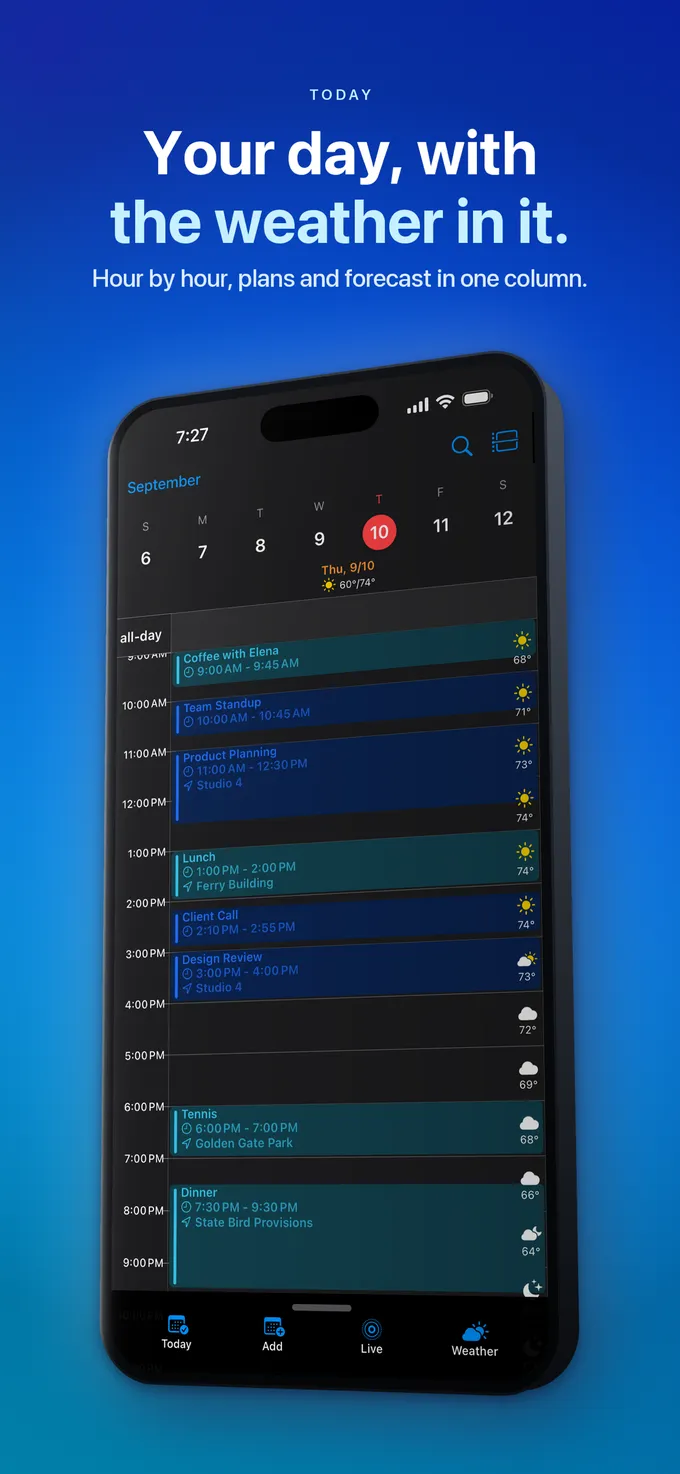


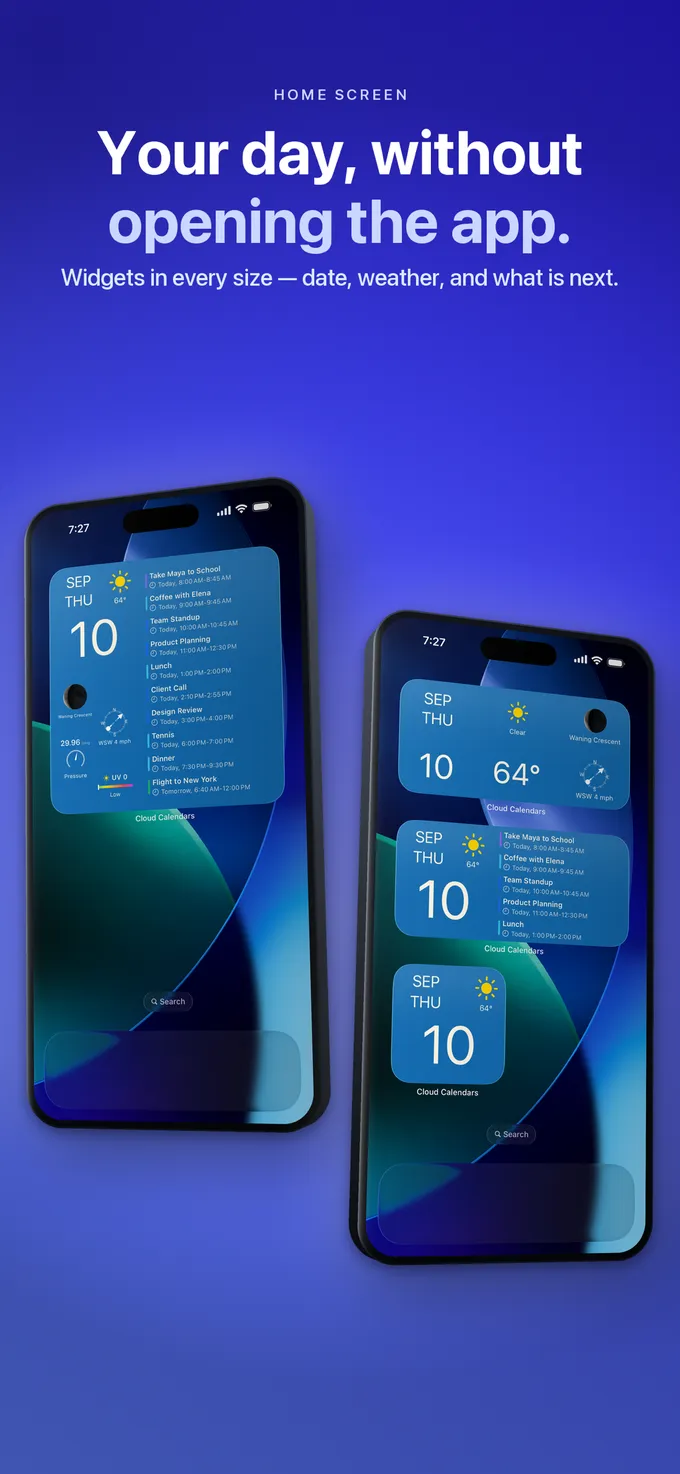
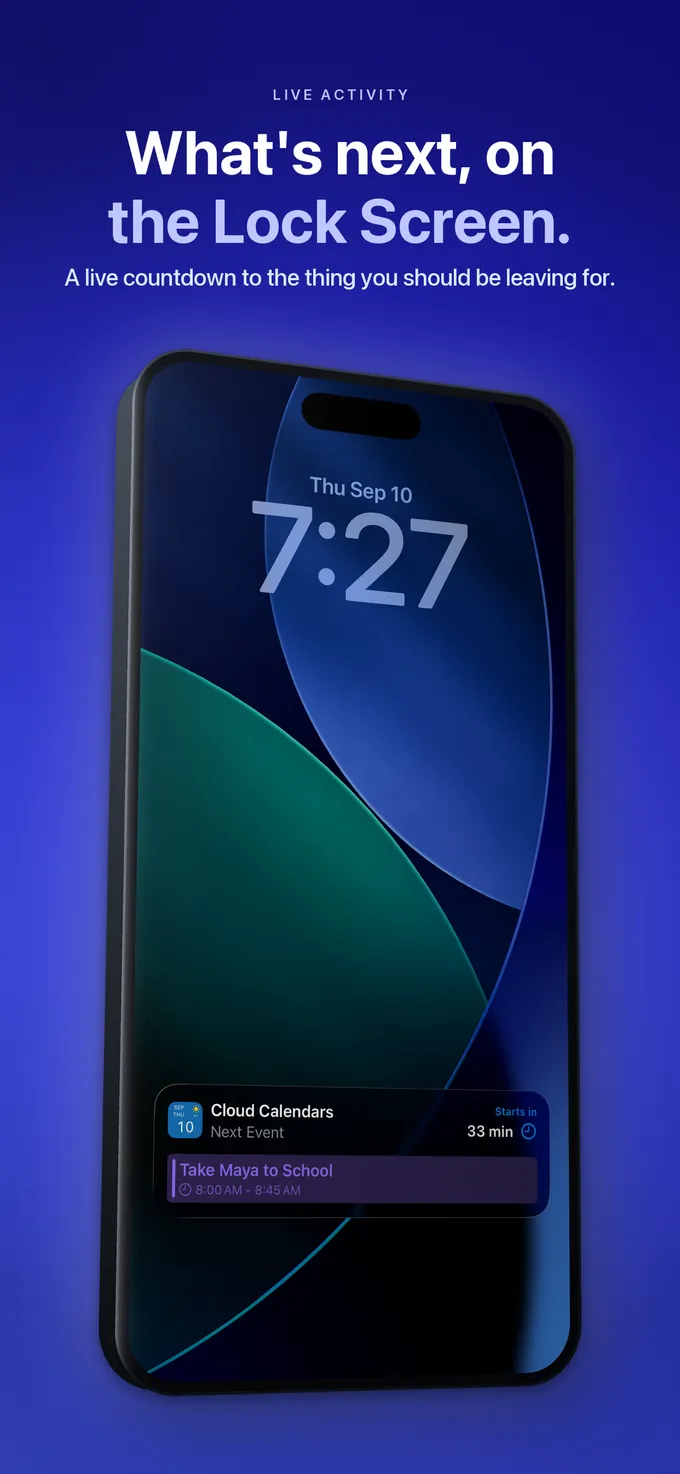
What to do
- Confirm whether the item is a task or ordinary event.
- Check whether the task has both start and end times.
- Review the task’s visibility alongside calendar permissions.
- Test a neutral example from the intended recipient’s account.
- Check existing timed tasks after changing sharing settings.
Questions
- Are all Google tasks always private?
- No blanket rule is safe. Google distinguishes tasks without both times from timed tasks with visibility controls.
- Can someone see a busy block without seeing the task title?
- Yes, Google documents that possibility. Verify the task’s visibility and the recipient’s calendar permissions.
- Can I change Google task visibility in any iPhone calendar app?
- Do not assume so. This guide follows Google’s documented desktop controls; another app showing calendar events may not expose task settings.