
Work and personal calendars in one app: keep ownership separate
An overview can help you spot clashes while keeping event ownership clear. Check both the calendars you display and the account routes used to store their copies. This guide is written by Arte Soft, the developer of Cloud Calendars.
What most people assume
Putting work and personal calendars in one app also combines their sharing permissions.
An overview is different from shared access
A calendar app can display selected calendars together while each keeps its own account and permissions. Apple’s multiple-calendar guide describes choosing calendars to display, assigning colours and selecting a default calendar. Those display choices are not a transfer of event ownership.
Before connecting a work account, check your organisation’s requirements. Google documents that administrators can restrict calendar sharing. A convenient personal overview does not give you permission to publish work details or bypass account restrictions.
Cloud Calendars’ Google and Microsoft connections use mirrored calendars in the iPhone calendar store. The available calendar sources can affect where these copies are held. A work-account connection therefore needs approval for its actual data flow, not just for the account name shown in the overview.
Use colour and visibility for the overview
Give work and personal calendars distinct colours, then check a busy day with both visible. When you want a narrower view, hide a calendar rather than deleting its events. Apple’s duplicate-calendar guide explains how to show and hide calendars with checkboxes. Before accepting a new commitment, restore the calendars relevant to that decision and compare the week with all of them visible. An empty filtered view does not establish that the time is free.
Hiding a calendar does not change who has permission to access it. In Cloud Calendars, calendar selection also matters to Google synchronization and notification scheduling, so do not assume that deselecting a calendar affects only the picture on screen. Check important changes at their provider and review notification settings separately if the goal is a quiet evening. Keep an approved work app available if your organisation requires it.
Separate Focus filters from notification choices
If calendars disappear when a Focus turns on, inspect that app’s filters before recreating events. Apple separates the apps allowed to notify you from filters controlling the information an app shows. In iPhone Settings, open Focus, choose the active Focus and inspect its Focus filters. Check the named app: a Calendar filter is not evidence that the same selection applies to Cloud Calendars.
Before agreeing a time, restore the calendars needed for the decision and check the original event. If the problem is a silent reminder, use the notification checks instead. Do not remove an account or move an event merely to investigate a filtered view.
Check the destination before saving
A default calendar is a useful starting point, not a guarantee that every appointment belongs there. For a personal appointment, check the selected calendar before saving. For a work meeting, use the work calendar and the organisation’s invitation process.
Do not move or copy an invitation simply to make it appear in your overview. Microsoft distinguishes events you created from meetings organised by someone else: changing your own displayed copy is not a reliable way to update the organiser or attendees. Keep the original invitation and ask the organiser about a time change.
What the Cloud Calendars plans add
Cloud Calendars supports calendar views on iPhone and iPad. Its Base plan includes Google Calendar sync and the multi-calendar view. Advanced adds ad removal; Premium adds Microsoft Calendar and Teams support. Current local prices are shown in the app and App Store.
Advanced is not a paid permission to manage every account. A subscription does not make a read-only calendar writable or override workplace policy. Local calendars can be used without an account; provider connections and sharing have their own sign-in requirements.
Check a privacy-preserving busy block from the other side
Suppose a personal appointment should stop colleagues booking that time, but they should not learn its title. Seeing it beside work on your phone is only your overview. First establish whether your work account contains any availability entry at all, then check what an intended colleague can see.
If your organisation permits a manual work availability block, review the destination, title, notes, location, attendees and availability before saving. Avoid copying private appointment details into it. This is an approved arrangement you create and verify, not an automatic Cloud Calendars masking feature. Keep later changes consistent without turning the second entry into another invitation.
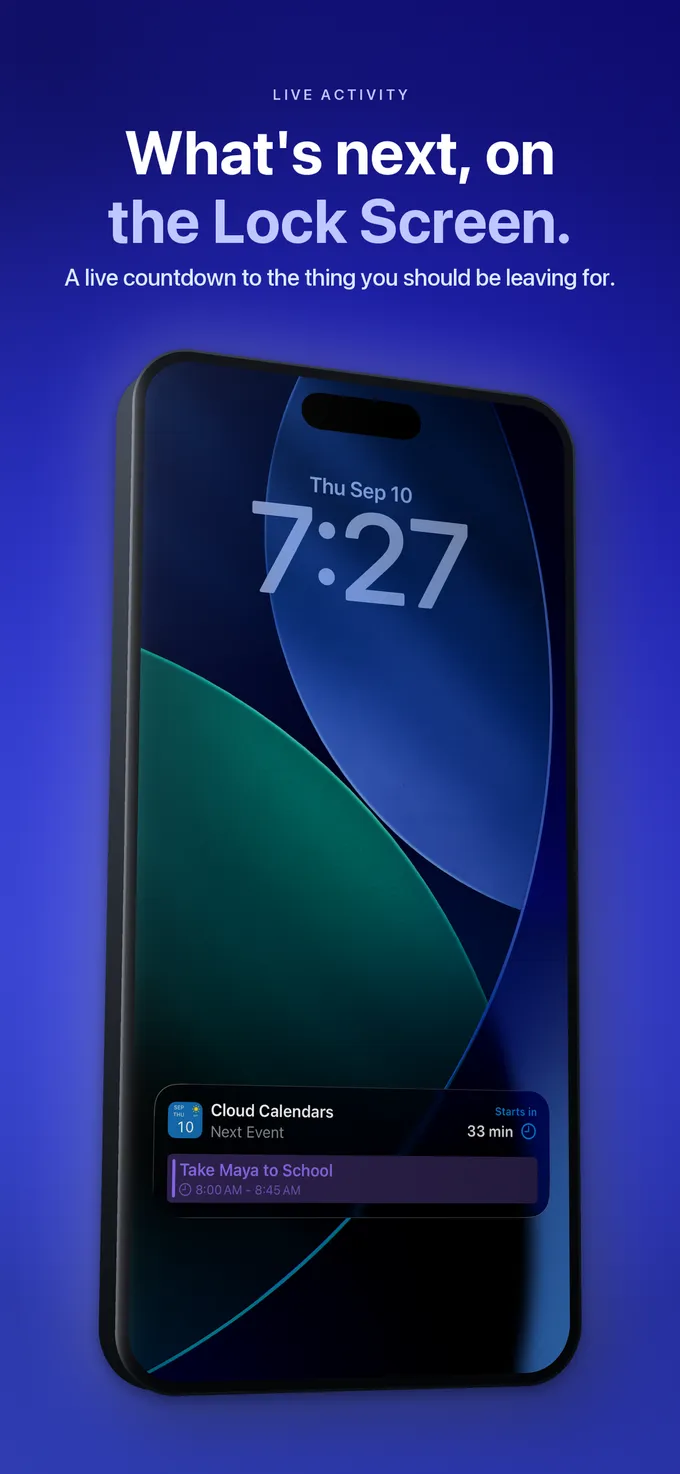
What it looks like
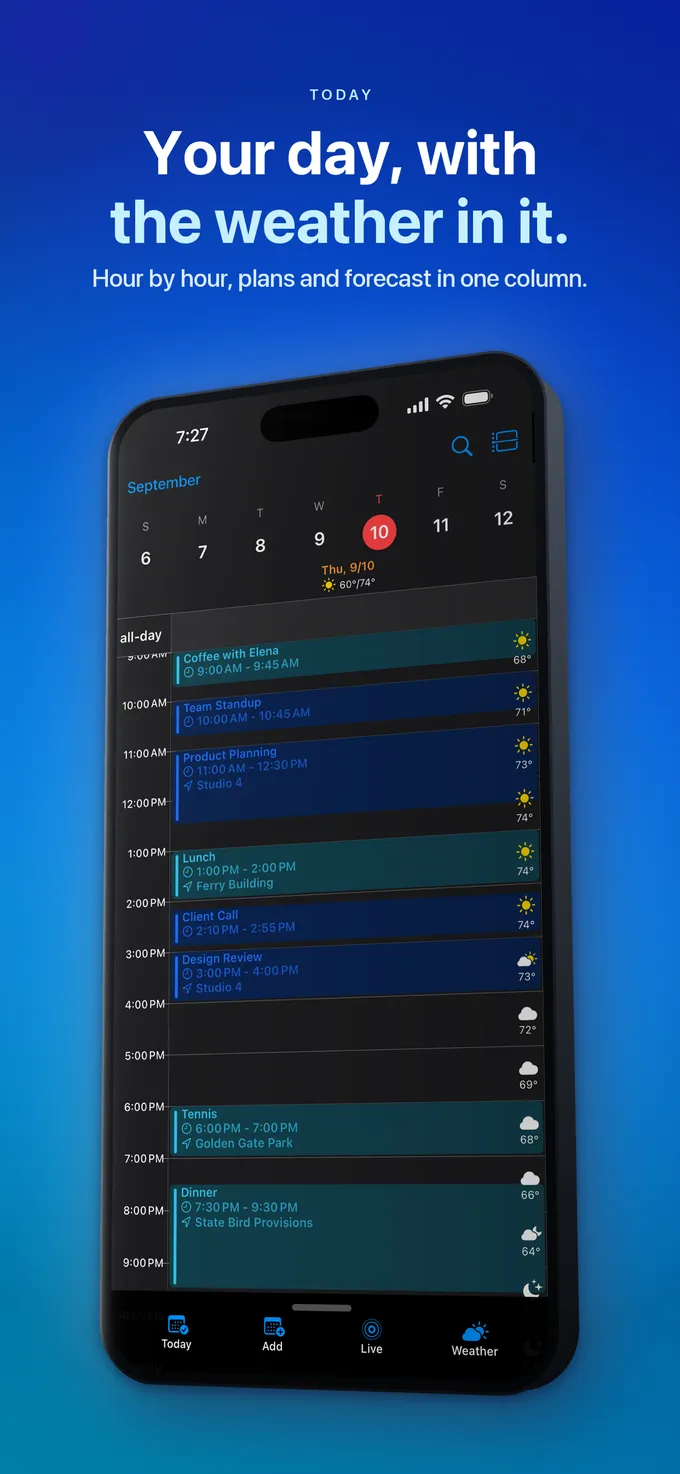
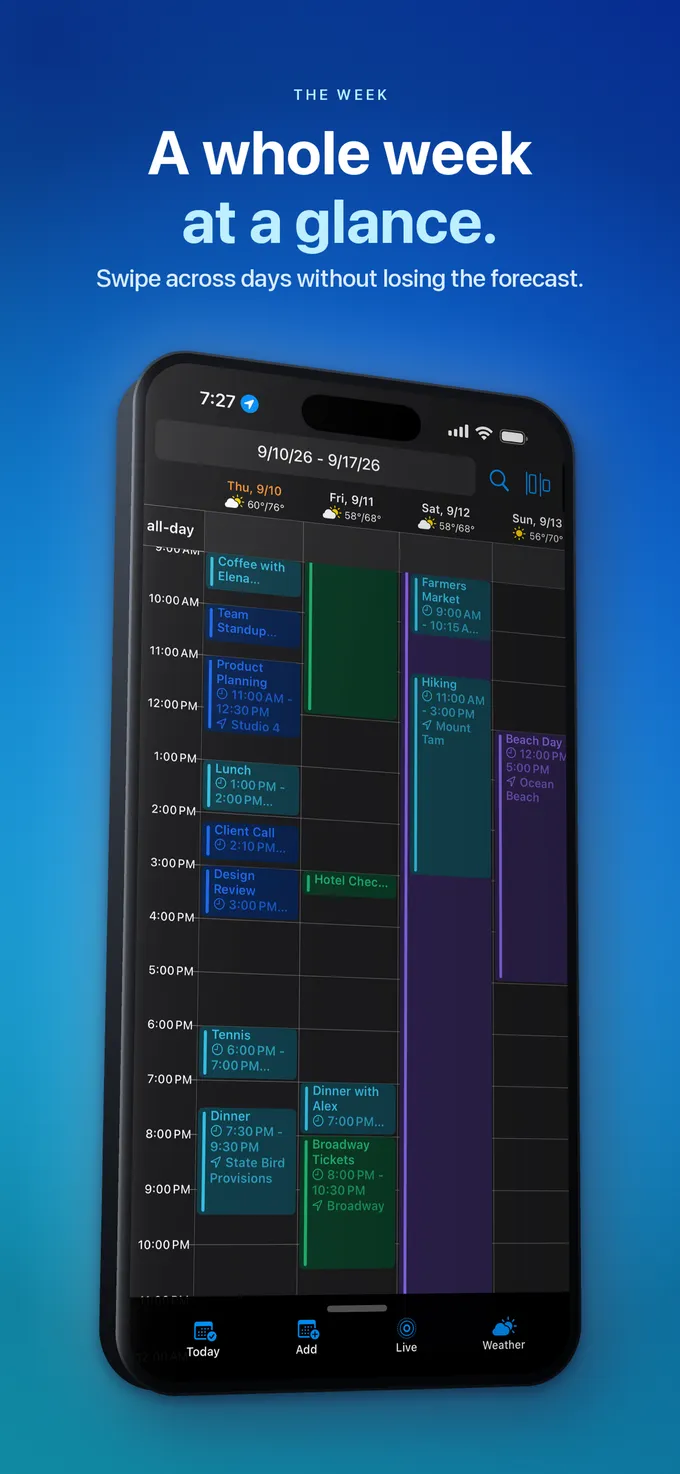
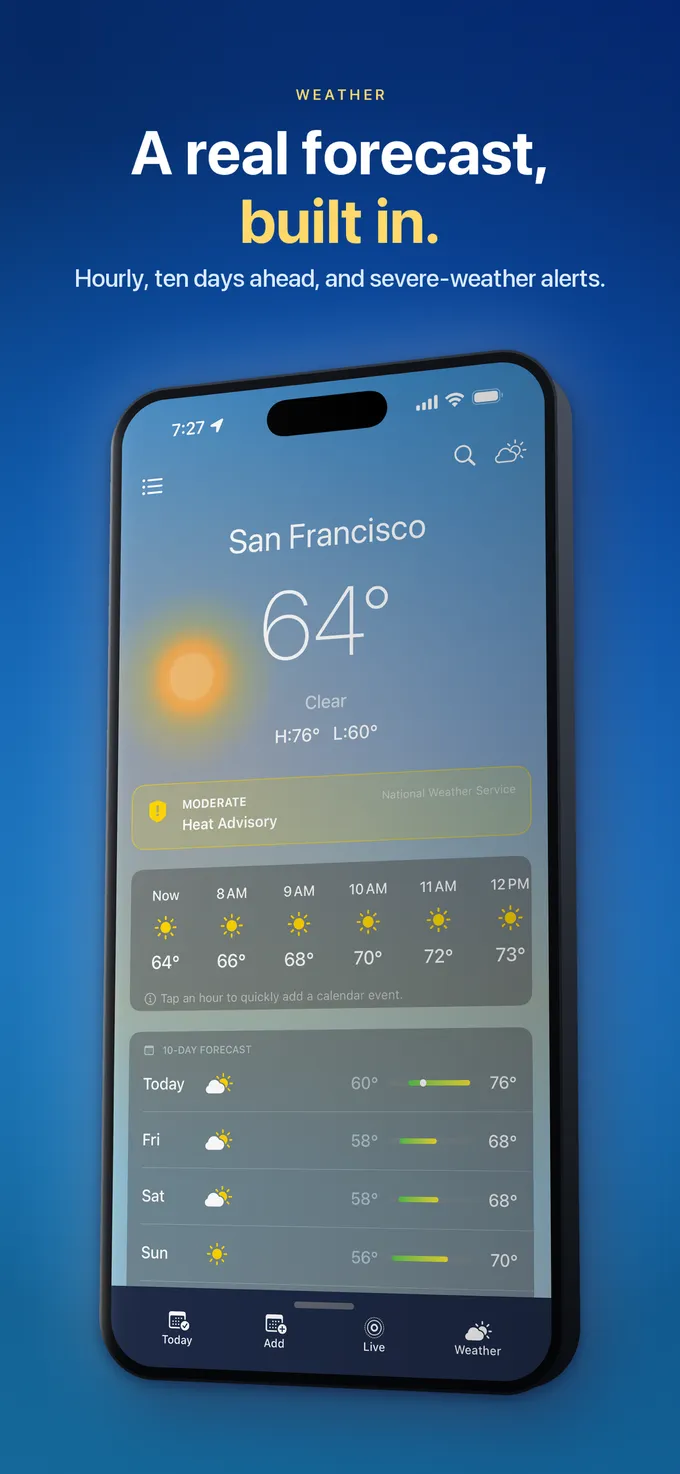
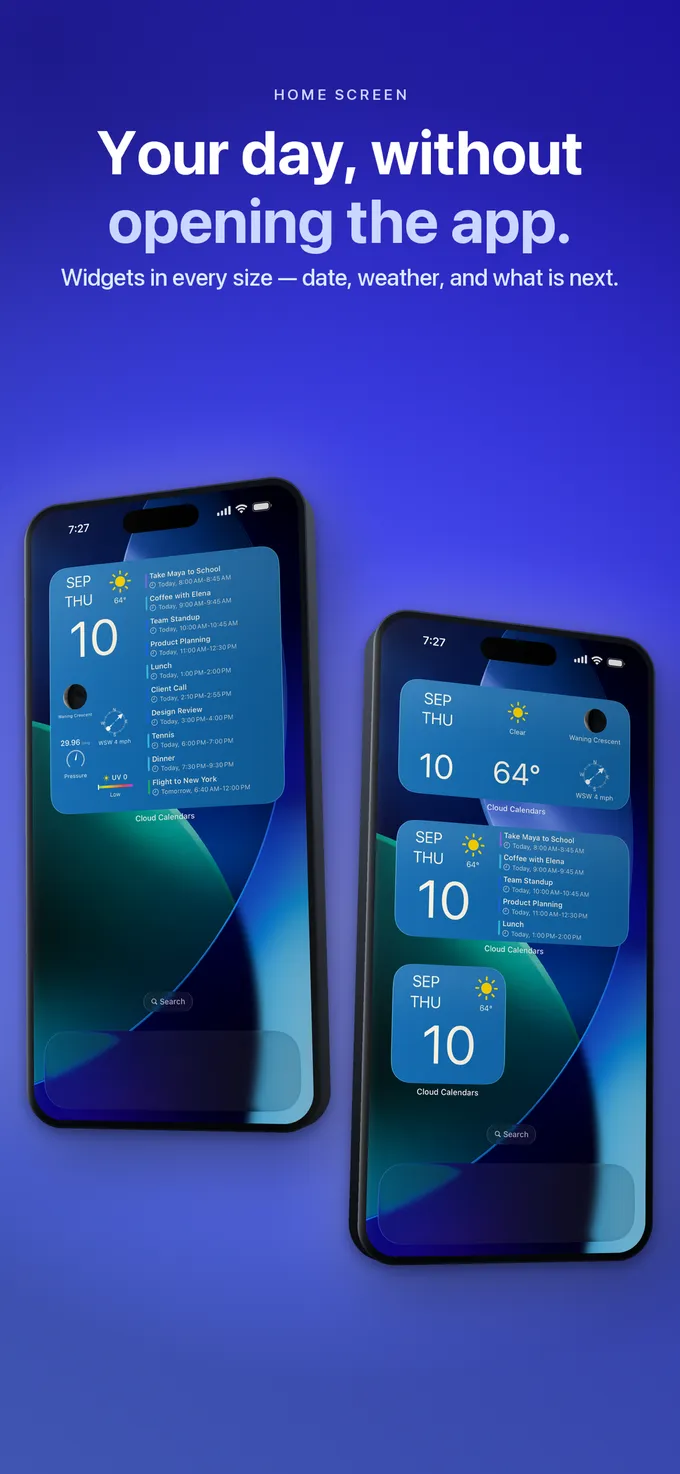
What to do
- Check whether your workplace permits the account connection.
- Choose distinct colours and display the calendars you need for an overview.
- Verify the destination calendar when creating a new event.
- Hide a calendar temporarily to narrow the view; do not delete events to tidy it.
- Review sharing permissions and notifications separately from calendar visibility.
Questions
- Will my employer see my personal events just because both calendars are in one app?
- Displaying calendars together does not itself grant calendar-sharing permission. Check which account owns each event, its sharing settings and any employer device-management rules. Do not save a private appointment to a work calendar by accident.
- Do I need Advanced to see Google and personal calendars together?
- Google Calendar sync and the multi-calendar view are Base features. Advanced removes ads. Microsoft Calendar support is part of Premium; account permissions still apply.
- Does Cloud Calendars automatically replace personal details with a work busy block?
- Do not rely on that. Viewing calendars together and creating provider mirrors are different from an explicit privacy-masking rule that copies availability into another account. Verify the arrangement your organisation permits.