
Tasks and reminders in an iPhone calendar: choose the right kind of item
A meeting at 11:00, a task due on Friday and an alert thirty minutes before a meeting describe different things. A useful combined calendar preserves those differences while helping you decide what to do next. This guide is published by Arte Soft, the developer of Cloud Calendars.
Separate an appointment, an action and an alert
Use an event for a commitment occupying an agreed period, such as a call from 11:00 to 11:30. Use a task for an action you need to finish, such as sending the revised document. An event alert is a notification about the appointment; dismissing it does not mean the document was sent.
A task’s due time is also different from the time needed to do it. If a document is due at 17:00 and needs forty minutes of work, a 17:00 marker does not reserve those forty minutes. Plan a suitable work block earlier and keep the task’s completion state in its task system.
Use Apple Calendar with scheduled Apple Reminders
Apple documents showing, creating, editing and completing reminders inside its Calendar app. To show them, open Calendar, tap Calendars and select Scheduled Reminders. All-day reminders appear in the all-day area; reminders with a time appear at that time.
These instructions belong to Apple Calendar and Apple Reminders. They do not establish that every third-party calendar displays the same tasks simply because it has access to calendar events. Check task support and permissions separately from ordinary event access.
Check the chosen task system in Calendars by Readdle
Readdle documents tasks through iOS Reminders or Google Tasks. Its setup guide directs iPhone users to Settings, Task Options and the selected task source. Confirm which list you are using before moving tasks between devices or expecting a completed item to disappear elsewhere.
Its task guide describes marking items complete and placing tasks on a timeline, including duration adjustments in iPhone Day view. These are documented task features of Calendars by Readdle. Check its current plan and installed version for the exact workflow; do not infer task compatibility from Google Calendar event syncing alone.
Test completion as well as visibility
Create a disposable task in the system you actually use, give it a due date and inspect it in the calendar. Mark it complete, then inspect the original task list. This distinguishes a functioning task connection from a copied event with a similar title.
Repeat with an undated task if those are important to your workflow. A calendar showing scheduled tasks may not provide the same view of an entire backlog. Before deleting anything, establish whether you are removing a work block, deleting a task or merely hiding a list.
Use a calendar block without pretending it is a task integration
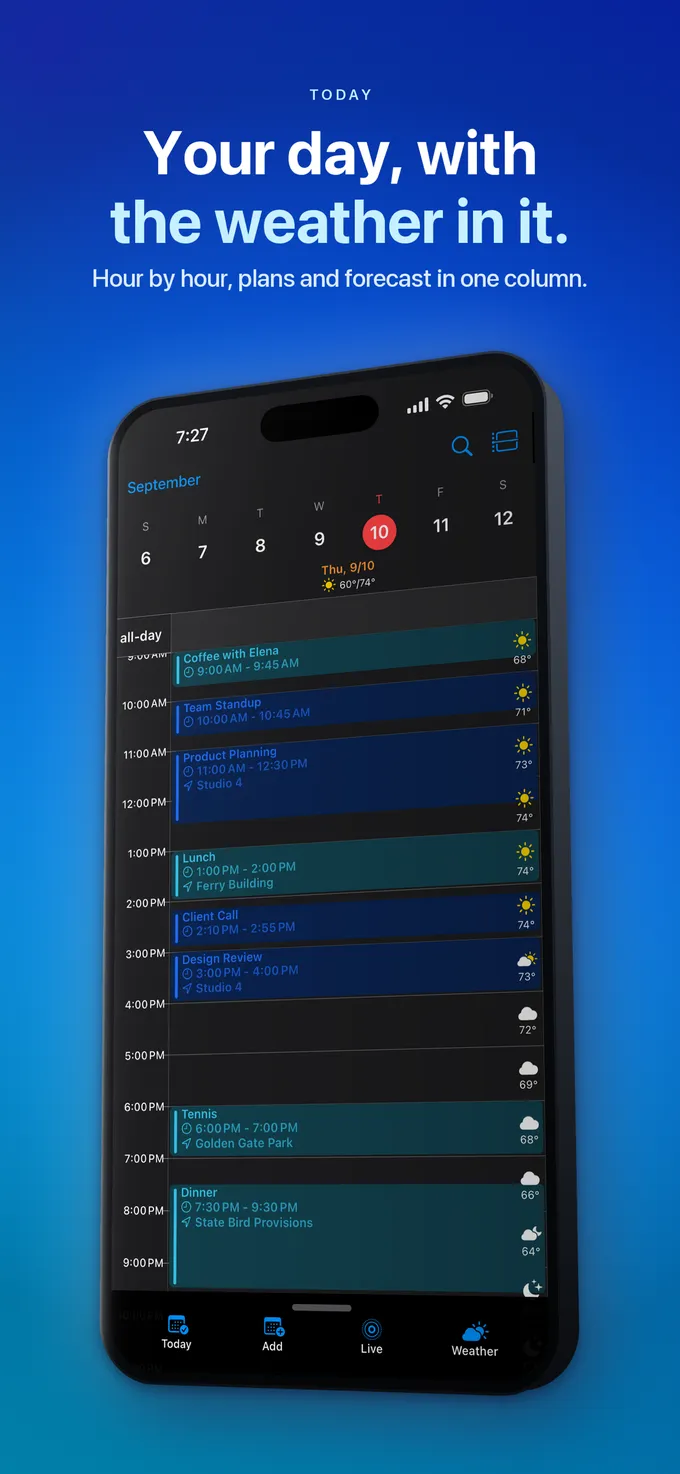
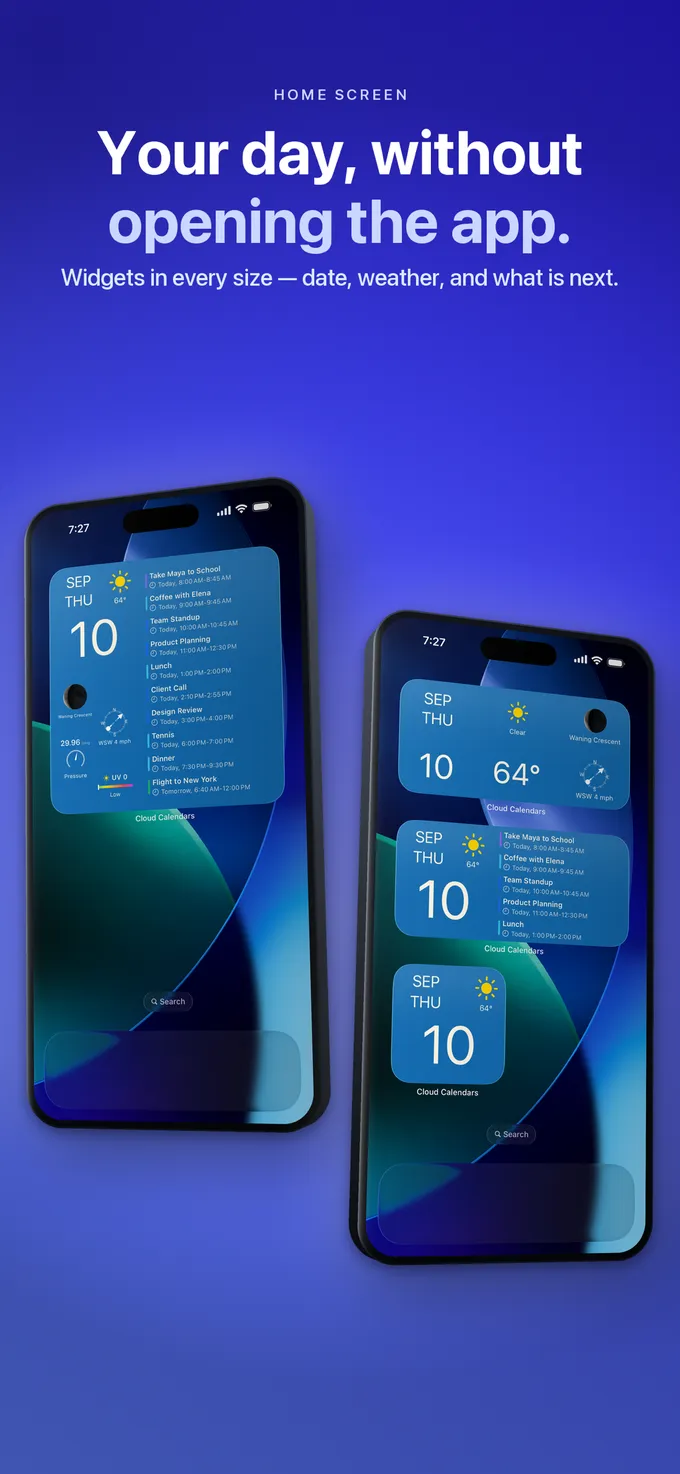
Cloud Calendars lets you plan with calendar events in day, week, month, year and list views. You can reserve a period for work as an ordinary event and keep the associated task in your existing task app. This article does not promise a task-completion connection to Apple Reminders or Google Tasks in Cloud Calendars.
Choose the simpler setup that satisfies your need. If checking off tasks inside the calendar is essential, test an app with documented task support. If you mainly need to compare available hours with appointments, an event-based planning view may be enough.
Any.do: the mobile calendar source can differ from desktop
Any.do’s help describes Calendar View as combining tasks with events from existing calendars. On iPhone, its documented route uses the device’s calendars; web and desktop use a direct account integration configured separately. If an event appears on the phone but not the computer, compare the connected sources before assuming a task-sync failure.
Its documentation also distinguishes calendar sharing through the underlying provider from direct in-app calendar sharing. A family task board and a shared provider calendar are not the same object. Check where the original item lives, who may edit it and whether completing a task changes only the task rather than the associated appointment.
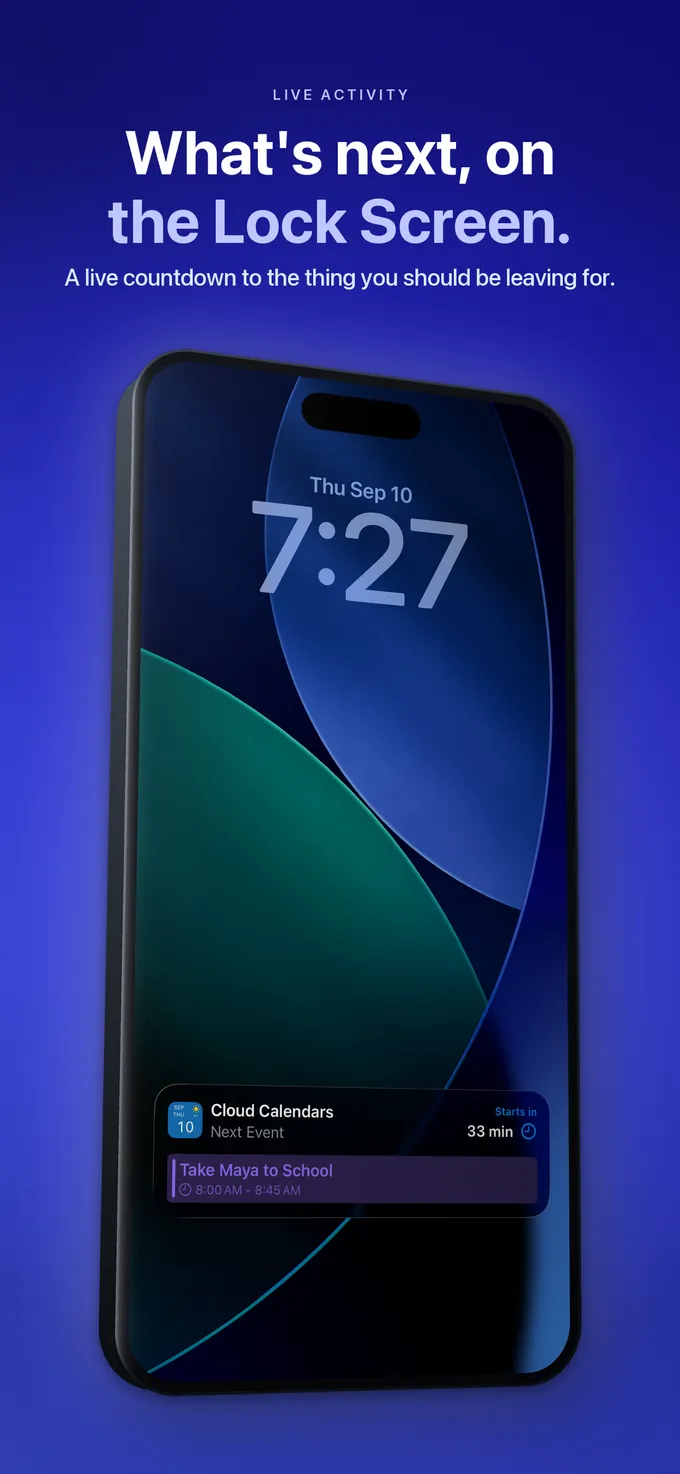
What it looks like


What to do
- Write down whether you need an event, a task or a notification.
- Identify the task account and list that own completion status.
- Show scheduled tasks using the documented controls for that app.
- Check one harmless completion in both the calendar and original task list.
- Reserve work time before the due date when the task needs a substantial block.
Questions
- Does a reminder alert mean the task is complete?
- No. An alert attracts attention; task completion is a separate state. Dismissing an event notification is not the same as checking off a task.
- Does syncing Google Calendar prove Google Tasks works too?
- No. Events and tasks are different data. Check the app’s documented task source and verify one task in its original list.
- Why can I see a due date but still have no time to do the work?
- A due date says when the result is needed. Reserve enough work time before that deadline instead of treating a deadline marker as an allocated work session.