
Calendar language and week numbers on iPhone and iPad: check display settings
Unexpected characters beside a date do not necessarily mean the calendar app changed language. Interface language, regional formatting, alternate dates and event text are separate things. Identify which changed before adjusting settings. Arte Soft, the developer of Cloud Calendars, publishes this guide.
Identify the part of the screen that changed
Look at a menu label, a month name, the date numbers and an event title separately. If menus remain in your usual language but extra date labels appear, investigate calendar display settings. If only one appointment has unfamiliar text, inspect that appointment’s title and source.
For example, a travel reservation can keep the organiser’s original title while the surrounding app menus remain English. Changing your device language is not an instruction to translate all saved appointment text. Avoid deleting an event or removing an account merely because its text looks unfamiliar.
Check the iPhone’s language and regional format
Apple’s language-and-region guide places these controls in Settings, General, Language & Region. It separates language preferences from regional choices such as calendar format, first weekday and date format. Check the specific choice relevant to your problem.
If day and month order looks different, inspect the actual saved date before rescheduling. A date displayed as 03/04 can be ambiguous without its format. Use a month name or the full event details to confirm the intended appointment.
Check alternate calendars in Apple Calendar
Apple’s Calendar settings guide documents alternate Chinese, Hebrew and Hijri calendars displayed alongside the Gregorian calendar. In the documented iOS 26 workflow, the control is Settings, Apps, Calendar, Alternate Calendars. Menu labels can differ by installed version.
The guide also separates Week Numbers and Start Week On. A number next to a week is not an extra appointment, and changing which weekday starts a grid does not itself move a saved event. Change one relevant display setting, return to the calendar and compare.
Show week numbers on iPad without moving events
Apple’s iPad guide documents Settings, Apps, Calendar, then Week Numbers. The same settings area separates Start Week On, Week View Starts On Today and Alternate Calendars. A week label, the first displayed column and a second date system solve different display questions.
Turn on the relevant control, return to Calendar and inspect the intended dates. If a school or workplace uses a week number to arrange a meeting, confirm the actual date as well, especially around the start of a year. Do not move an appointment simply to make its displayed week label match another person’s convention.
These are Apple Calendar instructions for the documented iPadOS version, not a promise that each third-party app copies the same controls. Older searches mentioning iCal may refer to Mac software; this iPhone and iPad guide does not invent a Mac menu path.
Use the controls belonging to the app you opened
Apple Calendar settings are not universal instructions for every calendar app. A third-party app can have its own language, view and formatting choices. Check its help and device settings rather than assuming the same menu path exists inside it.
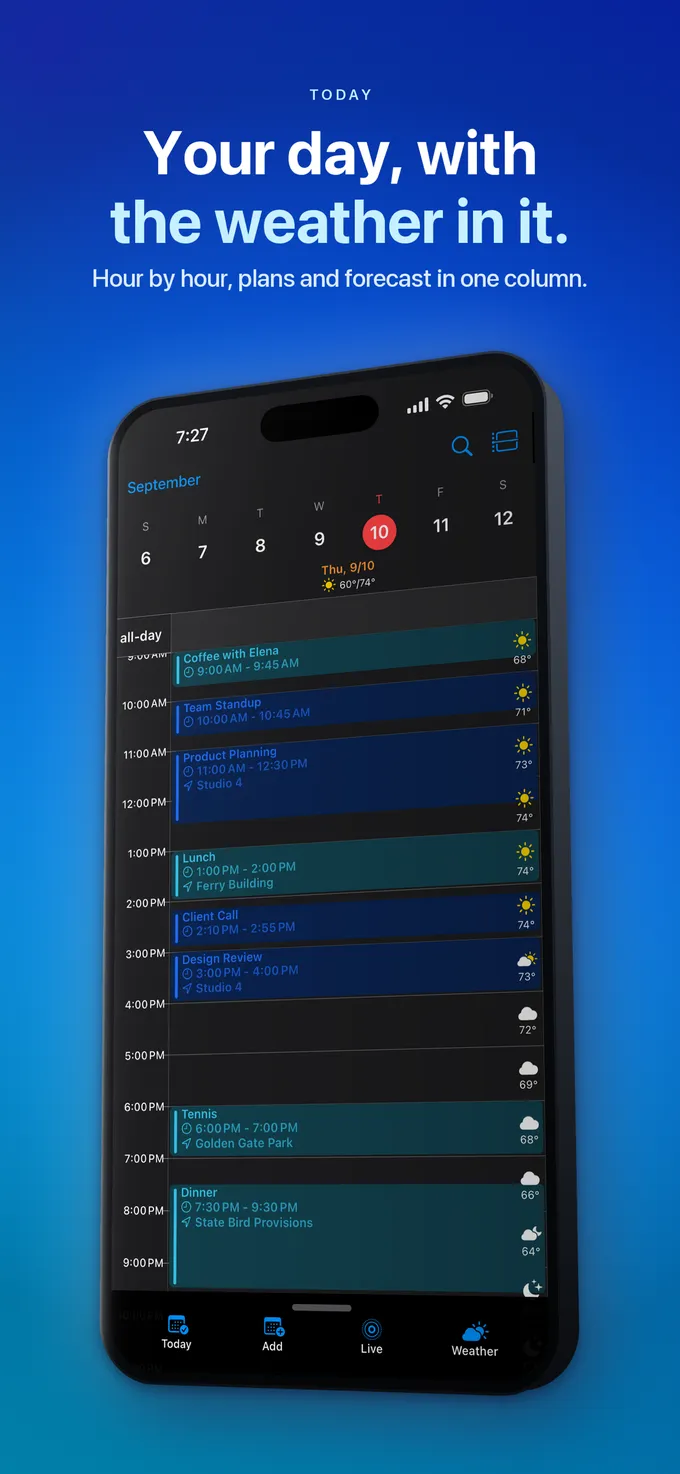
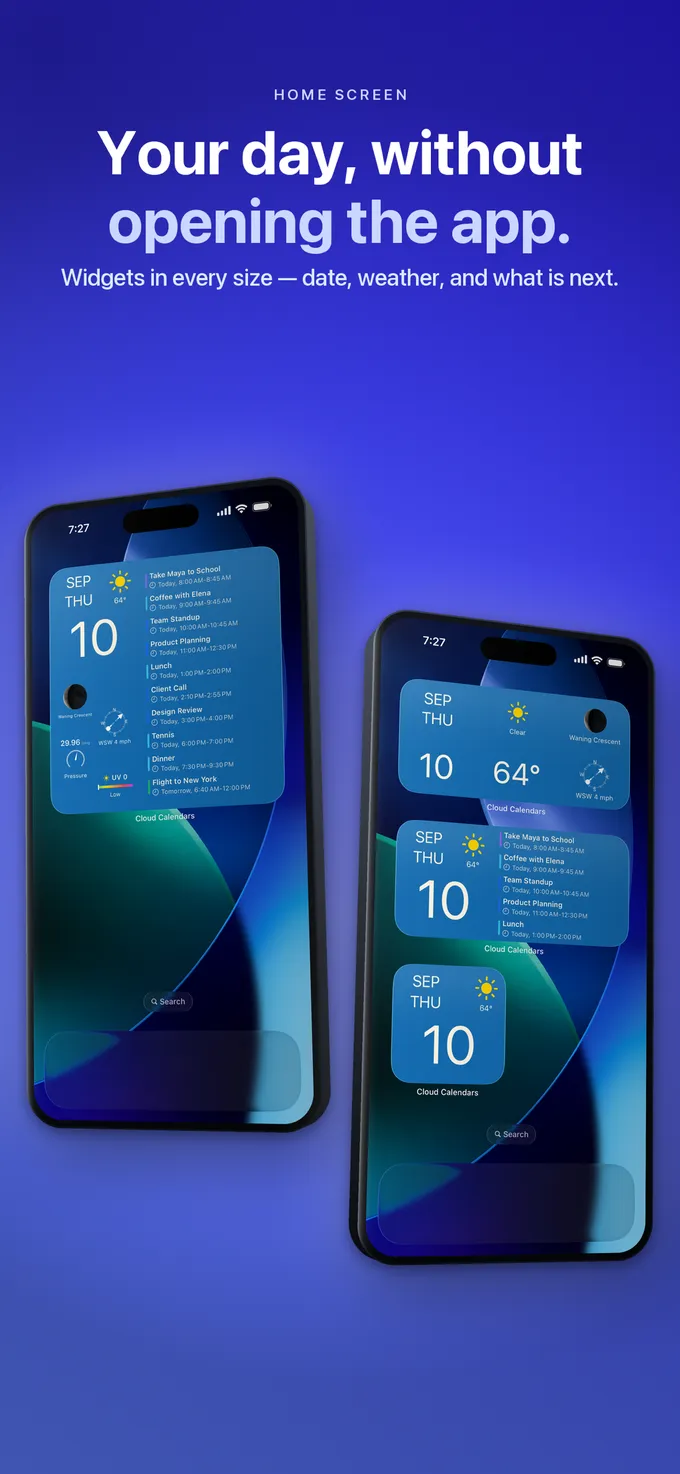
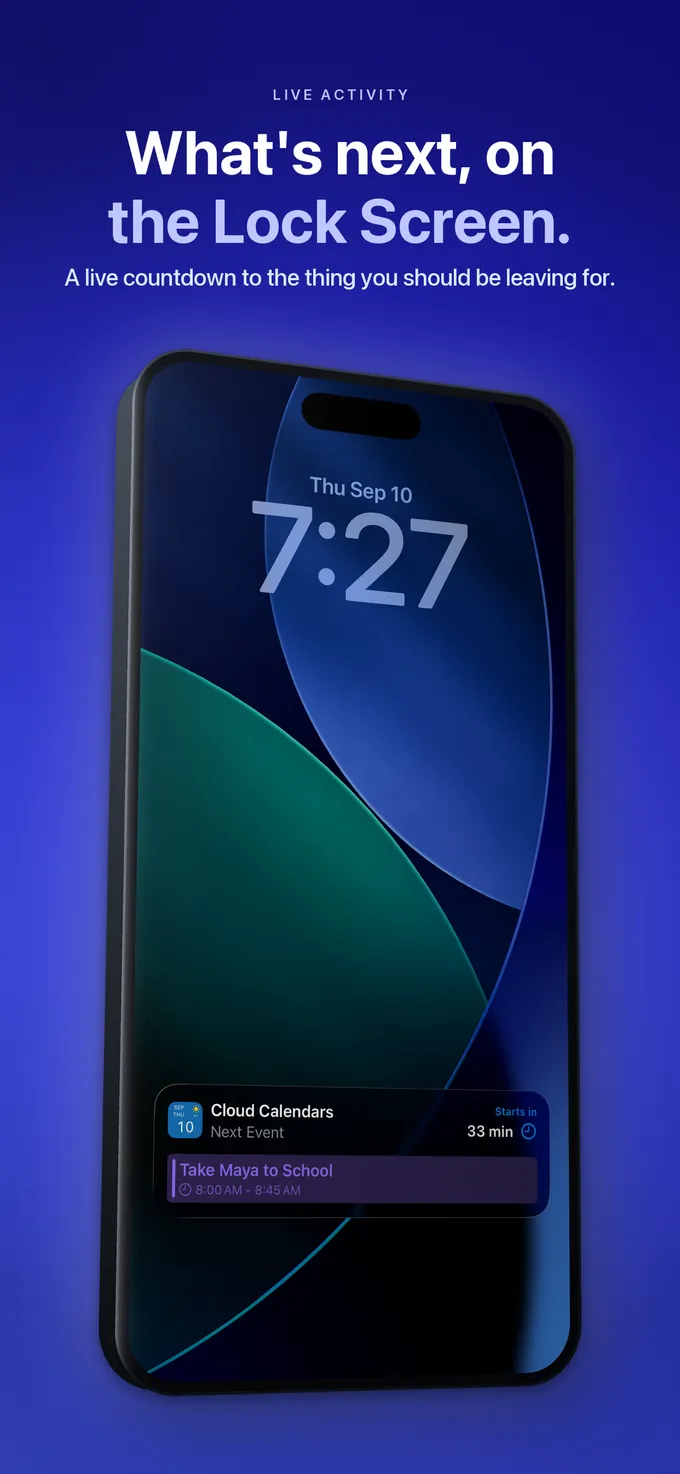
In Cloud Calendars, inspect the actual view and event details to establish whether the issue is a label, formatting or saved content. This guide does not claim that every Apple alternate-calendar setting is reproduced by Cloud Calendars. Keep the account connection intact while investigating a display issue.
Verify a harmless example before changing real plans
Use one private appointment with an unambiguous date and title. Compare it in the app and the provider’s own view. If both identify the same day and time, a formatting difference is not evidence that the appointment moved.
If the saved date or time is genuinely wrong, correct that specific event using the usual owner and recurrence checks. Keep time-zone troubleshooting separate: changing interface language does not by itself explain a shifted meeting hour.
What it looks like


What to do
- Identify whether menus, dates or event text are affected.
- Inspect language and regional format separately.
- In Apple Calendar, check alternate dates, week numbers and first weekday.
- Change one display setting and compare the same appointment.
- Correct a real event only after confirming its saved date and time.
Questions
- Why are there Chinese or Hebrew labels beside the date?
- One possible explanation is an alternate calendar display. Apple documents alternate calendars alongside Gregorian dates; inspect that setting before assuming your event text changed.
- Will changing language translate all event titles?
- Do not assume so. Appointment titles are saved content and may retain the organiser’s wording even when app menus use another language.
- Should I remove my calendar account to fix date labels?
- Start with display and regional settings. Removing an account is unnecessary for identifying whether a label or format is the issue.