
All-day calendar events: dates, availability and missing widget entries
An all-day label, a busy day and an appointment at a particular hour are different ideas. Decide which you need before changing the event. This guide is published by Arte Soft, the developer of Cloud Calendars.
What most people assume
An all-day entry always leaves you free, appears in every upcoming list and behaves identically across calendar providers.
Choose a date label or a timed commitment
A birthday, public holiday or trip label can belong to a date without requiring an arrival hour. A dentist visit or a conference session needs an actual start and end time. Choose the representation that lets someone understand the commitment without guessing.
For a trip from Friday through Sunday, an all-day span can label the itinerary. Keep a Friday flight, Saturday booking and Sunday check-out as timed commitments when their hours matter. The trip label should not replace the bookings it summarizes. A deadline at 17:00 also needs its hour; an all-day label alone does not communicate that cutoff.
For a missing birthday, identify its source first
A birthday can be an all-day date while its editable source is a contact, a manually created birthday or another connected account. Identify that source before changing or duplicating the date. Use the dedicated Google and Outlook birthday guides below for their provider-specific controls.
Check both dates in Cloud Calendars
In the event editor, use All-day for a date-based entry. Starts and Ends then use date choices rather than clock times. Read the first and last intended dates before saving, and reopen the result across those days. The current editor treats the selected ending day as included in the span.
For a one-day birthday, check that it appears on the intended date without an unwanted extra day. For a three-day trip, check all three dates. If you change an existing repeating entry, follow the recurrence guide before saving: choosing All-day does not establish whether an edit affects one occurrence or future occurrences.
Check availability independently
Do not decide whether a day is free just by seeing an all-day banner. Google Calendar documents whether an event blocks time as a separate setting from its dates. Calendar permissions and the recipient's view can also limit the details people see. An all-day entry is not a universal instruction to accept or reject meetings.
If you need a day blocked for leave, check the owning provider's availability or out-of-office controls and the saved result. If you only want a birthday label, check that it does not block time unintentionally. This guide does not promise that Cloud Calendars exposes every provider's availability control or prevents scheduling conflicts. Use a supported provider editor when you need an option absent from the app.
A missing widget row is not a missing event
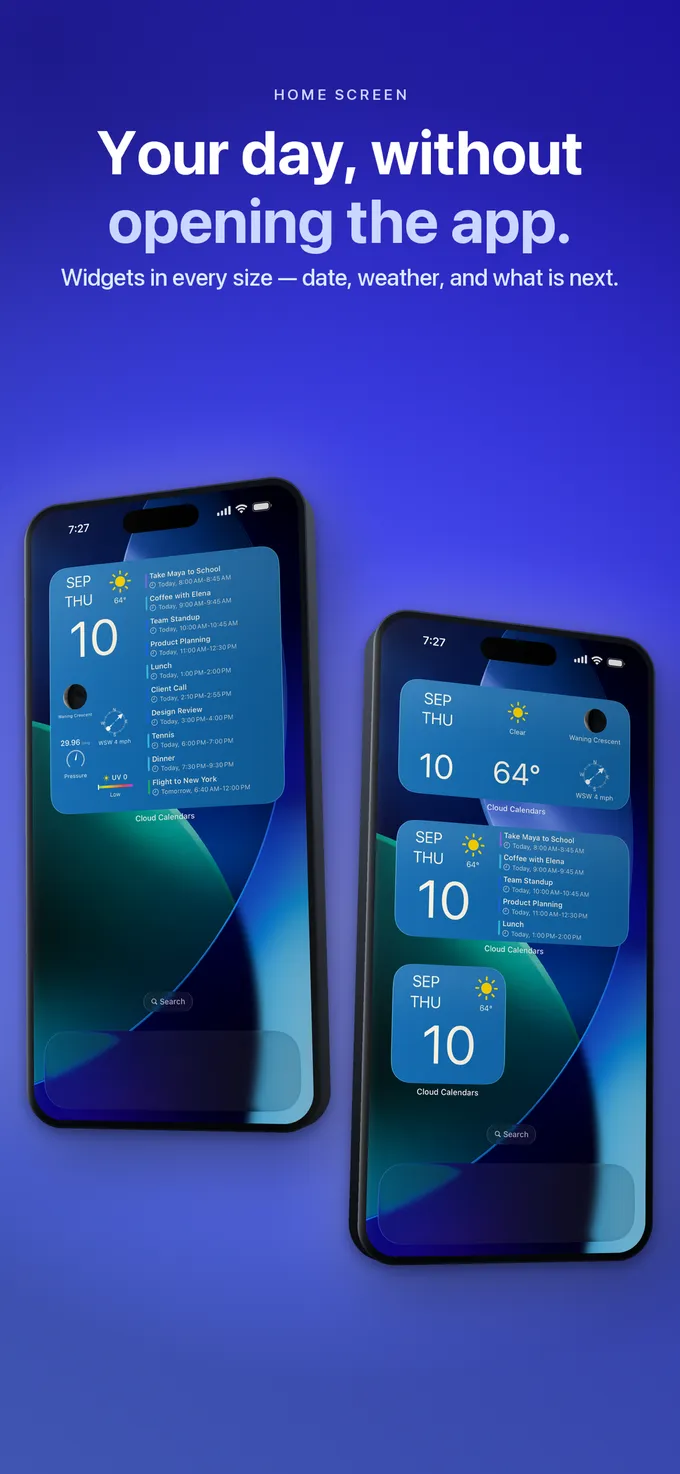
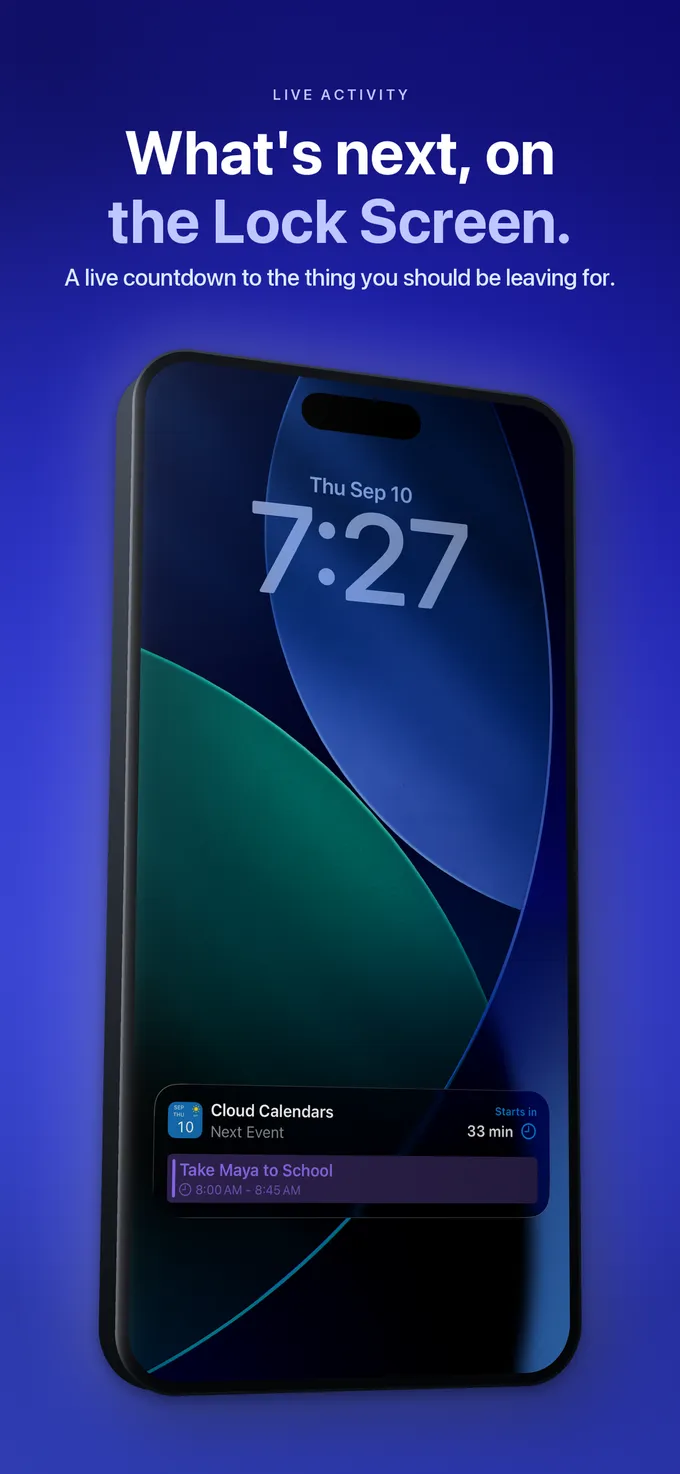
Cloud Calendars' upcoming-event widgets and Live Activity follow future timed appointments. They exclude all-day entries. A birthday may therefore be present in the full calendar but absent from the next-event display. Making the widget larger does not change that eligibility rule.
Open the date in the app and check that the calendar is selected. If the entry is present there, distinguish an expected widget omission from lost calendar data. Do not convert a birthday into an artificial timed meeting merely to make a widget show it; decide first whether the event itself should really have an hour.
Inspect transfers and travel dates
Date-based events can use different storage conventions from timed appointments. Google documents date fields for all-day entries and a separate end boundary in its event format. A raw export's ending date is not necessarily the last date a calendar displays. Use the displayed result to check a transfer rather than editing a file solely because its end date looks one day later.
After an import or an important time-zone change, compare the intended first and last dates in the owning calendar and the app. Do not assume every provider, imported file and installed version handles the boundaries identically. Keep the source while checking; moving the event to compensate for an unfamiliar display can introduce another error.
Keep alerts and planning separate
A label across the top of a day is useful context, but it is not a reminder that has been delivered. If you need to act before a birthday, deadline or trip, inspect the saved alert and the app and system notification settings. The event's visible date alone does not guarantee an audible reminder.
For a problem report, note the intended date range, whether All-day is enabled, the owning calendar and where the entry differs: full app, provider, widget or activity. Use a non-sensitive example when possible. Preserve the original entry while diagnosing the difference.
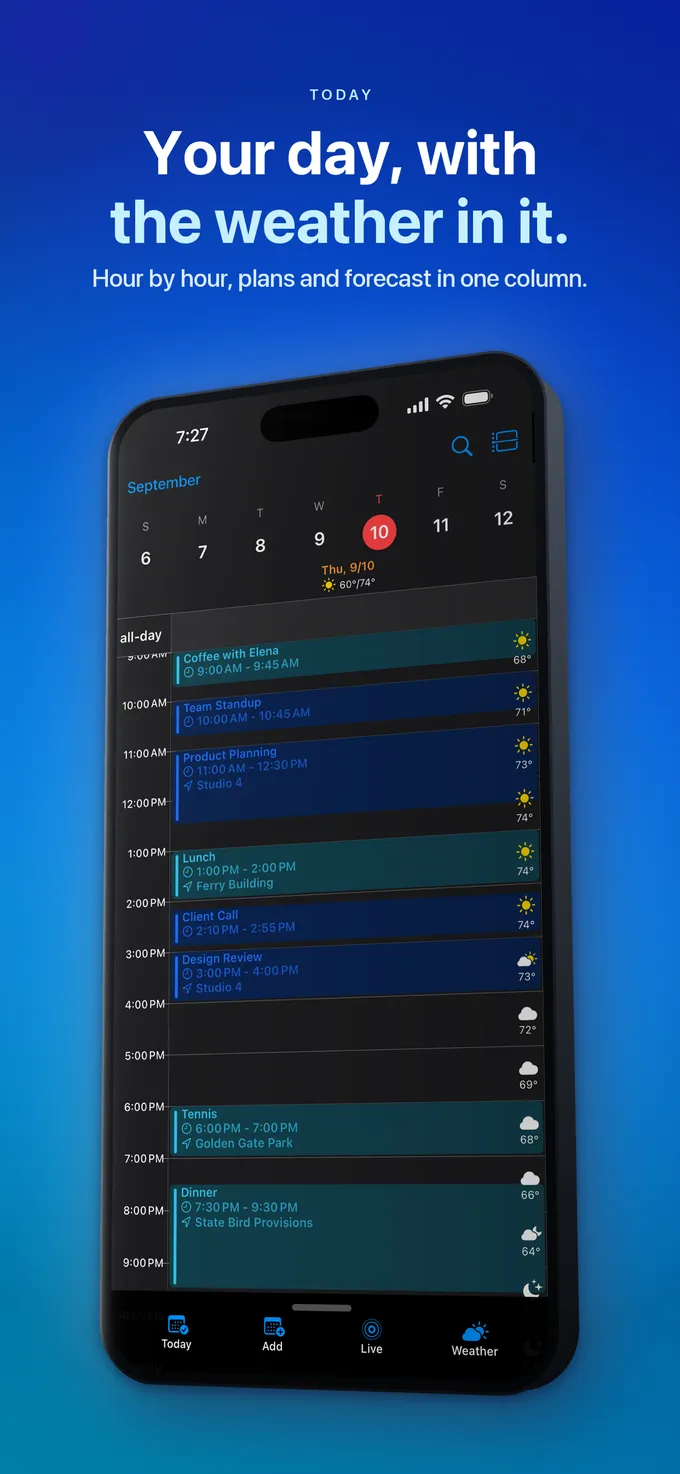
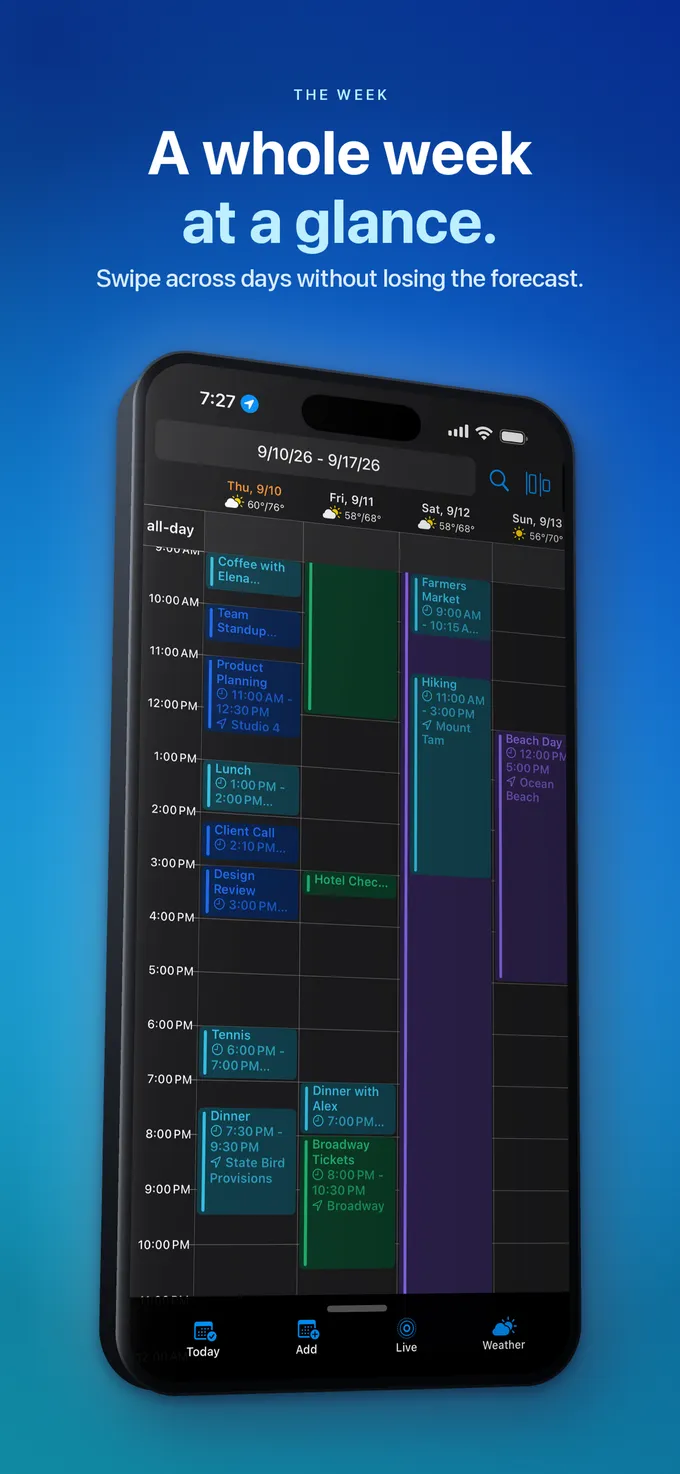
What it looks like
What to do
- Choose a date label for context and a timed entry for a commitment with an hour.
- For a missing birthday, identify the owning contact or calendar before adding another annual event.
- Check the first and last included dates after saving.
- Verify free/busy separately in the owning provider when needed.
- Look in the full calendar for all-day entries omitted from upcoming displays.
- Check reminders and imported date boundaries without deleting the source.
Questions
- Does an all-day event mean I am available?
- No. Check the owning calendar's availability settings separately; an all-day banner does not establish free/busy for every provider.
- Why is my all-day trip absent from the next-event widget?
- That feed follows future timed appointments and excludes all-day entries. Check the trip in the full calendar.
- Should I subtract a day from an export's end date?
- Do not change it just from the raw field. Some formats use an exclusive end boundary. Check the imported displayed range while retaining the original.
- Why is a birthday missing even though the contact exists?
- Check which account owns the contact, whether it contains a birthday and whether the resulting calendar is available and selected. An upcoming widget excludes all-day entries; that alone does not show that the source is missing. Do not create another annual record until you have compared the source and the full calendar.