
Outlook Automatic Replies vs Out-of-Office Calendar Events: How Auto-Declining New and Existing Meetings Actually Works
Turning on Automatic Replies in Outlook does not automatically block your calendar or cancel conflicting meetings unless you enable the calendar checkboxes inside the new Outlook or Outlook on the web—whereas Classic Outlook for Windows handles mailbox auto-replies separately from calendar availability.
Outlook Out-of-Office controls compared across clients
| Control | Sends email auto-reply? | Marks calendar Out of Office? | Auto-declines new invites? | Cancels/declines existing meetings? |
|---|---|---|---|---|
| New Outlook / Web: Automatic replies (checkboxes off) | Yes (once per sender per window) | No | No | No |
| New Outlook / Web: Automatic replies + "Block my calendar" | Yes | Yes (creates an Out of Office block) | Optional checkbox ("Automatically decline new invitations") | Optional checkbox ("Decline and cancel my meetings during this period") |
| Classic Outlook (Windows): File → Automatic Replies | Yes (Inside & Outside My Organization tabs) | No — must create a separate calendar item | Only via Inbox Rules, not a simple toggle | No — decline manually on your calendar |
| Calendar Event with Show As = Out of Office | No mailbox auto-reply | Yes (purple Out of Office bar in Scheduling Assistant) | No automatic RSVP sent in Classic Outlook | No |
What most people assume
Switching on Automatic Replies (Out of Office) in any Outlook app automatically marks your calendar Out of Office and declines meeting invitations while you are away.
Why Colleagues Still Book Over Your Vacation When Only Email Auto-Replies Are Enabled
Exchange Online stores mailbox Automatic Replies (formerly Out of Office Assistant) and calendar Free/Busy items as two distinct mechanisms. If you turn on File → Automatic Replies in Classic Outlook for Windows—or toggle Automatic replies on Outlook mobile—without creating a calendar block, colleagues checking Scheduling Assistant still see wide-open white slots until after they send an invite and receive your automated email bounce.
In New Outlook for Windows and Outlook on the web (Settings → Accounts → Automatic replies), Microsoft bridged that gap by adding three optional checkboxes beneath the start/end time range: Block my calendar for this period, Automatically decline new invitations for events that occur during this period, and Decline and cancel my meetings during this period.
Internal vs External Auto-Reply Rules (and Why Each Sender Only Gets One Reply)
Exchange sends an Automatic Reply at most once to each unique sender address during a single Out-of-Office activation window so two auto-responders never trigger an infinite mail loop. If you extend your return date without toggling Automatic Replies off and back on, senders who already received your earlier message will not receive the updated return date.
When enabling replies outside your organization, choose Contacts only if you want clients and vendors in your address book to see your return date without replying to newsletters, automated SaaS receipts, or cold outreach.
Blocking External Booking Links Alongside Microsoft 365
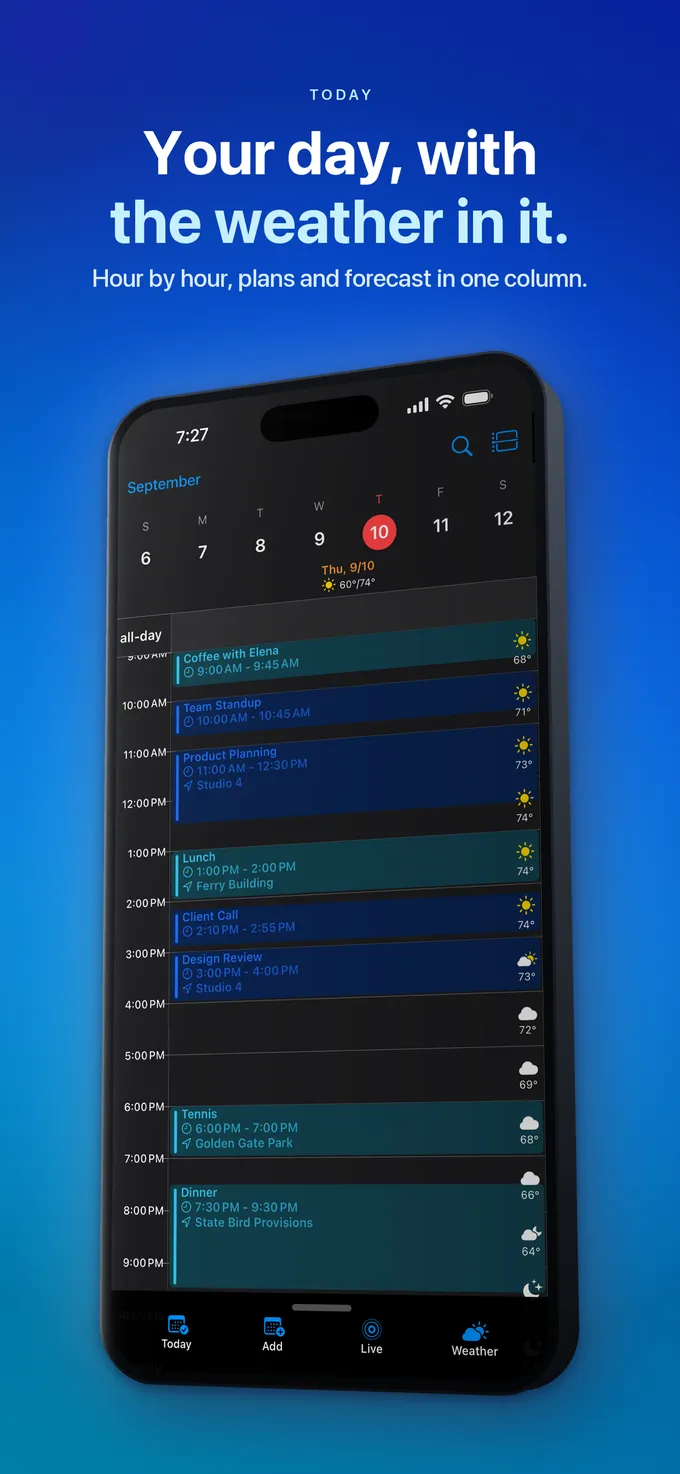
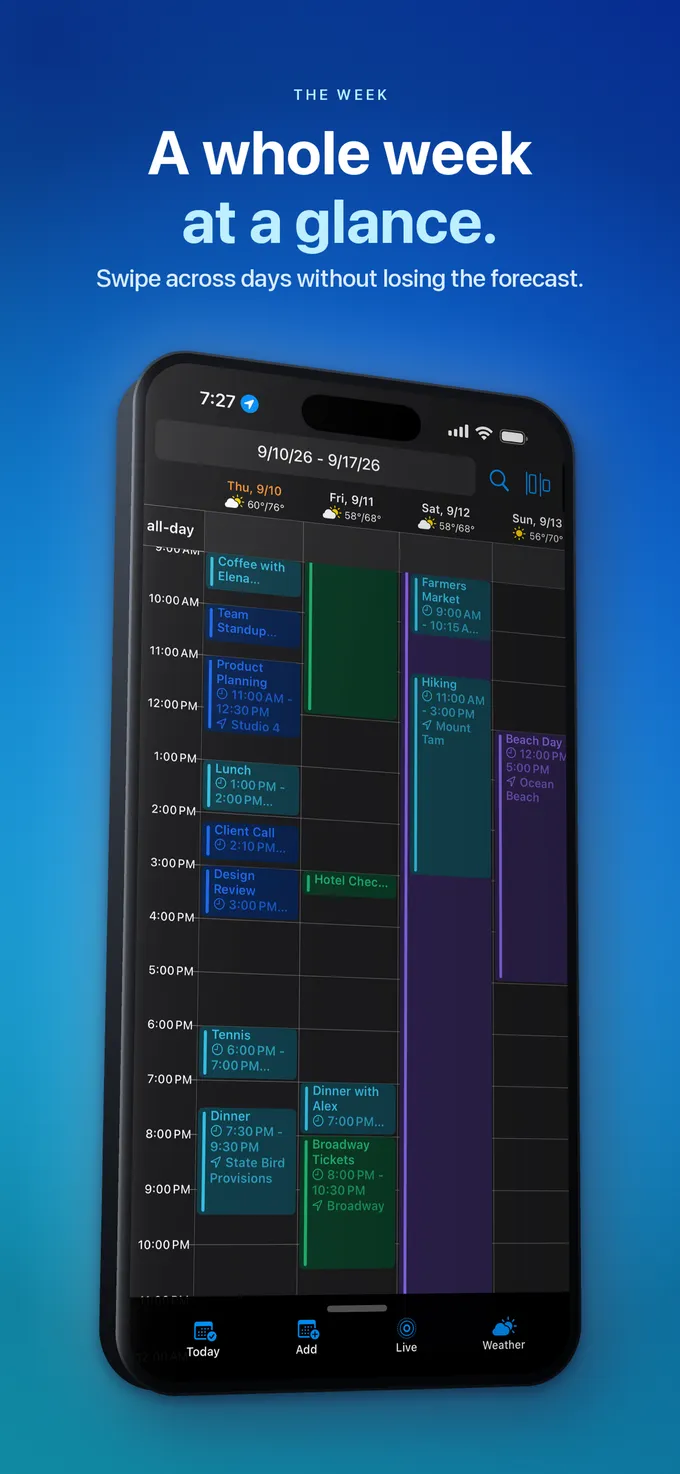
If external clients book you through a scheduling link such as Cloud Calendars Web Studio (/book/), remember that booking engines inspect your calendar Free/Busy status—not your mailbox email responder. Creating an all-day or timed event marked Busy or Out of Office on your connected Outlook or Google Calendar immediately removes those vacation dates from your public booking slots while also appearing on your iPhone timeline.
What it looks like

What to do
- Open New Outlook or Outlook on the web → Settings (gear) → Accounts → Automatic replies whenever you want one screen to set both email replies and calendar auto-decline.
- Turn on Send automatic replies only during a time period, then check Block my calendar for this period so Scheduling Assistant shows purple Out of Office bars immediately.
- Check Automatically decline new invitations—and selectively review existing recurring meetings before checking Decline and cancel my meetings during this period so you do not accidentally cancel a team meeting you organize.
- Under Send replies outside your organization, select Send replies only to contacts to avoid auto-replying to mailing lists and spam.
Questions
- If I organize a weekly recurring team meeting and check "Decline and cancel my meetings during this period," does it cancel the whole series?
- Outlook targets only the occurrences falling inside your scheduled away window, but if your team still plans to meet without you, do not mass-cancel meetings you organize—leave that occurrence active or appoint a co-organizer instead.
- Why did someone email me twice during my vacation and only get my Out of Office reply the first time?
- By design, Exchange Online sends only one automatic reply per sender per Out-of-Office session to prevent mail loops. Toggling Automatic Replies off and back on resets the sent-history list.