
How to Set Up a Public Booking Page (/book/) with Google + Outlook Checks, Buffers & Single-Use Links
Publishing a booking link should not leave your afternoon packed back-to-back or let an old invite URL stay open months later. In Cloud Calendars Web Studio (/calendar/), you claim a clean @handle, define multiple meeting durations with independent buffer rules and daily caps, check busy blocks across your Personal Cloud Calendar plus connected Google Calendar and Microsoft Outlook accounts simultaneously, and issue single-use links when one invitation should book exactly one meeting.
What most people assume
Offering multiple event types, cross-checking both Google and Outlook calendars, and sending single-use scheduling links requires a $10–$20/month scheduling subscription.
1. Claim Your Public @handle and Connect Busy-Check Calendars
Open https://www.cloud-calendars.com/calendar/, sign in via QR code from the Cloud Calendars iOS app ($0) or with your Web Studio account, and open the Booking tab. Claim a readable handle (for example, /book/alex-studio) and verify your host display name and primary IANA time zone (such as America/New_York or Europe/London). Guests automatically see available slots converted into their own local browser time zone while your working hours stay anchored to yours.
Next, connect any external Google Calendar or Microsoft 365 / Outlook accounts whose busy appointments must block availability. During slot calculation, the booking engine unions busy intervals from your Personal Cloud Calendar, connected Google calendars, connected Microsoft calendars, and atomic slot locks so two visitors clicking at the same second can never double-book the same window.
2. Configure Meeting Durations, Prep Buffers, Minimum Notice & Daily Caps
Instead of squeezing every conversation into a single 30-minute template, create distinct booking types—for example, a 15-minute Intro Call, a 45-minute Client Review, and a 60-minute Deep Dive—each with its own slug (/book/@handle/intro-15) and guardrail parameters.
Booking Guardrail Settings & Worked Slot Example
| Rule | What It Controls | Worked Example Impact |
|---|---|---|
| Duration (minutes) | Length of the booked appointment itself | 45-minute Client Review occupies 10:00–10:45 on guest & host calendars |
| Before & After Buffer | Padding reserved before start and after end | 10 min before + 15 min after blocks 09:50–11:00 against adjacent bookings |
| Minimum Notice | Lead time required before the earliest bookable slot | 4 hours minimum notice at 09:15 hides all morning slots before 13:15 today |
| Daily Booking Cap | Maximum bookings accepted per day for that type | Cap of 3 automatically closes remaining slots on Thursday once 3 are booked |
3. Reusable Booking Links vs Single-Use (One-Time) Invite Tokens
A permanent link like /book/alex-studio/intro-15 works well in an email signature or portfolio site, whereas executive introductions, candidate interviews, and VIP consultations shouldn’t allow unlimited repeat bookings months later. In Web Studio, click Create Single-Use Link on any booking type to mint a tokenized URL that automatically expires the instant the invitee confirms their slot.
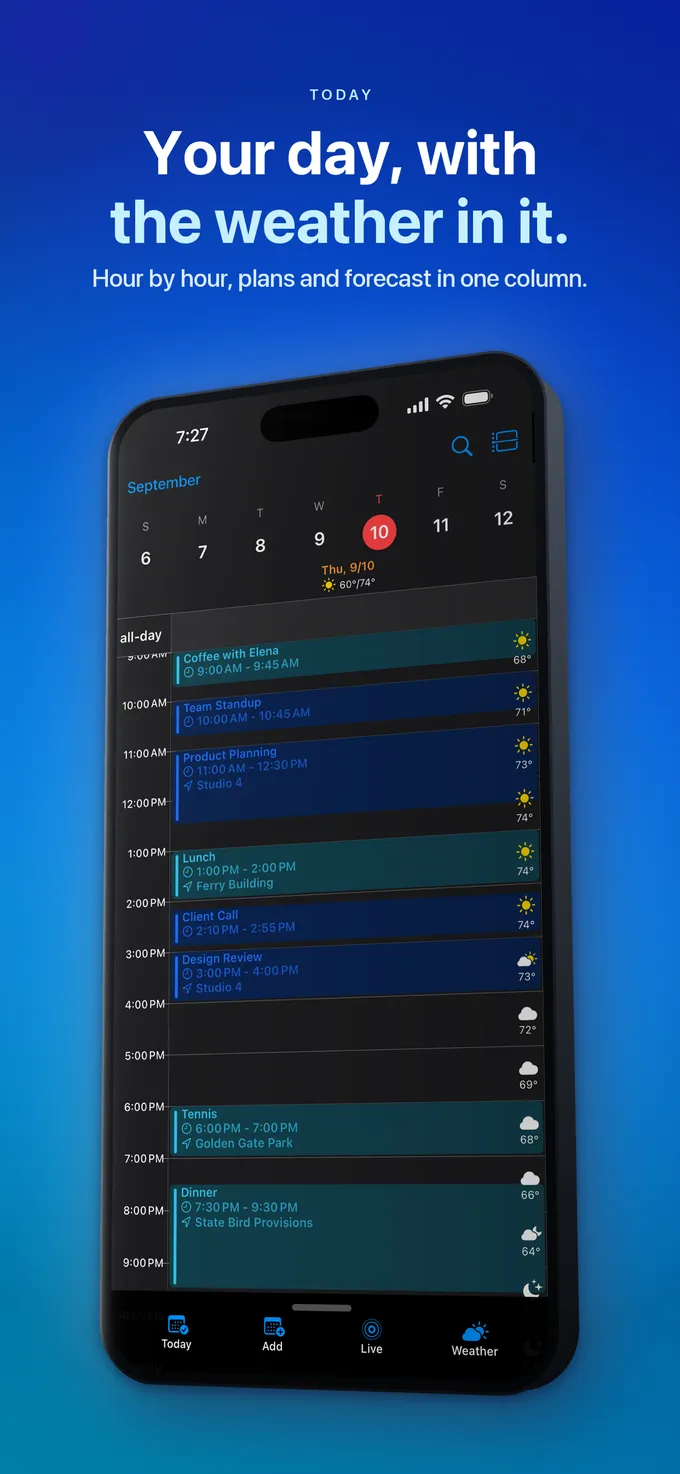
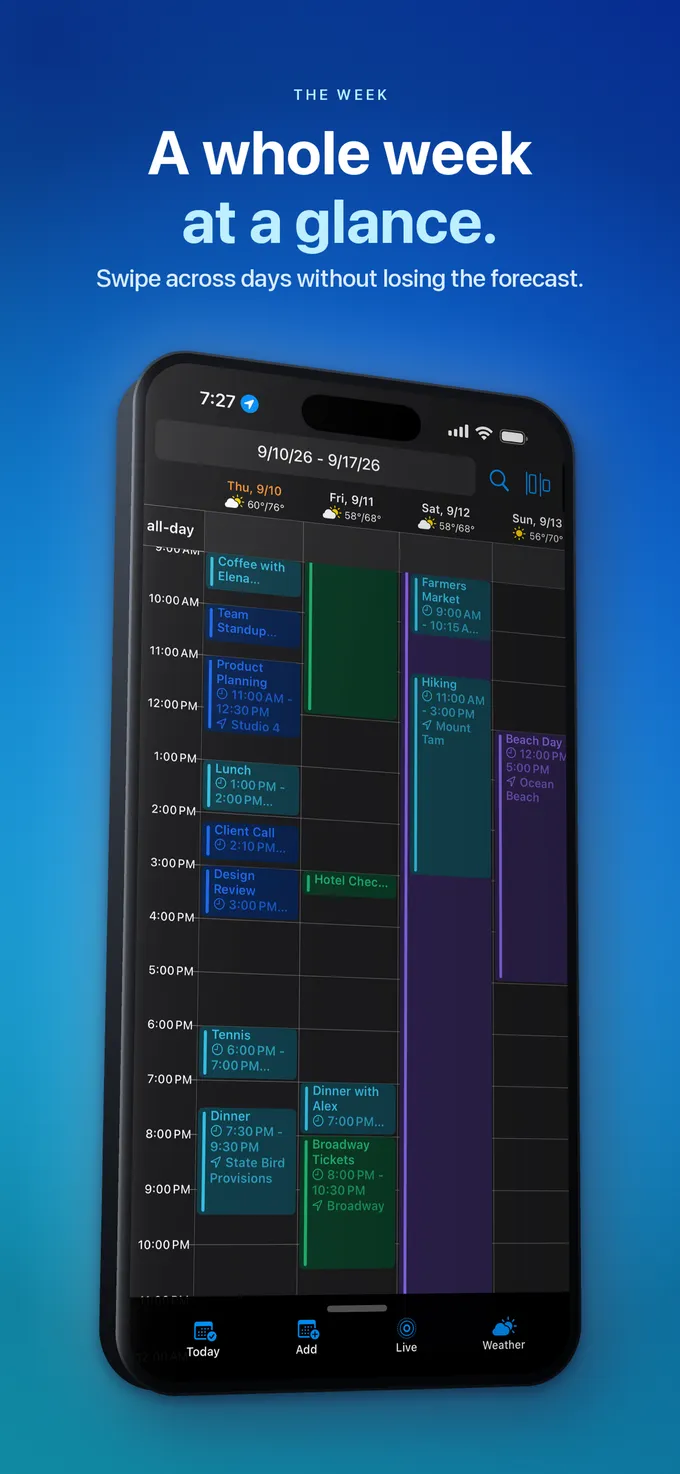
Every confirmed booking sends an iCalendar-compatible confirmation with self-service Reschedule and Cancel tokens. If the guest reschedules or cancels, your Personal Cloud Calendar on iPhone, Web Studio timeline, and mirrored Google/Outlook calendars update automatically without manual email back-and-forth.
What it looks like
What to do
- Sign in at https://www.cloud-calendars.com/calendar/ (free via iOS QR scan or $1.99/mo standalone web) and open Booking.
- Set your @handle, weekly working hours, and host time zone.
- Connect Google Calendar and/or Microsoft Outlook under Connected Accounts so all work and personal conflicts block slots.
- Add before/after buffers, minimum notice hours, and a daily cap to each meeting type before sharing the URL.
- Generate a Single-Use Link whenever you want an invitation URL to close automatically after one booking.
Questions
- Do guests need to install Cloud Calendars or create an account to book a time?
- No. Guests open your /book/@handle link in any mobile or desktop browser, pick an available time in their local time zone, enter their name, email, and optional note, and receive an instant calendar confirmation with zero ads or signup walls.
- What happens if two people try to book the exact same 2:00 PM slot simultaneously?
- Cloud Calendars acquires an atomic server-side slot lock when confirming a booking. The first request wins and writes the appointment; the second visitor immediately sees a prompt to pick another open time instead of creating a double-booking.
- How quickly does a new booking show up on my iPhone?
- Immediately—confirmed bookings are written straight into your canonical Personal Cloud Calendar (plus any connected Google or Outlook calendar) and sync down to Cloud Calendars on iPhone and iPad with local alerts.