
Sync Google Tasks with Apple Reminders: check fields before connecting lists
Seeing Google appointments beside Apple reminders is different from keeping two task systems matched. A bridge can create, update and complete items in another service, so test the fields you rely on before connecting a real backlog. Arte Soft, the developer of Cloud Calendars, publishes this guide.
Choose between viewing a task source and bridging two systems
A calendar app may display tasks from a selected source without creating matching tasks in another account. If your aim is to complete an Apple reminder on an iPhone and see the corresponding Google task completed on a computer, you need a supported task-bridge workflow.
Write down the list that should own the original items and which direction changes should travel. Calendar event syncing alone does not establish task syncing, and importing a file is not proof of an ongoing two-way connection.
Check the fields the bridge actually supports
gtsync’s publisher describes two-way Google Tasks and Apple Reminders syncing on iPhone and iPad. Its App Store listing names titles, notes, completion and due dates as supported fields.
The same listing excludes attachments, alerts, priority and repeating-task rules, and says time-specific due dates become date-only values. A task title appearing on both sides is therefore not proof that its alarm, repeat behaviour or exact due time survived.
Compare a second bridge and a unified workspace
SyncBridge Tasks’ developer listing describes explicitly pairing one Reminders list with one Google Tasks list, then syncing basic task fields. It distinguishes the free single-pair option from multiple pairs in Pro and describes manual or app/Shortcut-triggered syncing. Check its current listing and local purchase terms for your intended setup.
Morgen’s integration page describes viewing both sources together, time blocking their tasks and syncing completion back to each original system. That is a unified workspace; it does not establish that each Apple reminder becomes a matching Google task. Choose according to whether you need one place to work or two original lists kept mirrored.
An automation needs its own change rules
IFTTT lists Google Tasks and Apple Reminders triggers and actions, including applets that create an item when another item is added. Inspect the actual trigger and action instead of assuming a pair of creation rules handles later edits, completions and deletions.
For a small trial, add a neutral task once and count the resulting items in each system. Then test a harmless edit and completion. If using rules in both directions, check whether an item created by one rule triggers the other; repeated copies are not successful two-way synchronisation.
Start with separate disposable lists
Create a small test list on each side and connect only those lists initially. Use one ordinary task with a title, short note and date. Add another with a timed due date or repeating rule if those features are essential to your routine, then inspect what arrives at the destination.
Compare the result in the original task apps, not only in a calendar view. If the bridge cannot preserve a field you depend on, keep that workflow in a system that supports it instead of assuming a copied title is an adequate replacement.
Review conflicts before enabling unattended changes
gtsync’s product guide describes per-list selection, conflict comparison, manual resolution and an option that keeps the more recently modified version. It also describes background and Shortcut-triggered syncing. Choose the behaviour you understand before applying it to real lists.
In a harmless test, change the same task differently on each side and inspect the pending result. Check how creates, completions and deletions are represented. Keep a record of important existing lists before expanding the connection; do not start by merging two large backlogs with automatic conflict resolution.
Understand where synced task data goes
A bridge between Apple Reminders and Google Tasks necessarily sends supported data to the destination service. gtsync’s privacy policy explicitly describes direct communication with Google’s APIs and local mapping/history storage. Local processing is not the same as never transmitting reminder content.
Review the access requested for the accounts and lists you intend to connect. Work-account restrictions still apply. Test using neutral sample text rather than personal or confidential task details.
Keep the calendar planning layer separate
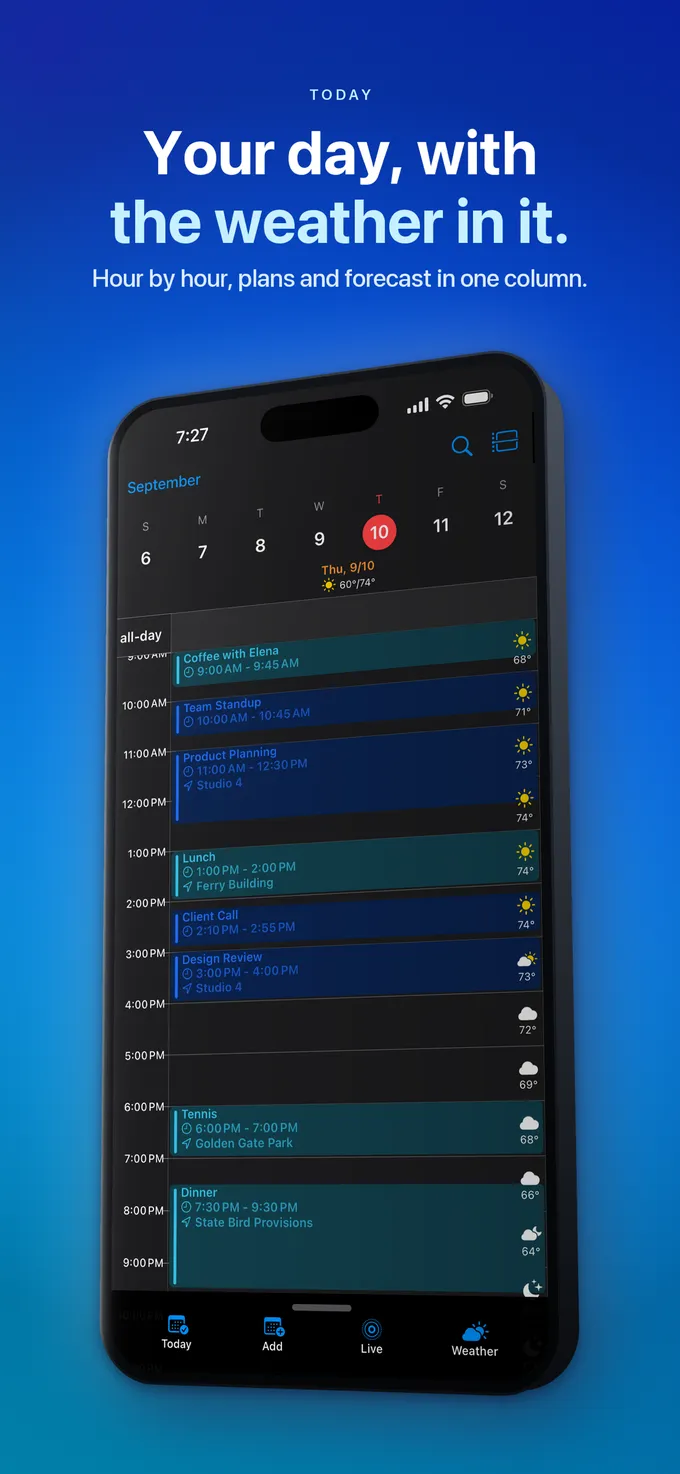
Once the task workflow is understood, decide how to view due dates and reserve work time. A due-date marker is not necessarily a block of available working time. Check completion in the task system and scheduling in the calendar as separate results.
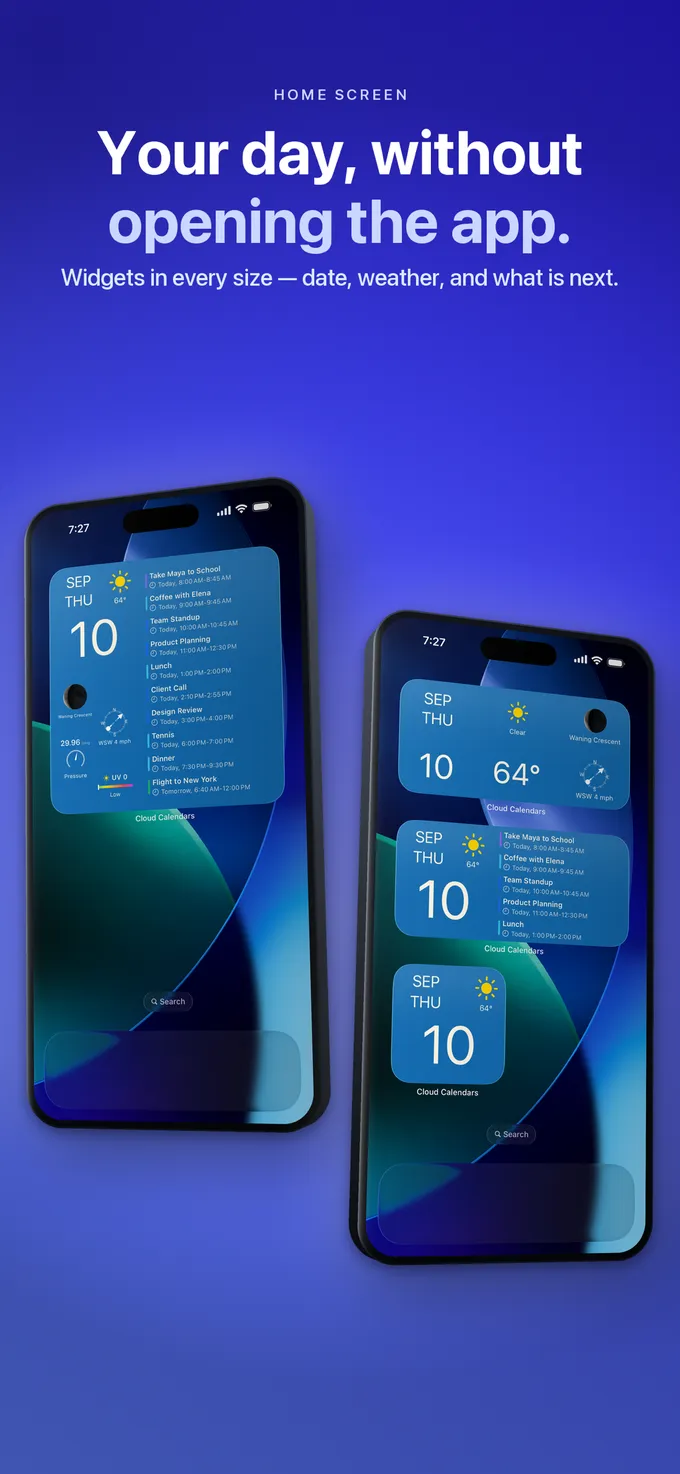
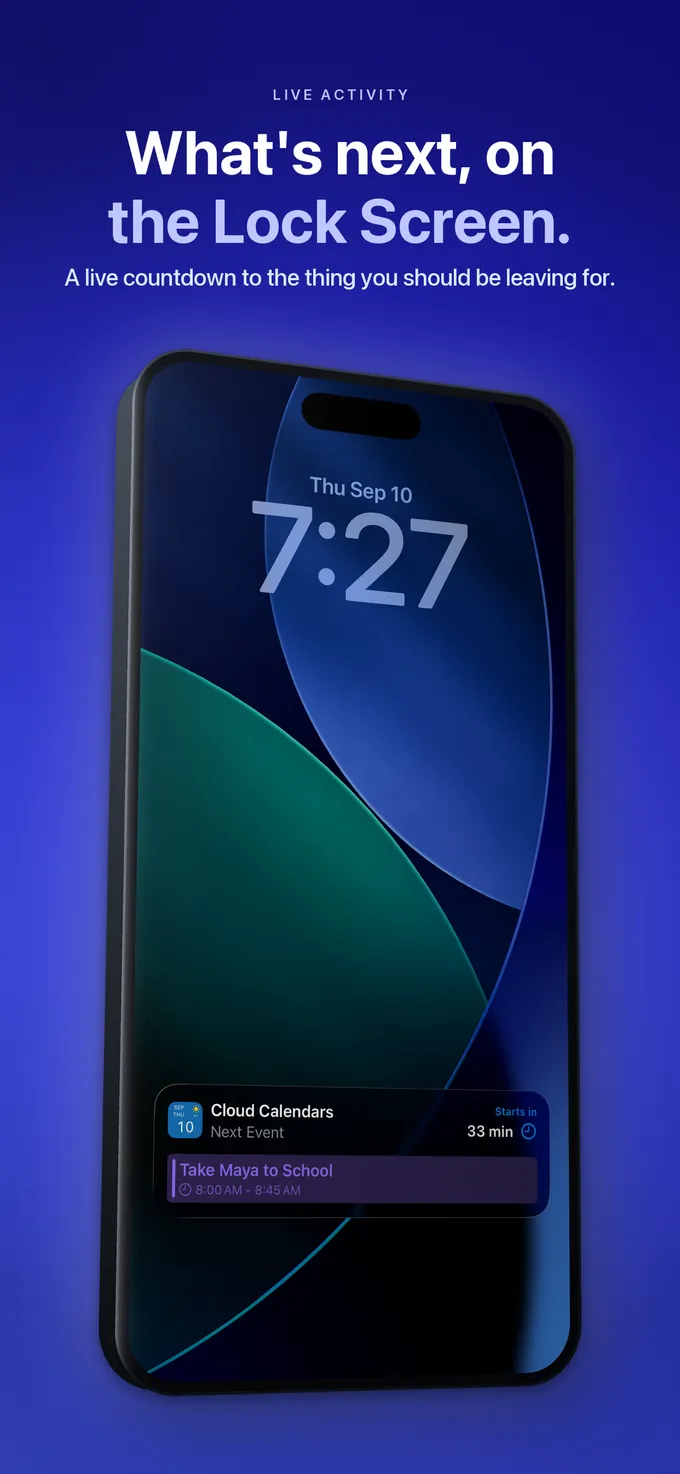
Cloud Calendars helps you plan with calendar events, weather and selected calendar views. This guide does not claim that it bridges Apple Reminders and Google Tasks. Use a tool with documented task-bridge support when that is the requirement.
What it looks like


What to do
- Specify whether you need a combined view or tasks mirrored between systems.
- Review supported fields and unsupported timing or repeat rules.
- Connect disposable lists before a real backlog.
- Test a completion and a conflict in both original task apps.
- Expand list access only after the result matches your workflow.
Questions
- Does adding Google Calendar to an iPhone sync Google Tasks with Apple Reminders?
- Do not assume so. Calendar events and task records are different data. Verify a task-specific connection that supports the intended direction.
- Will a task bridge preserve every reminder field?
- Not necessarily. gtsync’s listing explicitly names unsupported fields and date-only handling. Check the bridge’s current field mapping before relying on it.
- Does on-device processing mean reminders never go to Google?
- No. A bridge that creates or updates Google tasks must transmit supported data to Google. Read the product’s actual data-flow description rather than treating local processing as offline-only syncing.
Official setup and capability references
- gtsync: supported fields and explicit limitations
- gtsync: list selection, conflicts and sync triggers
- gtsync: data flow and destination APIs
- SyncBridge Tasks: chosen list pairs and sync controls
- Morgen: unified task sources and completion back to origins
- IFTTT: task/reminder triggers, actions and applets