
Use iPhone StandBy without mistaking a glance for tomorrow’s plan
A bedside display can answer a quick question, but its usefulness depends on what is actually on screen. StandBy does not turn every calendar widget into a tomorrow agenda. This guide is published by Arte Soft, the developer of Cloud Calendars.
Start with Apple’s StandBy setup
Apple describes StandBy as a charging display for clocks, photos, widgets and Live Activities. Turn it on in iPhone Settings, connect the phone to power and place it stationary on its side. Use the system’s offered views and widgets to choose what appears.
Display persistence depends on the iPhone model and settings. Check what your own phone does when the room is dark rather than assuming the screen will remain visible all night. Apple’s StandBy guide explains its display and night-mode options.
Inspect the available Cloud Calendars content
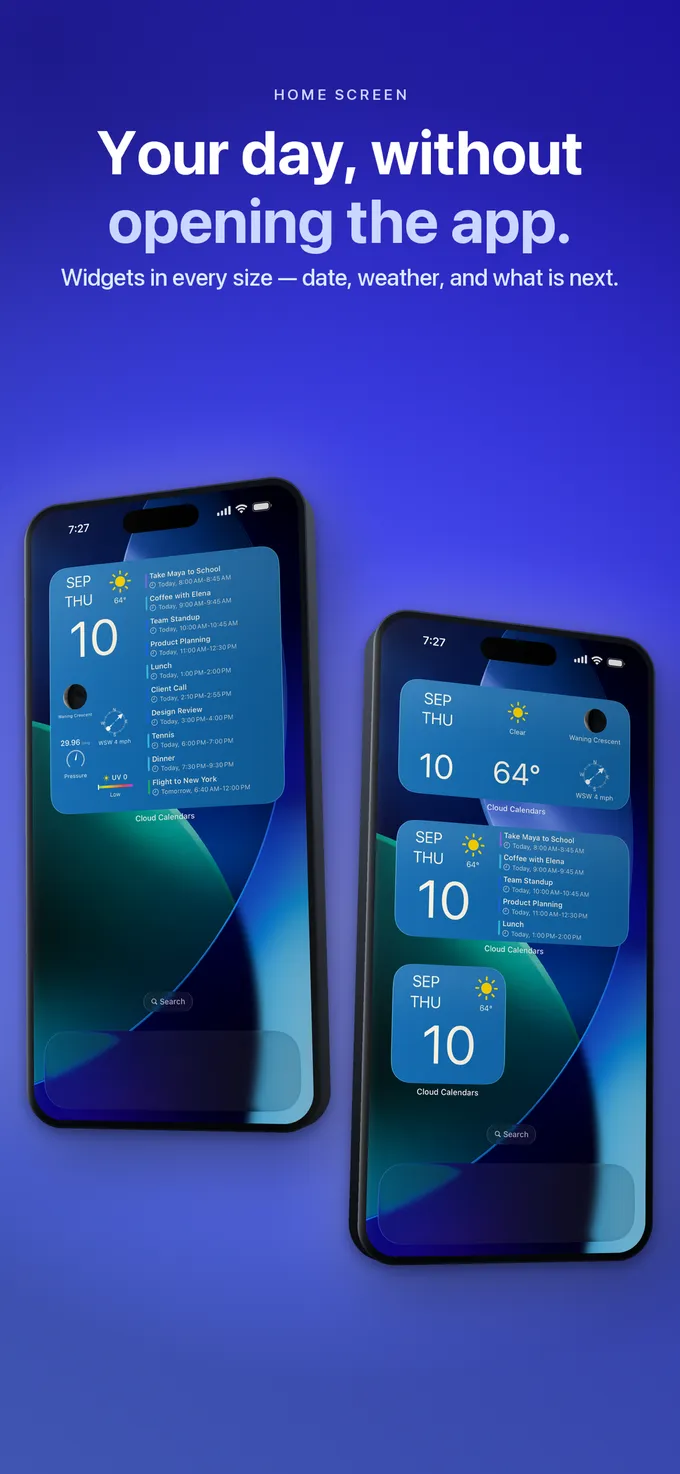
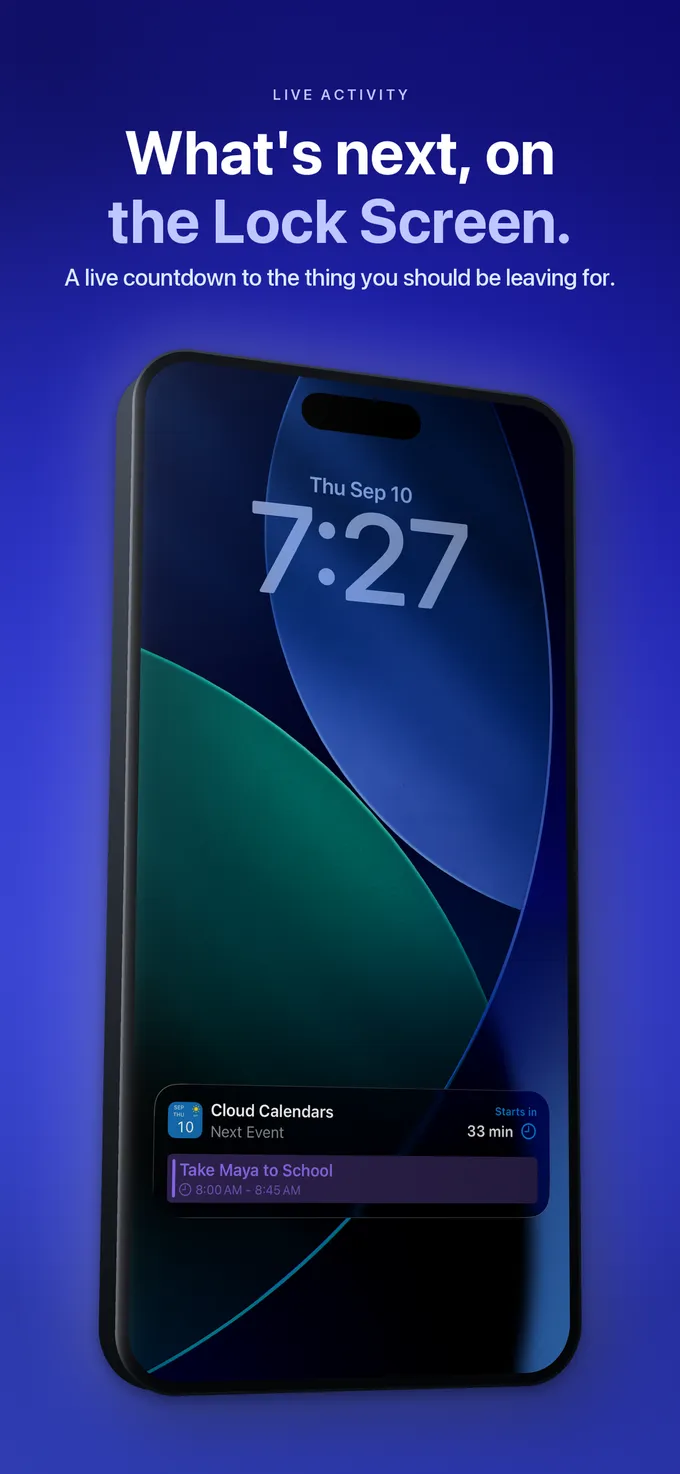
Cloud Calendars has date-and-weather widgets, event-list widgets and a Live Activity. Those are different presentations, and a Home Screen layout’s existence does not guarantee that the same layout is offered in StandBy. Check the picker and the result on your installed version.
The small Calendar & Weather layout shows date and weather, not a list of tomorrow’s appointments. Do not interpret a date tile as a next-morning schedule. This guide does not promise a special StandBy agenda or an automatic switch to tomorrow in the evening.
Make tomorrow’s plan in the calendar first
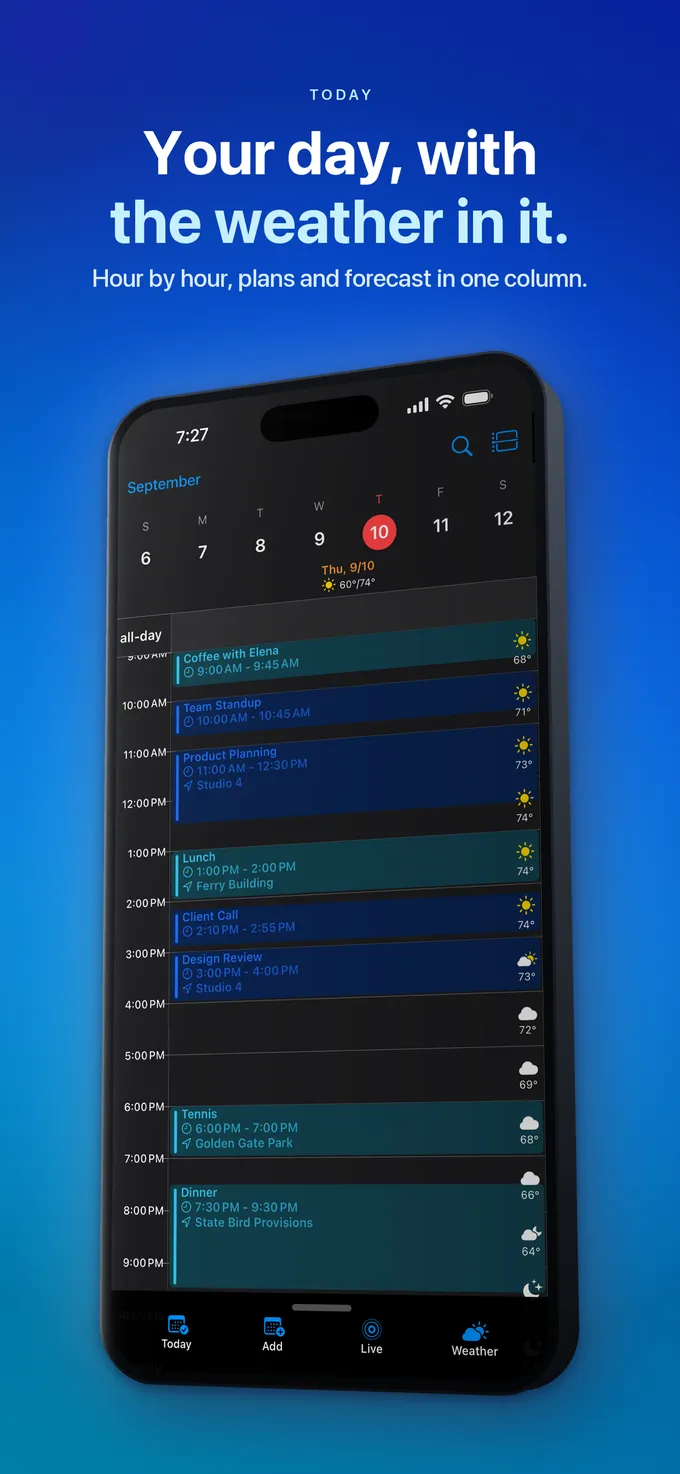
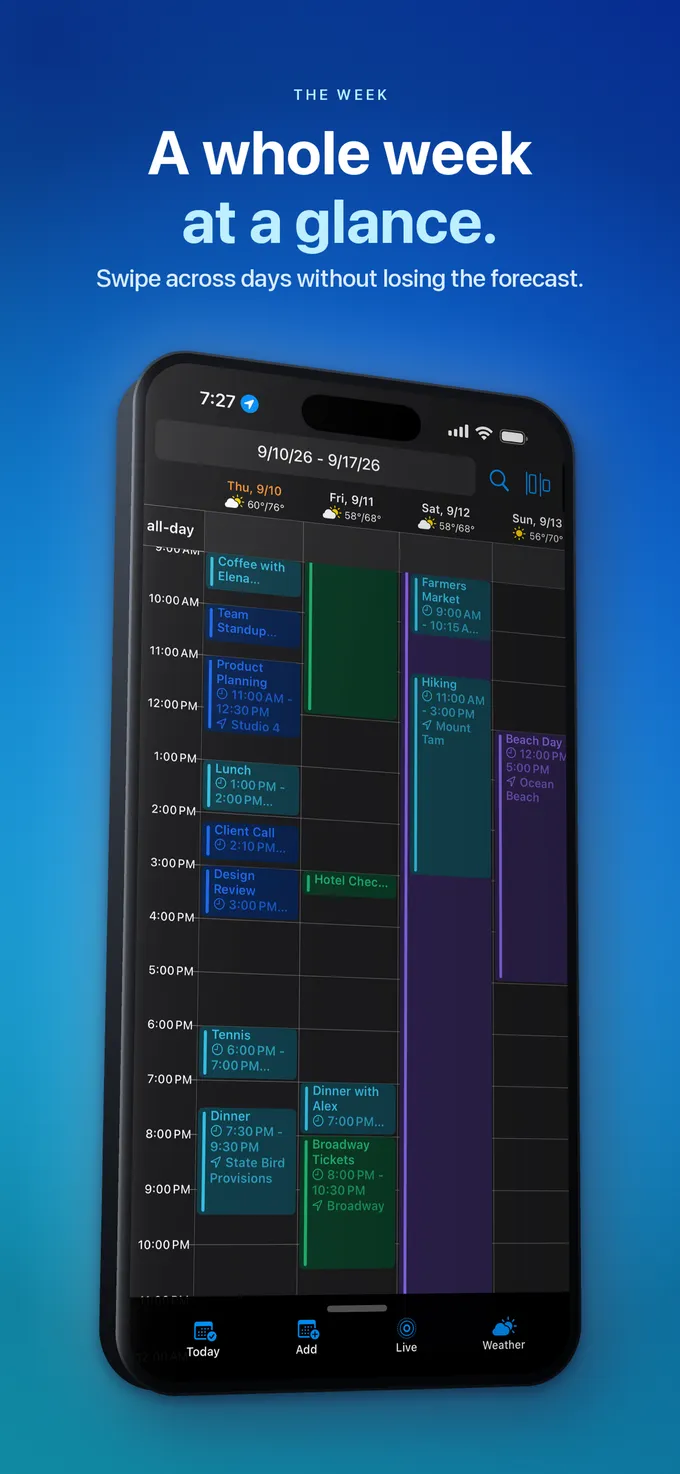
Before relying on a bedside glance, open tomorrow in the app. Check the first timed commitment, any all-day entries and the time you need for preparation. An upcoming-event display omits all-day and already-started events, so it is not a complete checklist for the day.
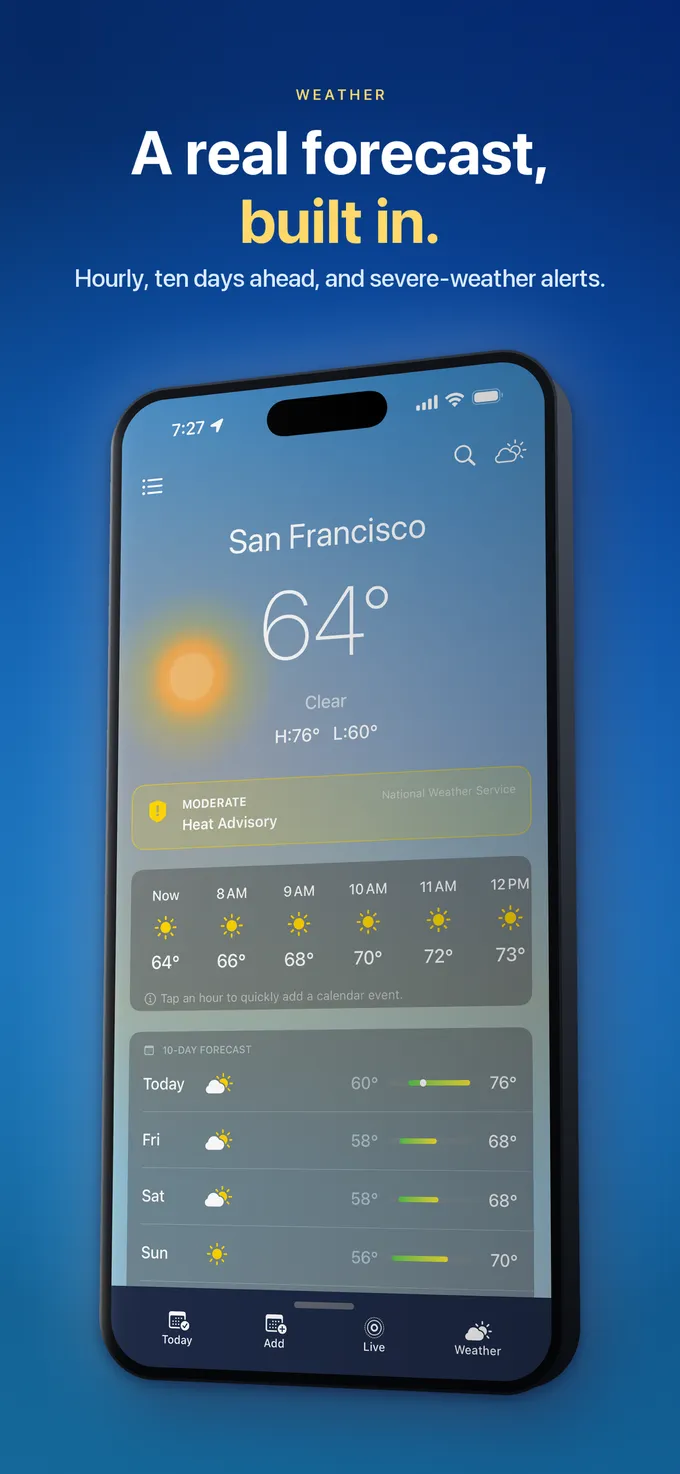
For an appointment outdoors or away from home, confirm the relevant place and forecast time in the weather view. Current conditions on a date tile do not establish tomorrow morning’s weather or the conditions at a different venue.
Keep the bedside view readable and discreet
Look at the display from the place where you will actually read it. A useful view should let you distinguish the date and time without picking up the phone. If the available event presentation is too dense at that distance, use a simpler clock or date view and check details in the app.
Also consider who else can see the screen. A calendar title can reveal private information even when it fits neatly. Choose content appropriate for a shared room and inspect the actual display after it enters StandBy.
Keep wake-up and meeting reminders separate
A displayed appointment or countdown is not an alarm. Set the wake-up alarm you need and retain appropriate event reminders independently. A screen that turns off, a dismissed activity or information awaiting an update should not be your only cue.
If the displayed event looks wrong, compare it with the app and owning calendar before changing the appointment. Record whether the problem is an unavailable layout, sleeping display or outdated event. Those observations lead to different fixes; deleting calendar data is not a useful first test.
What it looks like
What to do
- Set up StandBy using Apple’s instructions for your device.
- Inspect which layouts are actually available.
- Review tomorrow’s full schedule in the app before bed.
- Choose readable, appropriately private content and keep alarms separate.
Questions
- Does Cloud Calendars automatically show tomorrow after evening?
- Do not assume that behavior. Check tomorrow in the app; the date/weather tile and upcoming-event list are not a dedicated tomorrow agenda.
- Can I use the large Home Screen list in StandBy?
- Check the StandBy picker on your device. Home Screen size support does not by itself establish an identical StandBy layout.
- Does a bedside countdown replace my alarm?
- No. Keep a separate wake-up alarm and any event reminders you need.