
Use a calendar Live Activity countdown without replacing alerts
A countdown helps you judge the remaining time before a meeting. Its usefulness still depends on the activity holding the correct appointment and start time. This guide is published by Arte Soft, the developer of Cloud Calendars.
Start from a known future appointment
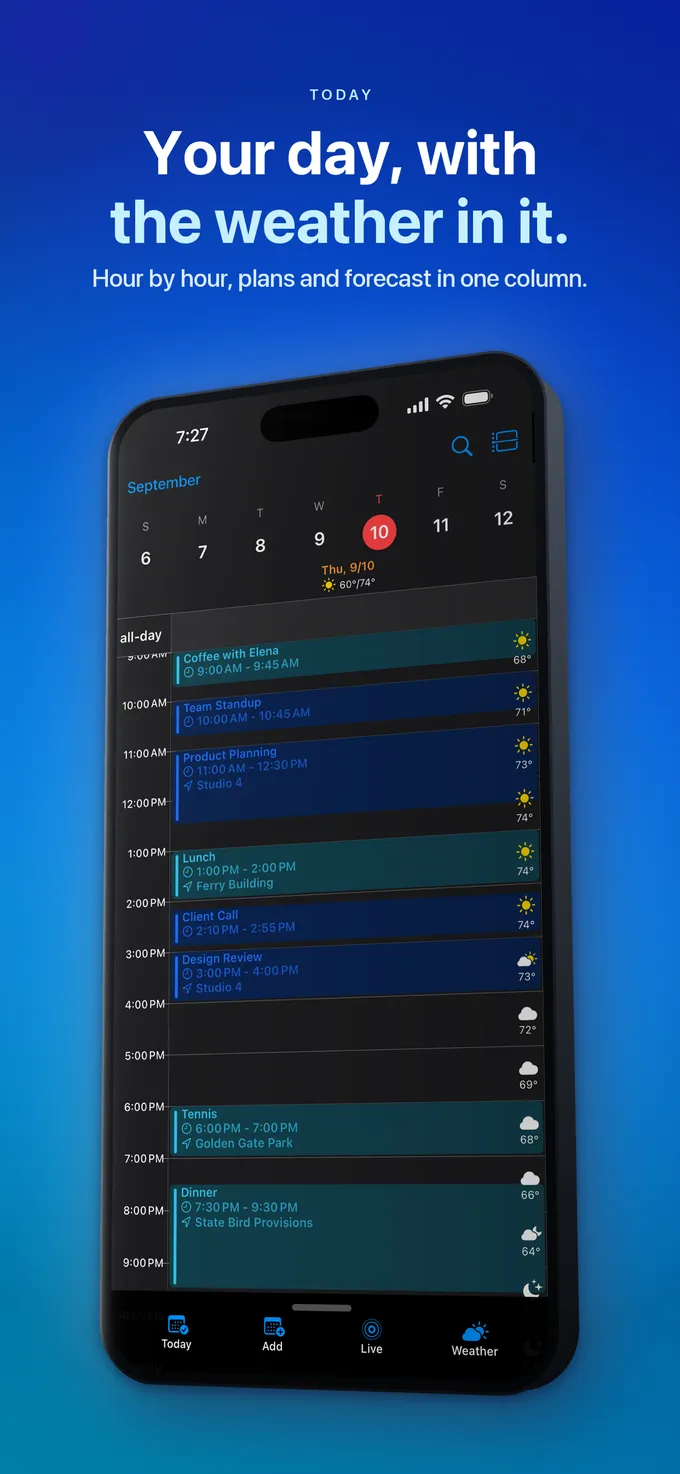
First open the appointment in Cloud Calendars and confirm its date, start time and selected calendar. The countdown follows future timed events; it is not a timer for all-day entries or a measure of how much time remains in a meeting already underway.
Use the app’s Live control to start the activity when available; the control becomes Stop while it is running. If the control is unavailable, check whether Live Activities are allowed for the app in iPhone settings. Availability and labels can vary with device and iOS version.
Understand the two display surfaces
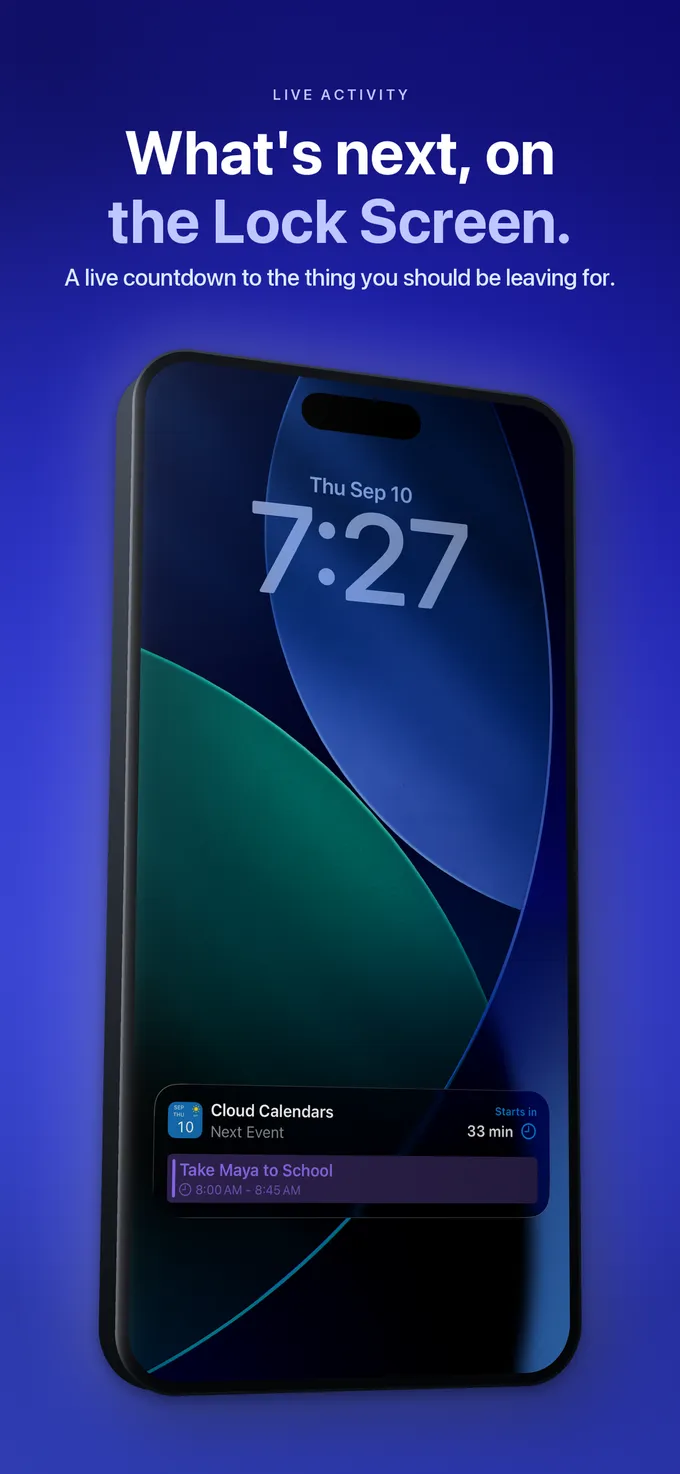
The activity can present the upcoming event on the Lock Screen. On iPhones with Dynamic Island, it also has a compact or expanded presentation there. Apple’s Dynamic Island guidance explains how to expand an activity for more detail; that hardware feature is not present on every iPhone.
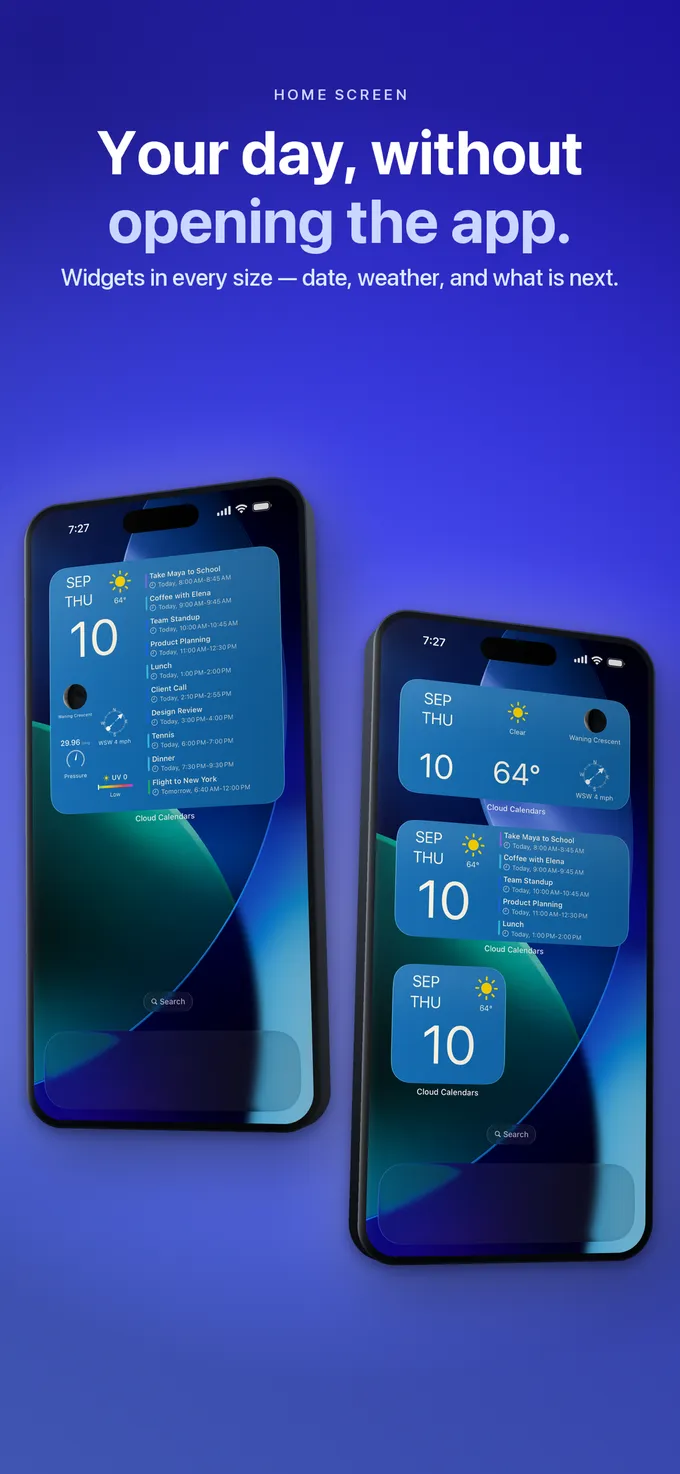
A Home Screen widget and a Live Activity are separate displays. Adding an event widget does not itself establish that a Live Activity is running, and enabling notification sounds does not start one either.
Check the event, not only the moving number
Time passing can change a countdown without a fresh calendar update. If the organizer moves a meeting, a countdown based on the previous start time is still counting toward the wrong appointment. Inspect the title, date and displayed update information as well as the remaining time.
After an important change, reopen the app and compare the saved appointment with the activity. If they disagree, use the appointment’s confirmed details while investigating. Do not assume that a visible or changing countdown proves the latest provider change arrived.
Keep a reminder for when you are not looking
A visual countdown is useful only when you look at it. Keep an appropriate event alert for a meeting you need to attend, and check notification permission separately. Do not replace a needed reminder merely because a Live Activity is visible.
For an appointment away from your desk, also allow travel or preparation time. The countdown is to the event start, not an independently verified instruction for when to leave. Check the actual location and your own preparation needs.
When the activity is missing or outdated
Check the app’s current event first, then whether the activity is running and permitted. Background updates depend on iOS conditions; the activity is not a promise of continuous network synchronization or an unlimited view of future appointments.
Use one ordinary future test event to compare before and after a time change. Record the expected start, the displayed start and whether reopening the app changes the result. Keep real meetings intact and include device, app and iOS versions when reporting the issue.
What it looks like
What to do
- Confirm the future appointment and selected calendar.
- Start Live when available and check the displayed event.
- After a reschedule, compare the appointment and activity again.
- Keep event alerts enabled independently when you need them.
Questions
- Is the countdown always current?
- No. A countdown can keep measuring toward a previously saved start time. Verify important reschedules in the app.
- Why is an all-day event not counted down?
- The activity selects future timed appointments rather than all-day entries.
- Does every iPhone show Dynamic Island?
- No. The Lock Screen activity and Dynamic Island are distinct surfaces; Dynamic Island requires a supported model.