
Year calendar on iPhone and iPad: inspect dates beyond the overview
A year overview helps you locate dates across months. It does not replace the event details needed to confirm a trip, deadline or available period. This guide is published by Arte Soft, the developer of Cloud Calendars.
What most people assume
A colour marker counts appointments, and an unmarked date proves that nothing is scheduled.
Choose the year and check the calendar selection
Read the displayed year before comparing a deadline with a holiday. Cloud Calendars has year navigation and month tiles; check that you are looking at the intended year and the calendars that matter to the decision.
For example, a course organiser can locate the first and final teaching dates before opening those months in detail. Keep the actual dates written down. A visual distance across month tiles is not an exact count of sessions or working days.
Read colour markers as an overview, not a count
Cloud Calendars’ year cells use distinct event colours as markers. Several events with the same colour can therefore share a marker. Do not translate the number of dots into the number of appointments or occupied hours.
Colour is a cue to open the date, not an explanation of the commitment. Two calendars can also use a similar colour. Confirm the calendar name and the event’s title before deciding whether a marker represents work, family or a copied record.
Open the month and then the relevant event
Tap the month to move from the overview towards its dates. Read any extra-event count in month view and open the day or event when a title or interval is unclear. The year tiles are not a full appointment list.
On iPad, the number of month columns changes with the space available; on a phone you may need to scroll. Do not assume that every month is visible at once, or that a smaller window changes the underlying event dates.
Inspect the full interval for trips and other multi-day events
A trip beginning in one month and ending in the next needs both dates checked. The year overview groups event information by its start date, so it should not be read as a continuous availability chart for the entire trip.
Open the original event and compare its start, end and all-day status. If you need separate setup or return commitments, record the real plan deliberately. Do not extend or duplicate the original appointment merely to make more dates show coloured markers.
Keep repeating schedules and exact intervals separate
A recurring meeting can have exceptions, an end condition or a clock change between two months. Inspect representative occurrences before assuming that a year-long pattern is unchanged. Use an editor with the intended scope when correcting a single date.
For an exact interval between deadlines, use the dates themselves rather than estimating by the tile layout. State whether you mean calendar days, weeks, working days or sessions; the overview does not automatically make those different counts equivalent.
Confirm availability beyond the personal overview
A year view reflects the information available from selected calendars. An unmarked stretch is not proof that a colleague can attend, that a venue is open or that an account contains no events outside its synchronized range.
Teamup documents a different year-view configuration in its browser product. Its resource-planning options are not implied Cloud Calendars features. Once you have chosen candidate dates, inspect the actual appointments and confirm the arrangement with the people involved.
What it looks like
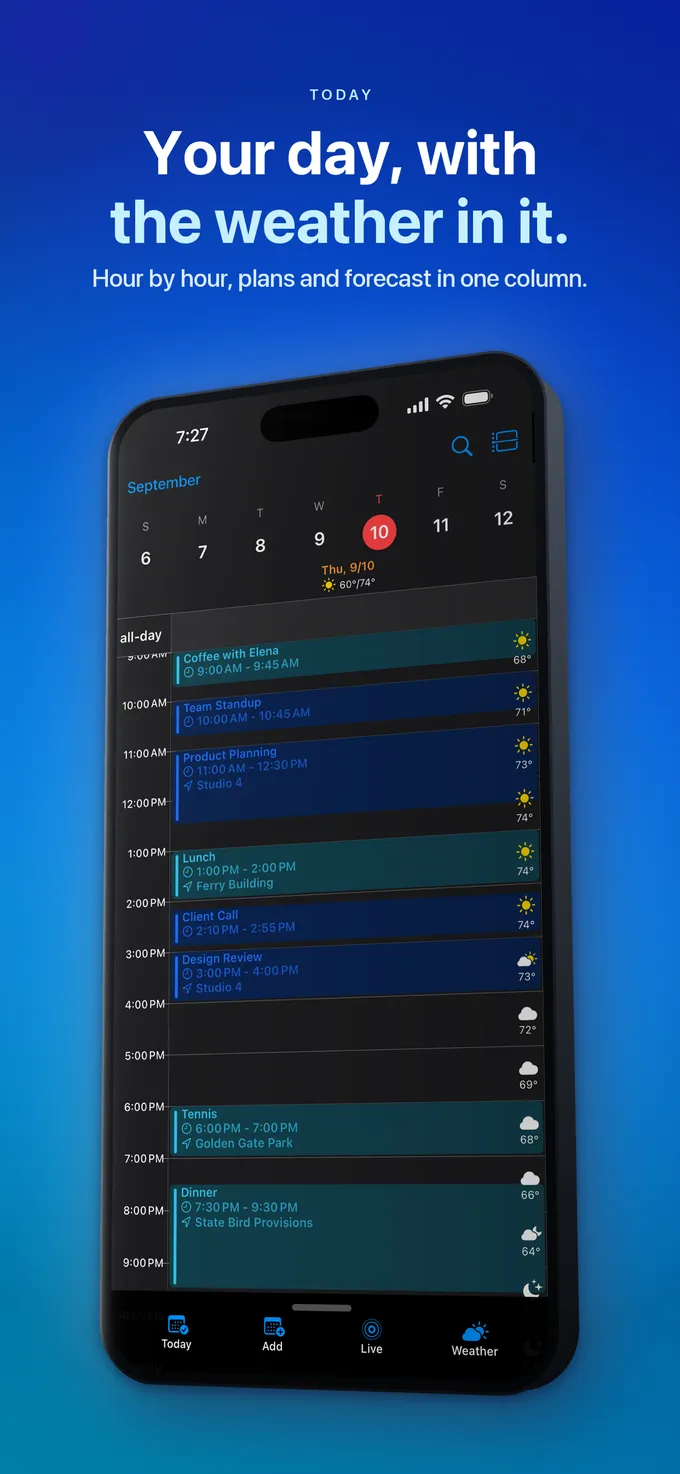
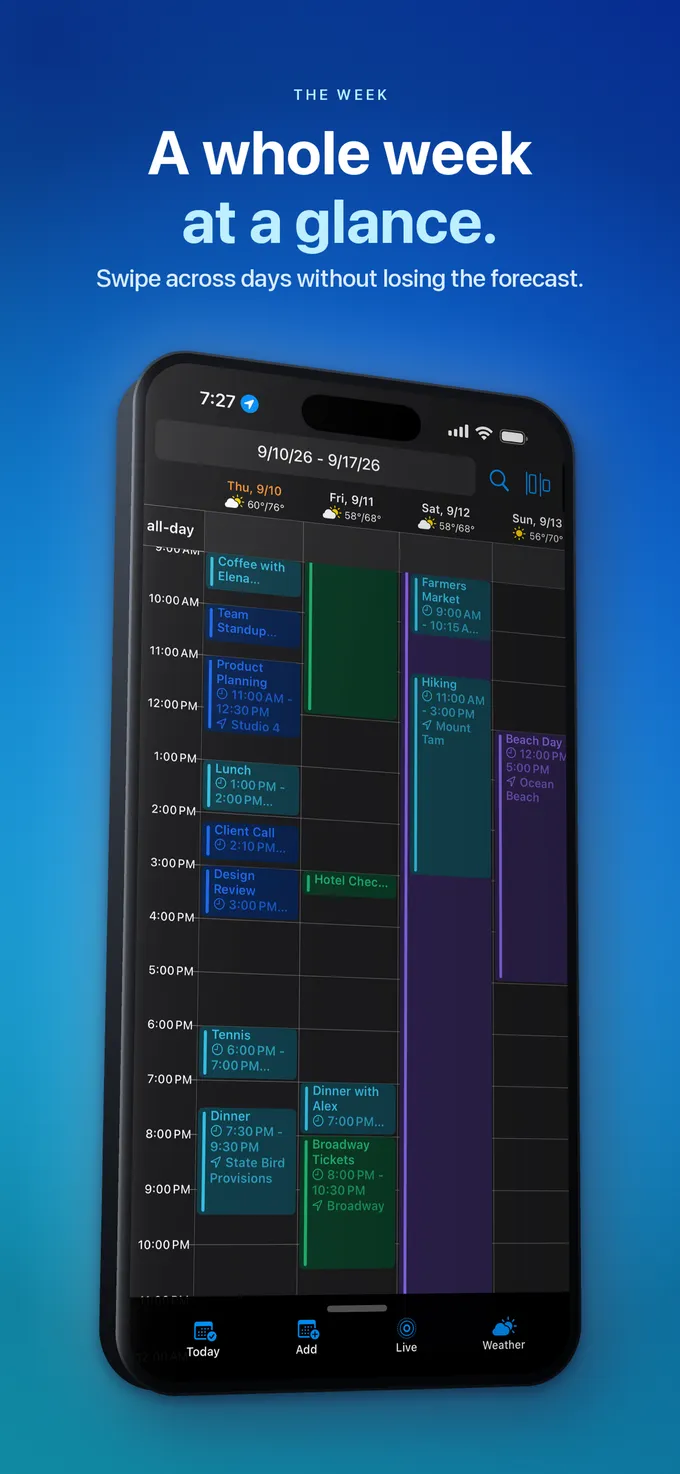
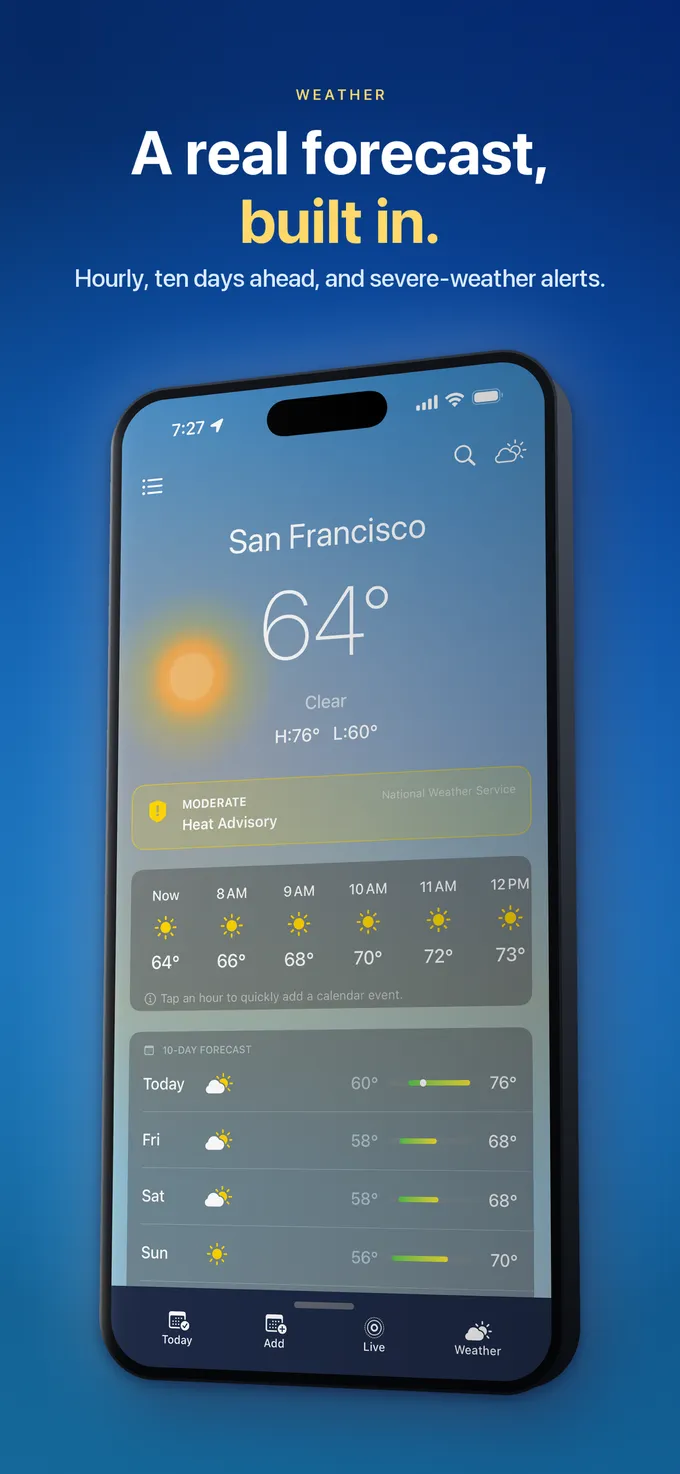
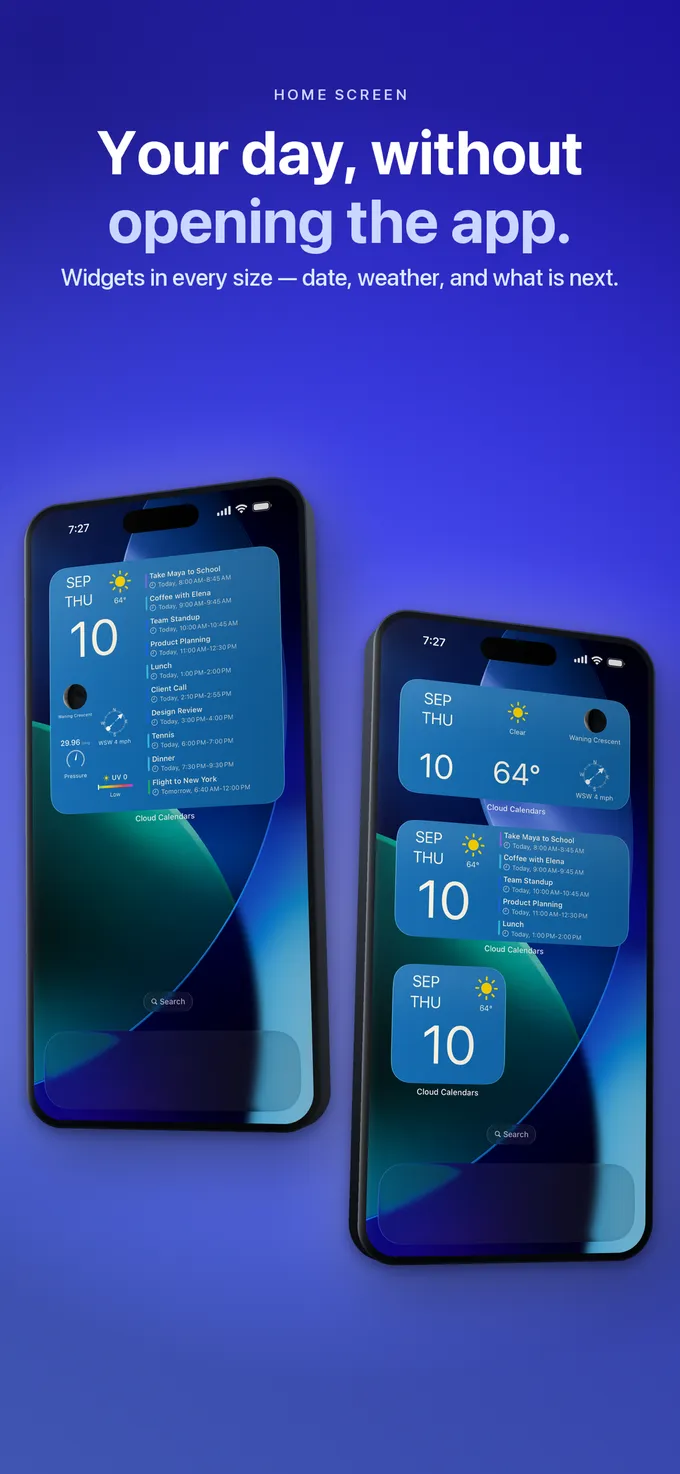
What to do
- Confirm the year and selected calendars.
- Treat colour markers as cues rather than event counts.
- Open the relevant month, day and event for details.
- Check both ends of multi-day commitments.
- Inspect repeat exceptions and use actual dates for exact intervals.
- Confirm candidate dates with participants and the relevant source calendar.
Questions
- Does one dot mean one event?
- No. The year overview uses distinct event colours. Several same-colour events can share a marker.
- Does the entire year always fit on one screen?
- No. Available width and layout affect the number of columns, and scrolling may be needed. Open a month for readable event details.
- Does an unmarked date prove I am available?
- No. Check selected calendars, data availability and events spanning dates, then confirm the intended arrangement.