
Weekly schedule builder: make a draft before adding calendar events
Use this small schedule builder to arrange a repeatable week before committing dates to your calendar. Add fixed appointments, work periods and breaks, then review overlaps. Arte Soft, the developer of Cloud Calendars, provides this temporary planning worksheet. It does not connect to your calendar.
Build a weekly draft
Edit the example or remove it, then add your own blocks. Times are in your chosen local planning convention; this draft has no dates or time-zone conversion.
Your draft is temporary in this tab. It is not saved, sent to a calendar or checked against existing appointments. Closing or reloading the page resets it.
Your week
1h 0m of blocks (overlaps counted separately). Empty time is unallocated, not confirmed availability.
Monday
09:00–10:00
Example focus block
Tuesday
No blocks
Wednesday
No blocks
Thursday
No blocks
Friday
No blocks
Saturday
No blocks
Sunday
No blocks
Invalid blocks are excluded from the preview and text. Overlapping valid blocks remain visible so you can decide what to change.
Start with commitments, then allocate work
Enter fixed commitments first: a class, a work shift or an agreed appointment. Add preparation and travel as separate blocks when they consume time. Use a realistic end time, not only a deadline label.
For example, a call from 10:00 to 10:30 and a preparation block from 09:30 to 10:00 fit without overlapping. A second block from 09:45 to 10:15 conflicts with both. The editor points out intersections in your draft; it does not move anything automatically.
An ideal week is a template, not a dated booking
Monday at 09:00 describes a weekly pattern. A real invitation also needs a calendar date, time zone, organiser and destination calendar. The builder deliberately does not invent those values or send invitations.
A week that normally works can still contain a holiday, overnight shift or one-off appointment. Before reusing the draft, compare it with the actual week. Split overnight work into the relevant days rather than entering an end time earlier than its start.
Understand the preview and overlap warning
Blocks with a title and an end later than their start appear in the preview, sorted by day and time. Adjacent blocks that meet at the same minute do not count as overlapping. Invalid blocks remain in the editor with a warning so you can correct them.
The total adds block durations, including overlaps separately. It is not a measure of unique busy hours, remaining capacity or work completed. Blank space means you have not allocated it here; your real calendars may contain other commitments.
Keep a copy before leaving
This draft lives in the current tab’s memory. Reloading or closing resets it. Select the plain-text draft and copy it somewhere you choose before leaving. Nothing in this tool saves a file, creates an account or writes events to a calendar.
When you are satisfied, create or update the intended events in your calendar using confirmed dates and time zones. Check the saved destination, recurrence and sharing. A text copy is a planning note, not a live feed that updates when an event changes.
Choose a builder, an import or automatic scheduling
Morgen’s published schedule-builder guide describes visual blocks and an ICS export. Its page also contains a specific note that direct integration into Morgen is not yet available, despite broader wording elsewhere on the page. Check the actual export and integration controls rather than treating an exported file as a live connection.
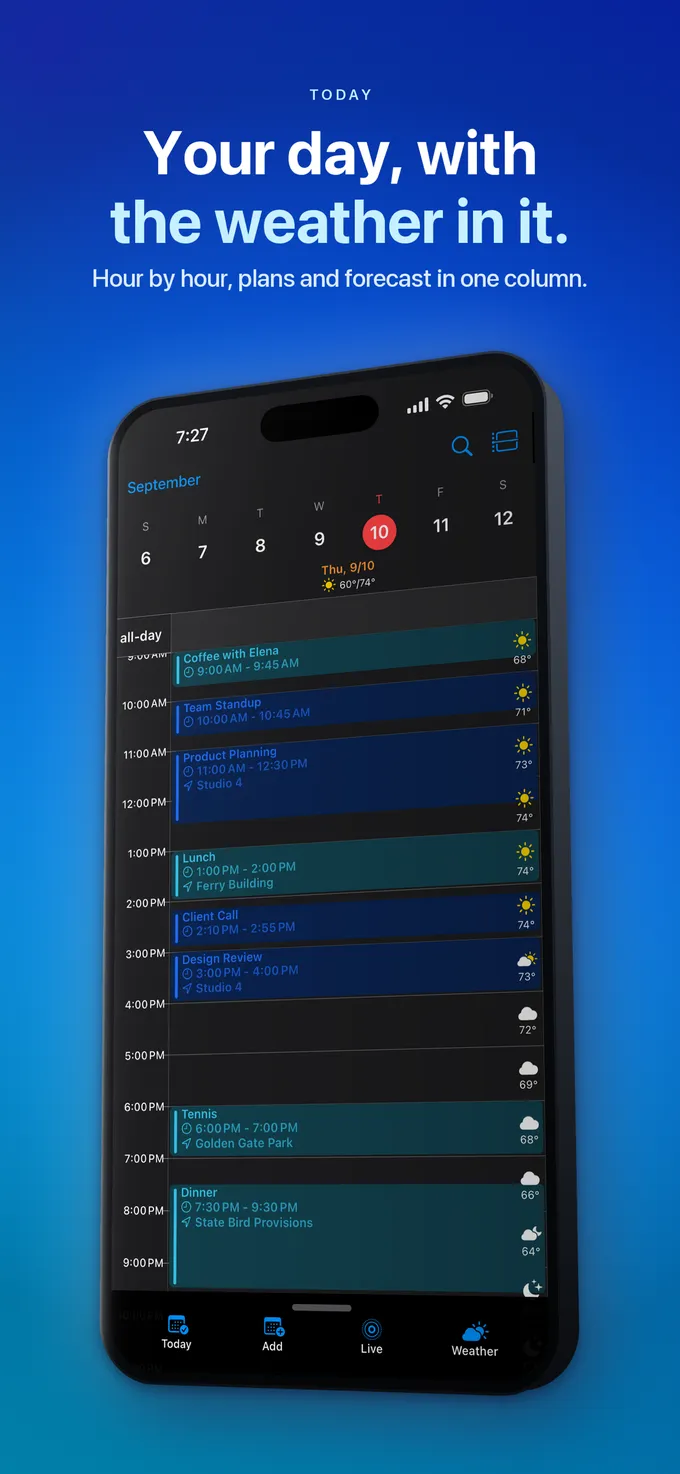
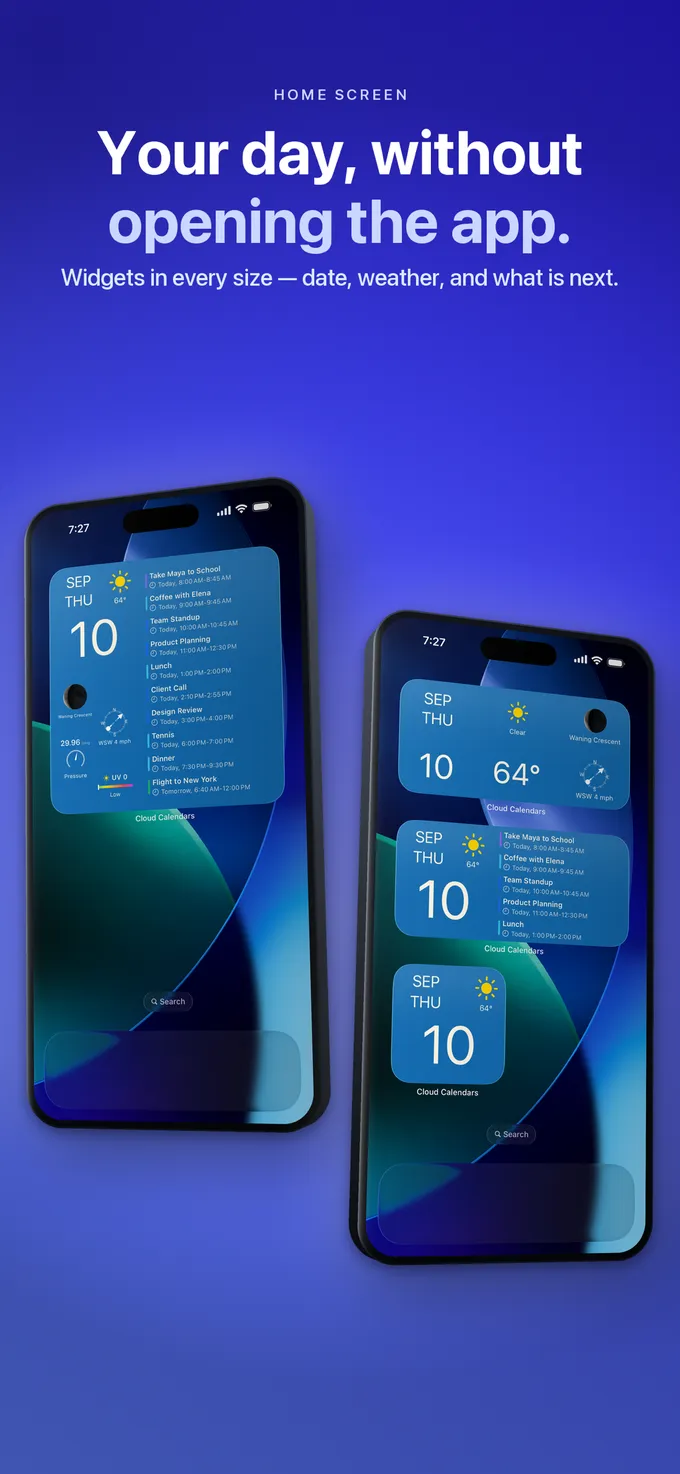
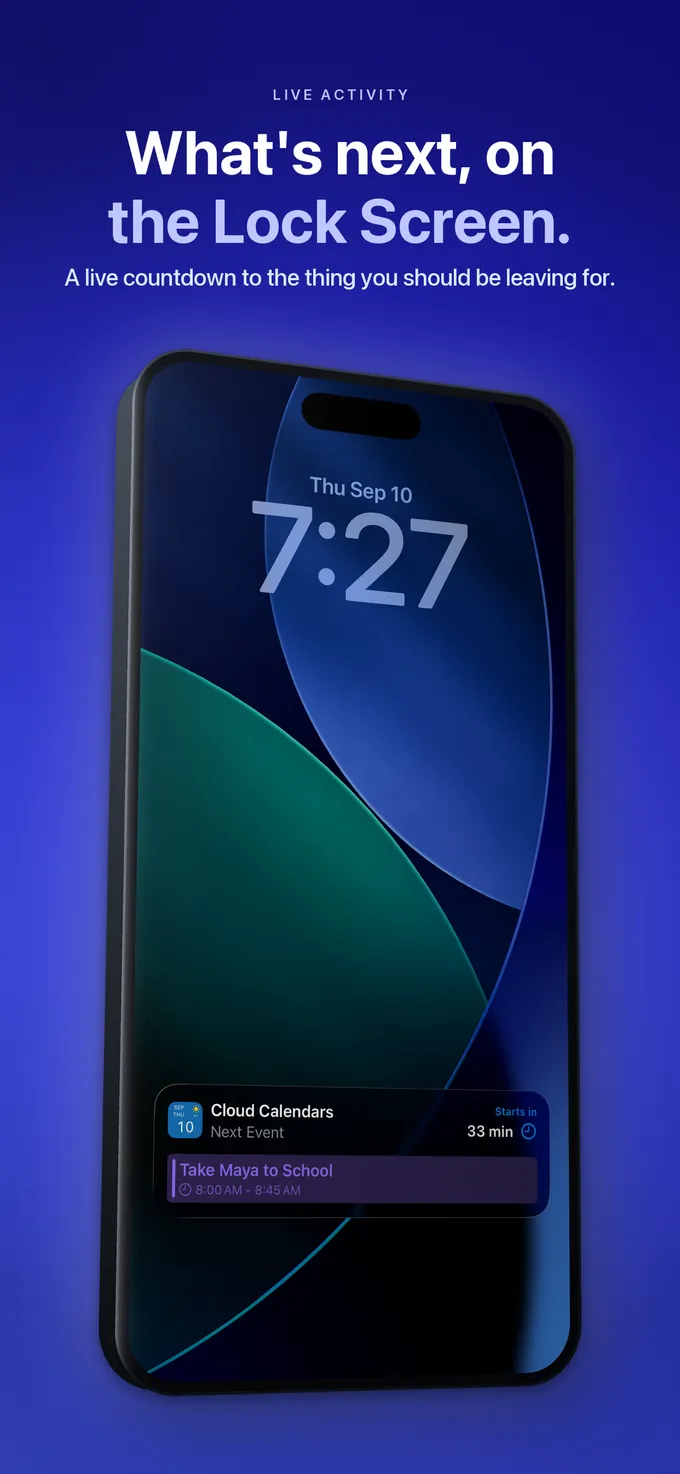
Our worksheet here is simpler: edit blocks, inspect overlaps and copy text. For an ICS import or automatic task rescheduling, choose a tool that documents those operations and test a disposable example. Cloud Calendars provides iPhone and iPad calendar planning; this website draft is not a new automatic scheduling or task-sync feature in the app.
What it looks like


What to do
- Replace or remove the example block.
- Enter fixed commitments before flexible work.
- Resolve overlapping or invalid blocks.
- Copy the text before closing the tab.
- Check dates, time zones and calendar destinations when transferring the plan.
Questions
- Does this builder automatically save my week?
- No. It keeps a temporary draft in this tab. Copy the text before leaving; reload or closing resets it.
- Does it sync with Google Calendar, Apple Calendar or Outlook?
- No. It neither reads existing calendars nor writes events. Transfer confirmed plans through your chosen calendar’s normal controls.
- Why does the total include overlapping blocks?
- It sums each valid block’s duration. The warning identifies collisions, but the total is not the number of unique busy hours.
- Is this an automatic scheduler?
- No. You choose the blocks and times. The tool reports overlaps without moving commitments for you.