
How to Sign In to Cloud Calendars Web Studio with QR Scan & Your 6-Digit iOS Code
Cloud Calendars Web Studio (/calendar/) lets you sign in from any desktop browser without typing a password on a shared keyboard or paying a separate web fee when you already use the iPhone or iPad app. Scanning the browser QR code once links your personal Cloud Calendar identity, unlocks full Web Studio access for $0 forever, and stores an offline RFC 6238 6-digit authenticator secret inside your iOS Keychain for future logins.
What most people assume
Signing in to a desktop calendar workspace requires either reusing a browser password, waiting for email magic links, or buying a separate desktop SaaS seat.
How QR Challenge Pairing and iOS Universal Links Work Together
When you open https://www.cloud-calendars.com/calendar/ on Mac, Windows, or Linux and choose Sign in with iOS App, Web Studio requests a short-lived cryptographic QR session token (/auth/qr/start) that expires automatically after five minutes if unused. The browser renders a scannable QR code pointing to an HTTPS Universal Link (/qr-auth?c=...) verified against Apple’s Associated Domains specification.
Pointing the built-in iPhone or iPad Camera app—or tapping Scan Web QR inside Cloud Calendars > Calendars > Web Studio & Authenticator—opens the native approval sheet directly inside Cloud Calendars. Neither the QR payload nor the URL query string ever exposes your account credentials; your phone authenticates over TLS using its existing Cloud Calendar bearer session and confirms the browser challenge only when you tap Approve Sign-In.
Web Studio Access Paths Compared
| Sign-In Path | Cost | How You Authenticate Next Time | Two-Way iPhone Sync |
|---|---|---|---|
| Cloud Calendars iOS App (QR Scan + 6-Digit Code) | $0 Free Forever | Scan QR or type the 30-second 6-digit code shown in the iOS app | Automatic two-way Personal Cloud Calendar sync |
| Standalone Web Account (Google, Microsoft, or Email) | $1.99/mo or $19.99/yr after free view preview | OAuth or email session in your desktop browser | Can link the iOS app later at any time to switch to $0 |
Step-by-Step: Pair Your Browser via QR Code in Under 15 Seconds
1. On your computer, open https://www.cloud-calendars.com/calendar/ and select Sign in with Cloud Calendars iOS to display the live QR challenge.
2. On your iPhone or iPad running Cloud Calendars, either point the standard iOS Camera at the screen and tap the Cloud Calendars banner, or open Cloud Calendars, tap the calendar icon to open Calendars, tap Web Studio & Authenticator, and tap Scan Web QR Code.
3. Review the pairing prompt on your phone and tap Approve Sign-In. Within two seconds, your desktop browser receives its session token, loads your personal Cloud Calendar events, and activates your iOS-linked $0 Web Studio entitlement.
Using the Built-In 6-Digit Authenticator Code (RFC 6238 TOTP)
The moment you approve your first QR sign-in, the server provisions a 160-bit Base32 shared secret encrypted at rest with AES-256-GCM and delivers it over TLS to your iPhone, where Cloud Calendars saves it inside the hardware-backed iOS Keychain. From that point forward, your phone computes a standard 6-digit Time-Based One-Time Password (RFC 6238, HMAC-SHA1, 30-second step) completely offline—even in Airplane Mode.
Whenever you open Web Studio on a laptop whose webcam is covered or on an iPad browser where scanning the same screen is inconvenient, choose Enter 6-Digit Code on the web sign-in dialog, enter your account handle or email plus the current 6-digit number from Cloud Calendars > Web Studio & Authenticator, and sign right in. Server verification accepts a ±1 step tolerance (±30 seconds) to absorb minor clock drift while rejecting replayed or brute-forced codes.
What Happens If You Already Signed In on the Web With Email or Google First
If you started in a desktop browser with Google, Microsoft, or email before installing the iOS app, open Settings or Account inside Web Studio while signed in and generate a Link iOS App QR code. Scanning that QR code from Cloud Calendars on iPhone binds your existing web calendar ID to your iOS installation so you keep every event, booking type, and RSVP link while unlocking the $0 iOS-linked entitlement.
What it looks like
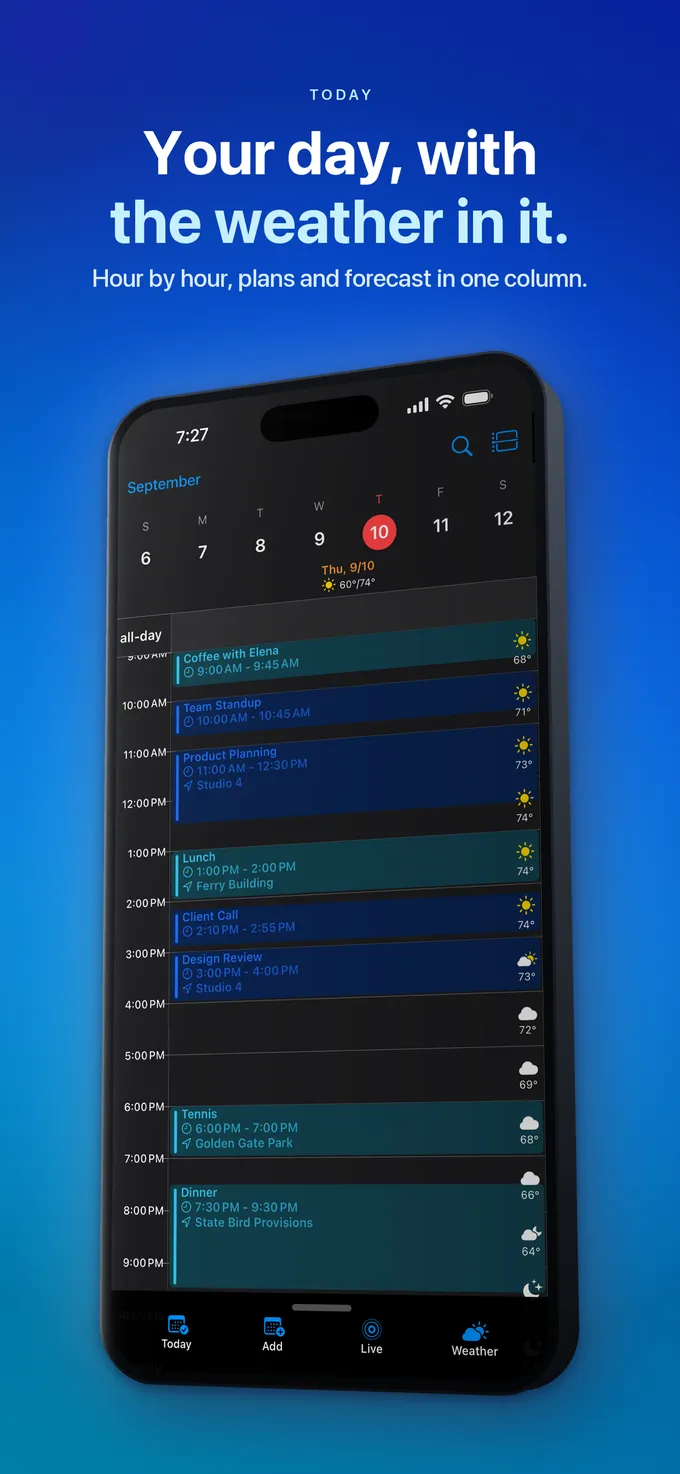
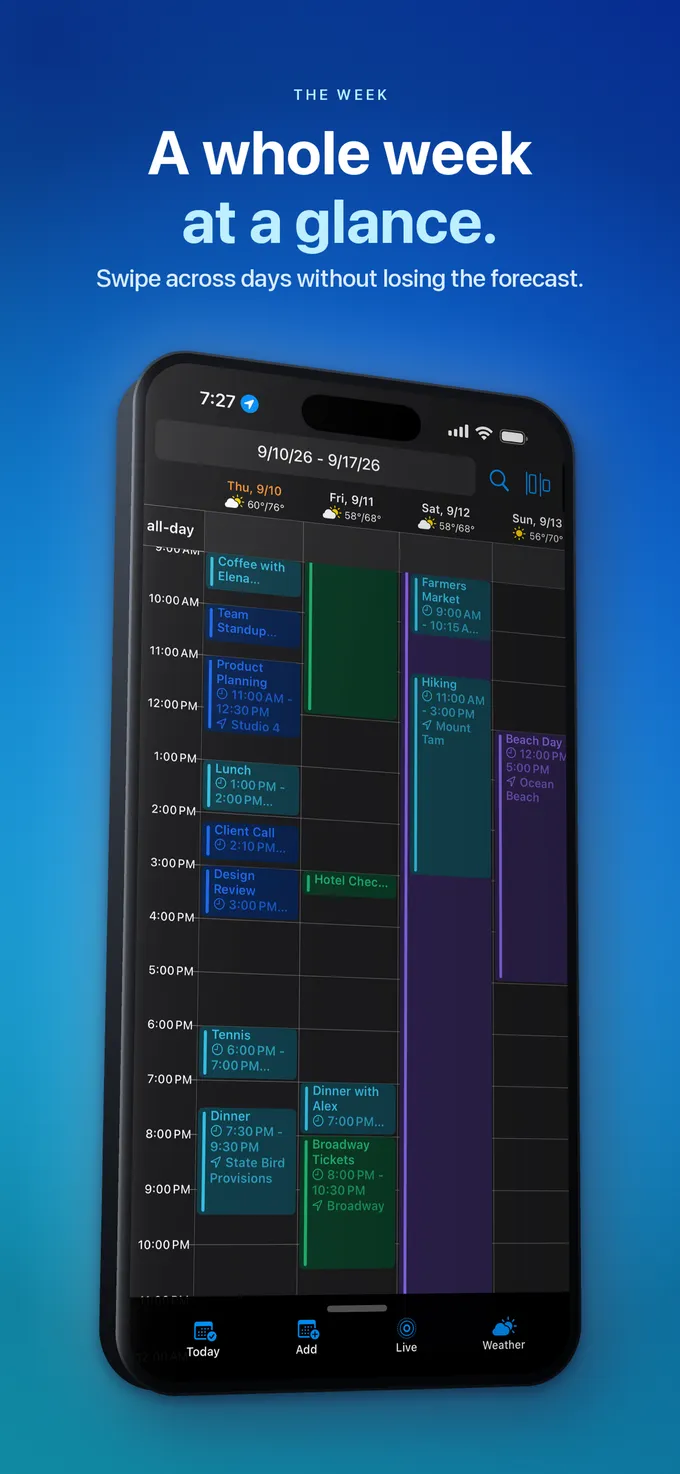
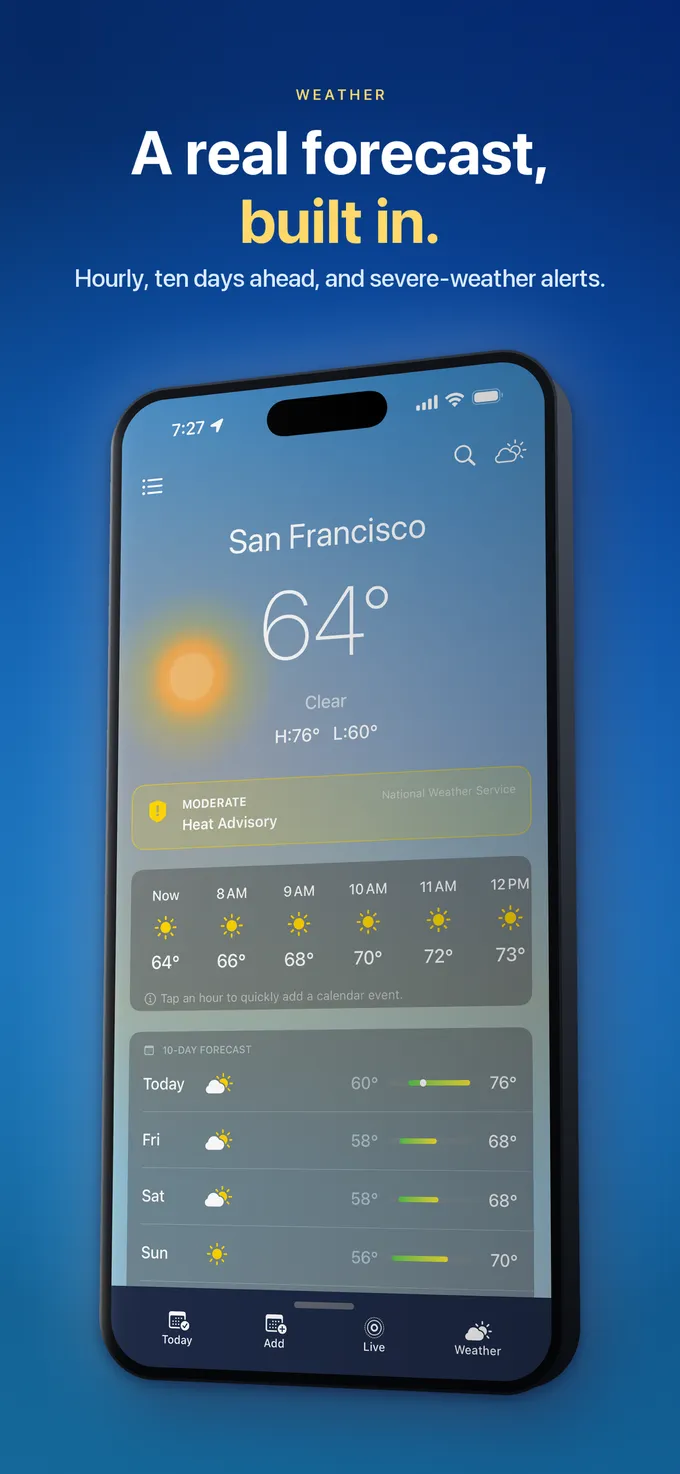
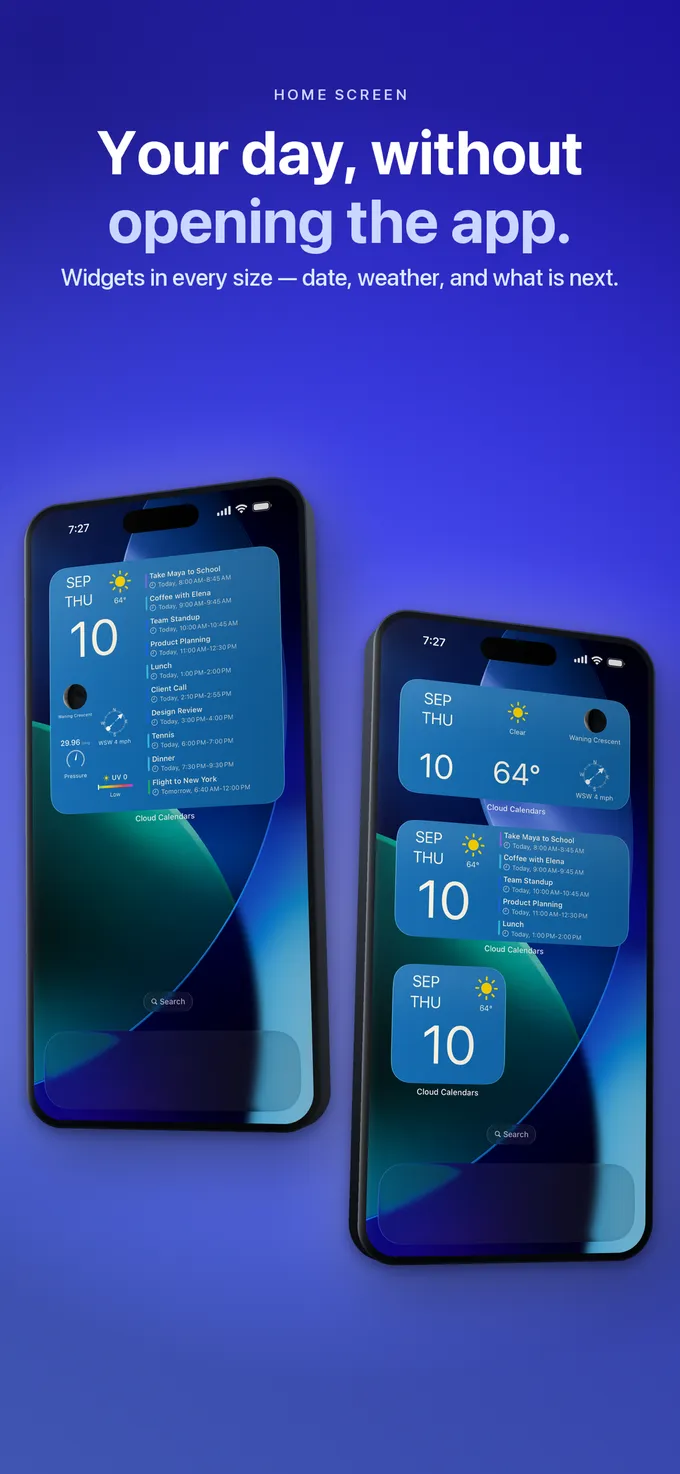
What to do
- Install Cloud Calendars on iPhone or iPad from the App Store before opening Web Studio on your computer.
- Open https://www.cloud-calendars.com/calendar/ and display the Sign in with iOS QR code.
- Scan with the iPhone Camera (Universal Link) or inside Calendars > Web Studio & Authenticator > Scan Web QR Code.
- Tap Approve Sign-In on your phone to unlock Web Studio for $0 and store your Keychain authenticator secret.
- For future camera-free logins, open Web Studio & Authenticator on iPhone and enter the 30-second 6-digit code in your browser.
Questions
- Does the 6-digit authenticator code work when my iPhone has no cellular or Wi-Fi signal?
- Yes. After your first QR pairing stores the shared secret in iOS Keychain, the 6-digit code is computed locally from device time using RFC 6238 TOTP every 30 seconds, so your phone needs no internet connection to generate codes while your computer signs in.
- Do I have to pay $1.99/month for Web Studio if I use the Cloud Calendars iOS app?
- No. Pairing with the Cloud Calendars iPhone or iPad app via QR code or your 6-digit authenticator code unlocks Web Studio editing, public /book/ scheduling links, and /event/ RSVP pages for $0. The $1.99/month ($19.99/year) plan is only for standalone web users who do not use the iOS app.
- What if a QR code sits on my monitor and expires before I scan it?
- Each QR challenge expires after five minutes and can only be redeemed once. Click Refresh QR in Web Studio to generate a fresh challenge code and scan again.