
Two-Way Personal Cloud Calendar Sync Between iPhone, iPad & Web Studio Explained
When you sign in to Cloud Calendars on iPhone or pair Web Studio via QR code, your account includes a dedicated personal Cloud Calendars calendar alongside any iCloud, Google Calendar, or Microsoft Outlook calendars you view on your device. Every event created in that personal Cloud Calendars calendar on your phone appears automatically in Web Studio (/calendar/), and every Web event, guest RSVP (/event/), or client booking (/book/) syncs down to your iPhone with native local notifications.
What most people assume
Using both a browser calendar studio and an iPhone calendar app either requires exporting static .ics files or creates duplicate copies of shared events.
How the Personal Cloud Calendars Layer Differs From iOS EventKit and OAuth Accounts
On iPhone and iPad, Cloud Calendars reads iCloud and Exchange calendars on-device through Apple EventKit and connects directly to Google Calendar and Microsoft Outlook via OAuth. Your personal Cloud Calendars calendar (marked with an iCloud-style cloud badge and labeled Web & Events Sync inside the Calendars sheet) is backed directly by your canonical Cloud Calendars store.
Because Web Studio (/calendar/), public booking pages (/book/), and shareable RSVP pages (/event/) read and write that exact same canonical event collection, you do not need to configure CalDAV server URLs, app-specific passwords, or manual .ics imports to keep your browser workspace and your phone aligned.
What Syncs in Each Direction
| Action | Where You Make the Change | Result on the Other Side |
|---|---|---|
| Create, drag-move, edit, or delete an event in Cloud Calendars | iPhone or iPad app | Pushes within ~1 second to Web Studio, updates your live .ics feed, and locks matching /book/ slots |
| Create or reschedule an event in Web Studio (/calendar/) | Desktop or mobile browser | Syncs down to your iPhone/iPad Personal Cloud Calendar and schedules local iOS alerts |
| Guest books a 1-on-1 slot on your /book/ page | Public guest browser | Creates the confirmed meeting on Web Studio, mirrors connected Google/Outlook, and appears on iPhone |
| Attendee submits Going / Maybe / Declined on /event/ | Public RSVP link or App Clip | Updates attendee counts and status on both Web Studio and your iPhone event card |
Three-Way Merge Conflict Resolution When You Edit Offline on iPhone
Phones frequently enter subways, elevators, or flights while changes happen on the web—such as a client booking a Tuesday afternoon slot while your iPhone is offline. Rather than overwriting the entire calendar with whichever device connected last, Cloud Calendars maintains a per-account sync baseline on iOS and executes a field-aware three-way merge against the server state.
Events added on your phone while offline upload cleanly alongside new web bookings made during the same window. If the exact same event was edited in both places before reconnecting, deterministic timestamp resolution preserves the newer revision without silently dropping unrelated appointments.
How Duplicate Suppression Protects Shared iCloud and Google Events
Cloud Calendars also lets you generate a single-event share link or QR invite from an existing iCloud or Google Calendar event on your phone. Internally, the iOS sync engine tracks outgoing EventKit share identifiers so an event that already lives in your iCloud or Google calendar is never duplicated inside your personal Cloud Calendars list on the same iPhone.
Meanwhile, pull-to-refresh inside the Calendars sheet, foreground app resume, a 20-second active sync cadence, and a 700-millisecond save debounce keep edits flowing smoothly without draining battery.
What it looks like
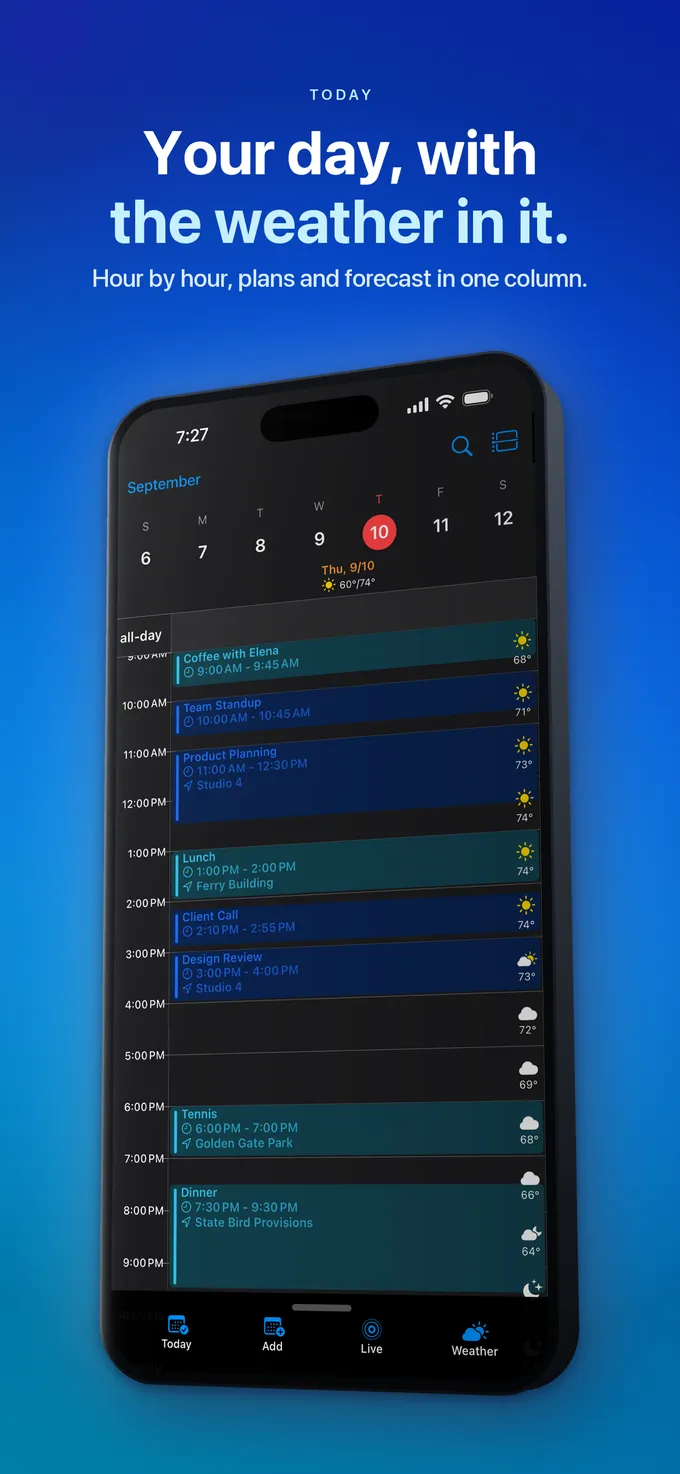
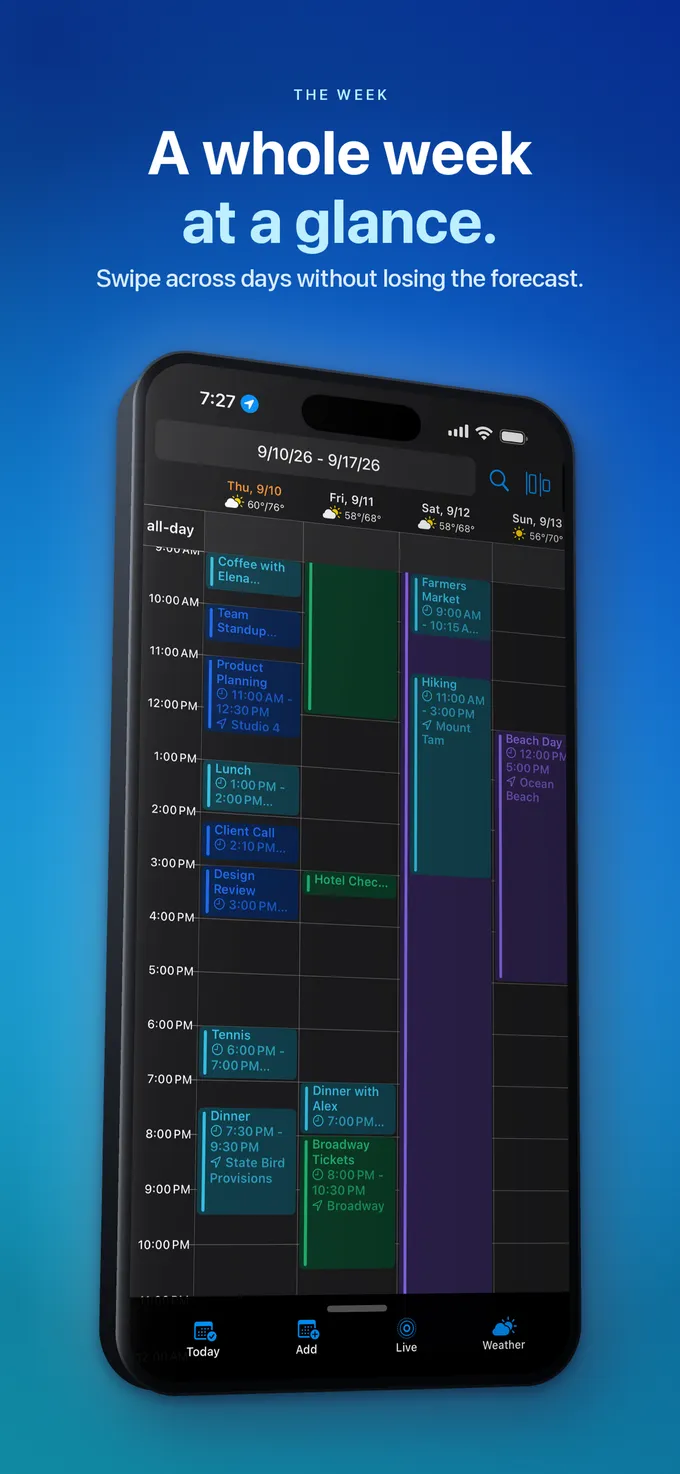
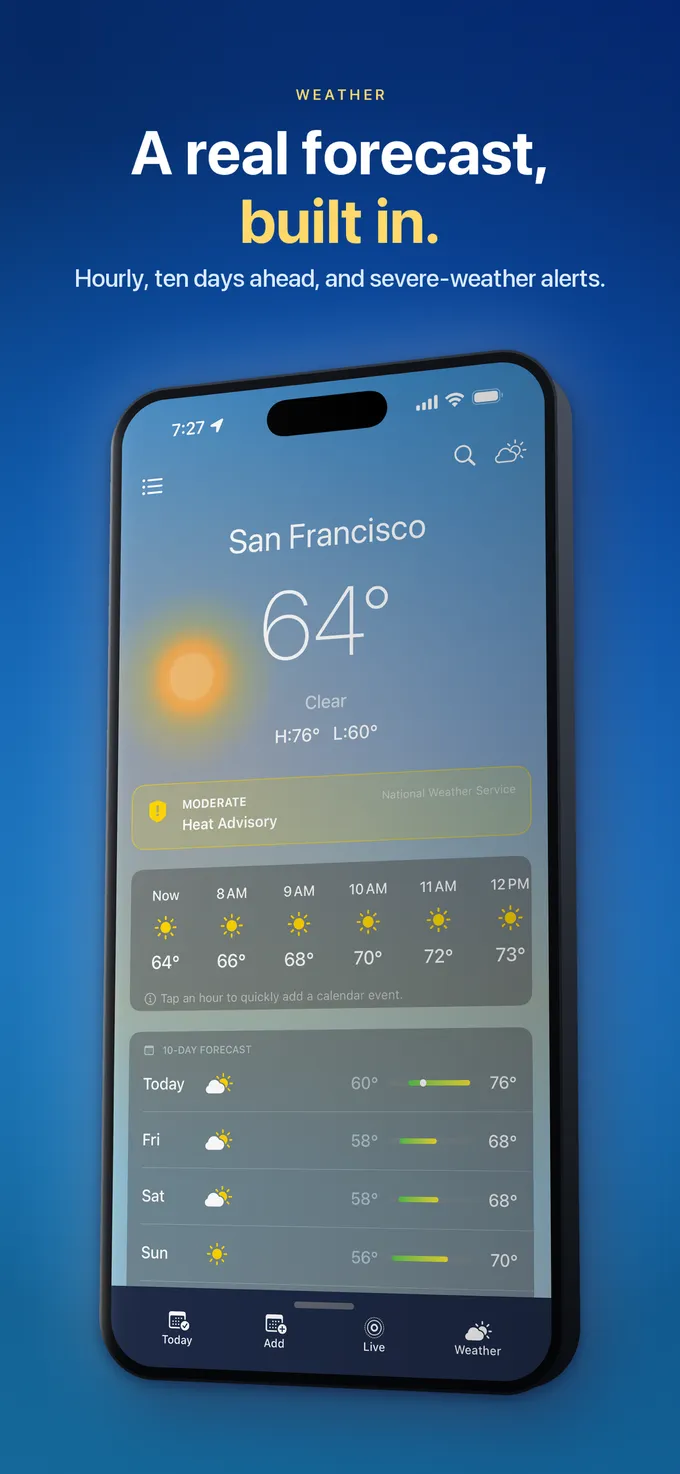
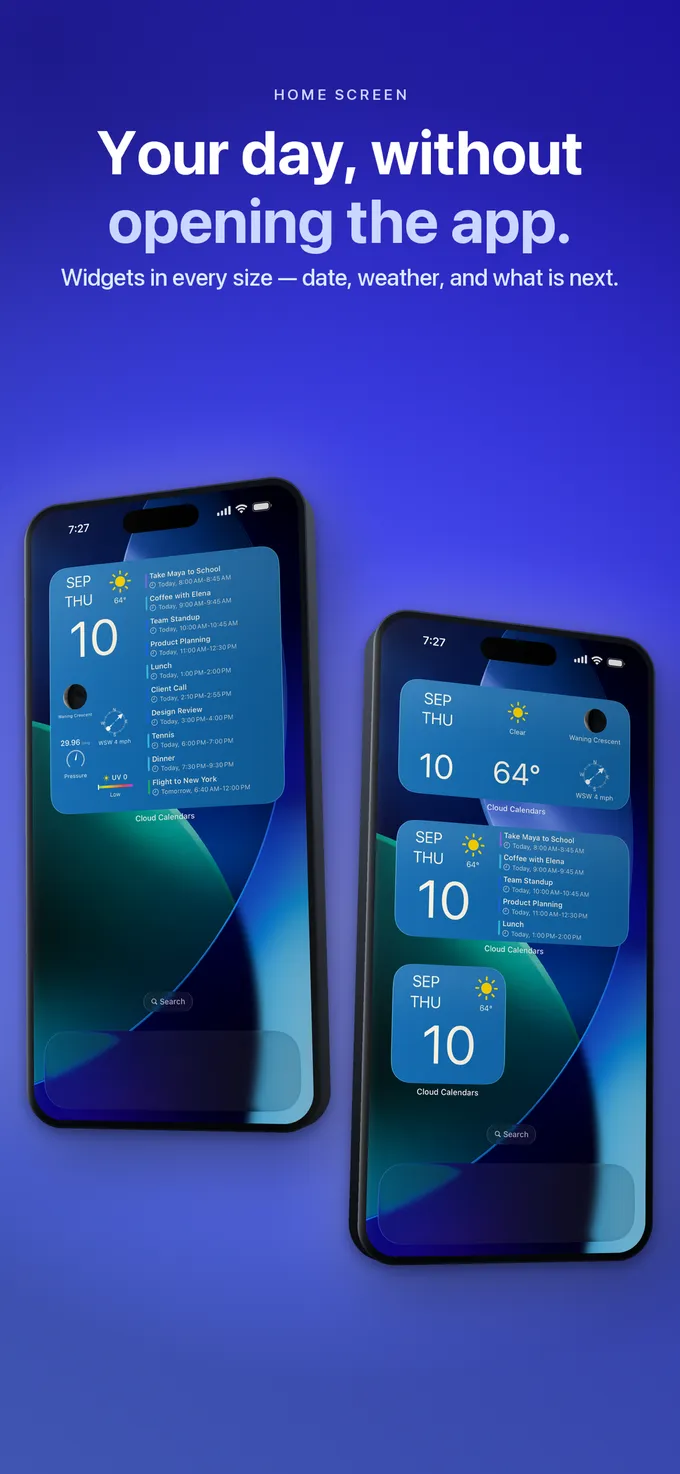
What to do
- Open Cloud Calendars on iPhone, tap the calendar icon, and verify that your Cloud Calendars (Web & Events Sync) calendar is checked.
- Pair your desktop browser at https://www.cloud-calendars.com/calendar/ using Scan Web QR Code so both devices share the same account.
- Save personal Web Studio events, hosted RSVPs, and client bookings into your Cloud Calendars calendar so they appear automatically on both Web and iOS.
- Pull down inside the iOS Calendars sheet anytime you want an immediate manual refresh after editing on another computer.
Questions
- Can I delete the personal Cloud Calendars calendar on my iPhone?
- No—to prevent accidental loss of your Web Studio events, bookings, and RSVPs, the personal Cloud Calendars calendar cannot be permanently deleted from the local calendar editor. You can toggle its visibility checkmark on or off at any time in the Calendars sheet, or sign out in Web Studio & Authenticator to remove its cached copy from the device.
- Do events synced from Web Studio trigger native iPhone alerts and widgets?
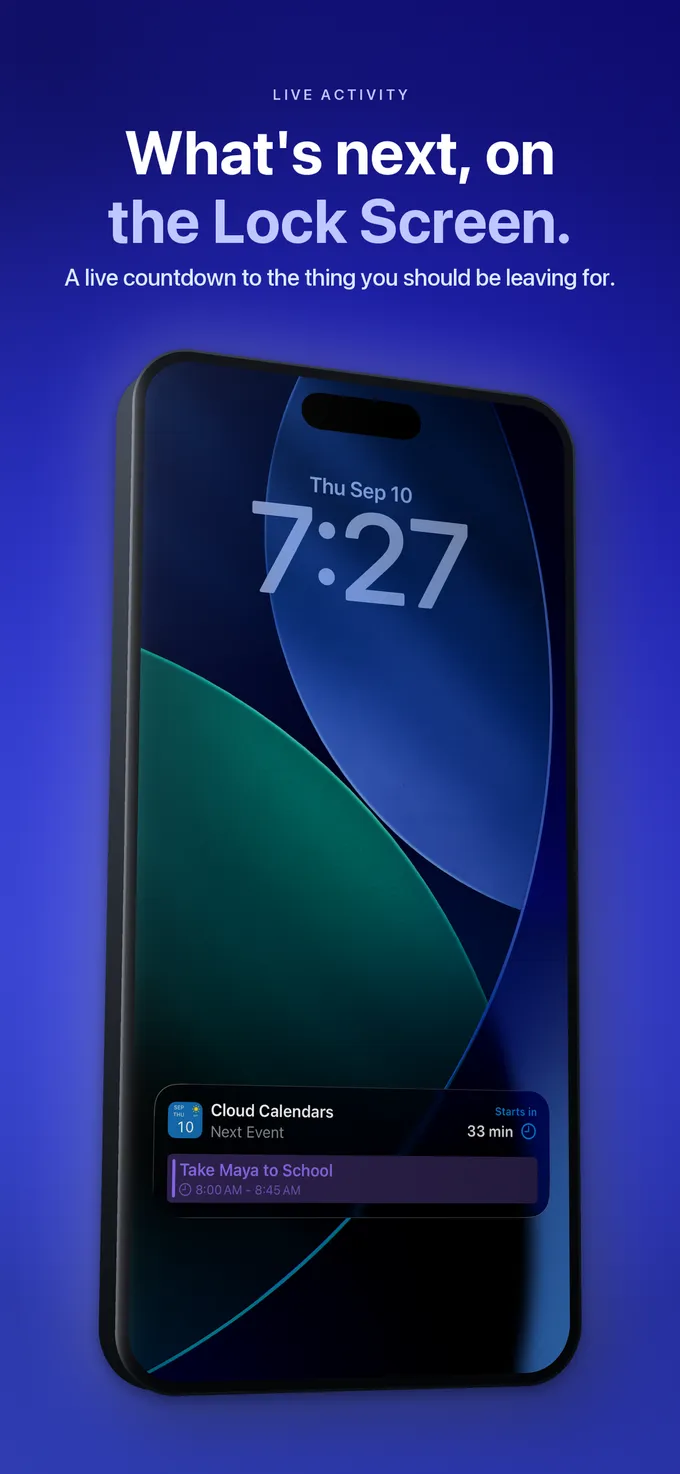
- Yes. Every timed event synced down into your personal Cloud Calendars calendar schedules native iOS local notifications according to its alert offsets and appears in Cloud Calendars Home Screen widgets, Lock Screen widgets, and hourly WeatherKit Day/Week views.
- Does Personal Cloud Calendar sync upload my private iCloud calendars to the web?
- No. Your iOS EventKit iCloud calendars remain strictly on-device via Apple EventKit unless you explicitly share a specific event. Only events placed in your personal Cloud Calendars calendar (plus Google or Microsoft accounts you explicitly connect in Web Studio) appear on the web.