
Google Calendar Out of Office Auto-Decline Rules: "New and Existing" vs "Only New Invitations" (Plus Personal Gmail Workarounds)
In Google Workspace accounts, an Out of office calendar entry automatically sends Decline RSVPs with a custom message—but choosing the wrong decline scope or leaving a partial-day trip set to All day can inadvertently decline evening or cross-time-zone meetings you intended to keep.
Google Calendar ways to block away time compared
| Calendar entry type | Available on free @gmail.com? | Blocks Find a Time & Booking? | Auto-declines invites? | Default time span |
|---|---|---|---|---|
| Out of office (New and existing meetings) | No — Google Workspace only | Yes (Busy) | Yes — declines existing overlaps immediately + future invites | Full 24-hour calendar days unless specific hours are set |
| Out of office (Only new meeting invitations) | No — Google Workspace only | Yes (Busy) | Declines newly arriving invites; keeps meetings already on your calendar | Full 24-hour calendar days or custom start/end times |
| Standard All-Day Event (Free / Busy toggle) | Yes — all Google accounts | Only if changed from default "Free" to "Busy"! | No — guests see Busy, but invites still await manual RSVP | 00:00 to 24:00 in your calendar time zone |
| Focus time (with auto-decline) | No — qualifying Workspace editions only | Yes (Busy) | Optional auto-decline for heads-down blocks | Timed block (for example 09:00–11:30) |
What most people assume
Every Google Calendar account has an Out of office button, and creating an all-day event automatically declines incoming meeting invites.
The Critical Difference Between "New and Existing Meetings" and "Only New Invitations"
When you create an Out of office entry in Google Calendar on a work or school Google Workspace account, Google prompts you to choose between New and existing meetings and Only new meeting invitations. Selecting New and existing meetings immediately transmits a Declined RSVP—with your custom message—to every overlapping meeting already on your calendar, including 1-on-1s you meant to attend from the airport.
If you have one or two high-priority calls you still plan to join while traveling, either split your Out of office block around those hours or choose Only new meeting invitations and manually decline the specific existing meetings you will miss.
Why Personal @gmail.com Users Do Not See "Out of Office" (and the All-Day "Free" Trap)
Google restricts the dedicated Out of office and Focus time event types to managed Google Workspace work and school editions. On a standard @gmail.com account, people usually create an all-day event titled "Vacation"—unaware that Google Calendar defaults all-day events to Free (transparent) rather than Busy.
Because an all-day event marked Free does not block availability, external scheduling pages (Google Appointment Schedules, Calendly, or Cloud Calendars /book/ links) will happily let clients book right over your holiday! Always open event details on personal Gmail vacation banners and switch availability from Free to Busy.
Cross-Account Busy Blocking Across Gmail, Outlook, and iPhone
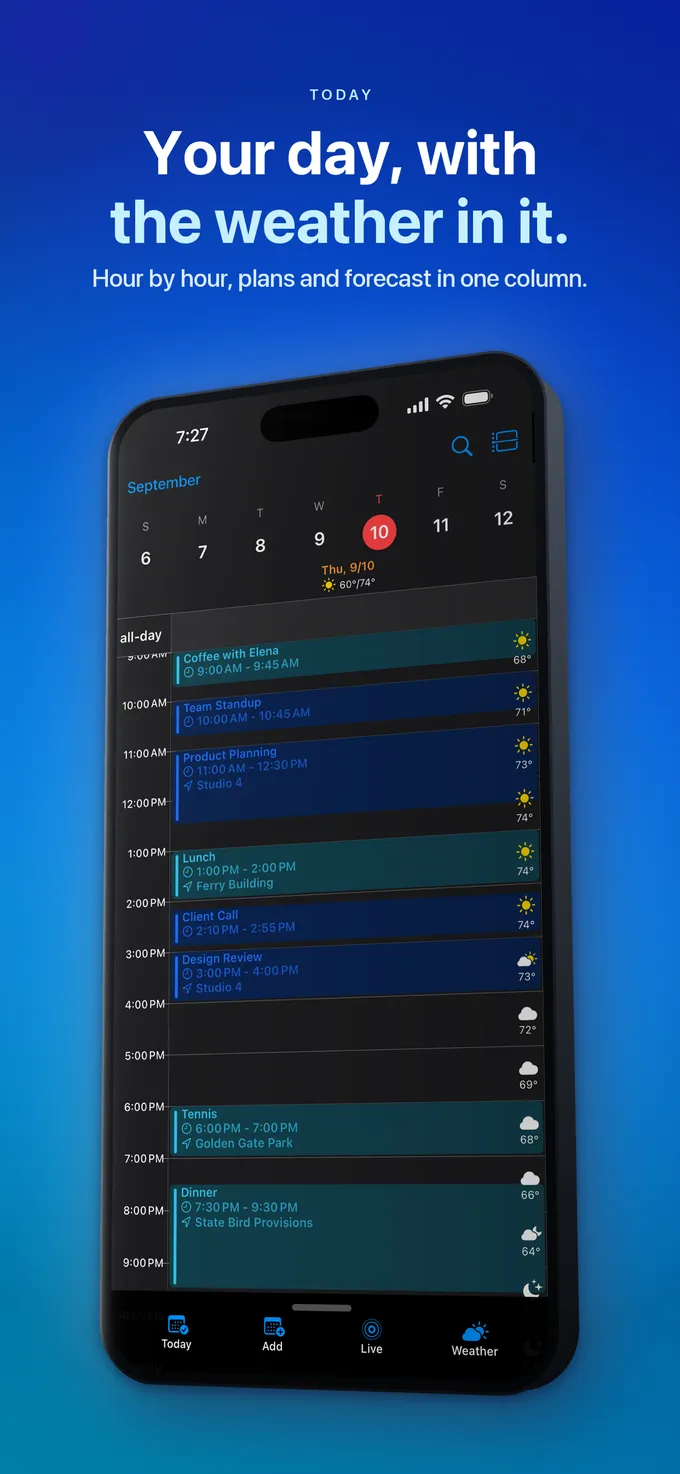
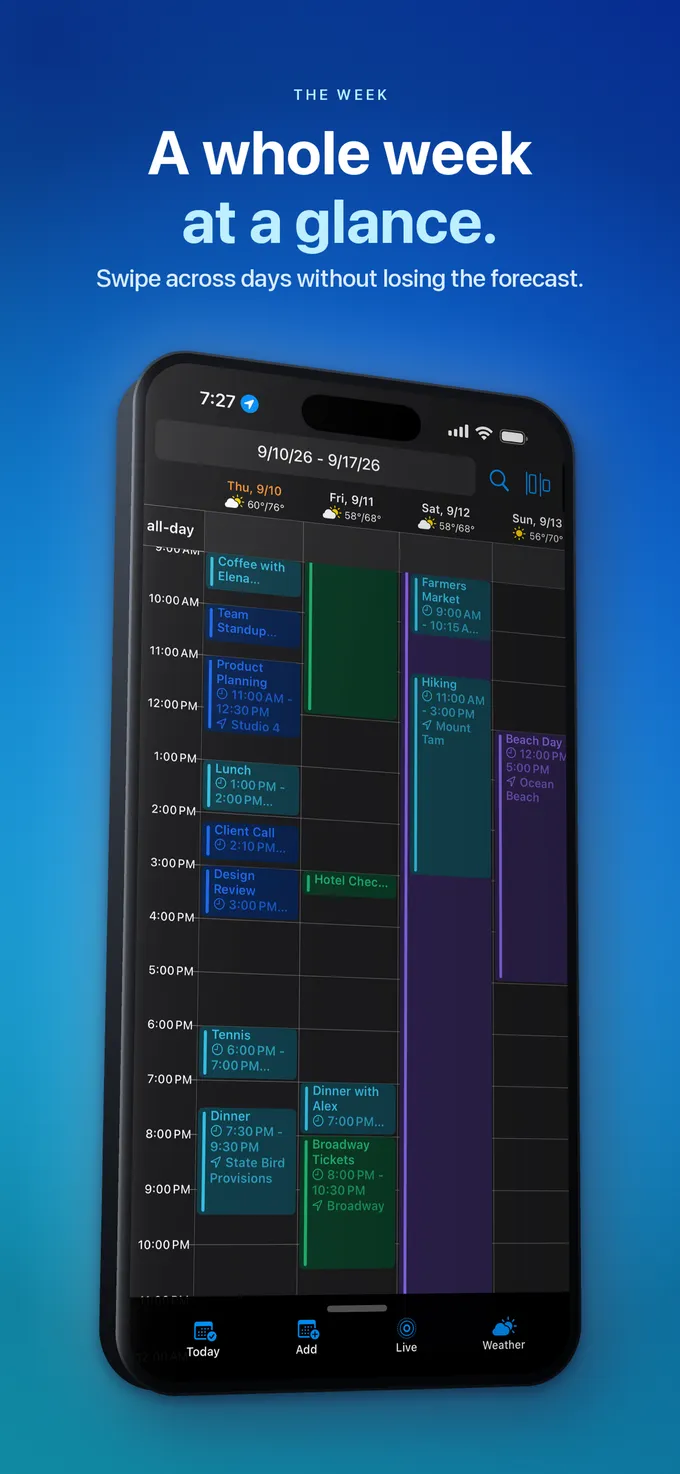
If you consult across both a personal Gmail calendar and a client Microsoft 365 calendar, setting Out of office on one account does not stop bookings on the other unless your scheduling page checks both providers simultaneously. Connecting both Google Calendar and Microsoft Outlook inside Cloud Calendars Web Studio (/calendar/) ensures a Busy or Out of office block on either account automatically closes those slots on your public /book/ page.
What it looks like
What to do
- On Google Workspace (desktop web or mobile app), click Create → Out of office and verify exact start and end times rather than leaving a half-day flight set to All day.
- Choose Only new meeting invitations if you want to keep one or two existing calls during your trip, or New and existing meetings for a complete disconnect.
- On a personal @gmail.com account (where Out of office is unavailable), create a multi-day event and explicitly change the briefcase availability dropdown from Free to Busy.
- Turn on Gmail Vacation Responder separately in Gmail Settings if you also want incoming emails to receive an automated away reply.
Questions
- Does creating a Google Calendar Out of office event also turn on Gmail automatic email replies?
- No. Unlike New Outlook (which combines both on one settings page), Google keeps Calendar Out of office meeting auto-decline separate from Gmail’s Vacation responder.
- Why did my all-day "Vacation" event on personal Google Calendar still allow someone to book a call with me?
- Google Calendar defaults new all-day events to Free instead of Busy. Edit the all-day event and change Free to Busy so conflict checkers and booking pages block the entire day.