
All-Day Banners & Week Numbers in iOS Calendars
Two subtle layout details make or break European, academic, and project-driven schedules on iPhone: how multi-day all-day events (vacations, school breaks, conferences, and OOO banners) span across weeks without drowning out timed calls, and how Monday week-start settings interact with ISO 8601 week numbers (`W01`–`W53`). Cloud Calendars renders clean multi-day banners across its app views while deliberately keeping its Home Screen event widgets focused strictly on upcoming timed appointments—and if inline ISO week-number badges (`CW 45`) are mandatory for your engineering sprints or Nordic school plans, Apple Calendar, BusyCal, and Fantastical expose dedicated toggles. Arte Soft develops Cloud Calendars and publishes this comparison.
All-Day Banners, Week Starts & ISO Week Numbers Matrix
| Grid & Header Detail | Cloud Calendars | Apple Calendar (iOS 18) | Google Calendar (iOS) | BusyCal / Fantastical |
|---|---|---|---|---|
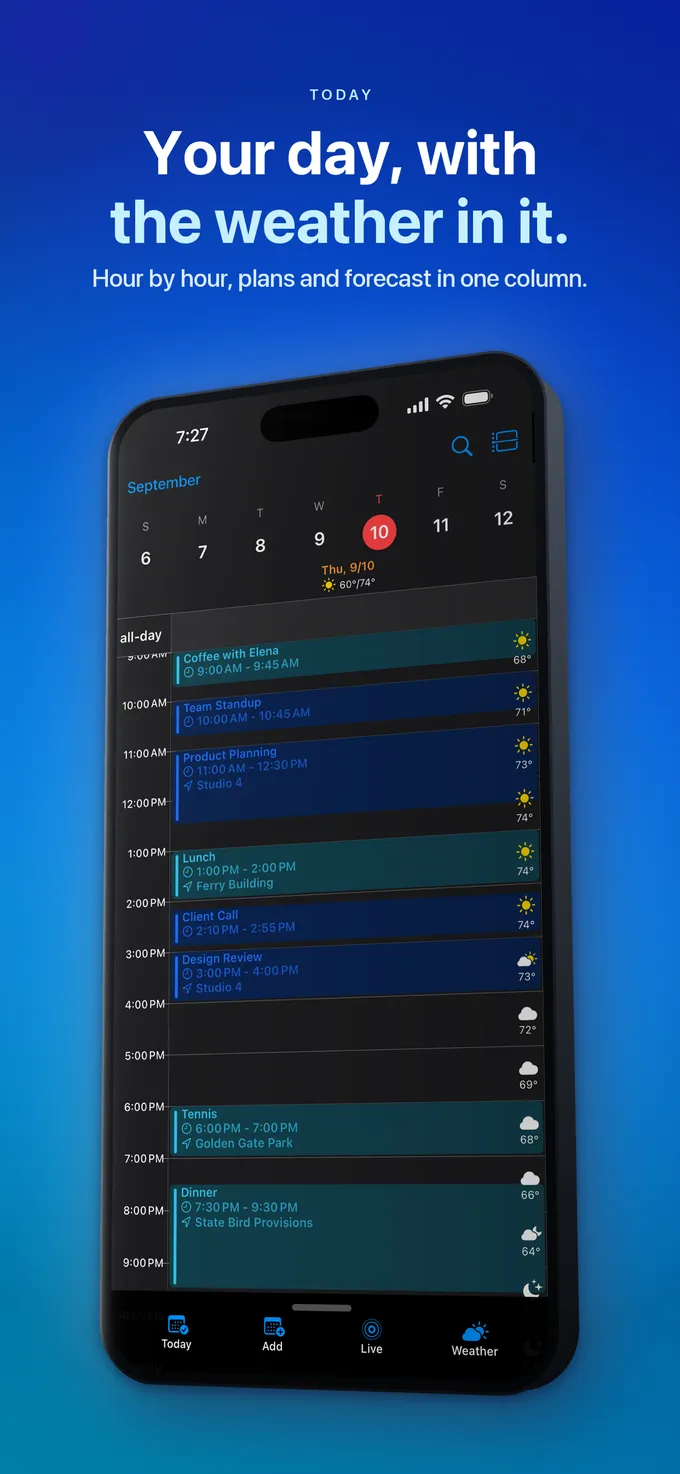
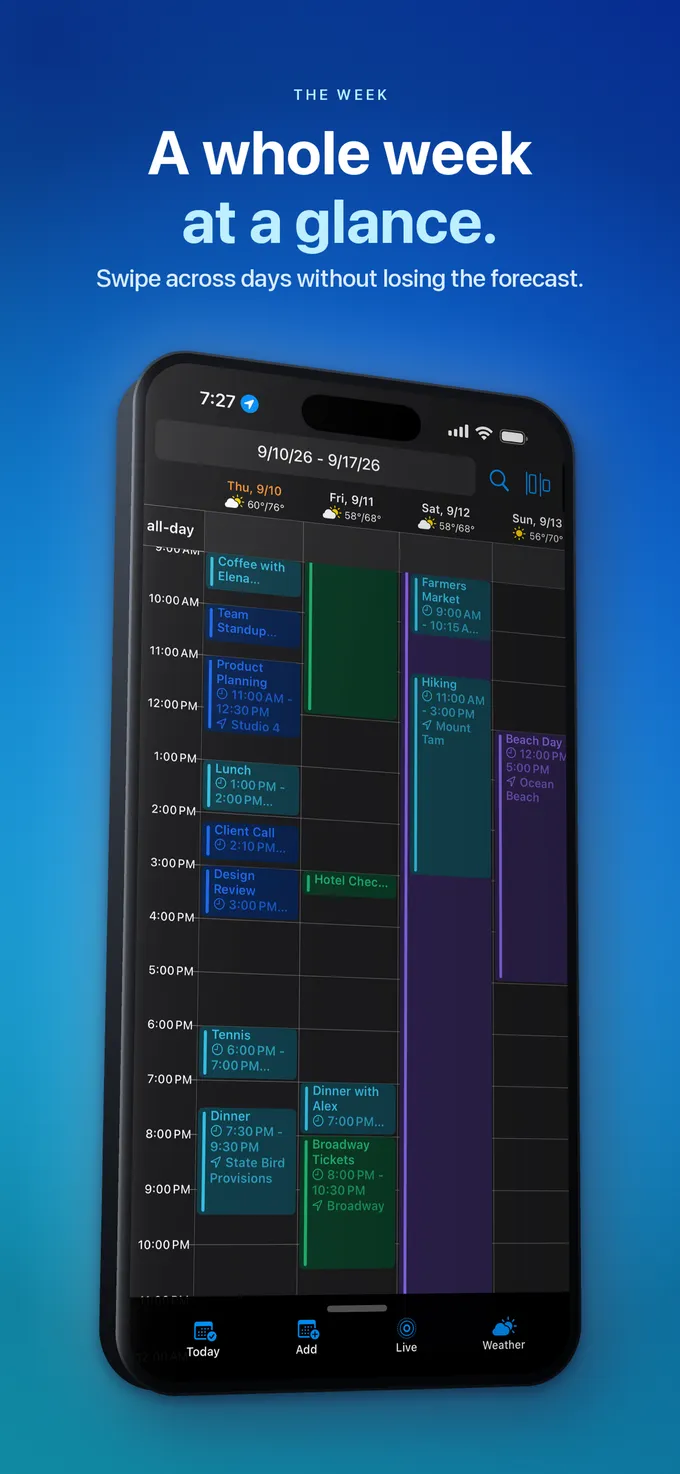
| Multi-day all-day banners in Week & Month views | Continuous horizontal banners pinned above hourly grid / across Month cells | Continuous colored bars in Stacked/Details Month & Multi-day header | Continuous colored horizontal banners across week rows | Continuous colored multi-day banners with customizable row count |
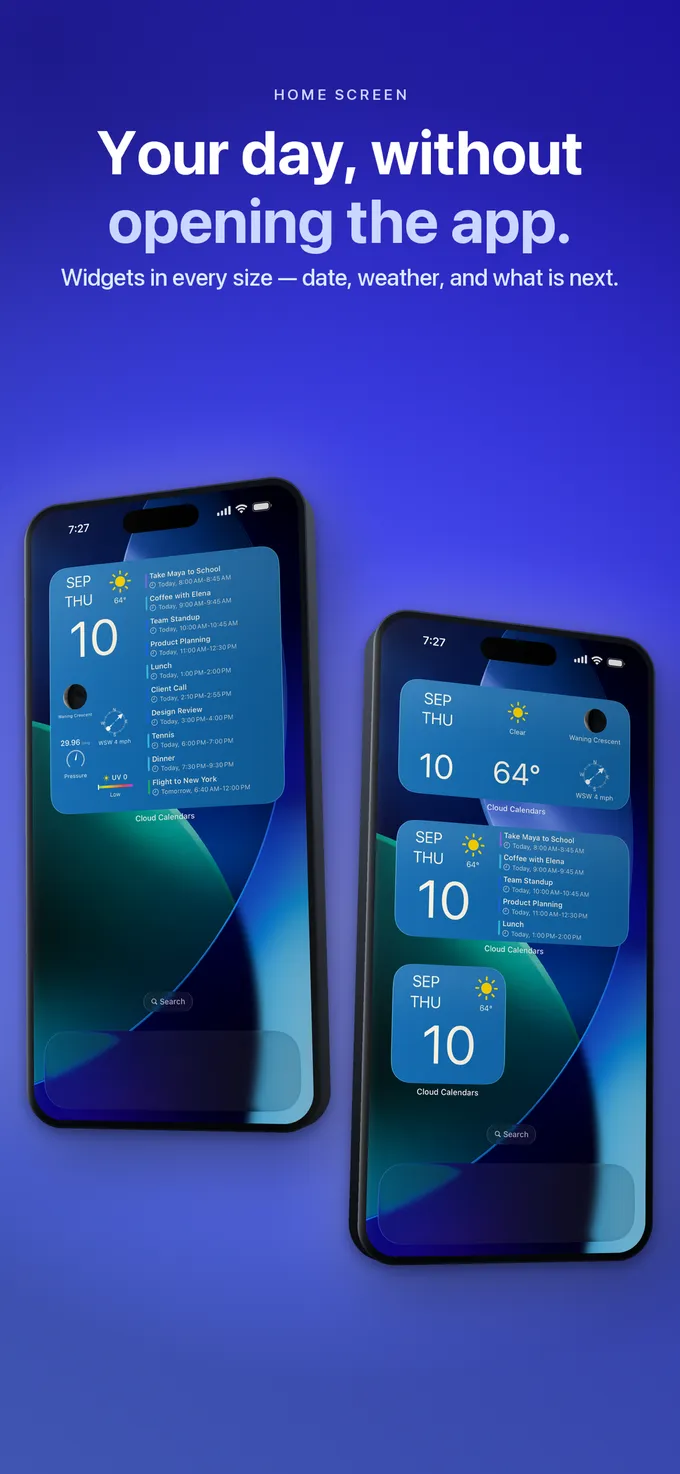
| All-day banner behavior in Home Screen event widgets | Excluded from Calendar Events widgets so timed meetings stay visible (view in app) | Displayed at top of Up Next / List widgets | Displayed in Up Next widget | Configurable "Show All-Day Events" toggle per widget |
| Inline ISO week numbers (`W1`–`W53`) in grid | No inline week-number column badges (use subscribed Week Number ICS if needed) | Built-in toggle (`Settings > Apps > Calendar > Week Numbers`) | Shown when enabled in Google Calendar settings / Week view | Native week-number badges in Month & Week headers |
| First day of week (Monday vs Sunday vs Saturday) | Follows device locale / region calendar settings | Configurable (`Settings > Apps > Calendar > Start Week On`) | Configurable inside Google Calendar app settings | Independent custom "Start Week On" picker |
| Alternate lunar / Hebrew / Islamic / Chinese calendars | Standard Gregorian grid (displays subscribed holiday ICS feeds) | Built-in `Alternate Calendars` overlay in iOS Calendar Settings | Built-in Alternate Calendars in Google account settings | Alternate calendar & moon-phase options |
| Free vs Busy status on multi-day banners | Preserves provider Free/Busy availability metadata | Configurable `Show As: Free / Busy` per event | Configurable `Free` vs `Busy` (plus `Out of office` type) | Full `Show As: Free / Busy / Tentative` control |
| 12-month Year overview for spotting school terms & trips | Full 12-month Year view included in Free ($0) | 12-month Year grid built in | No 12-month Year screen on iOS | Year view / density heatmap |
Why ISO 8601 Week Numbers Disagree When Sunday vs Monday Starts Drift
Across Sweden, Denmark, Norway, Germany, the Netherlands, and global manufacturing/agile teams, `"Let’s ship in Week 46"` is standard shorthand. Under ISO 8601, weeks ALWAYS begin on **Monday**, and **Week 1** is the week containing the year’s first Thursday (equivalently, January 4). Under North American Sunday-start numbering, January 1 immediately starts Week 1—meaning US and European calendars frequently disagree by an entire week number in years where January 1 falls on Friday, Saturday, or Sunday!
Whenever an iPhone shows a different week number from a colleague’s Outlook desktop, verify both `Settings > General > Language & Region` and `Start Week On = Monday`. If you want week numbers visible inside Cloud Calendars, add a lightweight read-only ISO Week Numbers `.ics` subscription in iOS Settings so Monday banners (`"ISO Week 45"`) appear cleanly without cluttering your timed widgets.
Account Sync, RFC 5545 All-Day Semantics & Platform Support
| Technical Detail | Google Calendar | Apple iCloud / CalDAV | Microsoft 365 / Outlook |
|---|---|---|---|
| RFC 5545 exclusive `DTEND` rule (why a 3-day trip ends on Day 4 in raw ICS) | Encodes June 1–3 trip as `DTSTART=20260601`, `DTEND=20260604` (renders June 1–3) | Same standard exclusive `DTEND` date math; UI shows inclusive end date June 3 | Maps exclusive end midnight; badly formatted CSV/ICS imports sometimes drop final day |
| Default Free vs Busy state for new all-day events | Defaults to `Free` (`TRANSP:TRANSPARENT`) so holidays don’t block meetings! | Often defaults to `Free` on all-day toggle (verify `Show As` if OOO) | Often defaults to `Free` unless switched to `Busy` or `Out of Office` |
| Time-zone shifting bug on all-day events | Immune when saved as true All-Day (`VALUE=DATE`) | Immune when saved as true All-Day | Legacy Exchange clients occasionally stored midnight-to-midnight in creator’s zone, spanning 2 days abroad |
| Alert default on all-day events | Configurable separately from timed event alerts (e.g., 09:00 day before) | Separate iOS `Default Alert Times > All-Day Events` (09:00) | Often defaults to 18 hours before (06:00 AM the prior day!) |
| Visibility in Cloud Calendars App vs Widgets | Shown in Day/Week/Month/Year/List; hidden from timed Events widgets | Shown in Day/Week/Month/Year/List; hidden from timed Events widgets | Shown in Day/Week/Month/Year/List; hidden from timed Events widgets |
| Dragging multi-day banners | Editable multi-day events shift cleanly across dates | Editable multi-day events shift cleanly across dates | Editable multi-day events shift cleanly across dates |
Pricing and Choosing the Right App for Multi-Day & Sprint Planners
If your calendar carries 5+ simultaneous all-day banners every week (company sprints, who-is-on-PTO team calendars, school spirit weeks, and public holidays), apps that dump all-day banners into Home Screen widgets quickly become unusable.
Cloud Calendars’ intentional split—full multi-day banners inside the app’s Day, Week, Month, and Year grids, paired with strictly timed upcoming meetings on Home Screen event widgets—keeps both horizons legible for $0.
Pricing & Best Choice by Banner & Week-Number Scenario
| Planning Scenario | Cloud Calendars | Alternative App | Best Choice |
|---|---|---|---|
| Busy team PTO / holiday banners in app + clean timed-only Home Screen widget | Exact built-in behavior in Free ($0) or $4.99/yr ad-free | Apple/Google widgets get buried under 5 PTO banners | Cloud Calendars |
| Native inline ISO 8601 week-number badge (`W45`) in Month margin for $0 | Requires ISO Week `.ics` subscription workaround | Apple Calendar (`Settings > Calendar > Week Numbers`, $0) | Apple Calendar |
| ISO week numbers + custom font rows + weather in one paid app | No native week-number badge | BusyCal iOS ($14.99 one-time) or Fantastical (~$57/yr) | BusyCal iOS |
| Overlaying Chinese, Hebrew, or Islamic lunar dates onto Gregorian Month | Standard Gregorian grid | Apple Calendar (`Alternate Calendars`, $0) or Google Calendar | Apple Calendar |
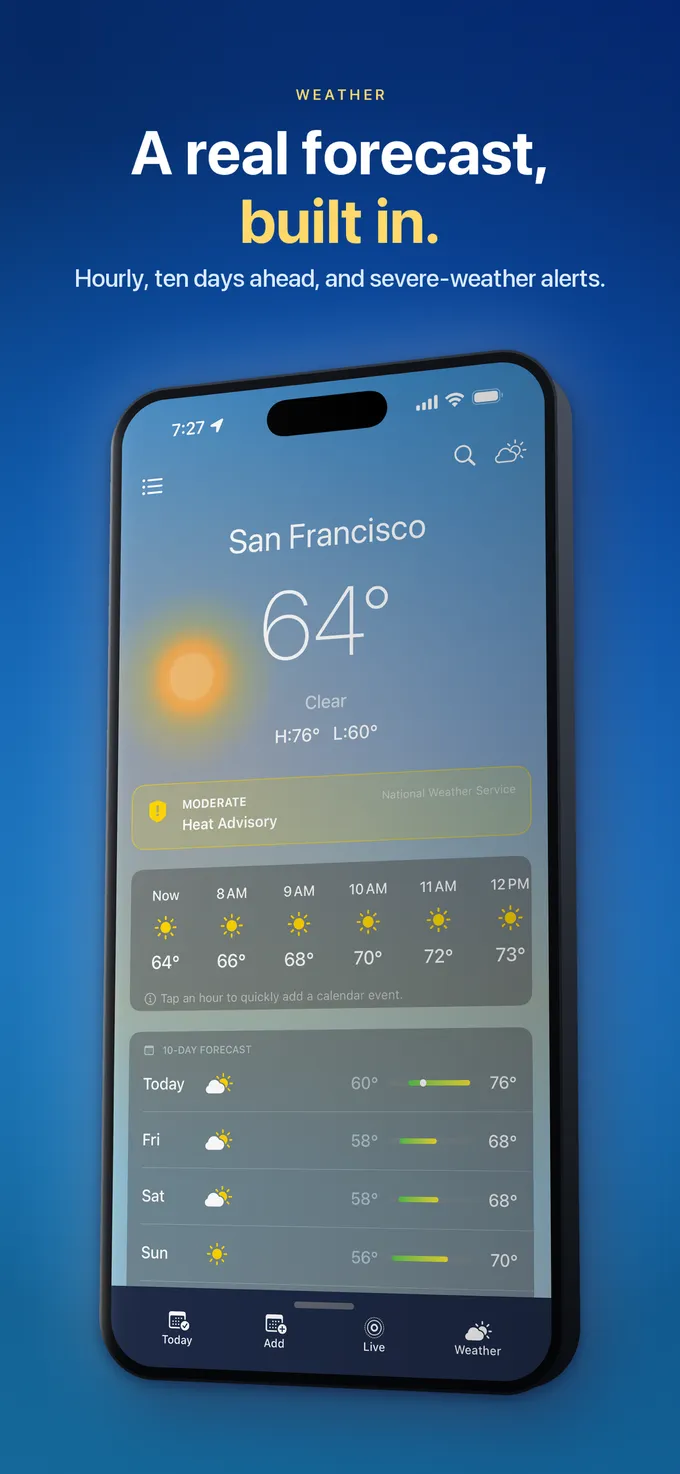
| Visualizing 4-day conferences & family vacations alongside 10-day weather | Multi-day banners + Apple WeatherKit highs/lows in Week view ($0) | Apple & Google lack built-in weather | Cloud Calendars |
| 12-month macro planning for sabbaticals, semesters & product roadmaps | 12-month Year view included in Free ($0) | Google Calendar iOS lacks Year view | Cloud Calendars or Apple Calendar |
Watch Out: All-Day Vacations Default to "Free" in Google Calendar!
Here is a costly trap that catches thousands of professionals every summer: when you create an all-day event titled `"Vacation in Greece"` on Google Calendar, Google defaults its availability status to **Free** (`Available`) rather than **Busy**—so Calendly, Google Find a Time, and coworkers think you are available all week!
Whenever an all-day banner represents real PTO or travel where you cannot take calls, manually change `Show as` from `Free` to `Busy` (or use Google’s `Out of office` event type) before saving.
Stop 06:00 AM Surprise Alarms on All-Day Birthdays
Microsoft Outlook and older Exchange accounts famously attach an `18-hour` reminder to new all-day events—waking your iPhone up at `06:00 AM` the day before a coworker’s birthday! Check `iPhone Settings > Apps > Calendar > Default Alert Times > All-Day Events` and verify alerts on shared all-day calendars so midnight boundaries never trigger pre-dawn buzzes.
What it looks like
What to do
- When creating an all-day PTO or vacation banner, explicitly flip Availability / Show As from Free to Busy so booking tools and coworkers don’t schedule over your trip.
- Align Monday week starts and ISO 8601 week calculation in iPhone Settings > General > Language & Region and Settings > Apps > Calendar > Start Week On.
- If you use Cloud Calendars and want ISO week labels, subscribe to a read-only ISO 8601 Week Numbers `.ics` calendar in iOS Settings (or toggle Week Numbers in Apple Calendar alongside it).
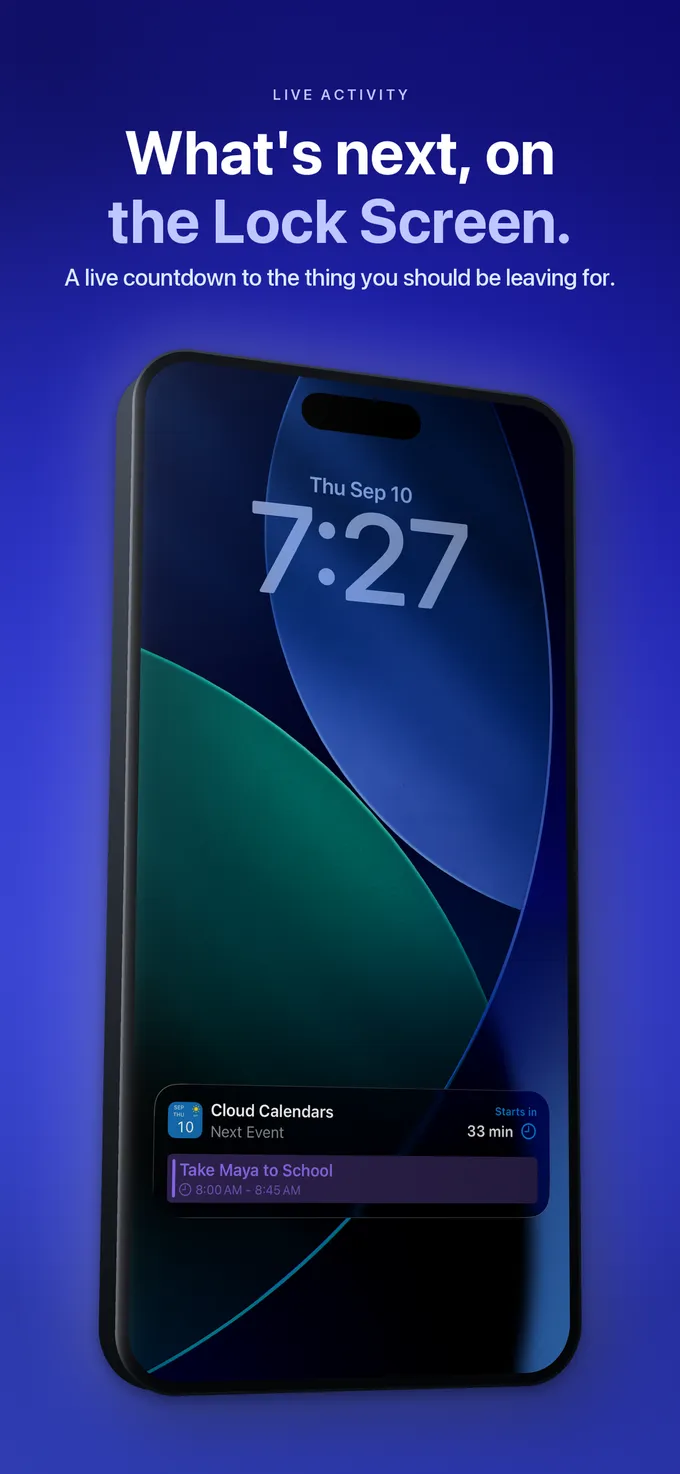
- Remember that Cloud Calendars’ Home Screen Calendar Events widgets show upcoming timed meetings—open the app to inspect all-day banners.
Questions
- Why does my iPhone show Week 45 when my European colleague’s calendar says Week 44?
- North American Sunday-start numbering counts January 1 as Week 1, whereas European ISO 8601 numbering starts weeks on Monday and counts the week containing January 4 as Week 1. Switch your Region/Week Start to Monday (ISO 8601) so both calendars match.
- Why did someone book a meeting during my all-day "Vacation" event?
- Google Calendar (and several iOS editors) set new all-day events to "Free" by default so holidays and birthdays don’t block your entire workday. Always change an all-day PTO event’s status to "Busy".
- Does Cloud Calendars show multi-day all-day events?
- Yes—multi-day and single-day all-day events appear across Cloud Calendars’ in-app views. Only the Home Screen upcoming Calendar Events widgets filter out all-day banners so timed appointments remain visible.