
Time Zone & Flight Calendar Handling on iPhone
Nothing ruins the first morning of a business trip faster than an 09:00 client breakfast silently shifting to 15:00 when your iPhone touches down and updates its cellular time zone. Calendar apps handle travel well only when you understand three rules: anchoring flights to separate departure and arrival IANA time zones, distinguishing fixed-zone meetings from "floating" all-day banners, and checking whether iOS Time Zone Override is locking your display. Cloud Calendars pairs standard multi-provider time-zone sync across iCloud, Google, and Microsoft with a city-searchable Apple WeatherKit hub so you can check destination forecasts days before departure. Arte Soft develops Cloud Calendars and publishes this comparison.
Time Zone & Travel Handling Comparison Matrix
| Travel Capability | Cloud Calendars (iOS) | Apple Calendar (iOS) | Google Calendar (iOS) | Notion Calendar / Fantastical |
|---|---|---|---|---|
| Automatic adaptation on landing | Follows iOS device time zone & shifts UTC/zoned events accurately | Follows iOS device time zone unless Time Zone Override is active | Prompts or auto-updates display time zone when traveling | Auto-updates or pins multiple time-zone columns (Notion/Fantastical) |
| Destination city weather lookup before flying | Built-in Apple WeatherKit city search (hourly & up-to-10-day forecast) | Requires opening separate Apple Weather app | No built-in weather forecast on iOS | Fantastical Premium (location weather); none in Notion Calendar |
| Automated flight & hotel email parsing | Displays Gmail/Outlook auto-imported flights once synced to calendar | Siri Suggestions from Apple Mail & Messages | Automatic Events from Gmail (flights, trains, hotels) | Displays provider-imported travel events |
| Side-by-side multi-time-zone hour ruler | Single local/selected time axis; Multi-calendar columns separate accounts | Single time axis (Time Zone Override locks whole view to one city) | Secondary time zone column on Desktop Web only (not iPhone) | Multiple named time-zone columns on desktop & mobile (Notion Calendar) |
| Floating time zone events (RFC 5545 local wall time) | Preserves provider time-zone / all-day semantics from EventKit & OAuth | Supports "Floating" time zone on iCloud/CalDAV events | All timed Google events carry an explicit IANA zone (no floating timed events) | Supported on iCloud/CalDAV in Fantastical; explicit zones in Notion |
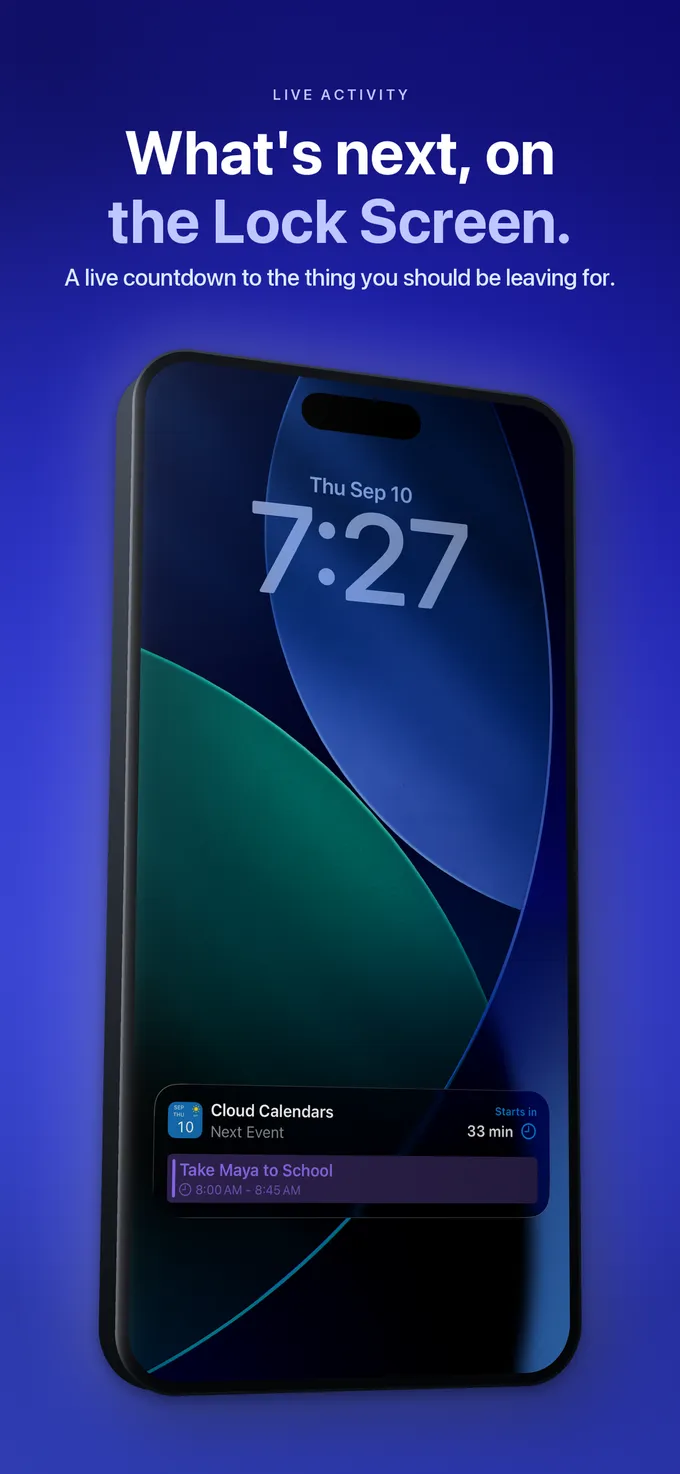
| Lock Screen countdown at the airport | Live Activity countdown to next timed event (flight / transfer) | Up Next widget & Siri travel-time alerts | Standard push notification alerts | Fantastical Live Activity / Up Next widgets |
| Offline cabin access in Airplane Mode | Reads cached iOS store & local events offline | Full offline EventKit cache in Airplane Mode | Recent synced window cached offline | Cached events viewable offline |
How iCloud, Google, and Microsoft Store Event Time Zones Differently
Underneath every calendar app, providers represent time zones with subtle differences that surface mid-flight. Google Calendar stores timed appointments with an explicit IANA zone (`America/New_York`, `Europe/London`) and allows separate start and end time zones on flights—so a 7-hour flight leaving JFK at 19:00 EST and landing at LHR at 07:00 GMT draws an accurate 7-hour block rather than a negative or 12-hour block.
Apple iCloud (CalDAV) supports explicit IANA zones plus a special `Floating` setting: a 07:00 "Morning Run" marked Floating stays at 07:00 wall-clock time whether you wake up in Chicago, Tokyo, or Lisbon. All-day events (`VALUE=DATE` in RFC 5545) are timeless date strings, though poorly written third-party ICS exporters sometimes encode them as `00:00 UTC` to `24:00 UTC`, causing hotel check-in banners to spill across two days when viewed in the Americas.
Account Sync, Protocol & Travel Metadata Support
| Provider / Protocol | Start vs End Time Zone | Floating Timed Events | All-Day Travel Banners |
|---|---|---|---|
| Google Calendar (OAuth) | Supports distinct departure & arrival IANA zones per event | Not supported — every timed event resolves to UTC/IANA | Stored as timeless YYYY-MM-DD dates (clean across zones) |
| Apple iCloud / CalDAV (EventKit) | Supports per-event IANA time zone selection | Supported — stays at fixed wall-clock hour everywhere | Timeless date banners across Day/Week/Month |
| Microsoft 365 / Exchange | Supports separate start & end time zones for flights | Always anchored to Windows/IANA time zone metadata | Stored with midnight boundaries mapped to event zone |
| TripIt / Airline ICS Subscriptions | Usually emits UTC (`Z`) or local airport `TZID` timestamps | Rarely used in airline feeds | Occasionally shifts if publisher exports midnight UTC instead of `VALUE=DATE` |
| Cloud Calendars WeatherKit Hub | Search any global city independent of current GPS location | Shows local hours for the searched city’s forecast | Up to 10 returned daily highs/lows, rain, wind & UV |
| Airplane Mode Offline Behavior | Cached local/EventKit events remain readable at 35,000 ft | Edits queue until connectivity resumes | Live WeatherKit updates require data connection |
Pricing and Best App Choice for Frequent Travelers
Frequent flyers and remote distributed teams face two distinct problems: (1) scheduling calls across San Francisco, London, and Singapore from a desk, where dual/triple time-zone rulers shine, and (2) navigating on-the-ground itineraries, flights, family handoffs, and destination weather from an iPhone.
Notion Calendar ($0) is hard to beat on Mac/Windows when you want three permanent time-zone columns beside your grid. On iPhone and iPad, Cloud Calendars ($0 Free or $4.99/year ad-free) combines your work, personal, and TripIt calendars with instant destination city forecasts via Apple WeatherKit.
Pricing & Best Choice by Travel & Remote Work Scenario
| Travel / Remote Scenario | Cloud Calendars | Alternative App | Best Choice |
|---|---|---|---|
| Packing & planning outdoor itinerary with destination city weather | Search destination city in WeatherKit hub ($0 Free) | Must cross-reference calendar dates with separate Weather app | Cloud Calendars |
| Desktop grid showing NYC, London & Tokyo hour columns side by side | Single time axis on iPhone/iPad | Notion Calendar ($0) or Outlook/Google Web multi-zone columns | Notion Calendar (Desktop) |
| Unifying Gmail auto-flights + work M365 + family iCloud while traveling | All 3 in Multi-calendar columns ($0 w/ iOS Exchange or $49.99/yr Premium) | Google app misses native M365 OAuth; Outlook mixes work email | Cloud Calendars |
| Locking iPhone calendar to home office time while abroad | Check iOS Settings > Apps > Calendar > Time Zone Override | Apple Calendar native Time Zone Override toggle ($0) | Apple Calendar / iOS Settings |
| Daily habit (meditation / medication) at 08:00 local wall time anywhere | Displays iCloud Floating events via EventKit | Create Floating-zone event in Apple Calendar or BusyCal | iCloud Floating + Cloud Calendars |
| Glancing at gate departure countdown on iPhone Lock Screen | Live Activity countdown to next timed event ($0 Free) | Flighty (dedicated flight tracker) or Fantastical (~$57/yr) | Cloud Calendars + Airline/Flighty app |
How to Avoid the Classic Dinner-Reservation Time-Zone Mistake
Suppose you sit on your sofa in New York (`UTC-5`) booking a 20:00 dinner in Rome (`UTC+1`) for next month. If you leave the event’s time zone set to your current location (New York) and type `20:00`, your calendar records `01:00 UTC`—which will jump to `02:00 AM` the next morning as soon as your plane lands in Italy!
Always set the event’s explicit time zone to the destination city (`Rome` / `Europe/Rome`) at the moment you create an overseas hotel check-in, train, or dinner reservation.
Checking Destination Weather Before You Pack
Instead of flipping back and forth between your travel dates and a separate weather app, open the Weather Hub inside Cloud Calendars and search your destination city.
You can inspect hourly temperatures, feels-like wind chill, precipitation bands, and UV index for up to ten returned Apple WeatherKit forecast days, then switch straight back to Week view to move walking tours away from rainy afternoons.
What it looks like
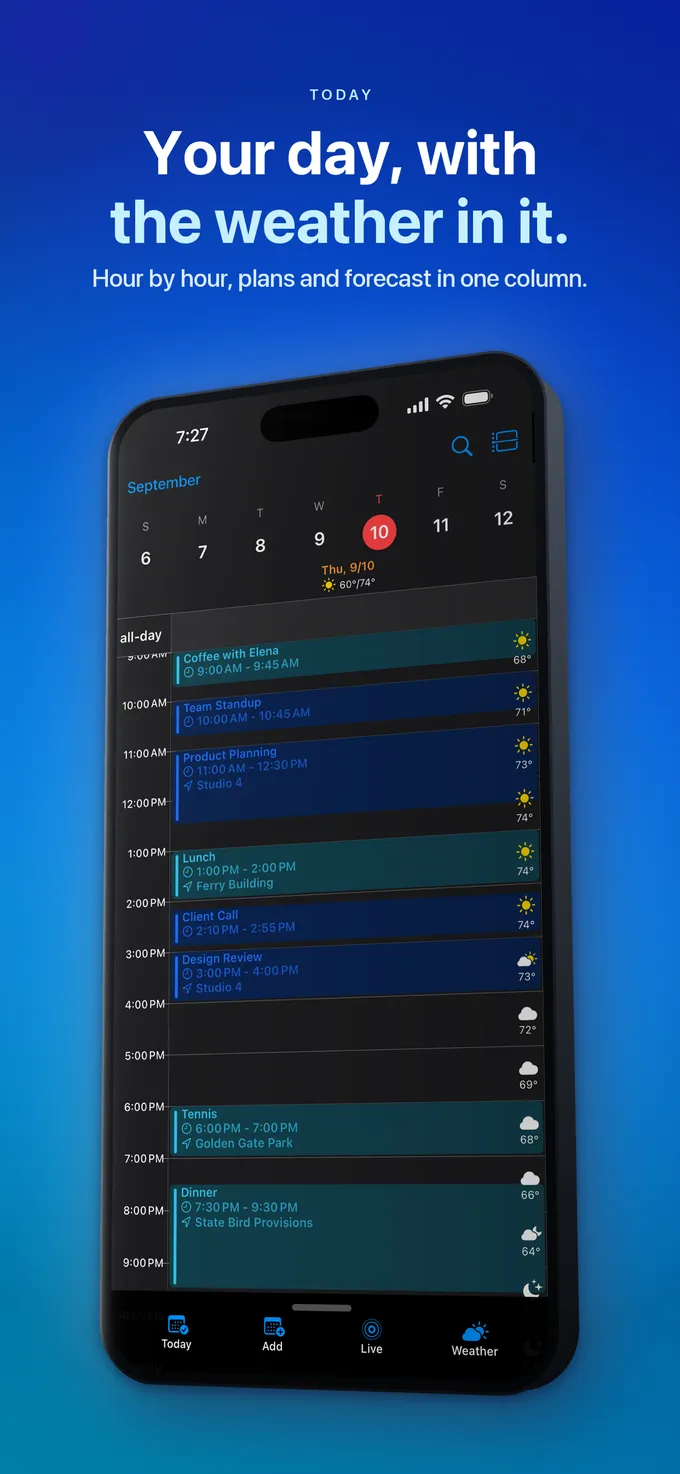
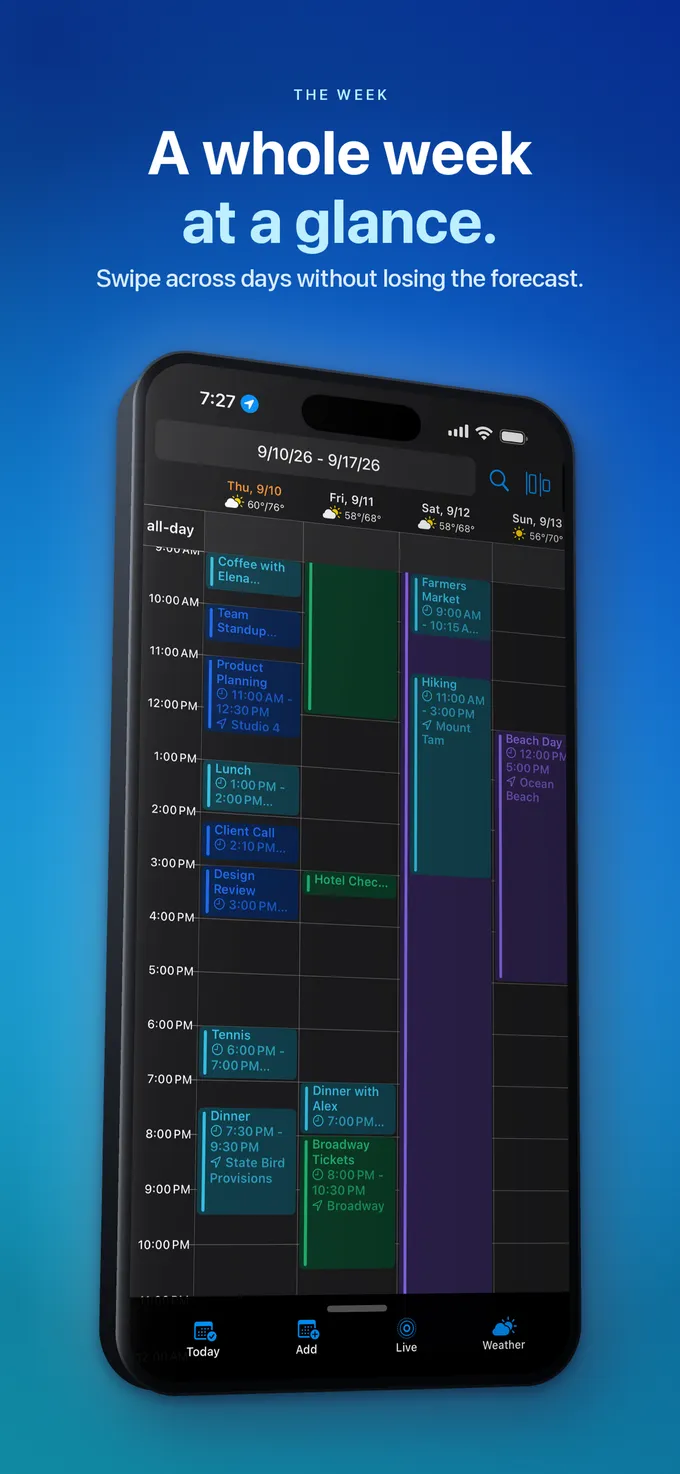
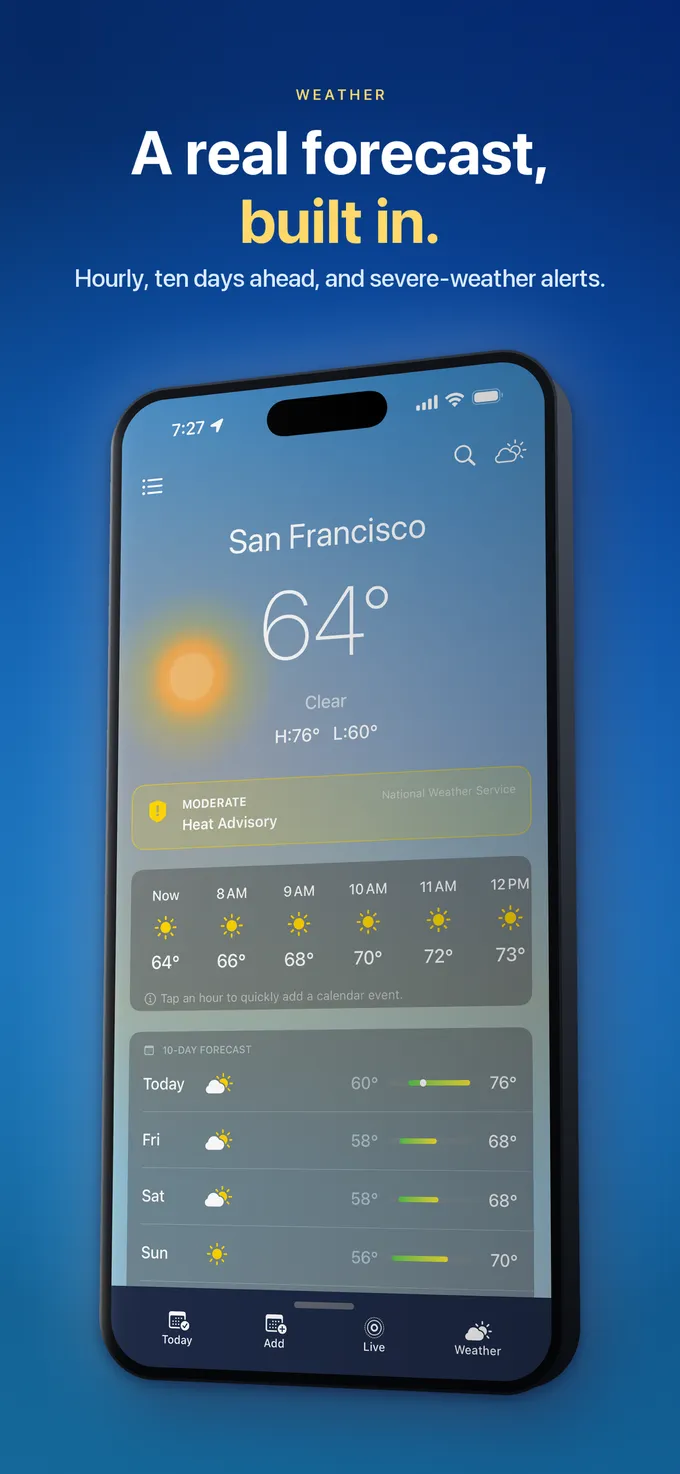
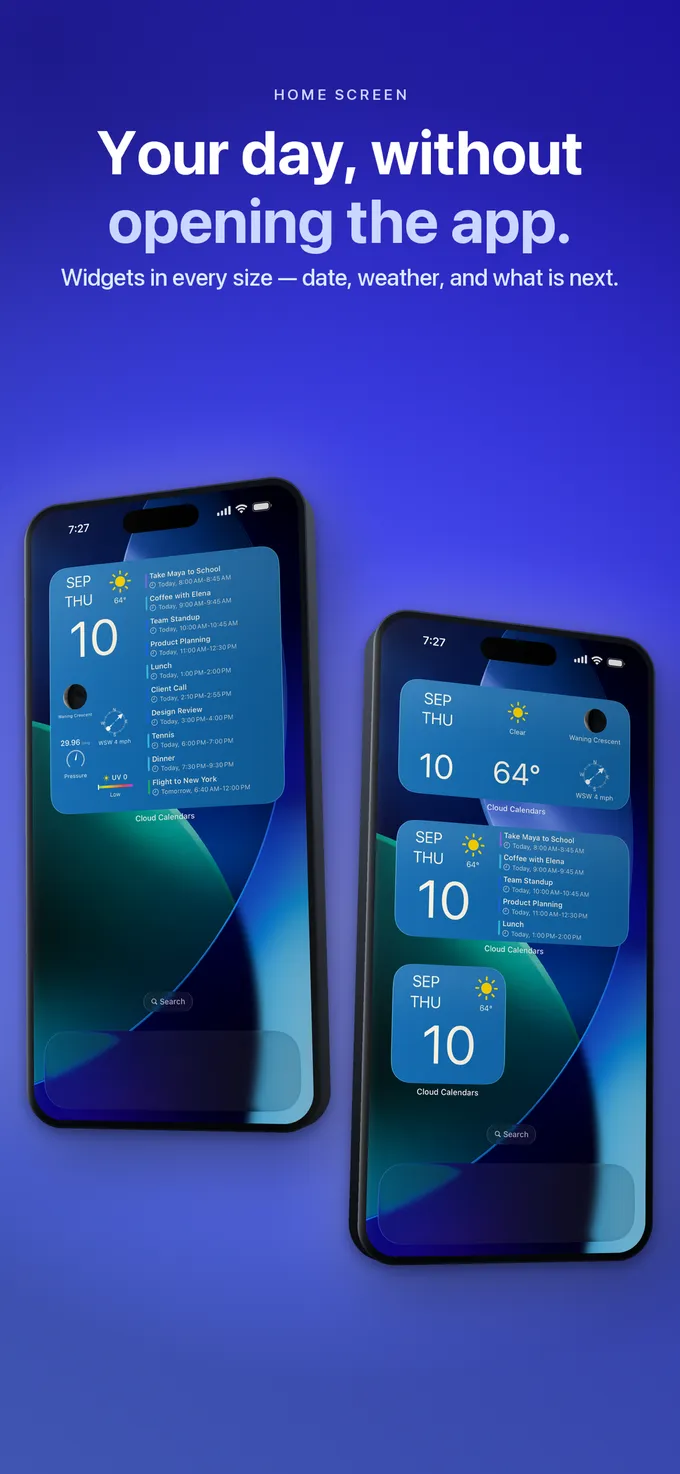
What to do
- When booking a restaurant, tour, or train in another time zone before your trip, set the event’s explicit time zone to the destination city immediately.
- Before flying, check iPhone Settings > Apps > Calendar > Time Zone Override so you know whether your calendar will shift to local airport time or stay pinned to home.
- Subscribe to TripIt or airline `.ics` feeds in iOS Calendar Accounts rather than importing static `.ics` files, so gate or schedule updates flow automatically.
- Search your destination city in Cloud Calendars’ Weather Hub inside the 10-day window before departure to align outdoor plans with dry hours.
Questions
- Why did all my iPhone calendar events shift by several hours when I landed?
- Your iPhone updated its local time zone from cellular/GPS towers, and timed calendar events anchored to home-office hours automatically converted to your new local wall-clock time so you still join remote calls at the right instant.
- How do I keep a restaurant reservation at 19:30 local destination time when creating it from home?
- Select the destination city’s time zone (for example, `Europe/Paris` or `Asia/Tokyo`) in the event’s time-zone field when saving it, rather than leaving it in your home time zone.
- Can I check weather for another city inside Cloud Calendars before I travel there?
- Yes. Cloud Calendars’ Weather Hub lets you search for any city worldwide to inspect Apple WeatherKit hourly and up-to-10-day forecasts alongside your planning.