
How to Use iCloud, Google & Outlook Calendars Together on a Windows PC & iPhone
Millions of people carry an iPhone in their pocket while working all day on a Windows 11 laptop or corporate PC. Apple’s iCloud.com browser tab cannot display Google Calendar or Microsoft 365 events, Classic Outlook’s iCloud COM add-in frequently breaks sync, and New Outlook for Windows routes credentials through Microsoft’s cloud. Cloud Calendars bridges iPhone and Windows cleanly: scan a single QR code on https://www.cloud-calendars.com/calendar/ with the Cloud Calendars iOS app to sign in without typing passwords on your PC, sync your Personal Cloud Calendar two-way, connect Google and Microsoft OAuth, and publish ad-free booking links for $0.
Windows PC + iPhone Multi-Calendar Options Compared
| Setup Option | Accounts in One Grid | Windows Login Method | Public Booking & RSVP Links | Price |
|---|---|---|---|---|
| Cloud Calendars (Web Studio + iOS App) | Personal Cloud Calendar (2-way iPhone sync) + Google OAuth + Microsoft 365 OAuth + ICS feeds | Scan QR code with iPhone Camera or enter 6-digit iOS Authenticator code (zero Apple ID password typed on PC) | Built-in ad-free /book/ scheduling & /event/ QR RSVPs | $0 Free Forever when paired with iOS app ($1.99/mo web-only) |
| iCloud.com in Browser | iCloud calendars only (cannot overlay Google or Microsoft 365) | Full Apple Account password + 2FA SMS/device prompt + browser trust | None | $0 |
| iCloud for Windows + Classic Outlook | iCloud + Exchange/Outlook + subscribed ICS | Microsoft Store desktop installer + local Outlook MAPI profile | Requires separate Microsoft Bookings license | $0 app + paid M365 desktop license |
| New Outlook for Windows | Outlook.com / M365 + Gmail + iCloud (via app-specific password) | Requires generating an Apple ID app-specific password stored in Microsoft Cloud | Basic Bookings with Me (M365 Business) | $0 consumer (shows inbox ads) or M365 paid |
Why Typing Your Apple ID Into a Work Windows PC Is Painful (and Often Blocked)
Corporate Windows laptops commonly block Microsoft Store downloads like iCloud for Windows, clear browser cookies every week, or prohibit storing personal Apple ID credentials on company hardware. Even on a personal PC, logging into iCloud.com only shows your Apple calendars—leaving your Google Workspace and Microsoft 365 meetings in separate browser tabs.
With Cloud Calendars Web Studio (/calendar/), you never enter your Apple Account password in the browser. Open https://www.cloud-calendars.com/calendar/ on Edge, Chrome, or Firefox, point your iPhone Camera at the live QR challenge, and tap Approve Sign-In in Cloud Calendars on iOS. Your browser unlocks Web Studio for $0 forever, syncs your Personal Cloud Calendar two-way with your iPhone, and lets you overlay Google Calendar and Microsoft Outlook in one clean Day, Week, Month, or Agenda workspace.
Offline 6-Digit Authenticator Login When Your Webcam or Camera Is Unavailable
After your first QR scan, Cloud Calendars stores an encrypted RFC 6238 TOTP secret inside your iPhone Keychain. Whenever you open Web Studio on another Windows desktop or remote workstation, switch the login card to 6-Digit Authenticator and type the rotating 6-digit code from Cloud Calendars → Sharing → Web Sign-In & Authenticator—even if your phone is in Airplane Mode.
When Native iCloud.com or Classic Outlook Still Makes Sense
If you store 100% of your personal events inside native Apple EventKit iCloud calendars and want direct CalDAV editing of those specific iCloud-hosted lists on Windows without moving events into a cross-platform Cloud Calendar, generate an app-specific password at account.apple.com for a local CalDAV client such as Thunderbird or eM Client, while keeping Cloud Calendars on your iPhone to view iCloud, Google, Outlook, and hourly Apple WeatherKit forecasts side by side.
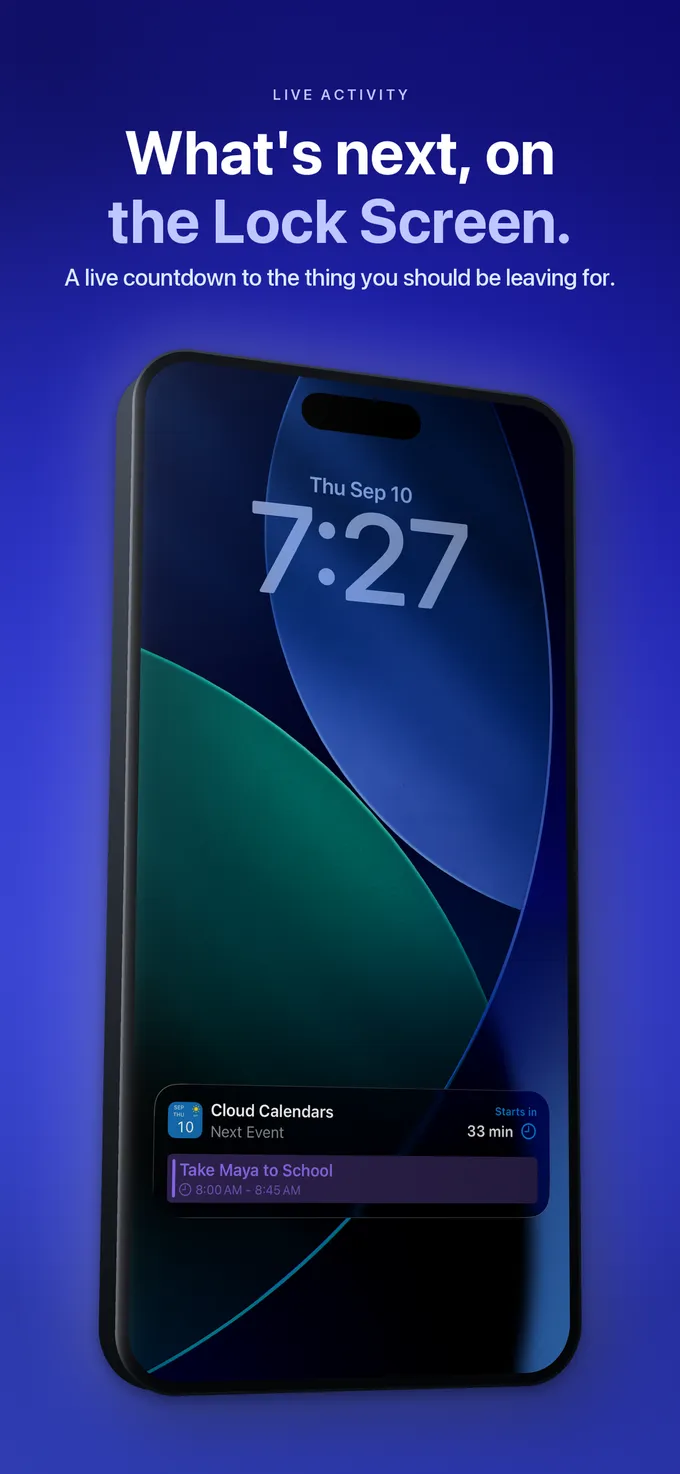
What it looks like
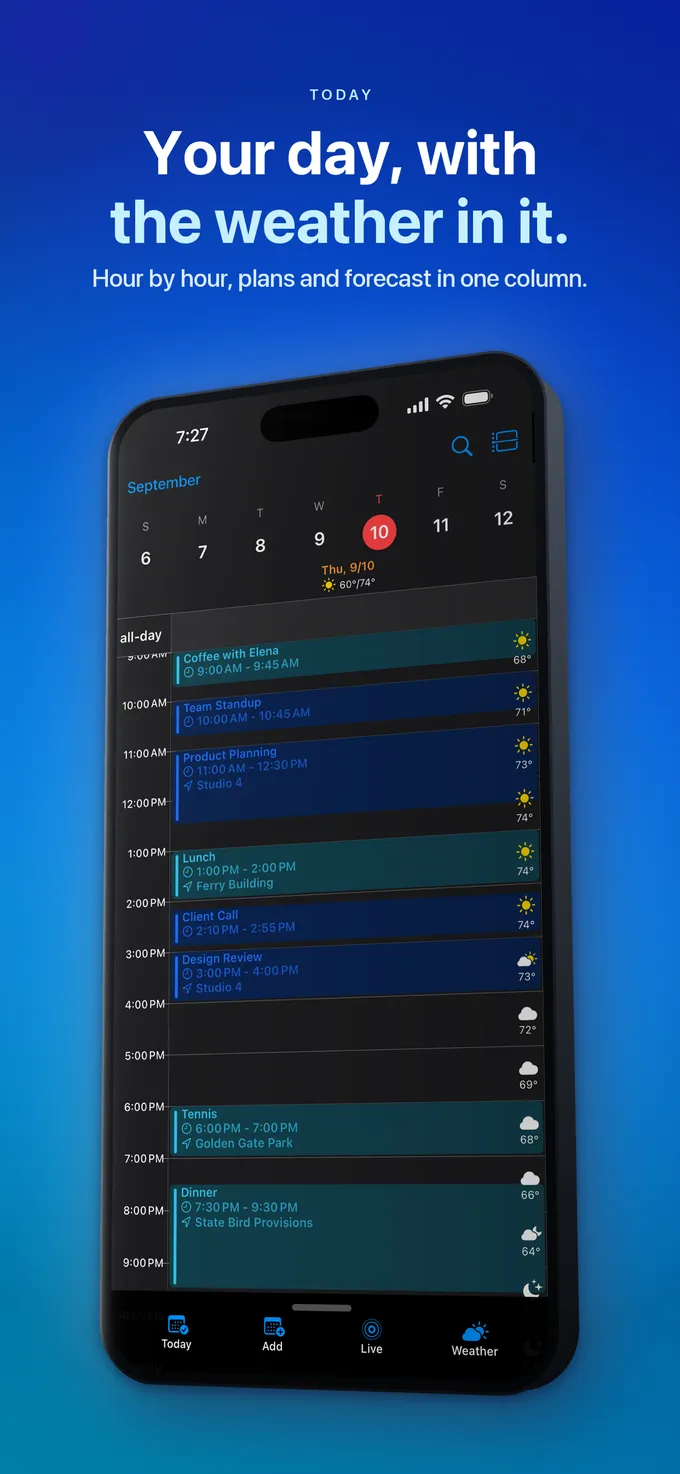
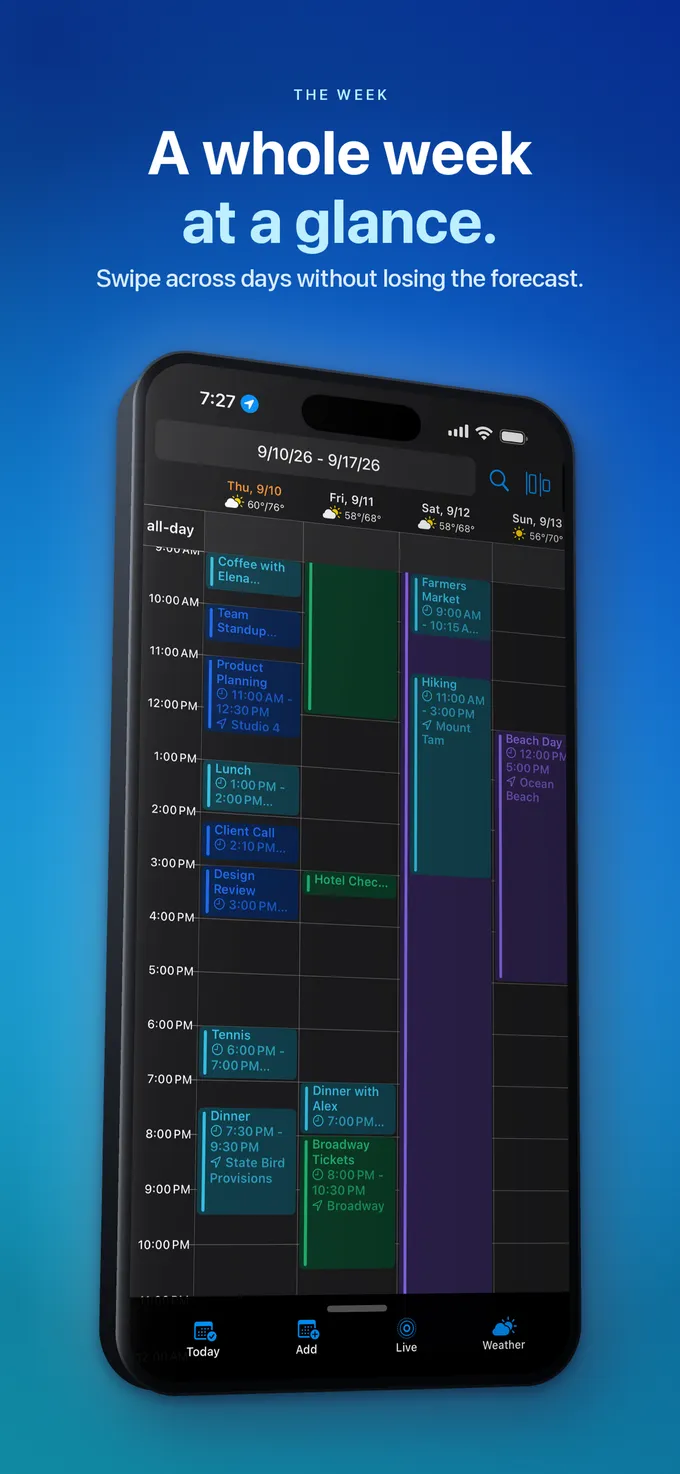
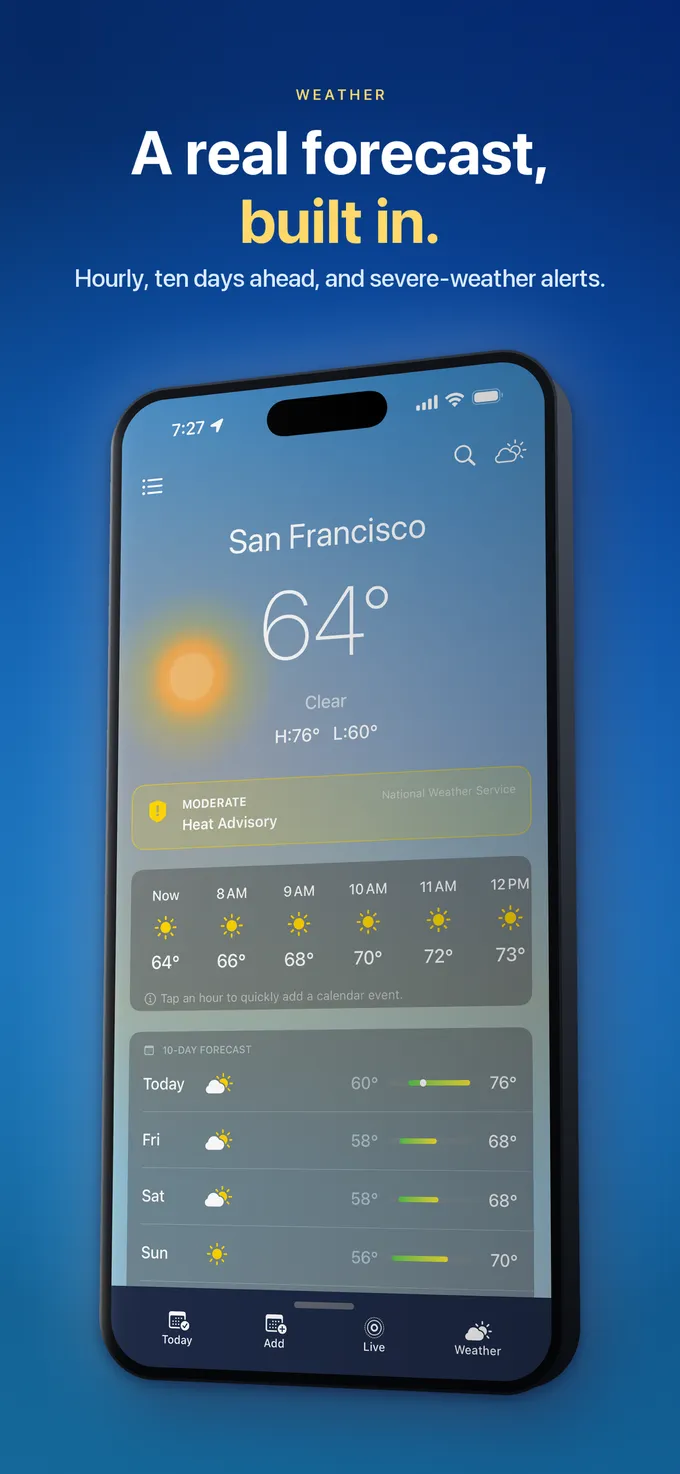
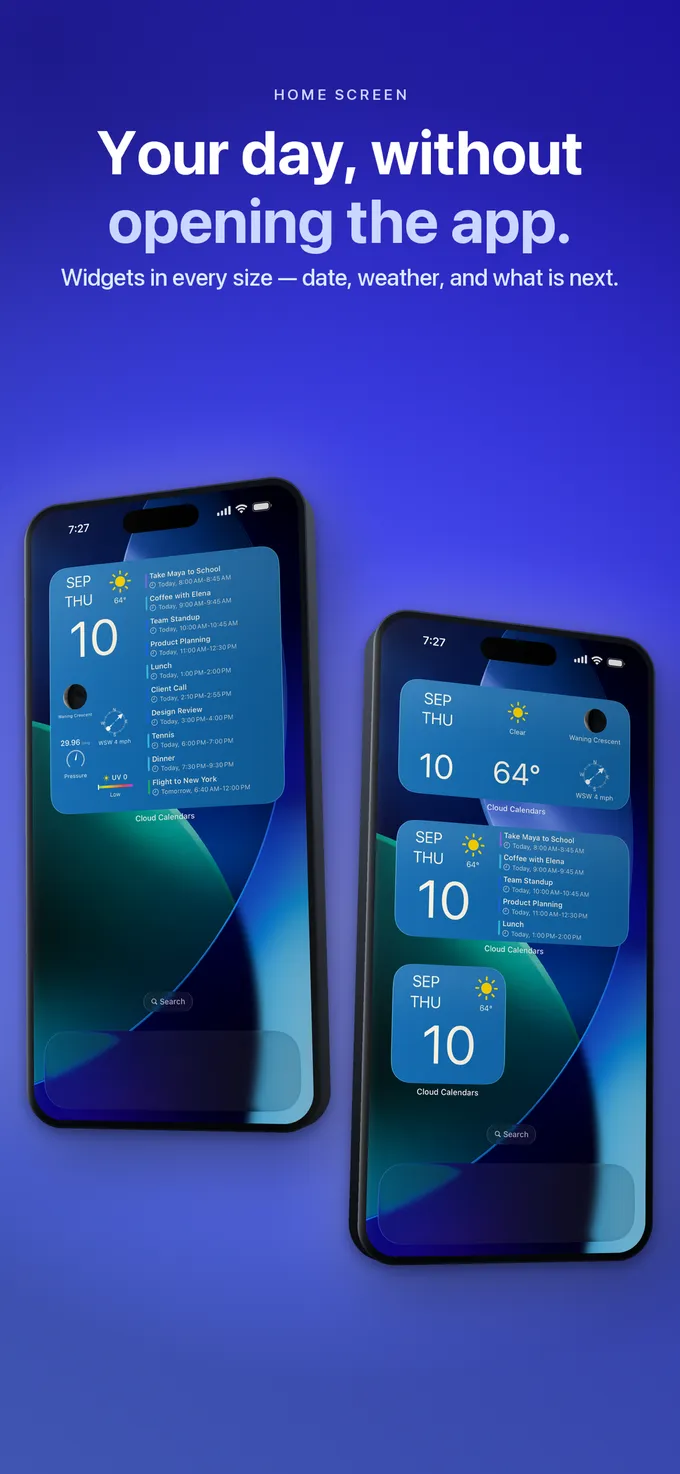
What to do
- Install Cloud Calendars on iPhone so iCloud, Google, and Outlook appear in one 5-view mobile grid with hourly WeatherKit.
- On your Windows PC, open https://www.cloud-calendars.com/calendar/ and scan the Sign in with iOS QR code with your iPhone Camera.
- Connect Google Calendar and Microsoft Outlook via least-privilege OAuth inside Web Studio to check busy times automatically.
- Use your Personal Cloud Calendar for cross-device events that must appear instantly on both your Windows browser and iPhone without Apple ID browser logins.
Questions
- Do I need to install software on Windows to use Cloud Calendars Web Studio?
- No. Web Studio runs in any modern browser (Edge, Chrome, Brave, Firefox) with zero installer or admin rights required—ideal for locked-down corporate Windows laptops.
- Does scanning the QR code share my Apple ID password with the browser?
- Never. The QR code only contains a 5-minute single-use challenge ID (/app-auth/?c=...). Your iPhone approves the session directly over TLS.
- Is Cloud Calendars Web Studio free if I have an iPhone?
- Yes. Pairing with the free Cloud Calendars iOS app unlocks Web Studio, /book/ scheduling links, and /event/ QR RSVP pages for $0 forever.