
Google’s secret iCal address: subscribe without confusing it with sharing
A calendar address, an account connection and an invitation do different jobs. Identify which one you have before using it to bring a schedule into another application. This guide is published by Arte Soft, the developer of Cloud Calendars.
What most people assume
A secret calendar address is a personal invitation that can be withdrawn from just one recipient.
Choose the connection for the job
Google distinguishes signing in to another calendar application from viewing through a secret iCal address. The account route can support editing; the address provides a view-only subscription. Google describes the secret address as being for your own use and advises against sharing it with other people.
For example, displaying your own work schedule in another compatible calendar is different from giving a colleague ongoing access. Start with the outcome: viewing your schedule, collaborating with a named person, or distributing an audience-facing timetable. Do not choose a URL merely because it is easy to paste.
Find the correct calendar, not just the correct account
On a computer, Google’s instructions place “Secret address in iCal format” under the chosen calendar’s “Integrate calendar” settings. Check the calendar name first. Work or school administrators may restrict this option; an absent address is not a reason to publish the calendar instead.
Keep the address out of screenshots, public support posts and shared notes. When requesting help, describe the account type, calendar name and connection method without supplying the URL. A support conversation normally needs to identify the route before it needs any event content.
Check what the receiving application actually added
A subscription follows a feed; an imported file creates a separate copy. Read the receiving application’s instructions and confirm which action you are taking. If you simply open a downloaded calendar file, do not assume the resulting appointments will follow later changes.
Check which app actually opens the link and which account its subscription setup shows. In Apple Calendar, Apple’s instructions select iCloud in Account and use the same Apple Account on the devices intended to show that subscription. After saving, look for the named calendar in the receiving app’s calendar list and select it for viewing. An opened link alone does not confirm that a subscription was saved or that Cloud Calendars can display it.
Use an ordinary, non-sensitive event you already recognise to compare the calendar name, date and displayed details. Avoid creating a second subscription to diagnose the first: two visible copies can make a delayed update look like a conflicting appointment. Hide one calendar temporarily when identifying the source.
Keep Google and Cloud Calendars links separate
Cloud Calendars has its own event and calendar sharing flows, including subscription feeds. Those are not Google secret addresses. Establish whether the sender shared one event, a calendar, or an account-based invitation before choosing how to open it. A Google secret iCal address belongs in a compatible app’s external-subscription flow; it is not a Cloud Calendars invitation link.
A Cloud Calendars recipient can have a Reader, Writer or Owner role. A feed address alone should not be treated as proof of editing rights. Likewise, receiving a Google viewing address does not make you the owner of its calendar. Ask the sender which system should be used for changes.
Allow for the receiving calendar’s refresh behavior
A subscription is not a promise of immediate delivery. Cloud Calendars feeds include a suggested refresh interval, but the receiving application decides when it retrieves and displays updates. An old time on one device does not by itself prove that the organiser failed to save the change.
For a same-day meeting, compare with the organiser’s current schedule and confirm important changes directly. Record which calendar still shows the old information and when you checked it. Do not repeatedly import the event or delete the source calendar to force a feed to catch up.
Respond to exposure without promising a recall
Google documents resetting a disclosed secret address, which invalidates the old address and creates a replacement. Identify your own applications that use it so you can update their subscriptions afterward. Resetting an address is a different action from removing a named collaborator.
Previously saved appointments, exports or screenshots are a separate matter. A changed link cannot demonstrate that every earlier copy has disappeared. If you distributed information to the wrong audience, consider the actual material and recipients rather than treating a successful reset as proof of complete removal.
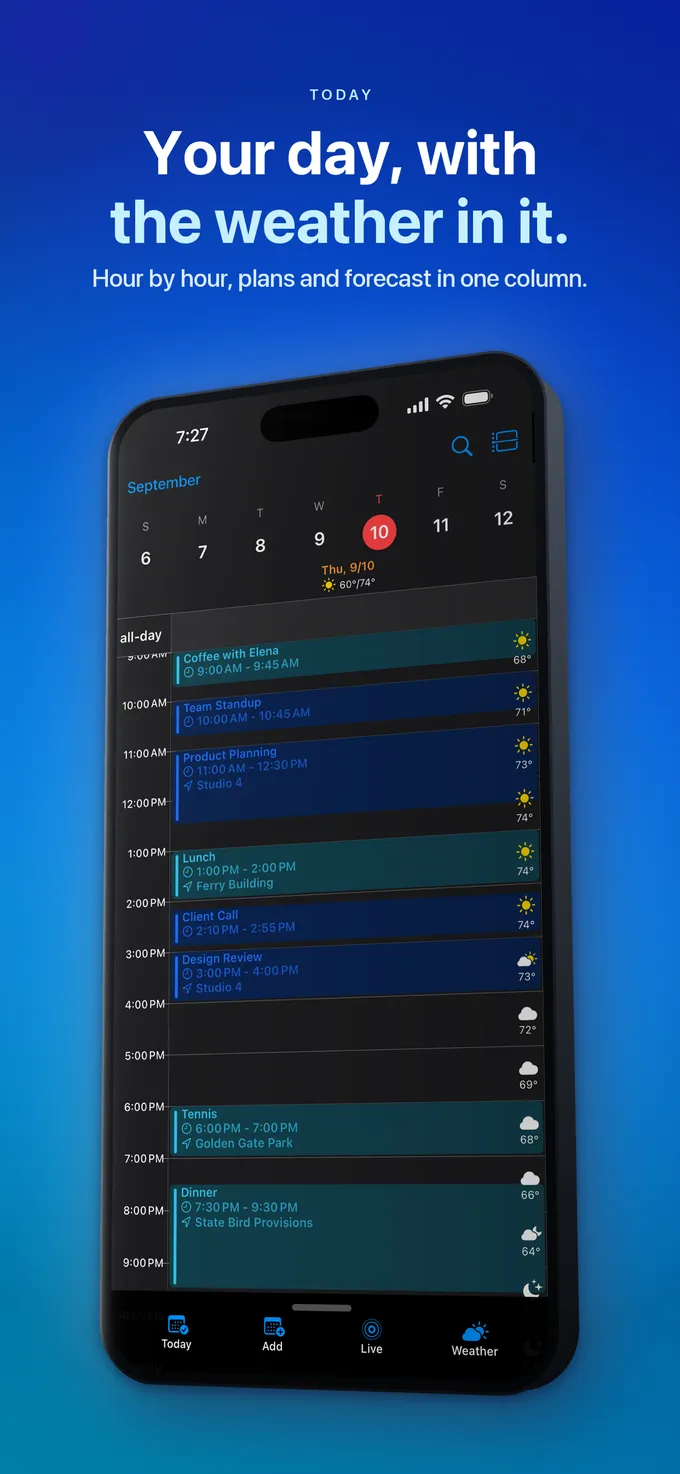
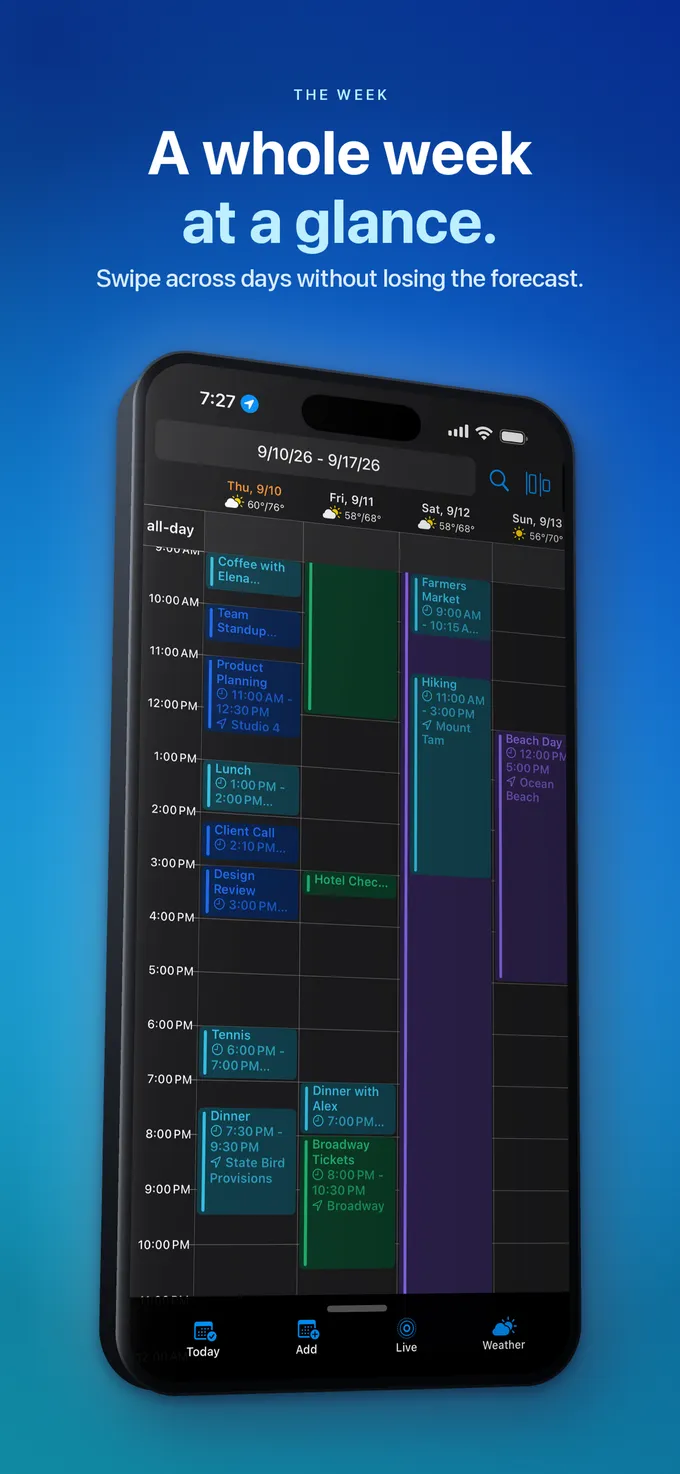
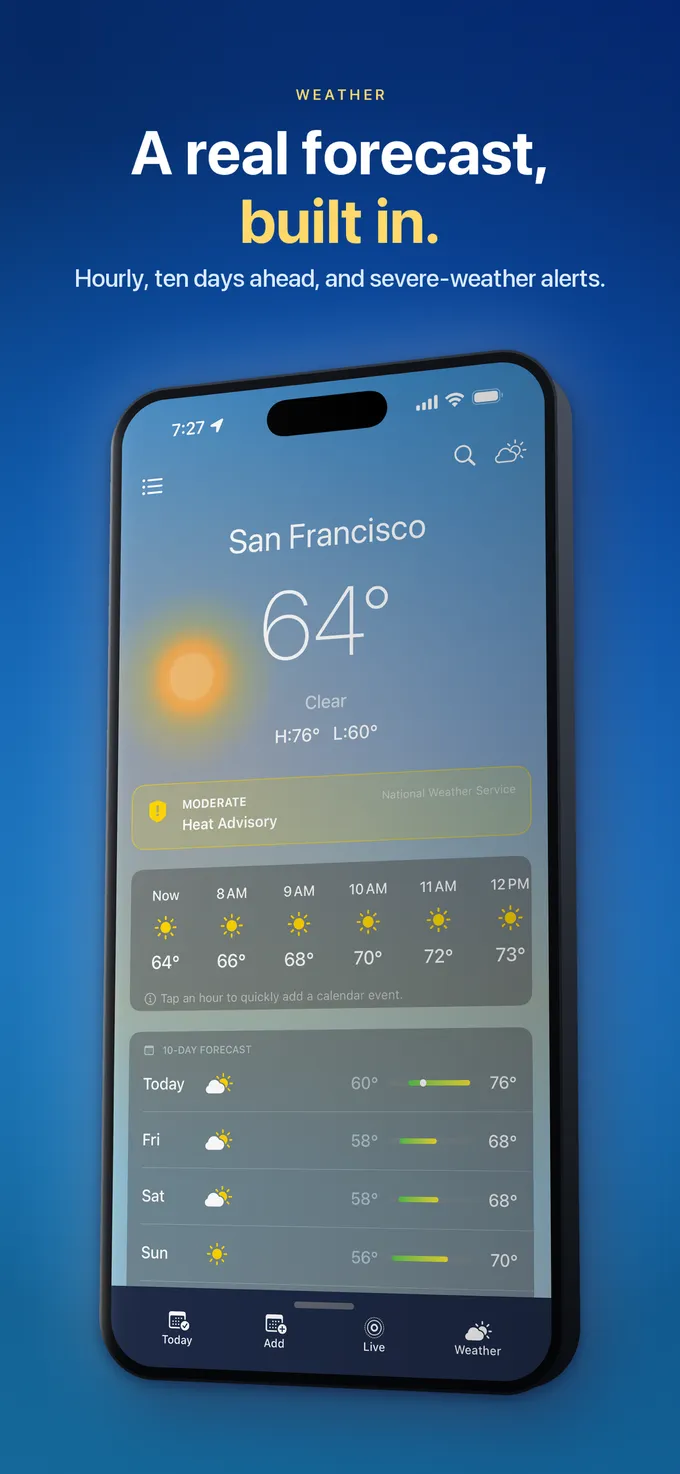
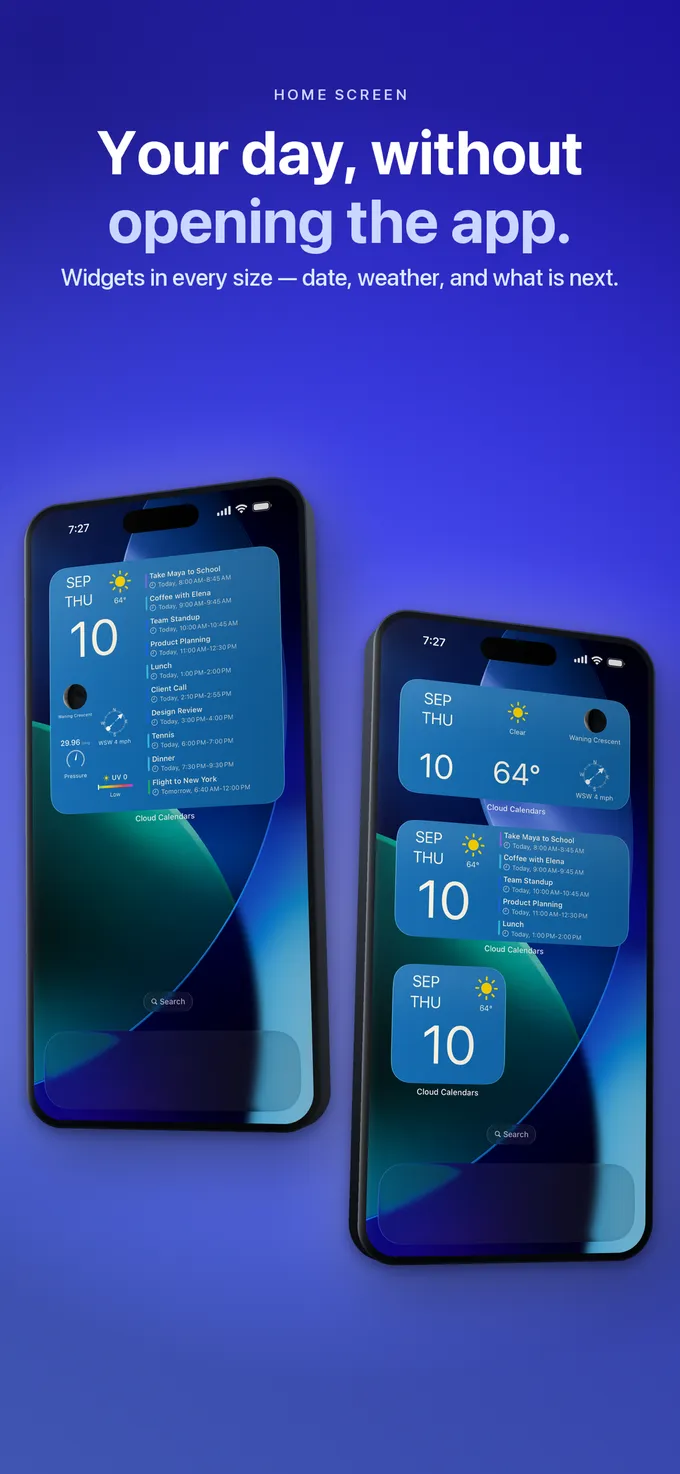
What it looks like
What to do
- Identify whether you have an account connection, invitation, subscription or file.
- Check the owning calendar before copying an address.
- Keep a Google secret address for your own compatible applications.
- Verify which app and account received the calendar, and that it subscribed rather than imported. Check the named calendar and a known event before adding anything again.
- Confirm urgent changes with the organiser instead of relying on refresh timing.
- If a secret address was exposed, follow Google’s reset guidance and update intended connections.
Questions
- Can I give the secret address to a colleague?
- Google advises keeping it for your own applications. Use the calendar’s sharing controls when another person needs access, choosing the intended permission.
- Will a subscription let me edit the original?
- A Google secret iCal address is a viewing route. Editing needs a suitable account connection and permission; Cloud Calendars sharing roles are a separate arrangement.
- Does resetting the address erase old appointments everywhere?
- It invalidates the old Google address. It does not establish that independently saved files, appointments or screenshots have been removed.