
Calendar with weather on iPhone and iPad: plan your day in one view
Cloud Calendars puts your schedule and weather in the same iPhone or iPad app. Use the calendar to choose a date and the weather view to inspect the selected place and available forecast hours. For an outdoor plan, check the period that matters rather than relying on a daily icon. This guide is published by Arte Soft, the app’s developer.
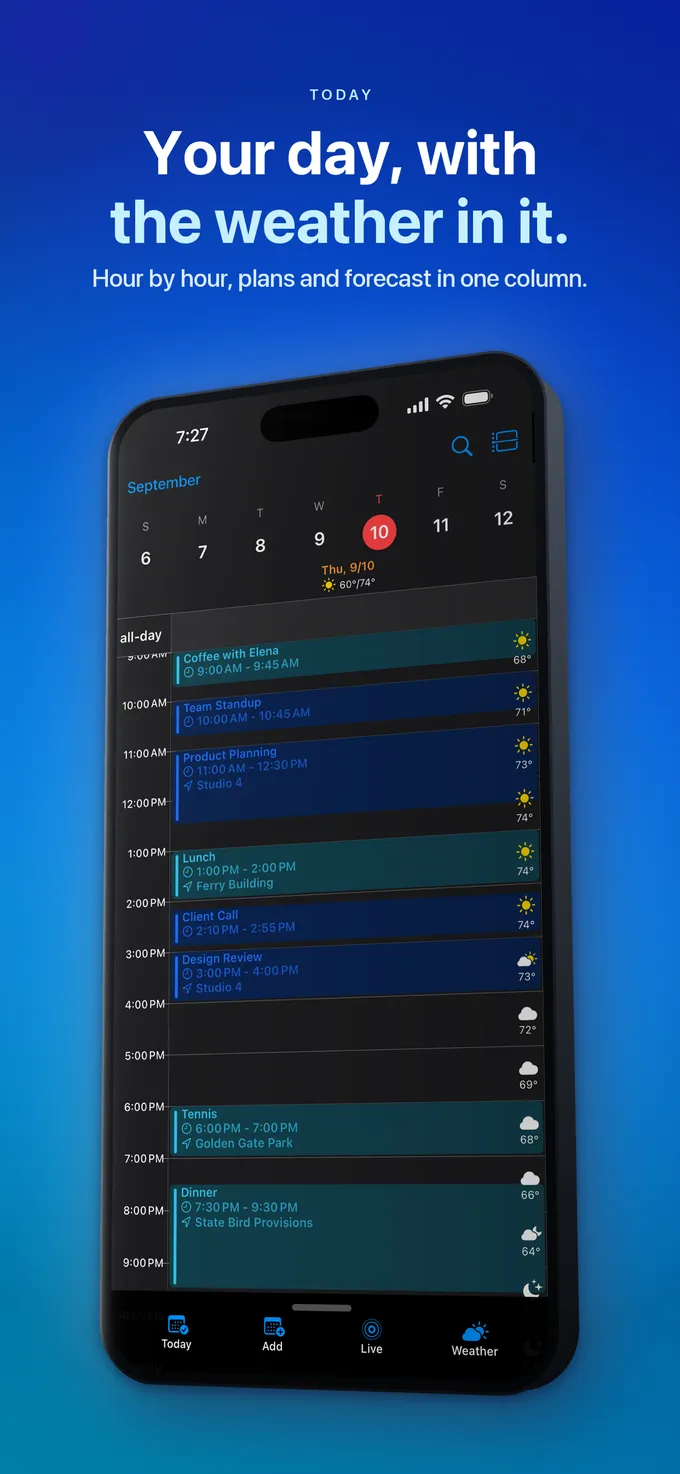
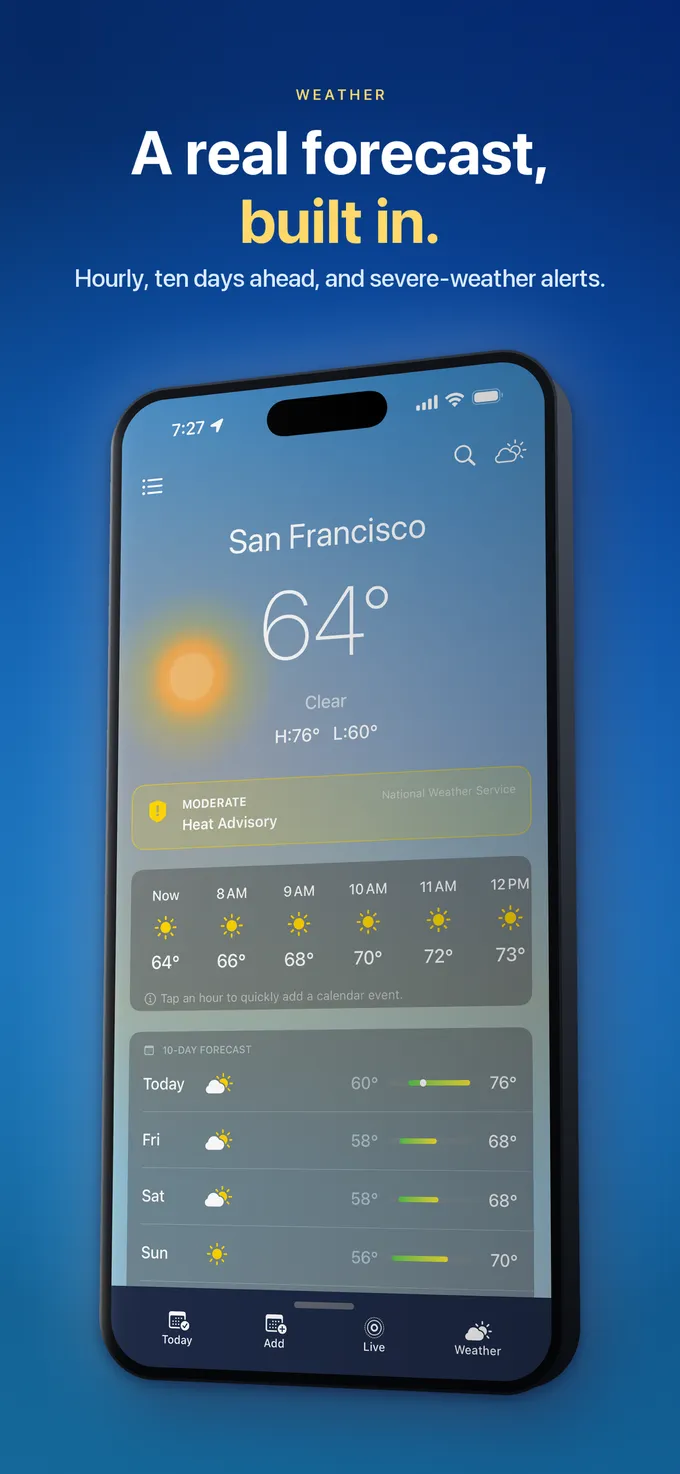
Real Cloud Calendars screens: the weather view and a day with appointments. Check the selected place and date in the app.
Which weather view answers your question?
| Your question | What to inspect | What it does not establish |
|---|---|---|
| What is coming up today? | Calendar day or week view beside the selected-place weather. | That every event address automatically changes the weather location. |
| Could rain affect my afternoon appointment? | Hourly data for the venue and the appointment’s full period. | That a daily symbol describes every hour. |
| Can I plan next month around the weather? | Your calendar now, then a forecast review closer to the date. | That navigating the calendar extends forecast coverage. |
| Can I see a quick overview at home? | The appropriate Home Screen widget. | That every widget layout includes appointments or a full forecast. |
Plan with your schedule and the forecast together
Cloud Calendars is for iPhone and iPad. Start with the views, weather and Google Calendar sync included in Base; Advanced removes ads, while Premium adds Microsoft Calendar and Teams support.
Download on the App StoreWhat most people assume
Weather shown beside a calendar automatically describes every appointment’s address, every hour and every future date.
Choose a real planning question
Start with a particular appointment, such as an afternoon visit to a park. Identify what could change: its time, venue, preparation or the decision to use an alternative. You do not need to rearrange the whole calendar just because the day’s symbol shows rain.
Write down the activity’s actual start and end, including setup if relevant. A calendar overview helps find possible dates, while the forecast check concerns a particular place and interval. Keep those two jobs distinct when comparing options.
Confirm the weather place before reading the values
Cloud Calendars offers weather for the current or selected place. Check the displayed location rather than assuming an event’s address silently changes the forecast. An appointment in another city needs a comparison with that city’s weather.
For example, a visitor may be planning a museum arrival while the phone is still at home. Read the forecast location and the appointment’s local time before comparing them. Nearby-looking values are not proof that the schedule and weather use the same place.
Check hourly and daily coverage separately
Use a daily entry for orientation and the available hourly entries for a question about part of a day. A booking from two until five needs more than a glance at one symbol. Check whether the relevant hours are actually present.
In the current app source, the daily list takes up to ten returned WeatherKit days. That is separate from calendar navigation and from the hours currently supplied. A future appointment does not extend weather coverage. If its period is absent, arrange a later weather review.
Read what the weather value means
Apple documents WeatherKit data such as temperature, precipitation, wind and UV, with some products available only in selected regions. Read the values available for your chosen place rather than expecting every weather product everywhere.
The Met Office’s guidance illustrates why forecast period and variable definitions matter: some values refer to a moment and others to a period. Use the relevant provider’s labels. Rain probability, amount and duration are different questions, and no single number decides every outdoor activity.
Review a draft created from a weather hour
Where the app offers creating an event from an hour, it opens a draft. The current source uses the weather location’s time zone, proposes a one-hour duration and selects the default new-event calendar. Inspect each value before saving.
Confirm the title, destination calendar, start, end and intended location. A forecast selection does not grant permission to edit a shared calendar, notify a venue or reserve a room. Check the saved event and obtain any agreement the plan needs.
Keep the website demonstration separate
The website’s interactive weather demonstration uses Open-Meteo. The app uses Apple WeatherKit. A web demonstration is useful for exploring the presentation, but its place, data and available dates can differ from the app.
For a real decision, open the app and compare the intended appointment with its available forecast. If you change a shared plan, confirm the organiser, recurrence scope and participants. Keep an agreed alternative when the activity depends on conditions.
What to do
- Identify the appointment and the decision weather could change.
- Confirm the weather location and the appointment’s local date and time.
- Inspect available hourly coverage separately from the daily summary.
- Read probability, amount and other relevant values using their labels.
- Review all event-draft details and the destination calendar before saving.
- Recheck at the decision time and confirm shared changes directly.
Questions
- Does weather beside my calendar follow each event address?
- Do not assume that. Confirm the displayed weather location and compare it with the venue; proximity on screen does not establish the match.
- Does the app use the website’s weather provider?
- No. The app uses Apple WeatherKit; the website demonstration uses Open-Meteo separately.
- Does choosing a forecast hour save an appointment automatically?
- It starts a draft where that action is offered. Check its date, time zone, duration, calendar and location, then save the intended event.